4.1 Course Completion By User Group Report
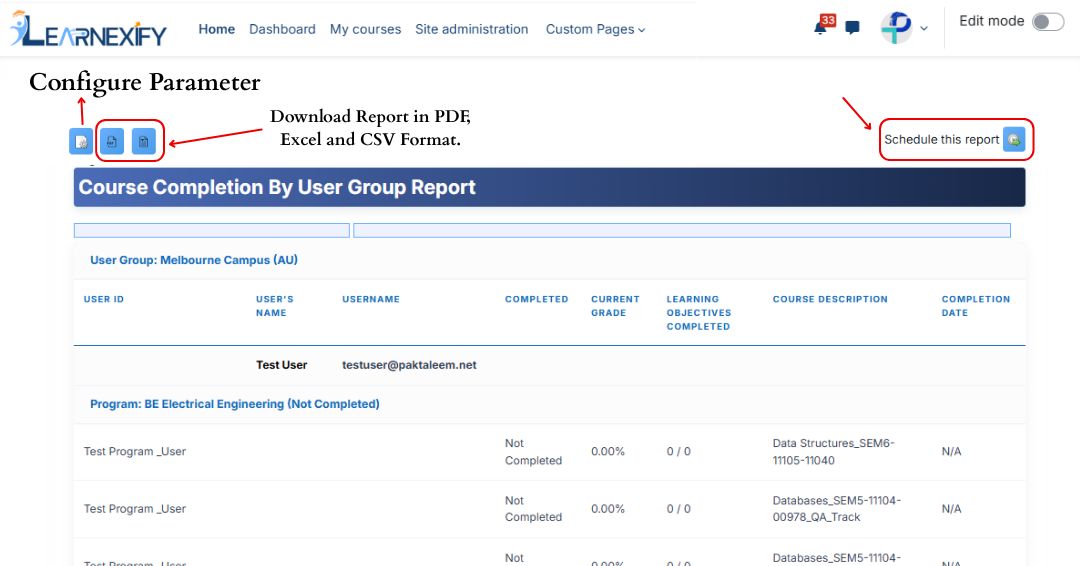
The Course Completion by user group Report is used to view course and class completion data for users grouped by user groups. In this report, users are filtered based on their user groups, and their progress and completion status are displayed accordingly.
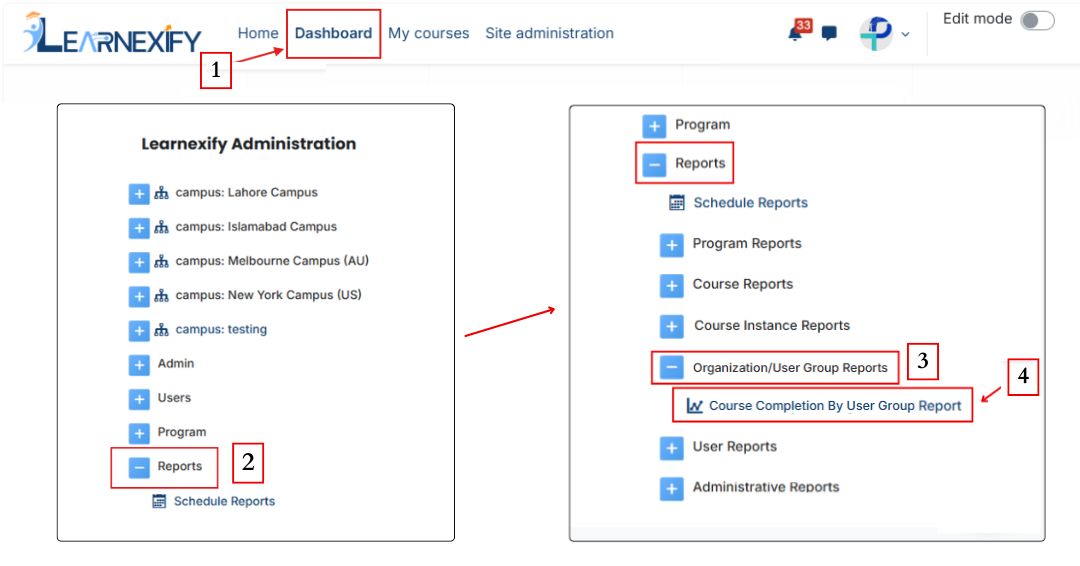
Report Path:
Dashboard > Side drawer > Reports > Organization/User Group Reports > Course Completion By User Group Report
Report Requirements:
This report requires that users within a user group are enrolled in courses.
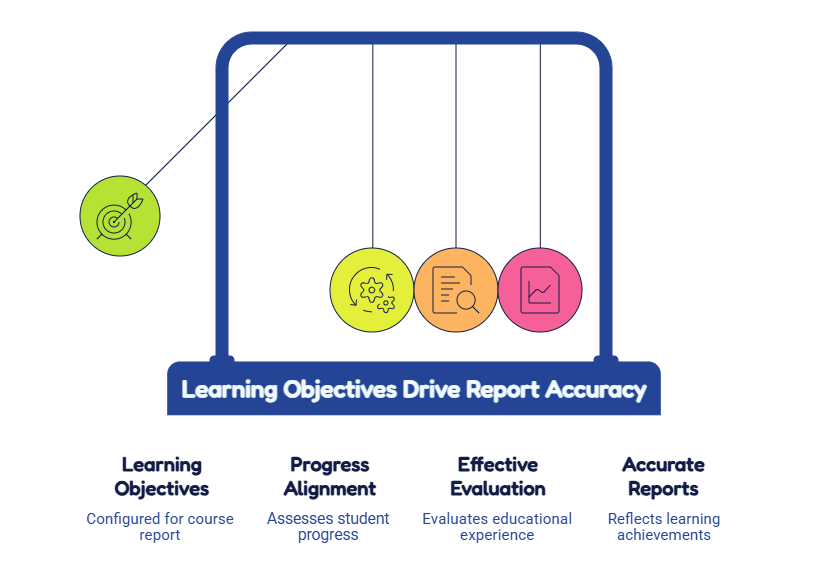
In addition, courses must have learning objectives configured for the report to function properly.
Report Filters:
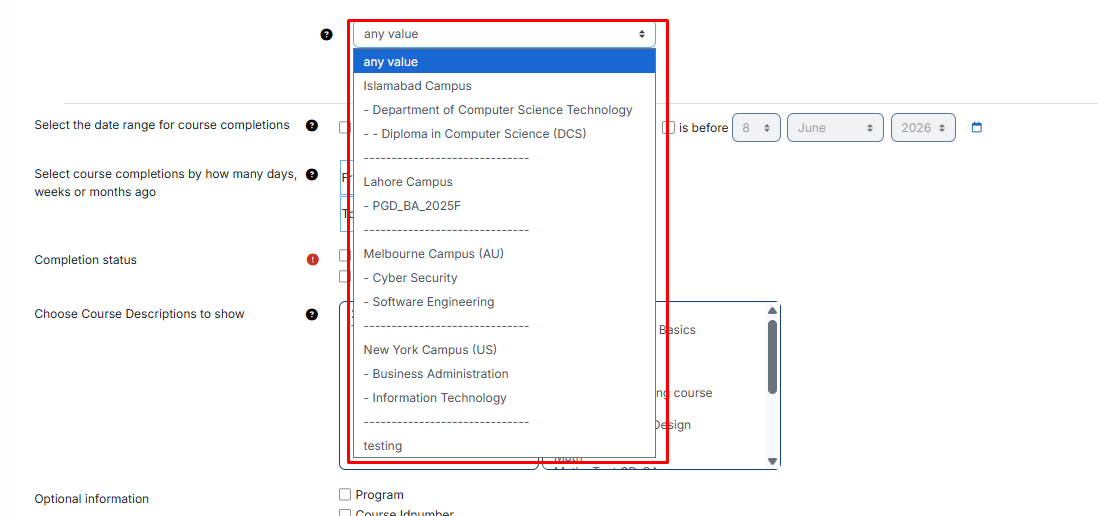
User groups can be selected in two ways:
1. Selecting a Single user group
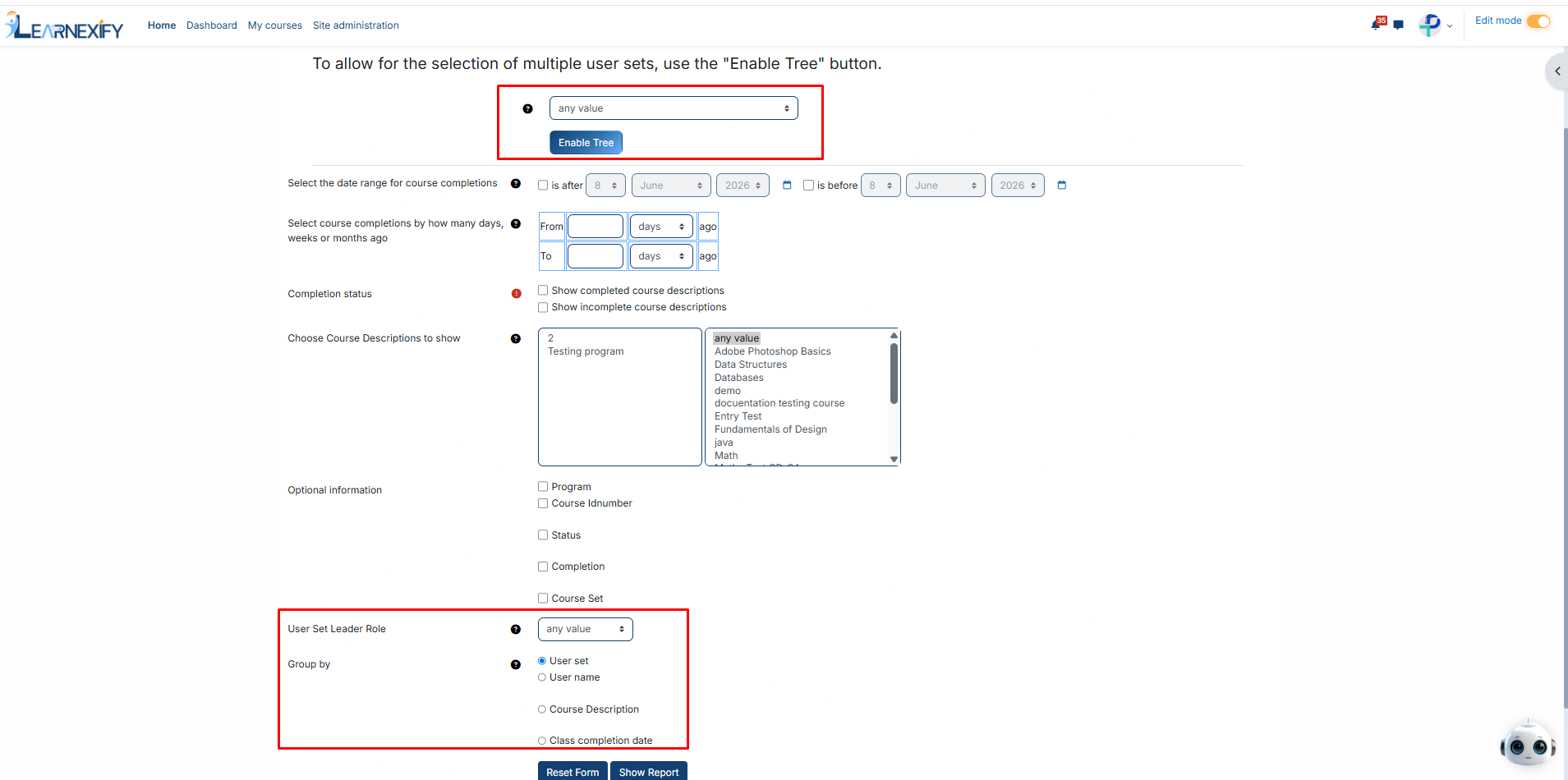
Using the “any value” button, a specific user group or sub-set can be selected. This will display data only for the selected user group and will not include its sub-sets.
2. Selecting Multiple or Organizational user groups
By clicking the Enable Tree option, the complete user group hierarchy is displayed.
From here, multiple user group s can be selected using checkboxes.
Selecting a parent user group will automatically include all its sub-sets.
Completion Status Selection:
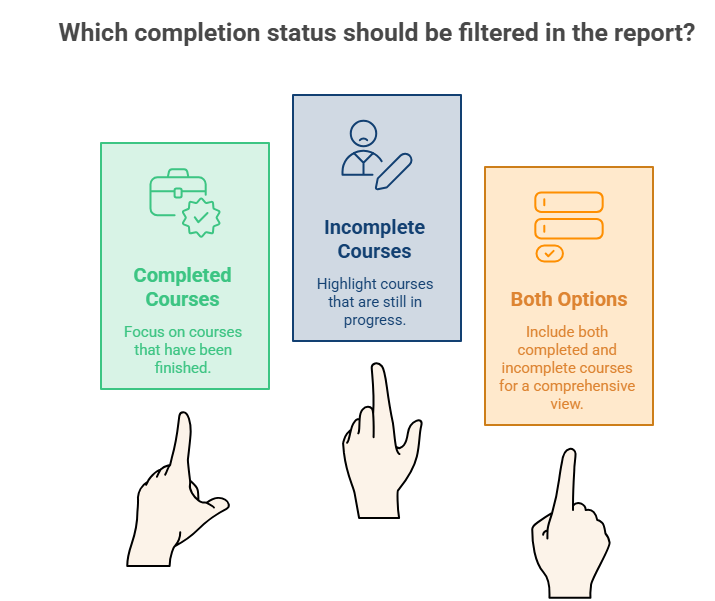
The report allows filtering by completion status:
-
Completed courses
-
Incomplete courses
One or both options can be selected based on the requirement.
Optional Information:
Additional data fields can be included in the report:
- Program → Displays courses grouped under the assigned program for each user.
- Status → Filters users based on completion status (Completed or Incomplete). If left as default, all users are included.
- Completion → Displays the learning objectives column in the report.
- Course Set → Adds a column showing the course set assigned to the course.
- User group Leader Role → Displays users assigned as leaders for each user group based on the selected role.
Running the Report:
After selecting the required filters and parameters, click on the Show Report button.
The system will generate the report based on the selected criteria and display the data on the screen.
View Report:
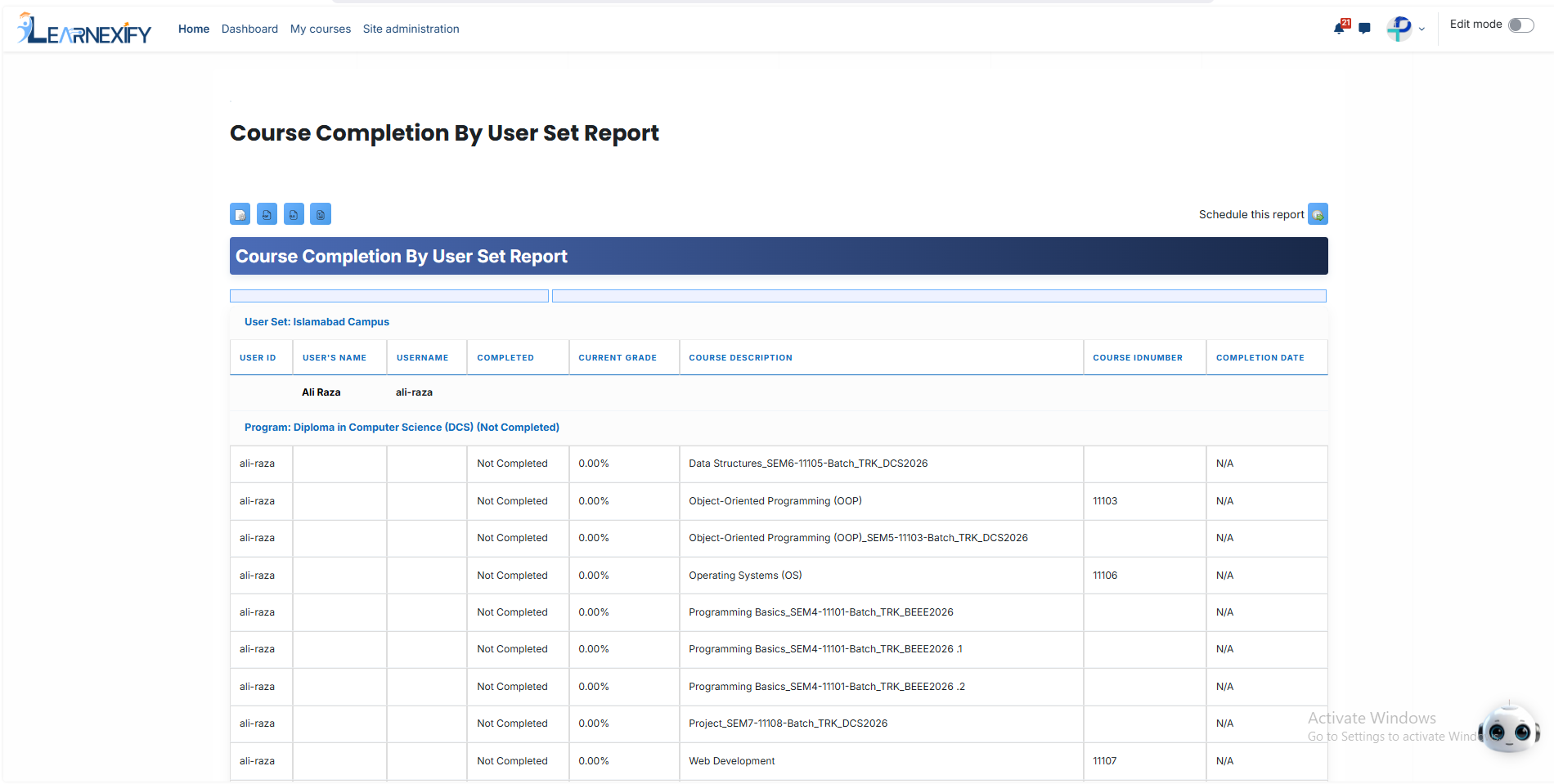
The report displays user-wise course completion data filtered by user groups. Courses associated with programs are grouped under program names, while non-program courses are listed separately.
-
User ID → Displays the user’s ID number.
-
User Name → Displays the first and last name of the user.
-
Program → Shows the program name, or “Non Program Courses” if the course is not associated with a program.
-
Course Set → Displays the course set assigned to the course.
-
Course → Displays the Learnexify course name.
-
Required → Indicates whether the course is required in the program (Yes/No or N/A).
-
Class → Displays the Learnexify class ID number.
-
Completed → Shows the user’s completion status (Completed, Not Completed, Pass, Failed, or Incomplete).
-
Current Grade → Displays the user’s current total grade. If no grade is assigned, 0 is shown.
-
Learning Objectives Completed → Shows completed learning objectives out of total (e.g., 3/5). If none are defined, 0/0 is displayed.
Report Scheduling, Export & Refresh:
Similar to other reports, this report also includes the following functionalities:
-
The report can be scheduled using the Schedule Reports option to run at a future time.
-
Report settings and filters can be modified using Configure Parameters.
-
The report can be exported in PDF and CSV formats.
-
Report data can be refreshed using the Refresh button without reapplying parameters.