5.1 Individual Course Progress Report
Individual Course Progress Report is used to see how much progress a user is making in their Learnexify courses. Through this report, both administrators and users can view an overview of their learning activity.
This is one of the default reports that logged-in users can access for their learning progress.
Report Path:
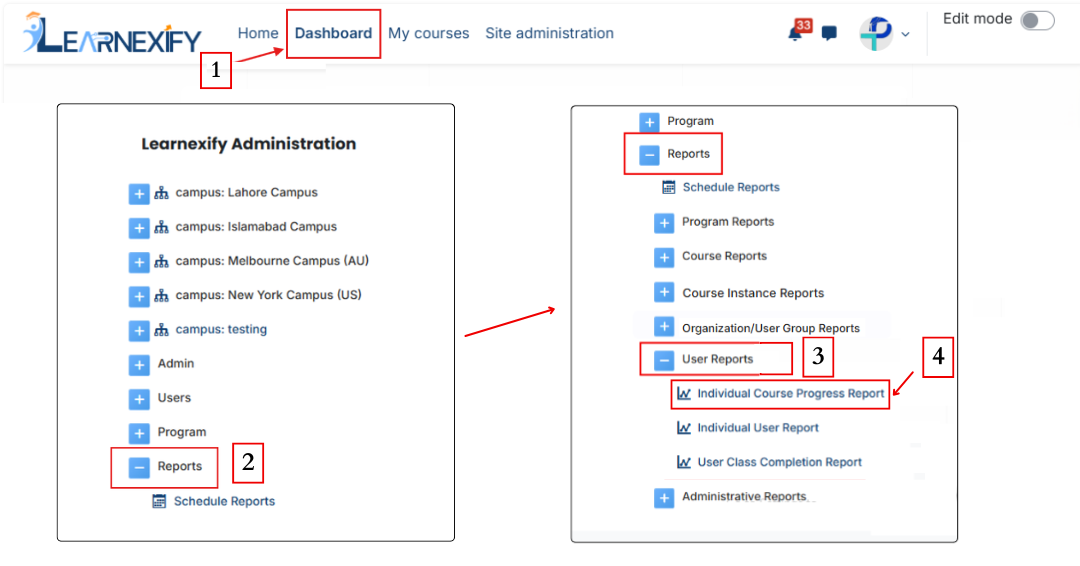
Dashboard > Side drawer > Reports > User Reports > Individual Course Progress Report
Report Requirements:
For this report, it is necessary that the user is enrolled in an Learnexify class or has completed it.it.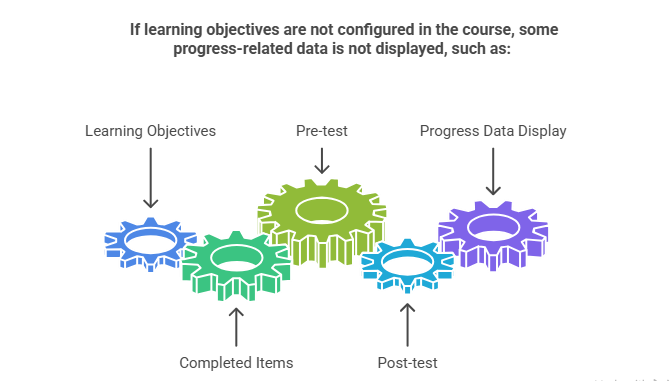
Report Filters:
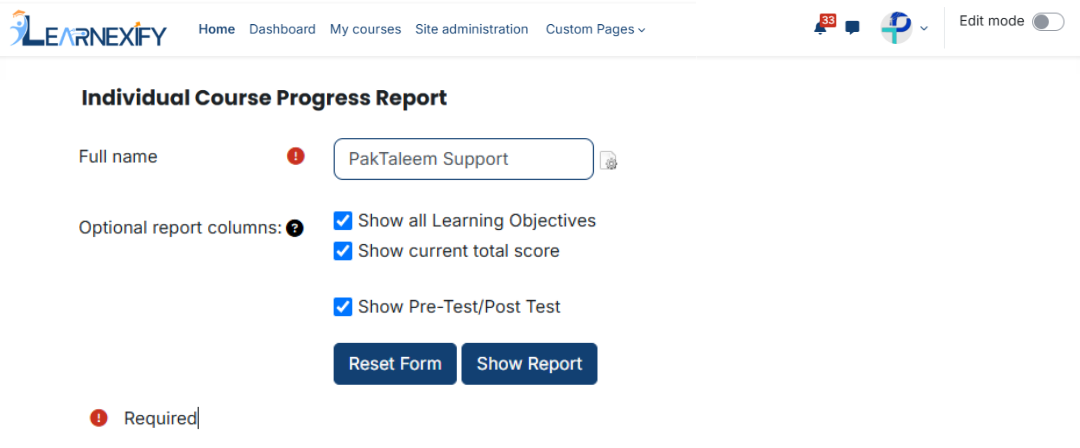
In this report, the filter section includes a Full Name option,option, which is used to select a specific user and view their report data.
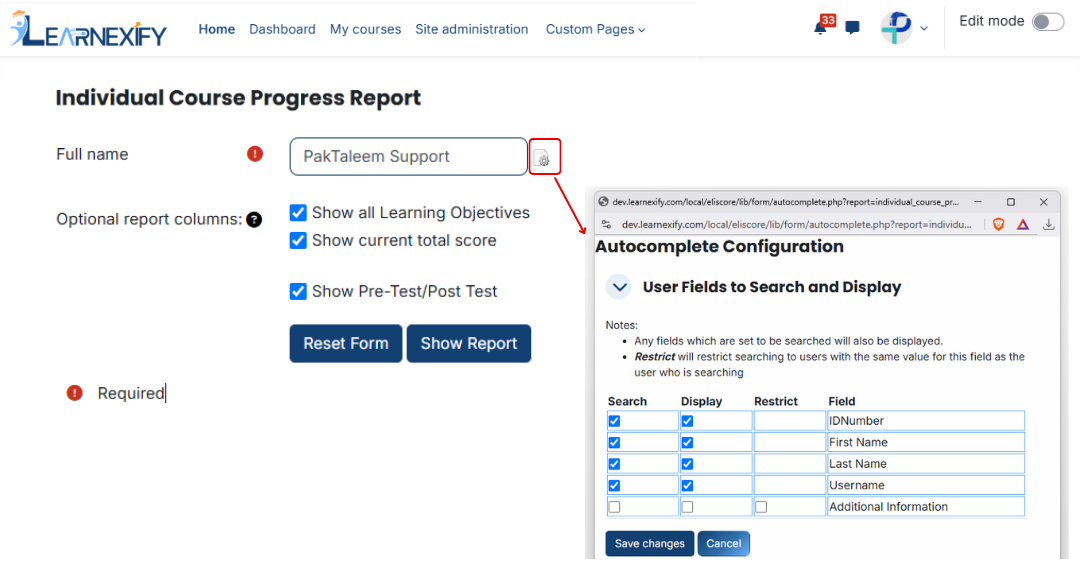
In addition,addition, optional report columns include:include:
-
Show All Learning Objectives → Displays data of all learning objectives
-
Show Current Total Score →
-
Show Pre-Test / Post-Test → Includes pre-test and post-test results in the report
Required columns can be selected using checkboxes.
Generate Report:
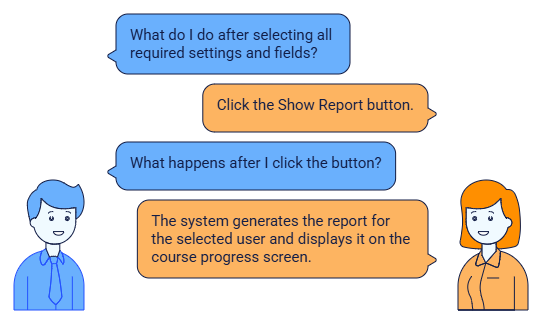
When all required settings and fields are selected, click the Show Report button.
After this, the system generates the report for the selected user and displays it on the course progress screen.
Report View:
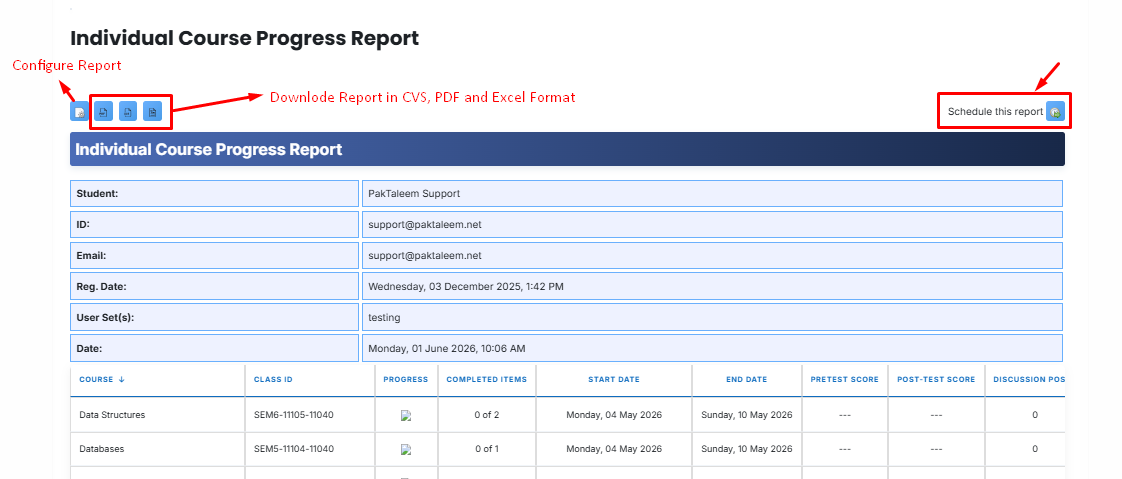
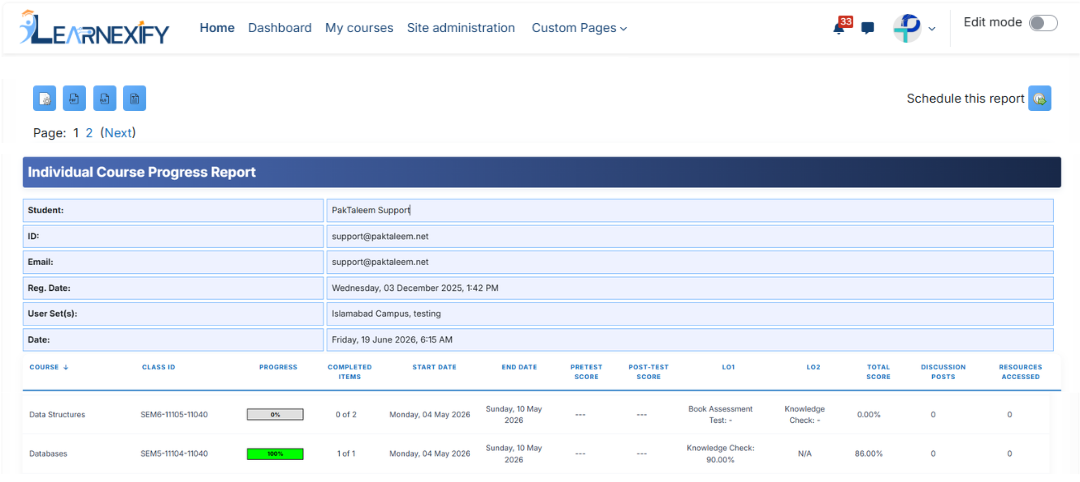
The report shows user course-level progress in detail.
-
-
Student → User’s name
ID → User’s unique ID number
Email → User’s email address
Reg. Date → Account creation date
User group (s) → User’s emailassigned addressuser group s
Reg. Date → Account creation date
User Set(s) → User’s assigned user sets
Date → Report generation date
Course → Course in which the user is enrolled or has completed
Class ID → Related Learnexify class ID number
Progress → Progress based on learning objectives (if available)|
Completed Items → Ratio of completed vs total objectives (if available)
Start Date → Course start or enrollment date
End Date → Course completion date
Pretest Score → Pre-test result (if available)
Post-test Score → Post-test result (if available)
LO1 → Status of first learning objective (e.g., Book Assessment Test, Knowledge Check, or N/A)
LO2 → Status of second learning objective (e.g., Knowledge Check or N/A)
Total Score → Overall percentage score (e.g., 0.00%, 100.00%)
Discussion Posts → Total number of discussion posts
Resources Accessed → Course resources accessed by the
Report Scheduling, Export & Refresh:
This report includes the same options as other reports:
-
The report can be scheduled using the Schedule Reports option to run at a future time.
-
Report settings and filters can be modified using Configure Parameters.
-
The report can be exported in both PDF and CSV formats.
-
Click the Refresh button at the bottom center to update the report with the latest data.