
5.1 Individual Course Progress Report
Report Overview:
Individual Course Progress Report is used to see how much progress a user is making in their Learnexify courses. Through this report, both administrators and users can view an overview of their learning activity.
This is one of the default reports that logged-in users can access for their learning progress.
Individual Course Progress Report Video:
Report Path:
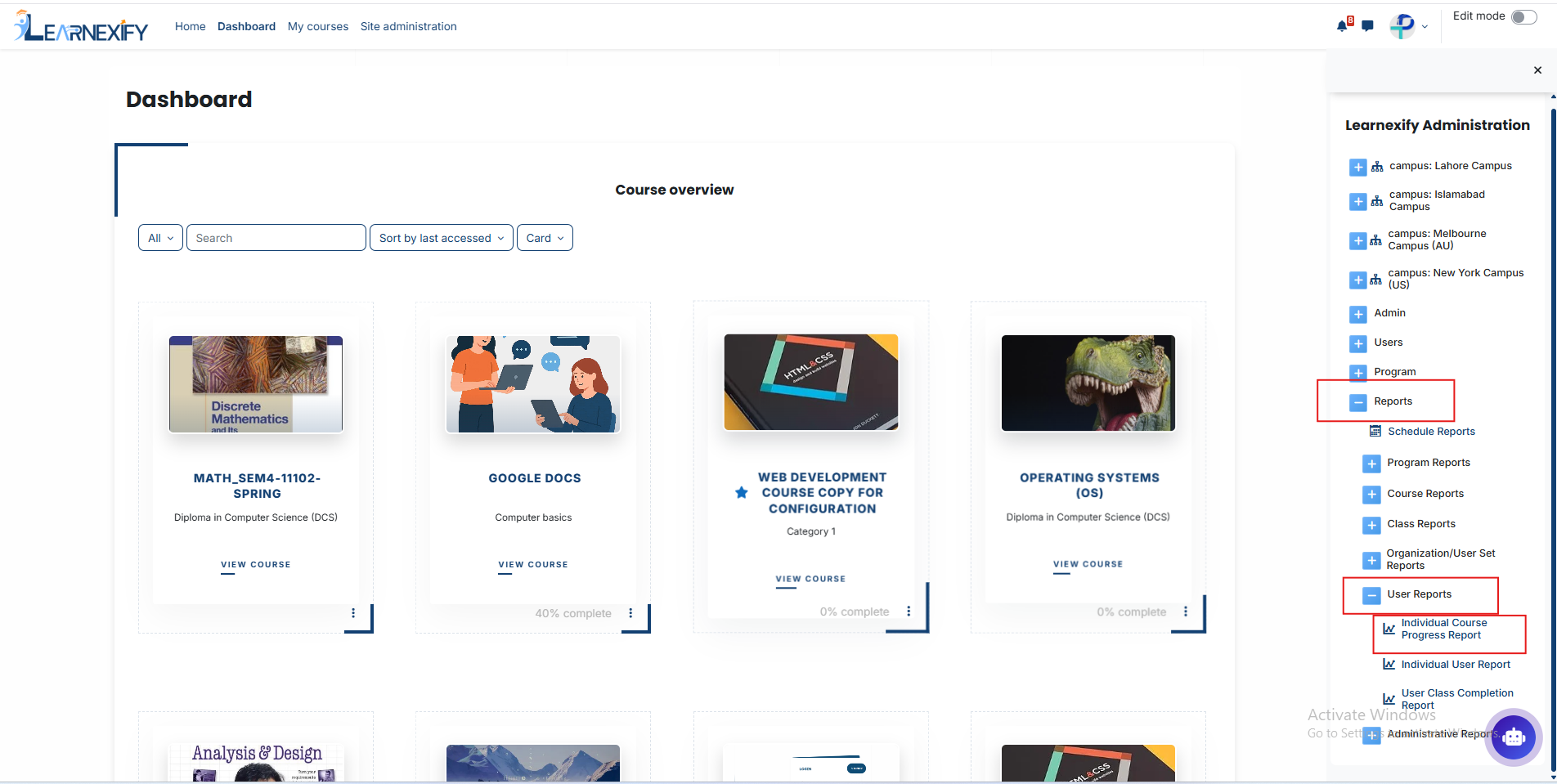
Dashboard > Side drawer > Reports > User Reports > Individual Course Progress Report
Report Requirements:
For this report, it is necessary that the user is enrolled in an Learnexify class or has completed it.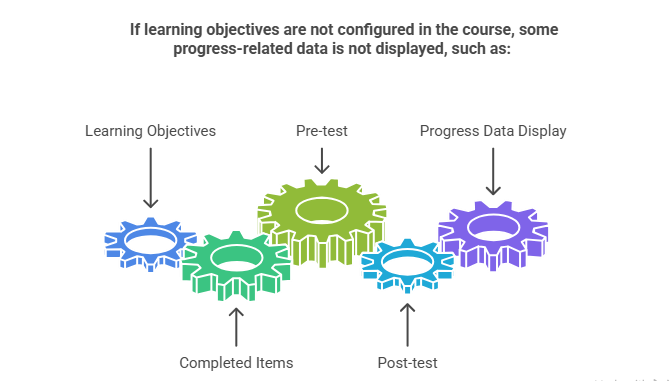
Report Filters:
In this report, the filter section includes a Full Name option, which is used to select a specific user and view their report data.
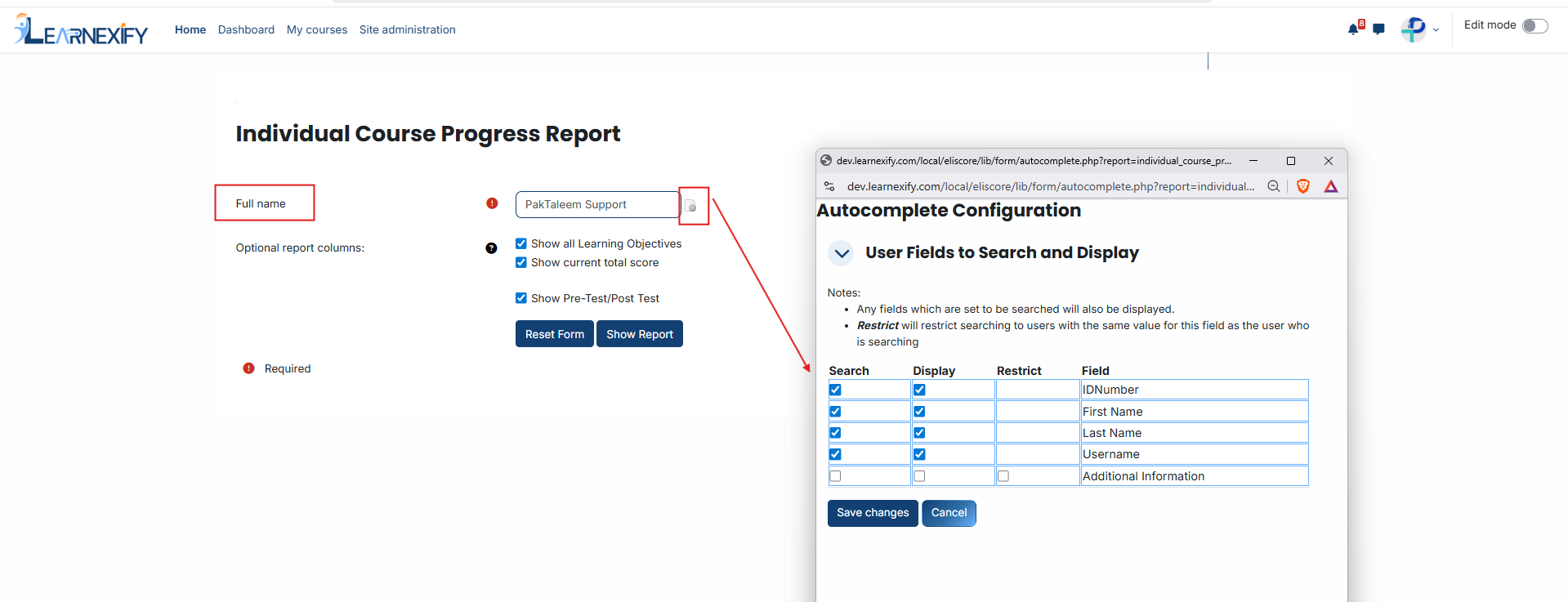
In addition, optional report columns include:
-
Show All Learning Objectives → Displays data of all learning objectives
-
Show Current Total Score → Displays the user’s overall current score
-
Show Pre-Test / Post-Test → Includes pre-test and post-test results in the report
Required columns can be selected using checkboxes.
Generate Report:
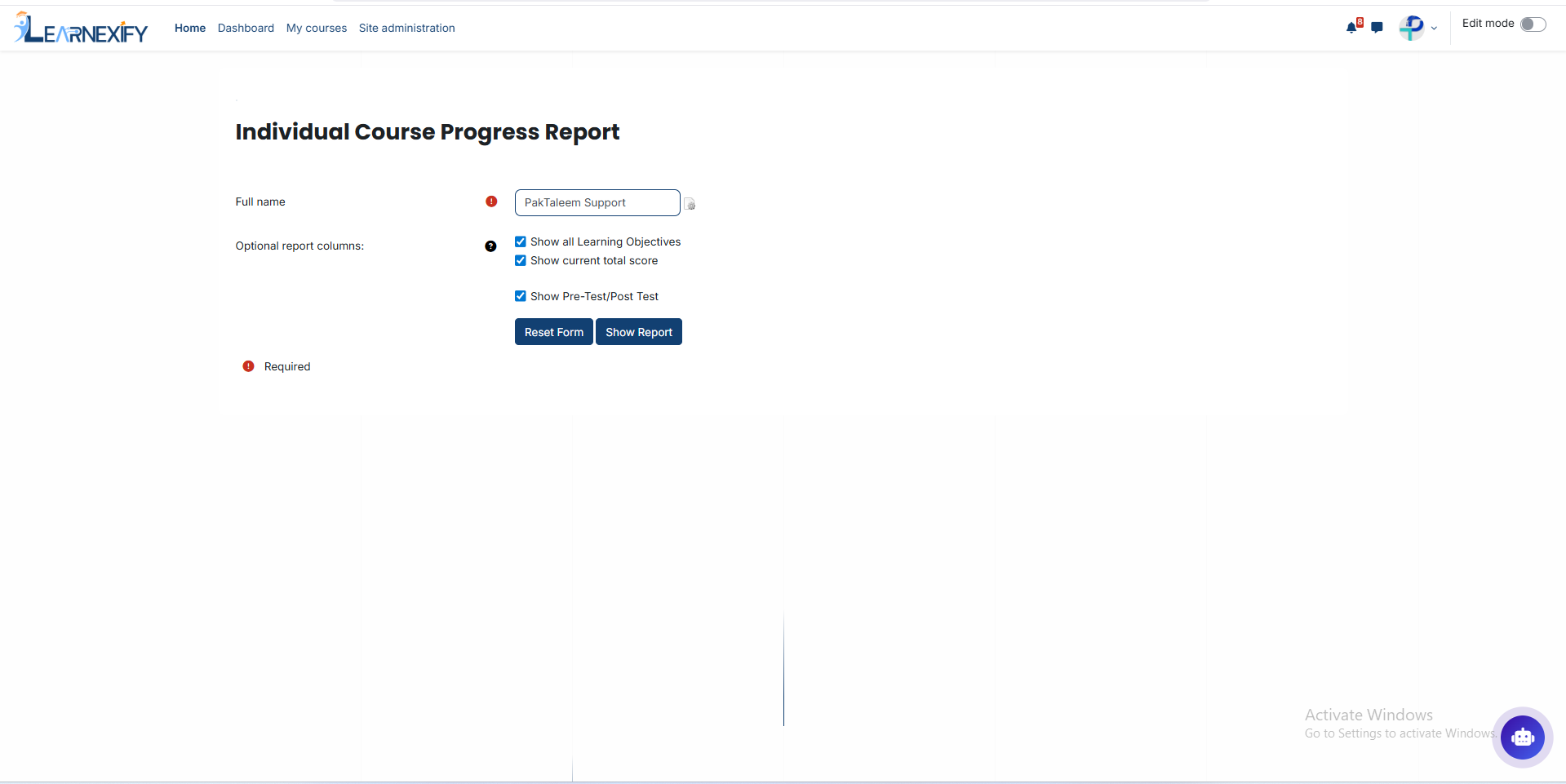
When all required settings and fields are selected, click the Show Report button.
After this, the system generates the report for the selected user and displays it on the course progress screen.