
5.2 Individual User Report
Individual User Report is used to view a specific learner’s program and course completion information. This report shows details of the user’s enrolled and completed courses.
Report Path:
Dashboard > Side drawer > Reports > User Reports > Individual User Report
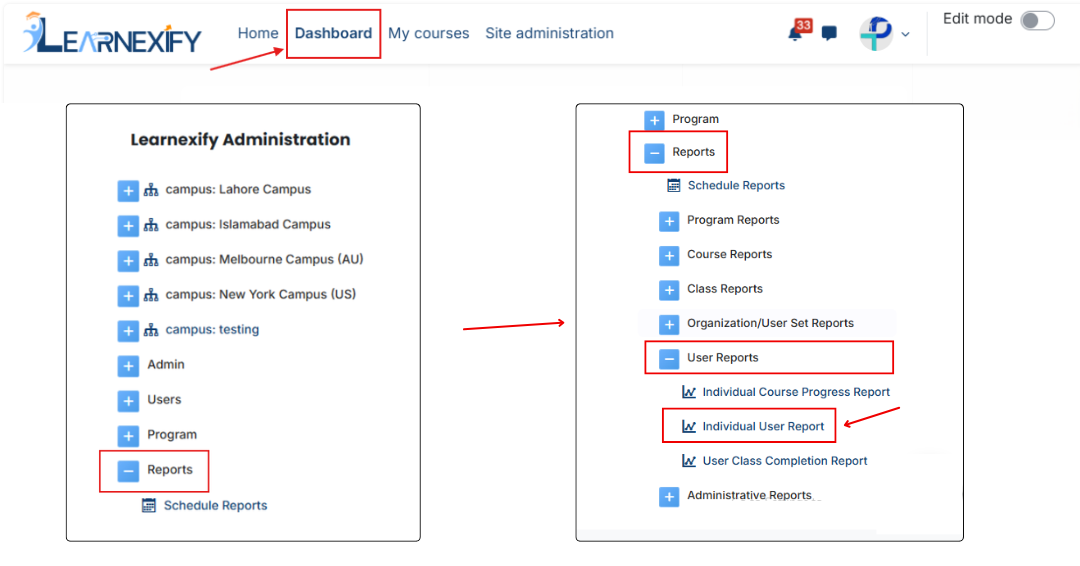
Report Requirements:
For this report, it is necessary that the user is enrolled or has previously been enrolled in a Learnexify course.course. Only then the user data will be displayed in the report.
Report Filter:
This report has a User selection option where a specific user is selected and their data is shown in the report.
Before using the report, click on the Configure icon to set user search and display fields. Learnexify custom user fields can also be selected here.
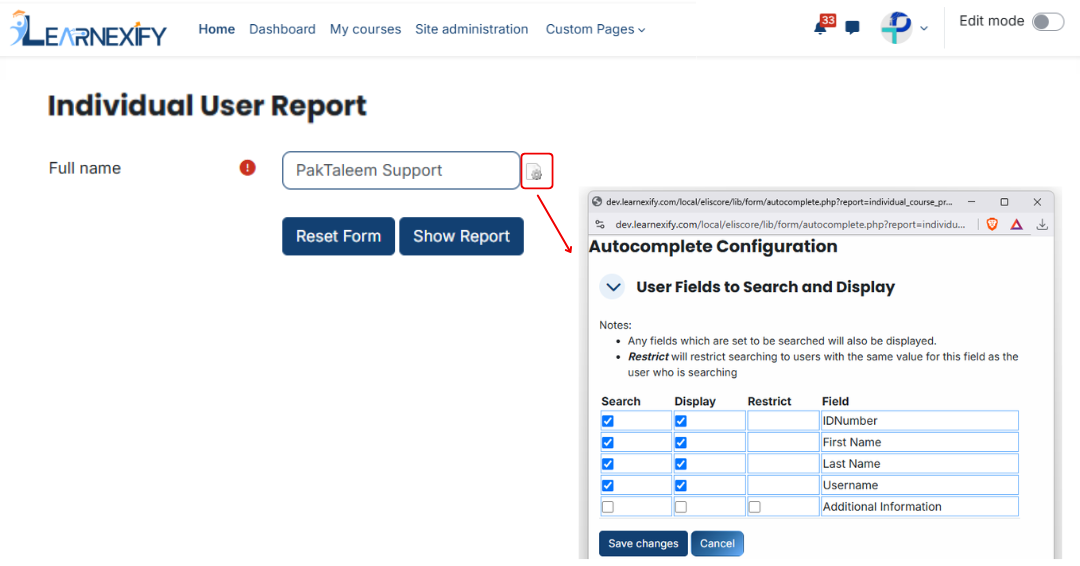
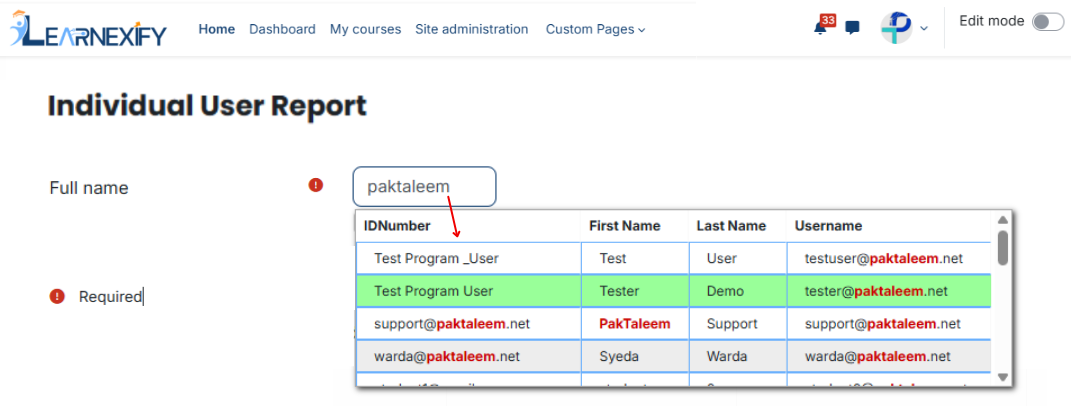
After configuring the fields, type the user name in the search box and select the required user from the pop-up list.
Generate Report:
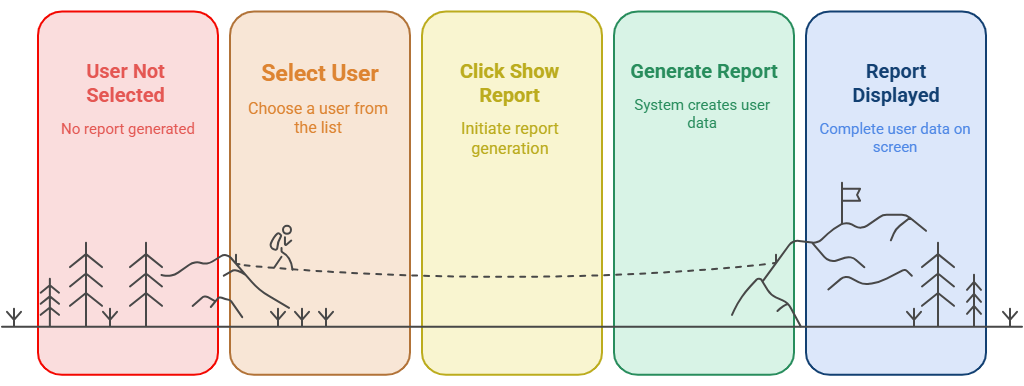
Once the user is selected, click on the Show Report button.
After this, the system generates the report for the selected user and displays the complete data on the screen.
Report View:
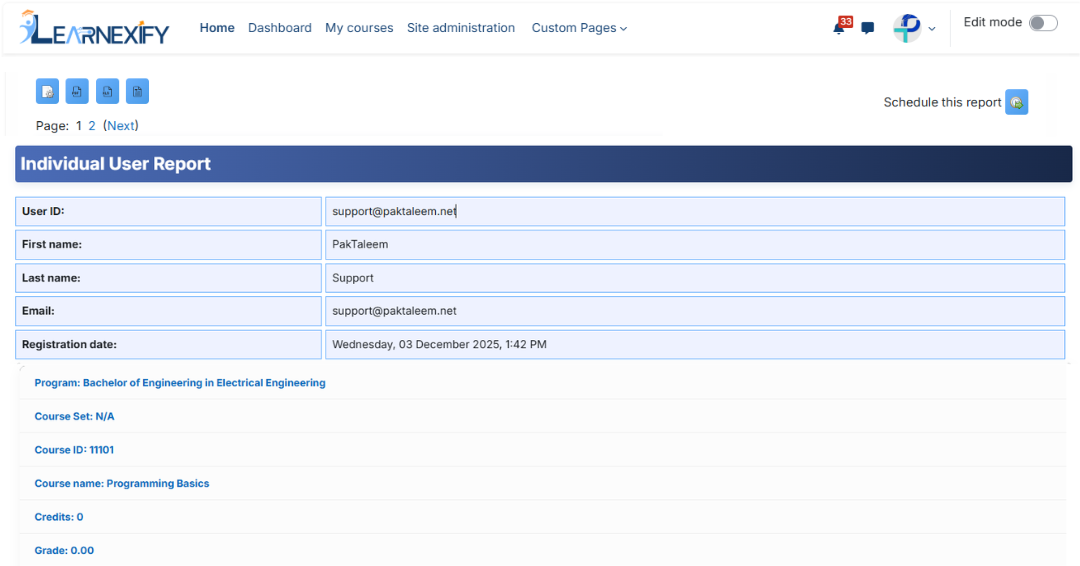
The report shows the user’s assigned programs and the courses within them.them. If a course does not belong to a program, it is shown under Non-Program Courses.

User Information:Information
-
User ID → User’s Learnexify ID number
-
First Name → User’s first name
Last Name → User’s firstlast name
Last Name → User’s last name
Email → User’s email address
Registration Date → Date the account was created
Class Information:Information
-
-
Program → Name of the Learnexify program
Course ID → Learnexify course ID number
Course Name → Name of the Learnexify course
Credits → Credits earned after course completion
Class ID → Learnexify class ID number
Grade → Current total grade (0 if not assigned)
Date Completed → Course completion date
Status → Completion status (Complete, Incomplete, Overdue)
Learning Objectives and Score → Learning objectives and their scores
Expires → Expiry date of the course or certificate
Certificate → Indicates the certificate status or availability for the completed course
Report Scheduling, Export & Refresh:
Like other reports, this report also includes the same features:
-
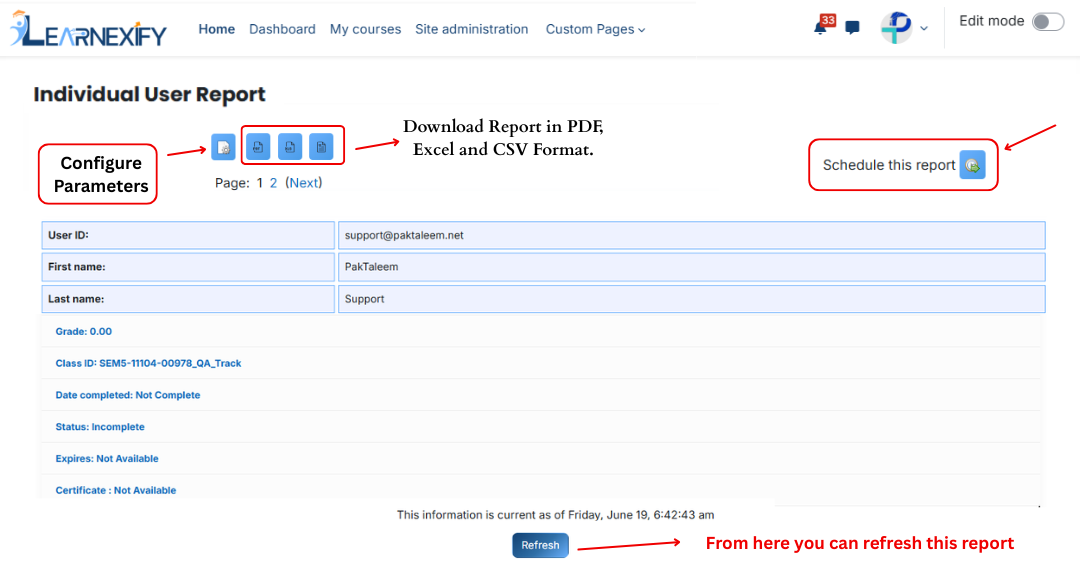
The report can be scheduled using the Schedule Reports option to run at a future time.
-
Report settings and filters can be modified using Configure Parameters.
-
The report can be exported in both PDF and CSV formats.
-
Click the Refresh button at the bottom center to update the report with the latest data.
Note: Individual User Reports can also be generated for inactive users.