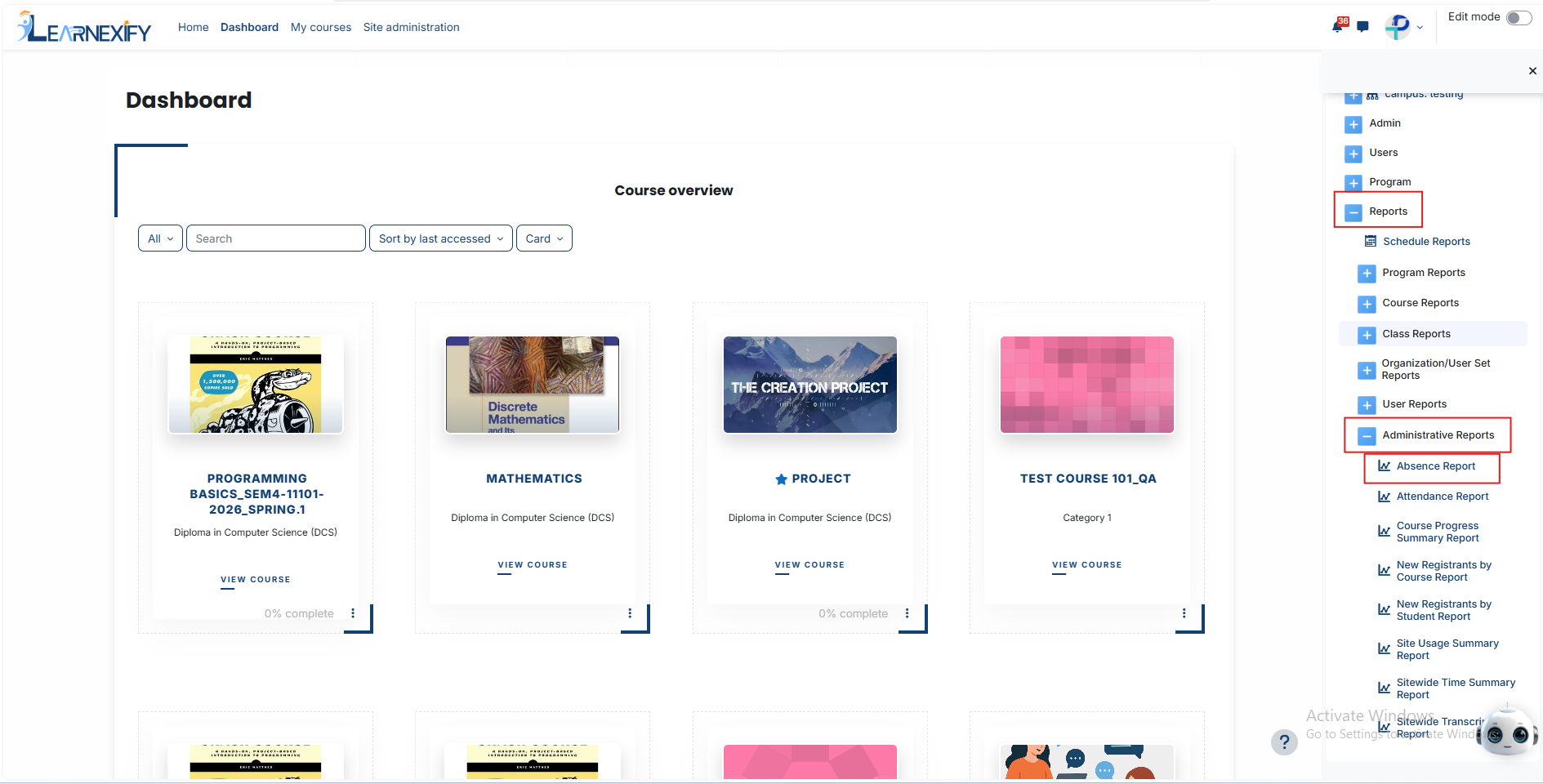
The Absence Report, this report is listed at the top of the Administrative Reports section. Its main purpose is to identify users who have not performed any activity in Learnexify Class Instances within a selected time period defined in the report settings.
This report helps administrators monitor learner engagement and identify inactive users across courses and programs.
To be included in this report, a user must meet the following conditions:
The user must be enrolled as a student in a course.
The user must be enrolled in an Learnexify Class Instance.
The user must have no recorded activity within the selected date range.
A user is considered inactive when:
There is no activity in the course linked with the Learnexify Class Instance, OR
If no course is linked, then no Learning Objectives are marked as completed, OR
If no Learning Objectives exist and no course is linked, the report displays “N/A”.
Report Filters:
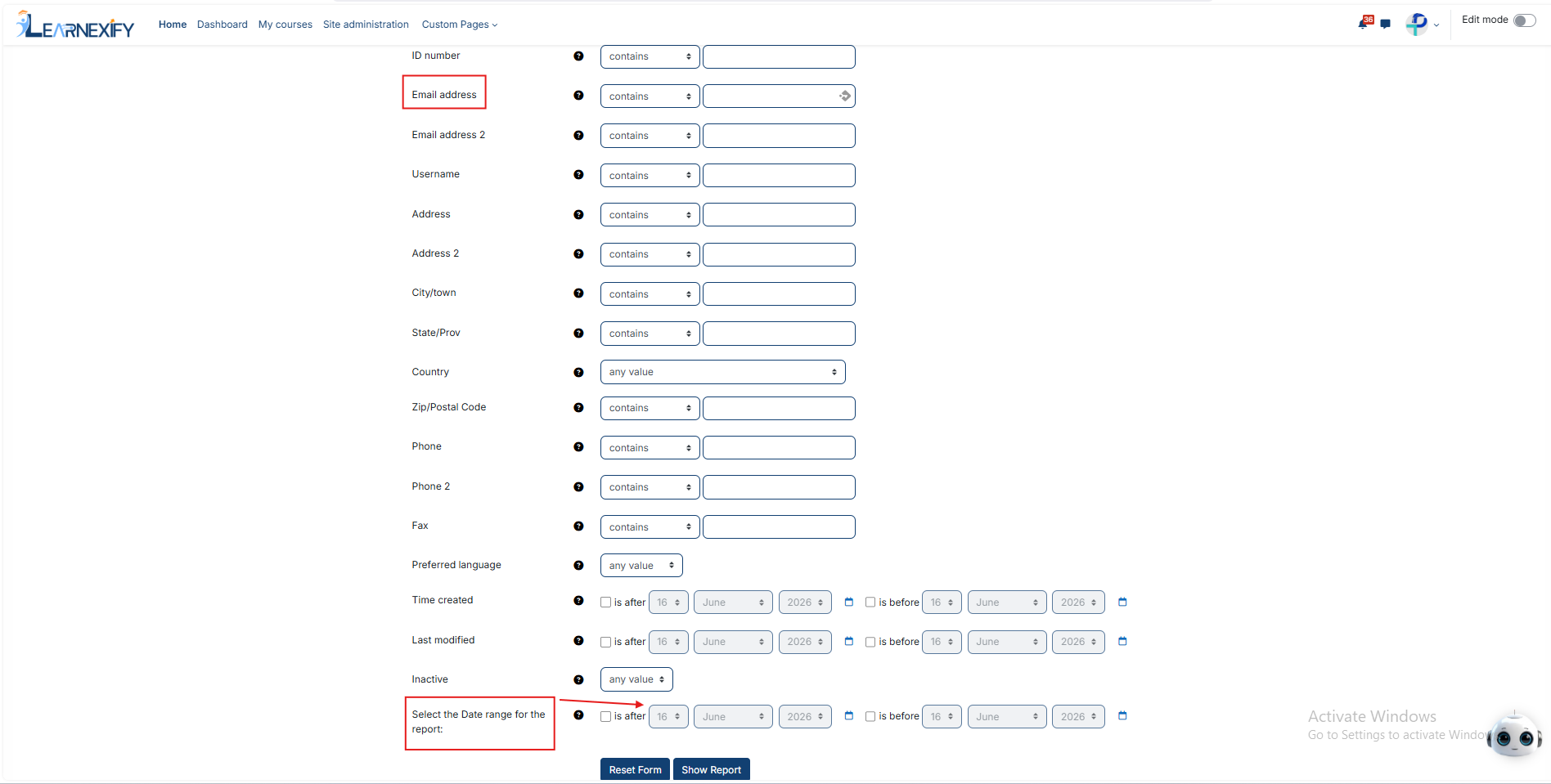
This report includes multiple user-related filters that allow administrators to refine and search data efficiently.
Purpose of Available Filters:
Name-based Filters (Full Name, First Name, Last Name, Middle Initial) Used to search users based on their names. Partial text can also be used to find matching records.
ID Number Used to search a user using their unique Learnexify identification number.
Email Address / Email Address 2 Used to filter users based on their registered email addresses.
Username Used to locate users through their system login username.
Address / Address 2 Used to filter users based on physical address information.
City/Town, State/Province, Country Used for geographical filtering of users. The Country field allows selection of any available value.
Zip/Postal Code Used to filter users based on postal code information.
Phone / Phone 2 / Fax Used to search users based on contact or fax numbers.
Date Range Filter:
The report also includes a date range filter:
Is after → Shows users with no activity after the selected date.
Is before → Shows users with no activity before the selected date.
Date selection is available using Day, Month, and Year fields.
Additionally, more advanced filters can be accessed using the “Show more” option, including custom user fields and standard system fields.
View Report:
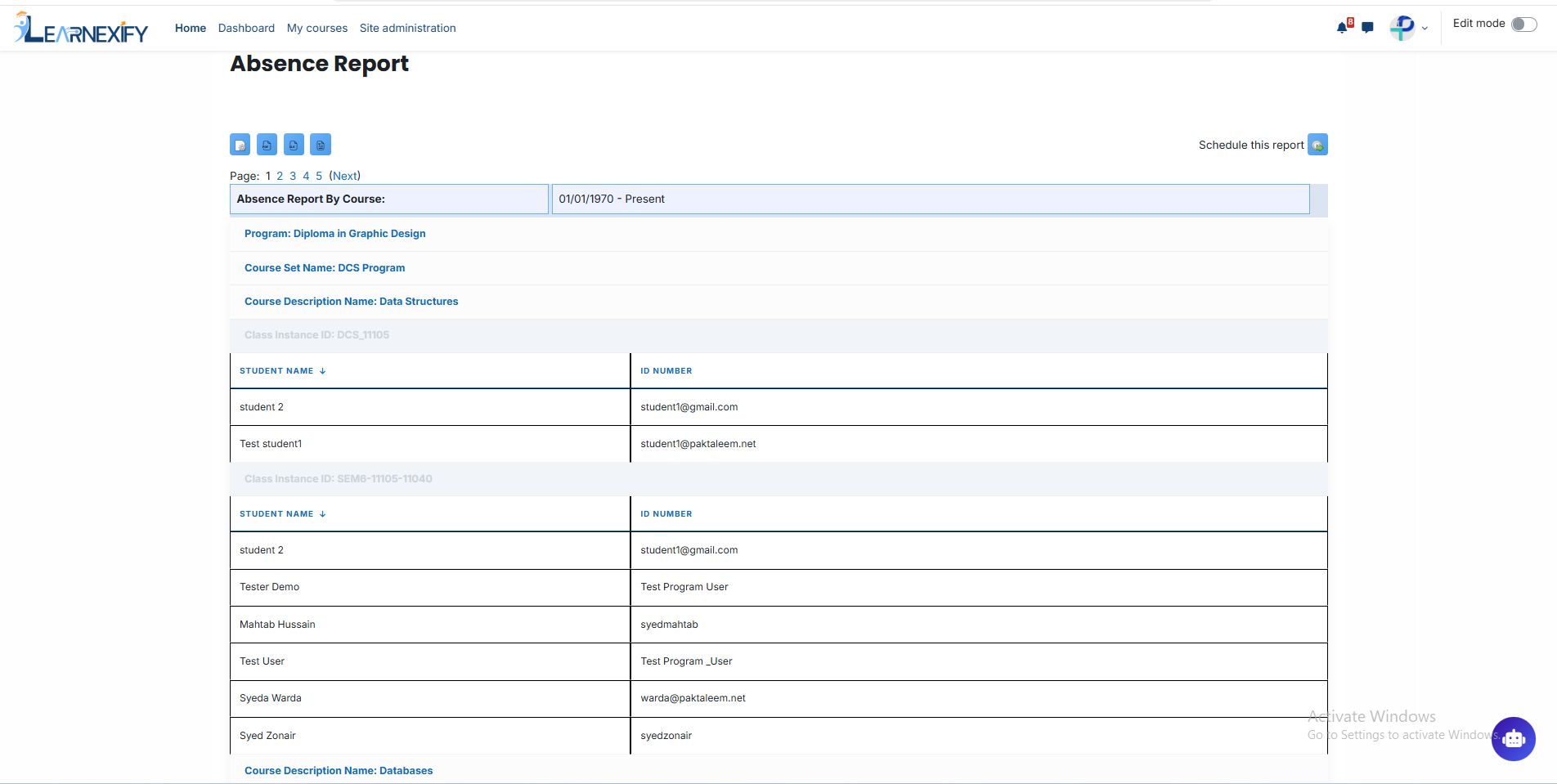
The report displays learners grouped by course. The selected filters and date range appear at the top of the report.
Program Information:
Program → The program to which the course belongs
Course Set → The course set associated with the course
Course Information:
Course Name → Name of the Learnexify course
Class Instance ID → ID of the Learnexify class instance
Student Name → Name of inactive user
ID Number → Learnexify user identification number
Report Scheduling, Export & RefreshRefresh:
This report also supports standard reporting features:
Reports can be scheduled for automatic execution and email delivery
Configuration settings can be adjusted using report parameters
Reports can be exported in PDF and CSV formats
The Refresh button updates the report with the latest data instantly