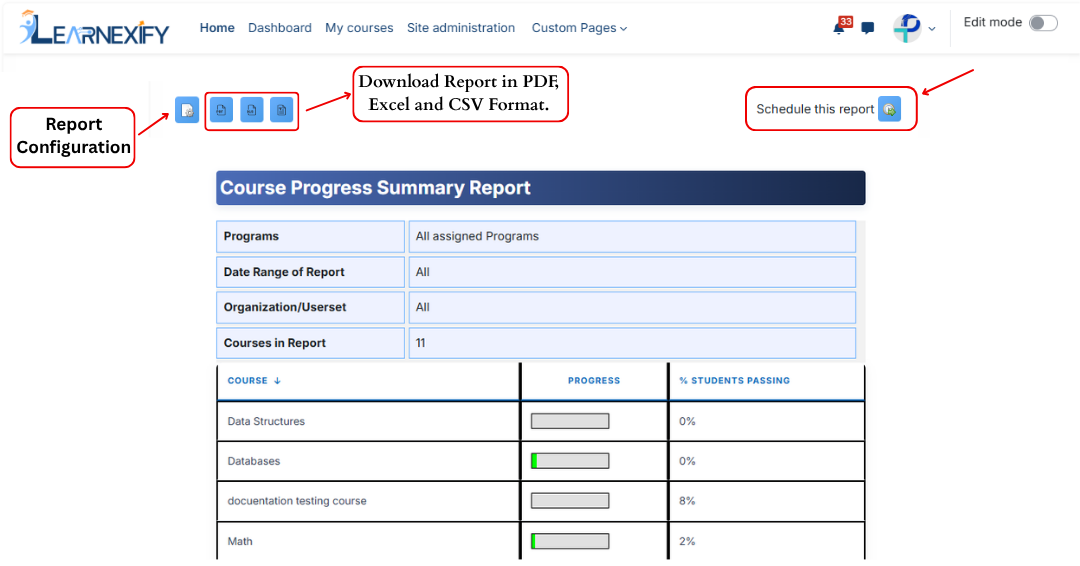
The Course Description Progress Summary Report provides administrators with a clear overview of learners’ overall progress toward course completion. The main purpose of this report is to monitor student performance and progress within Course Descriptions.
Report Path:
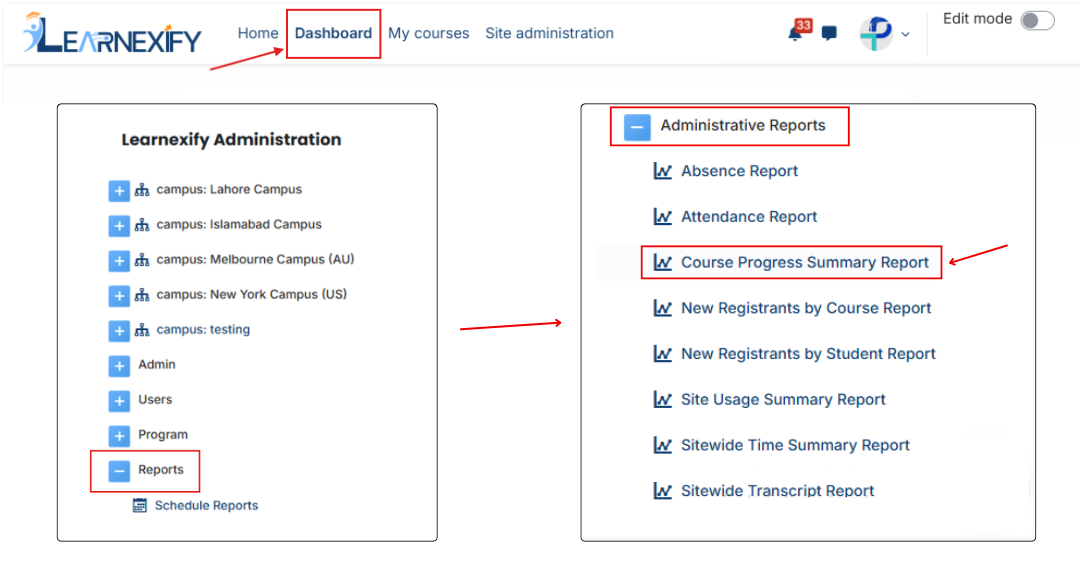
Dashboard > Side drawer > Reports > User Reports > Individual User Report
Report Requirements:
If a Program is selected in this report, the following conditions apply:
The user must be enrolled in a class whose parent Course Description is linked to the selected Program.
The user must be assigned to that Program or Track.
If these conditions are not met, the user will not be included in the report.
Report Filters:
This report includes multiple filters that are used to customize and refine the data:
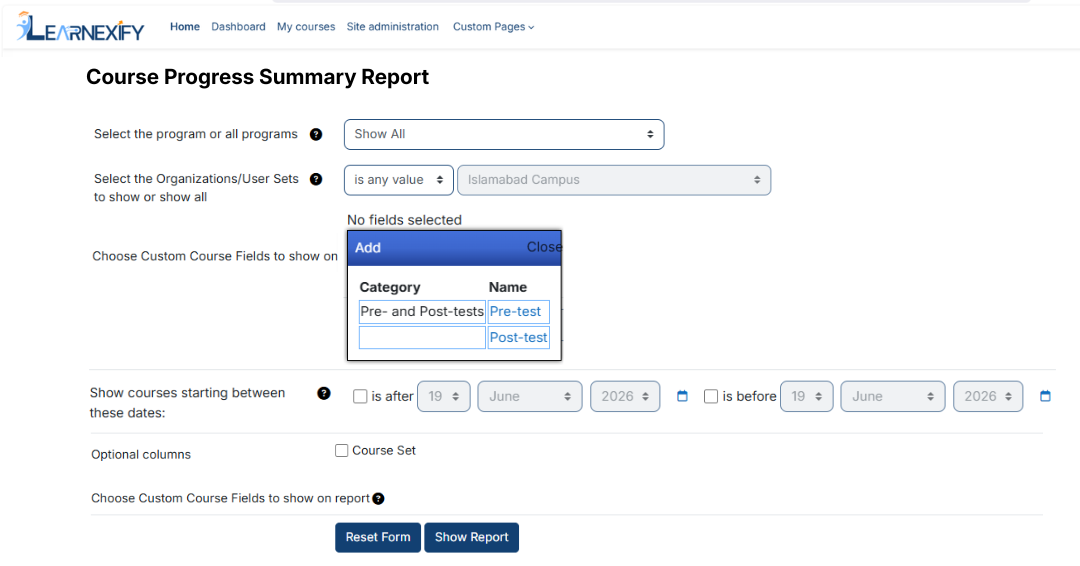
Program Selection (All or Specific Program) → defines the academic scope by selecting a specific program or all available programs
Organizations / User Sets → filters report data based on campus, department, or specific student batches
Custom Course Fields (Add Option) → allows adding extra course-specific metadata as additional report columns
Date Range (Course Start Dates) → limits the report to courses that officially commenced within a selected timeframe
Course Set (optional column) → displays the sub-grouping of courses within a program for detailed tracking
These filters allow administrators to narrow down the report data according to required criteria. After selecting the relevant fields and applying the desired filter options, the report can be generated.
The system then processes the selected filters and generates the report on screen.
Once generated, the report displays all relevant Course Description progress data according to the selected criteria.
Generate Report:
After selecting the required filters and fields, the report is generated as follows:
First, all required filters and fields are selected based on the reporting need.
After selecting the desired options, click on the Show Report button.
Report Output:
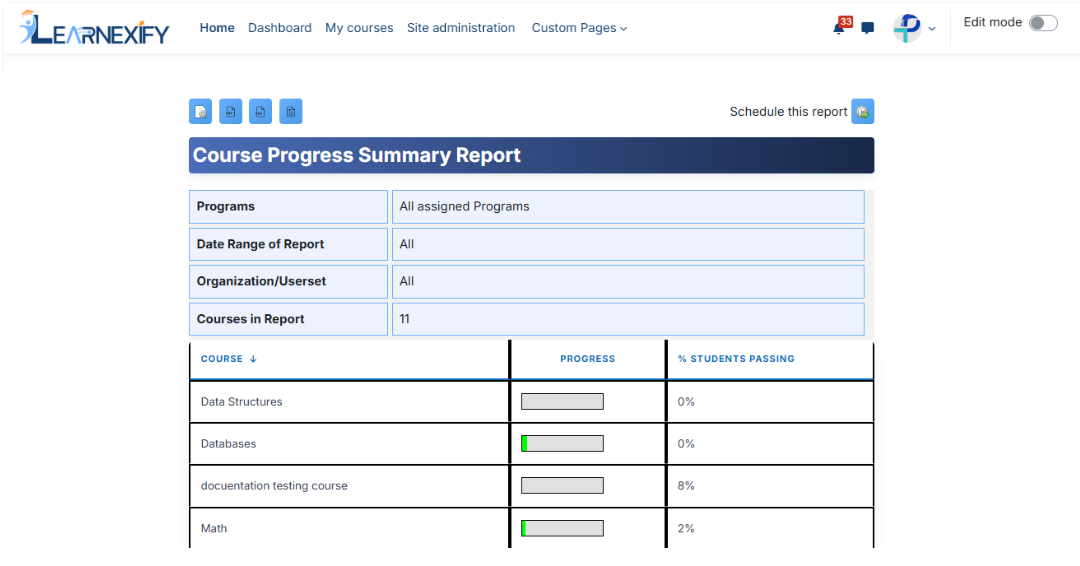
The report displays the following information based on selected filters:
Programs → Selected program or “All” if not selected
Date Range of Report → Selected course start period
Organization / User Set → Selected user group or all users
Course Descriptions in Report → Total number of Course Descriptions included
Course Description → Names of included Learnexify Course Descriptions
Progress → Learner progress based on learning objectives (or “N/A” if not defined)
% Students Passing → Percentage of students meeting required grade criteria (or “N/A” if not set)
Report Actions (Refresh & Export):
The report can be scheduled using the Schedule Reports option to run at a future time.
Report settings and filters can be modified using Configure Parameters.
The report can be exported in both PDF and CSV formats.
Click the Refresh button at the bottom center to update the report with the latest data.