The Sitewide Transcript Report displays a complete transcript for every user in Learnexify who is enrolled in a Learnexify Class Instance. It provides a system-wide academic summary of all users, including enrolled and completed Course Descriptions.
Report Path:
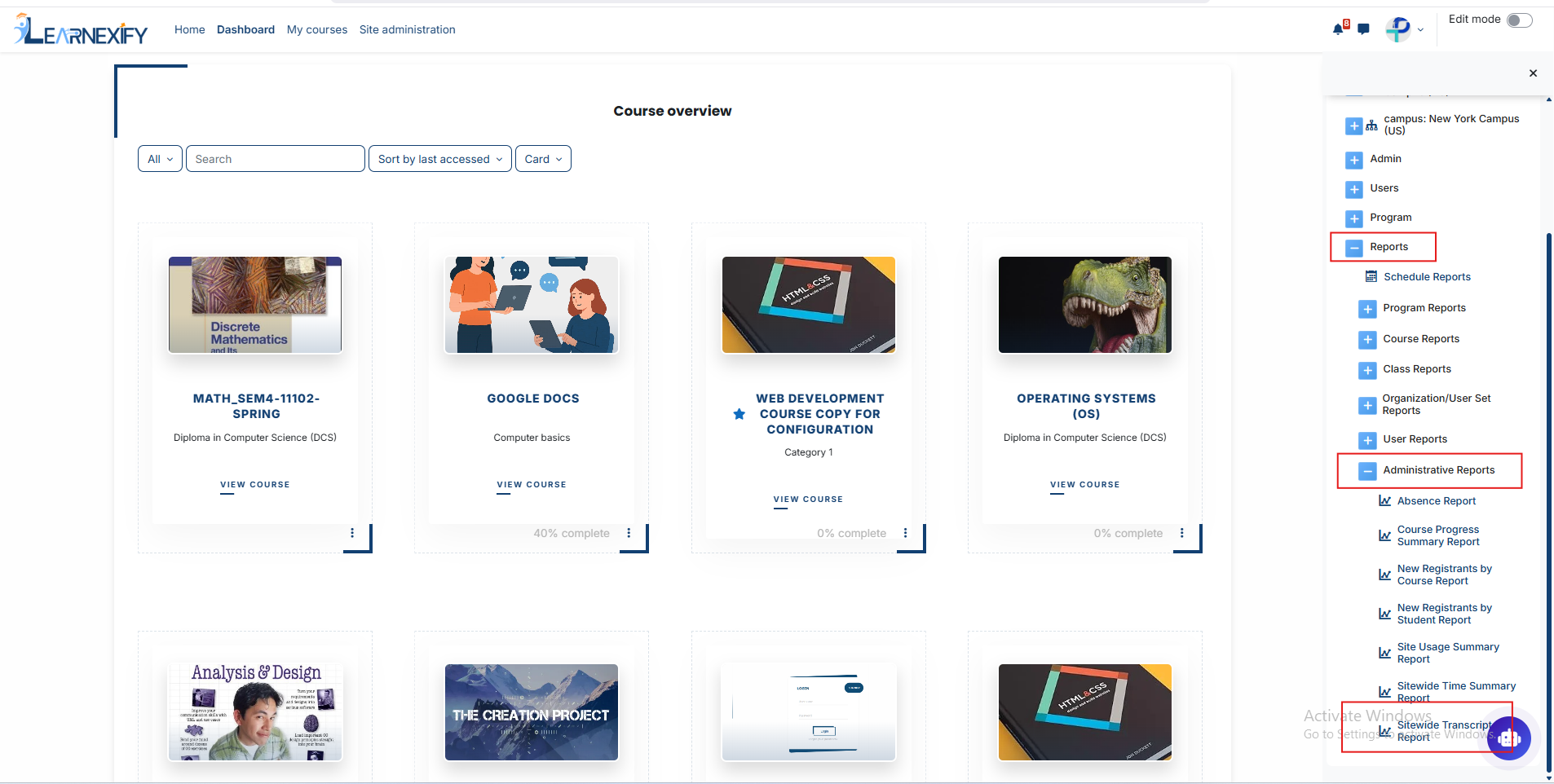
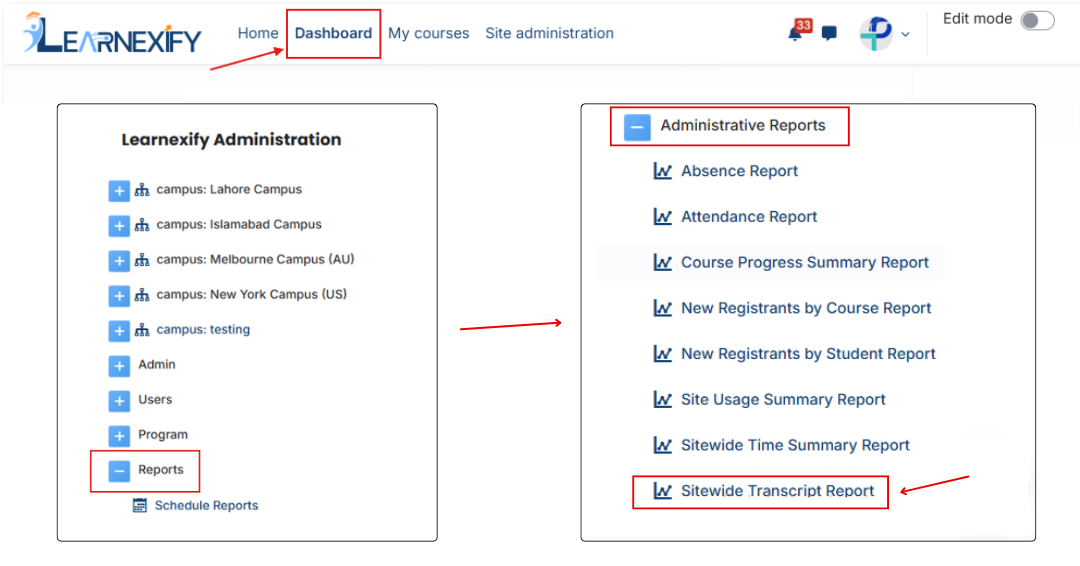
Dashboard > Side drawer > Reports > Administrative Reports > Sitewide Time Summary Report
Report Requirement:
To be included in this report:
The user must be enrolled in an Learnexify Class Instance
If the user is not enrolled, they will not appear in the report.
Report Filters:
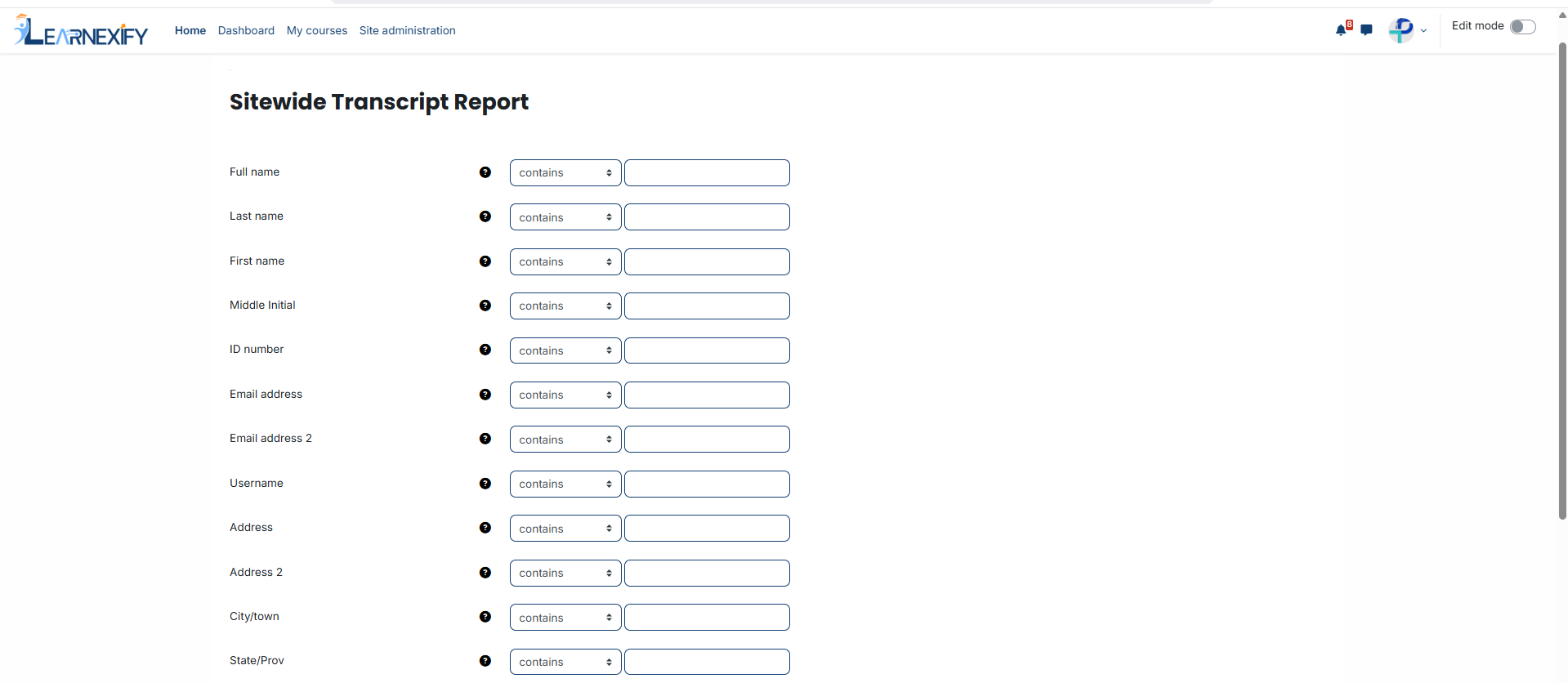
This report includes one standard optional filter:
Full Name → Used to search and filter specific users. The following options are available:
contains
doesn’t contain
is equal to
starts with
ends with
is empty
If no filter is applied, the report displays transcripts for all users enrolled in Learnexify Class Instances.
Advanced filtering options are available under the “Show More” section.
Generate Report:
First, the required filter (if needed) is selected
The report is then generated automatically
The system processes all users enrolled in Learnexify Class Instances
The transcript data is displayed in a structured, user-wise format
Report Output:
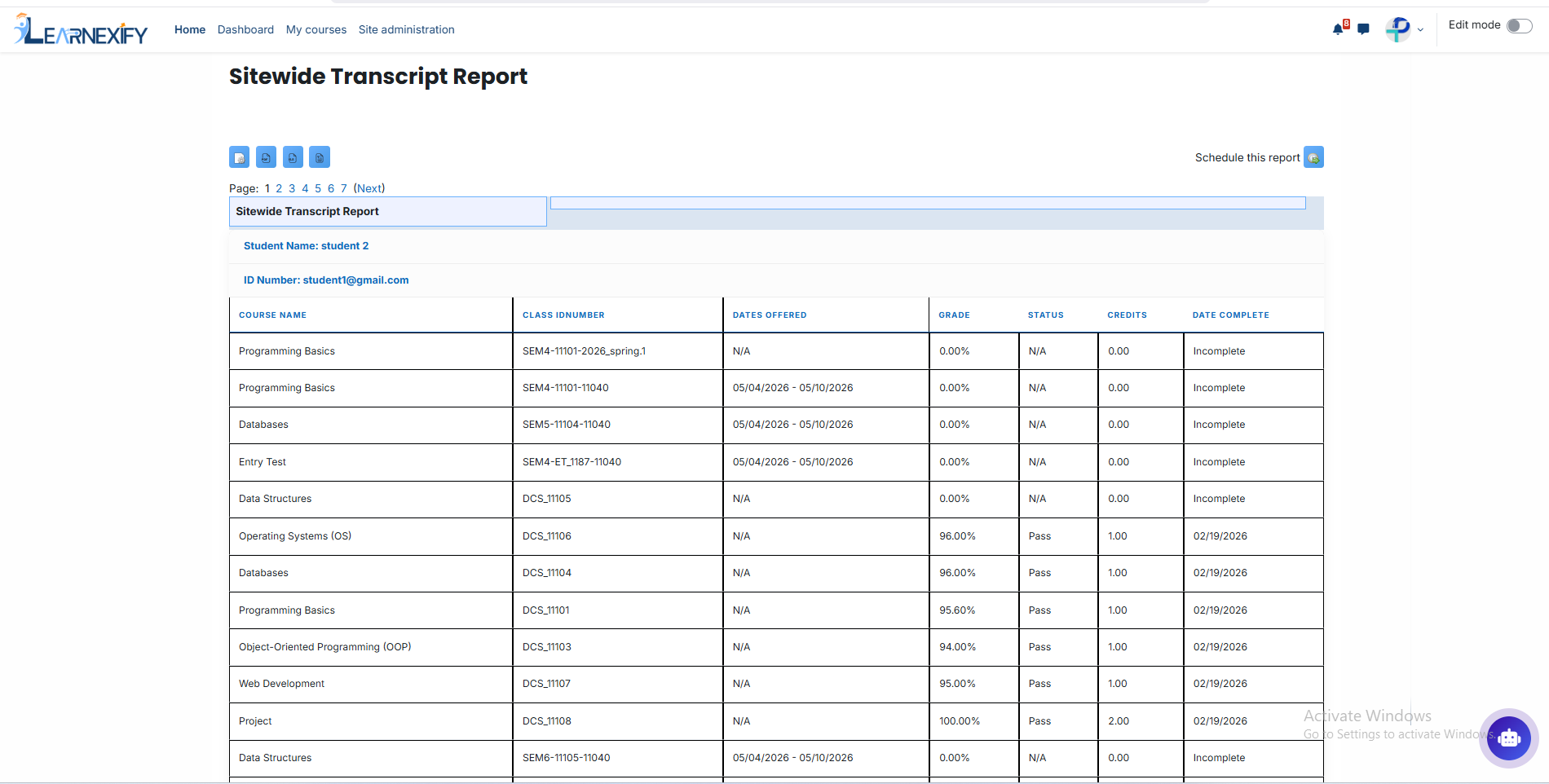
The report includes the following information for each user:
ID Number → User’s unique system ID number
Course Name → All Course Descriptions in which the user is enrolled or has completed
Class ID Number → Unique ID number of each class instance
Dates Offered → Start and end dates of the class (if not available, “N/A” is shown)
Grade → Current grade for each class instance
Status → Pass, Fail, or Incomplete
Credits → Credits earned for each class instance (if applicable)
Completed Date → Date when the class instance was completed
Report Actions (Refresh & Export):
The Refresh button updates the report with the latest data
The report can be exported in PDF and CSV formats
The report can also be scheduled for future execution