
6.5 New Registrants by Student Report
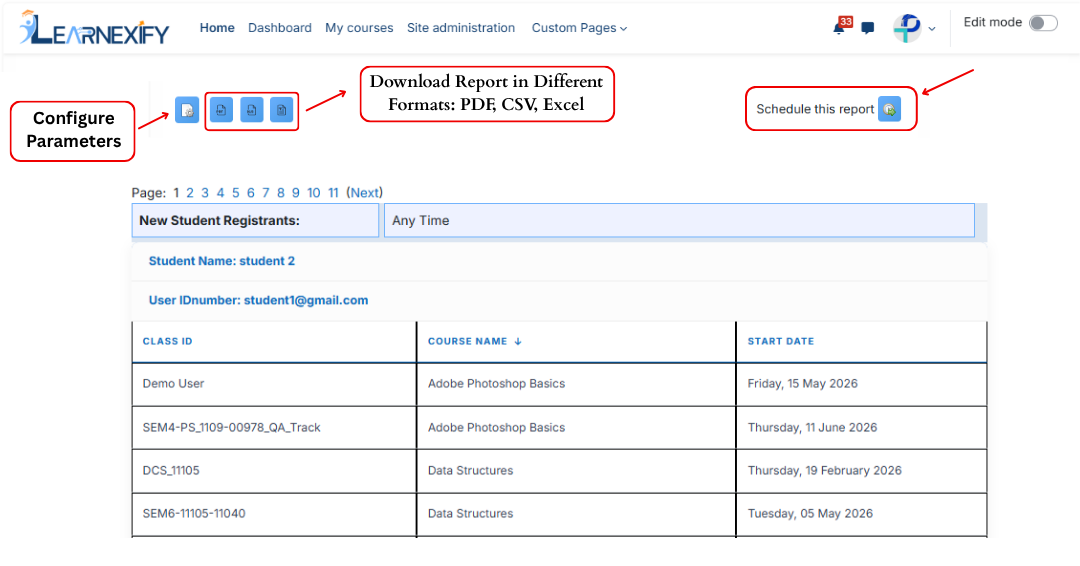
The New Registrants Grouped by Student Report displays a list of users who have newly enrolled in Learnexify Course Descriptions within a selected time period. The report organizes the data student-wise, where each student is listed along with the Course Descriptions they have newly enrolled in and their corresponding enrollment dates.
If a user has not newly enrolled in any Course Description within the selected time frame, that user will not appear in the report.
Report Path:
Dashboard ⟶ Side drawer ⟶ Reports ⟶ Administrative Reports ⟶ New Registrants by Student Report
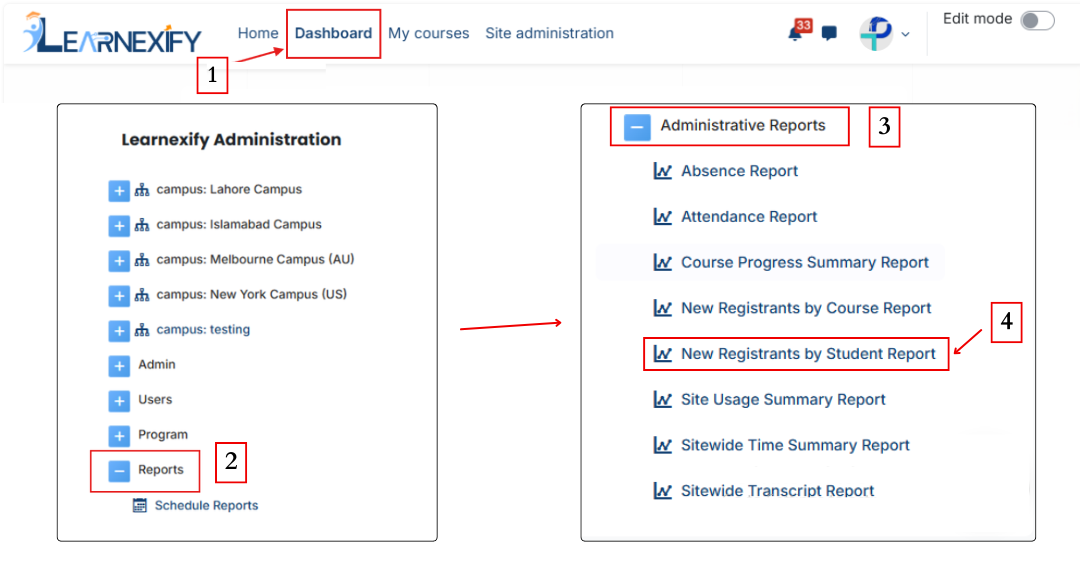
Report Requirements:
This report includes only those users who:
- Have newly registered in an Learnexify Course Description within the selected time period (if a date filter is applied)
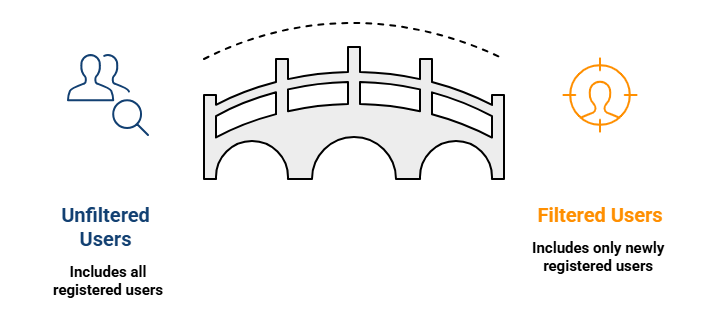
Report Filters:
This report includes two optional filters:
-
Date Range Filter:
This filter is used to define the time period for new registrations:-
“Is after” → shows users enrolled after a specific date
-
“Is before” → shows users enrolled before a specific date
These options can be used individually or together.
-
-
Organizational user groups:
Specific user groups or Sub-Sets can be selected. If a user group is selected, only users within that set who are newly enrolled within the selected time frame will be included in the report.
If default filters are used, the system displays all users along with their enrollment history.
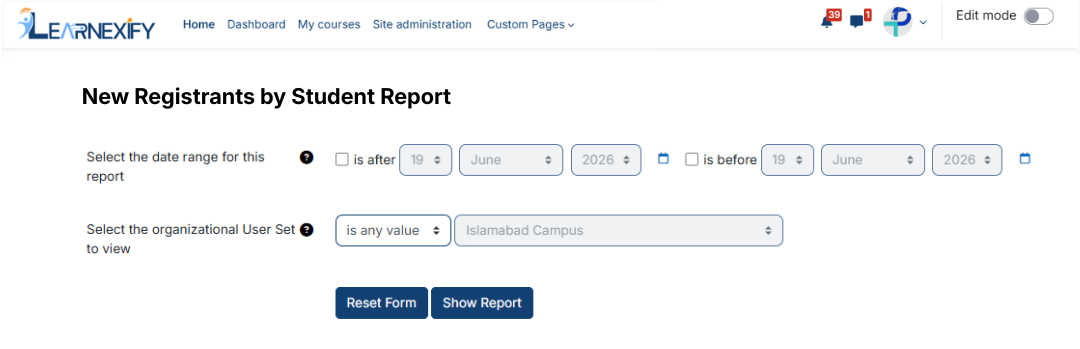
Generate Report:
- First, the required filters are selected
- Then the Show Report button is clicked
- The system processes the selected criteria and generates the report
- The report is grouped student-wise
- Under each student, the list of enrolled Course Descriptions and enrollment dates displayed
Report Output:
The report displays the following information:
- Student Name → Name of the newly registered learner
- User ID Number → System ID number of the user
- Class ID → Learnexify Class identification number
- Course Name → Name of the Learnexify Course Description
- Start Date → Date when the learner was enrolled
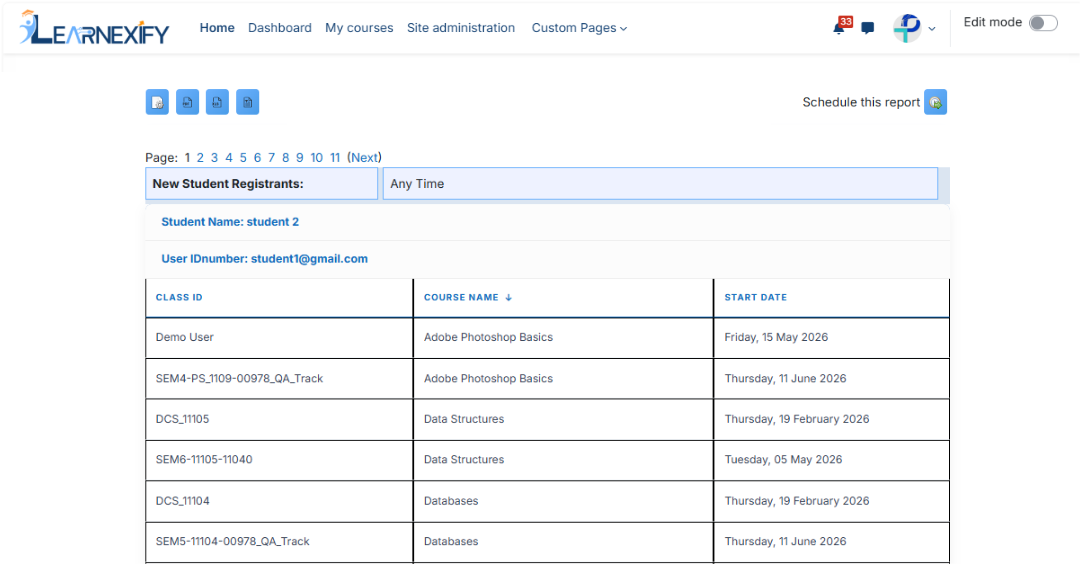
Report Actions (Refresh & Export):
- To modify report options, the Configure Parameters icon is used, located in the upper left corner of the report.
- The Refresh button updates the report with the latest data
- The report can be downloaded in PDF and CSV formats
- The report can be scheduled using the Schedule Reports option to be generated at a specified date and time.
No comments to display
No comments to display