
How to Assign User Subsets to a User Group
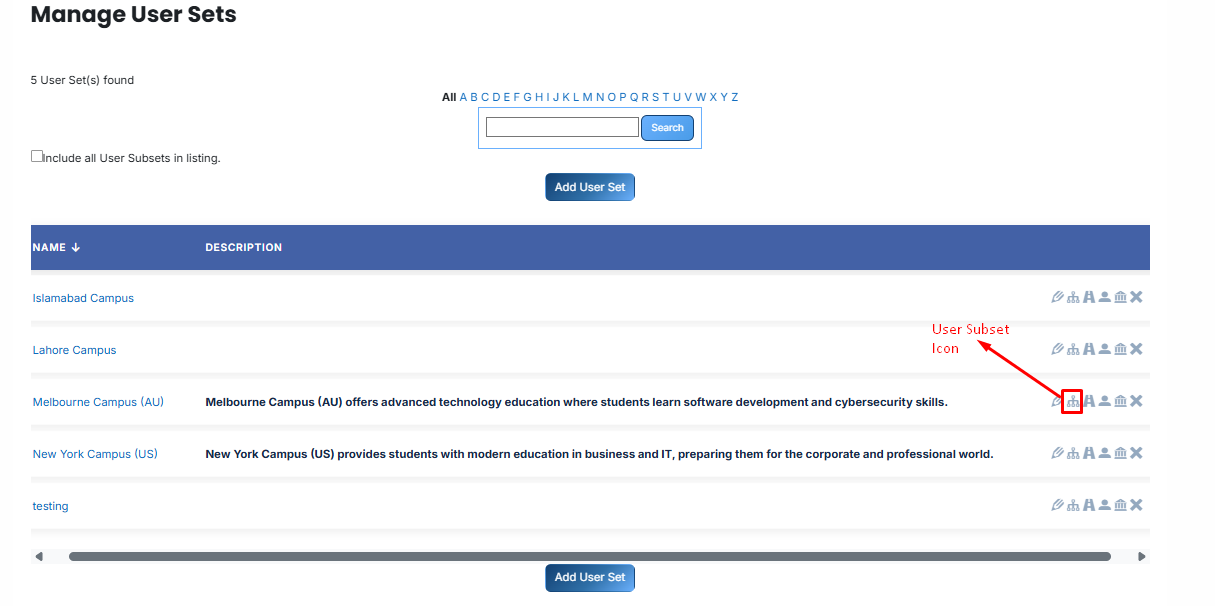
- From the list of all User Groups, click the User subset icon for the userset to which you want to assign user subset.
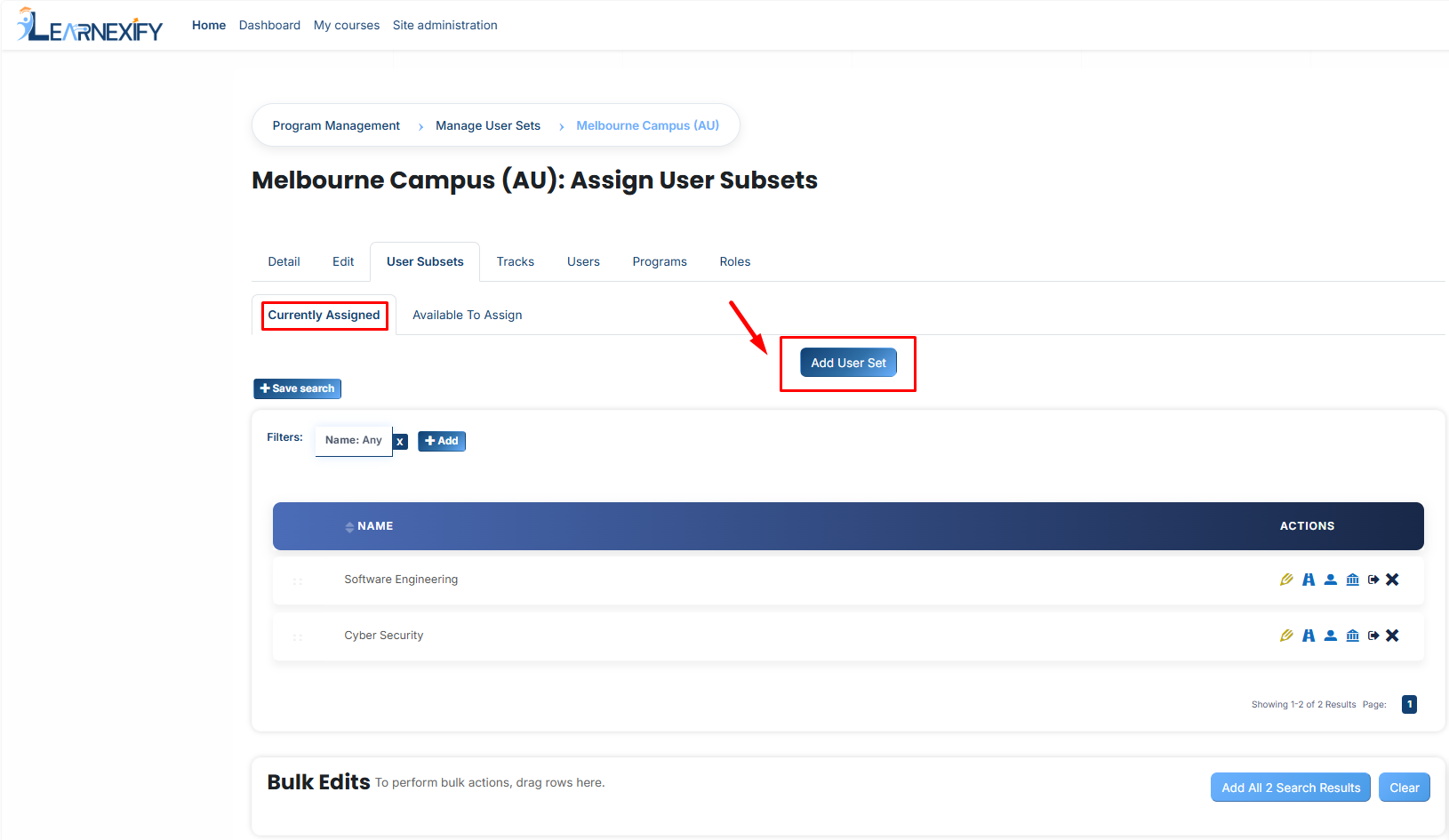
- Once user subset tab is opened, here you will see assigned User Subsets in the User Groups.
- If you want to add a new User subset click on this Add User Group Button.
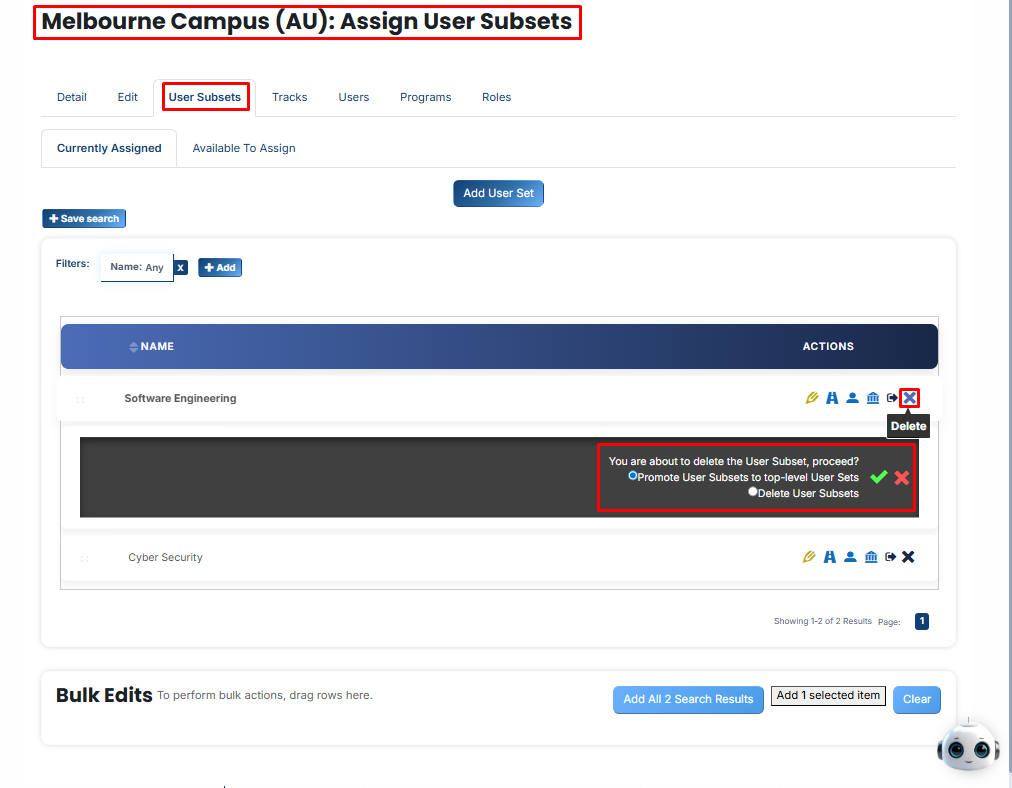
When you click the X (Delete) icon on a User Group that contains Sub-sets , Learnexify gives you two choices to handle the sub-groups:
Promote User Subsets to top-level User Groups:
It deletes only the "Parent" group but saves all the sub-groups inside it. The sub-groups (eg. Software Engineering) are moved out and become main, independent groups on the top-level list.
Delete User Subsets:
It deletes everything at once. Both the "Parent" group and all the "Child" sub-groups inside it are permanently removed from the system.
After selecting your choice, click the Green Tick (✔) to confirm or the Red (✖) to cancel.
-
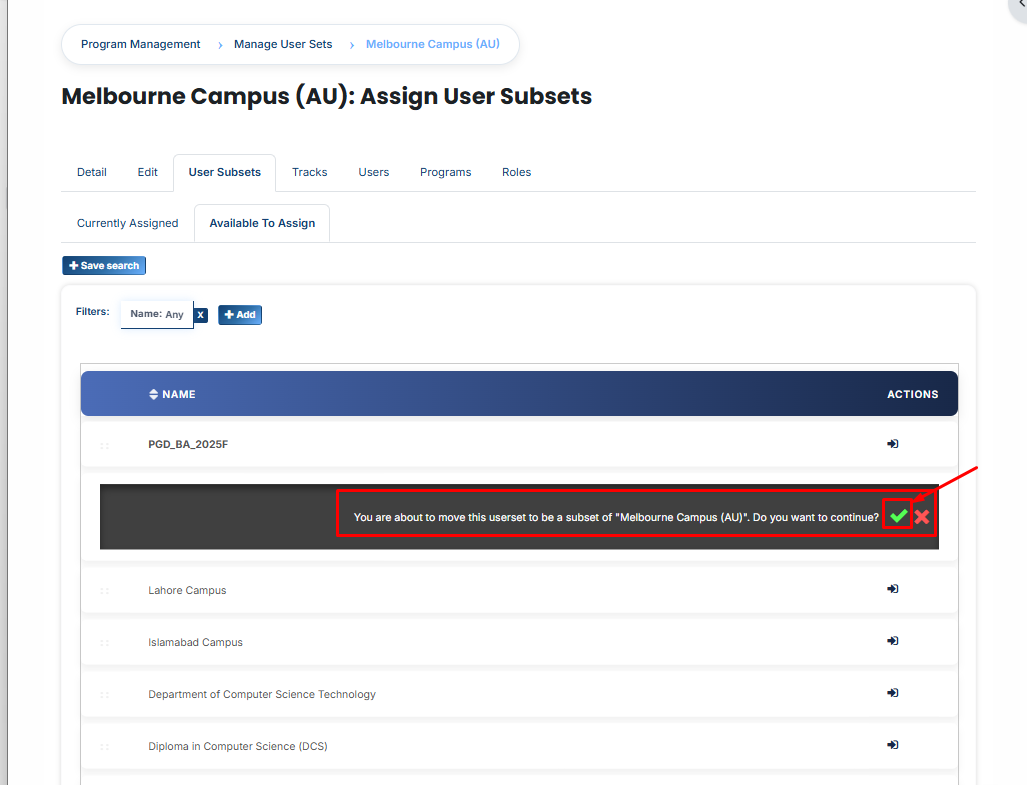
If you want to add existing User Groups as user sub-sets click on the Available to Assign button.
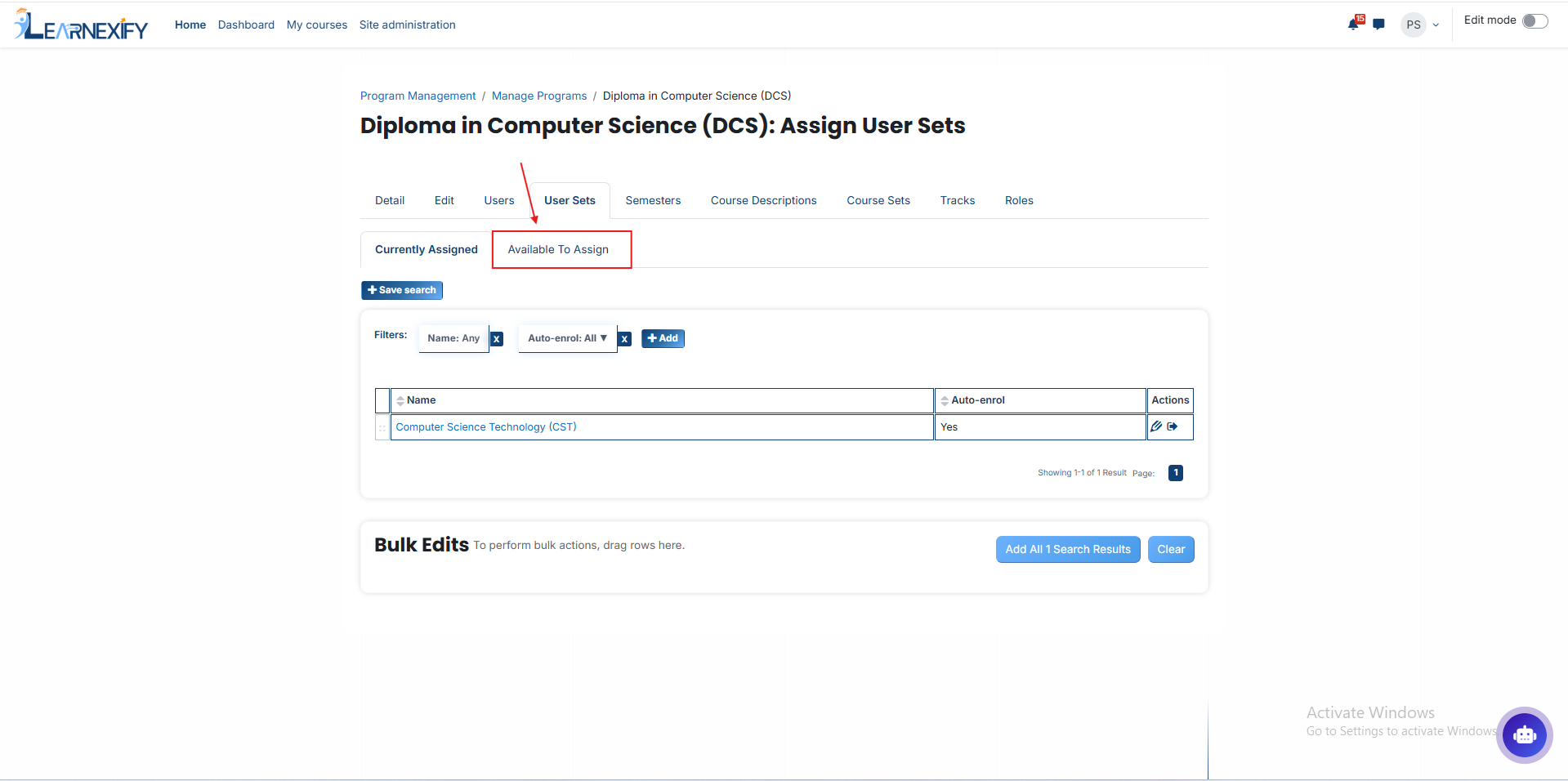
- A list of available User Groups will be displayed
- Select the User Groups you want to assign
- Then, click on the arrow icon to move the User Groups to the assigned list
Click on the green tick (✔) to confirm the assignment
- After that, click on the Currently Assigned button
- Here, you will see the existing User Groups as user sub-sets who have been successfully assigned to the User Group