
How to Assign User Subsets to a Organizational Hierarchy
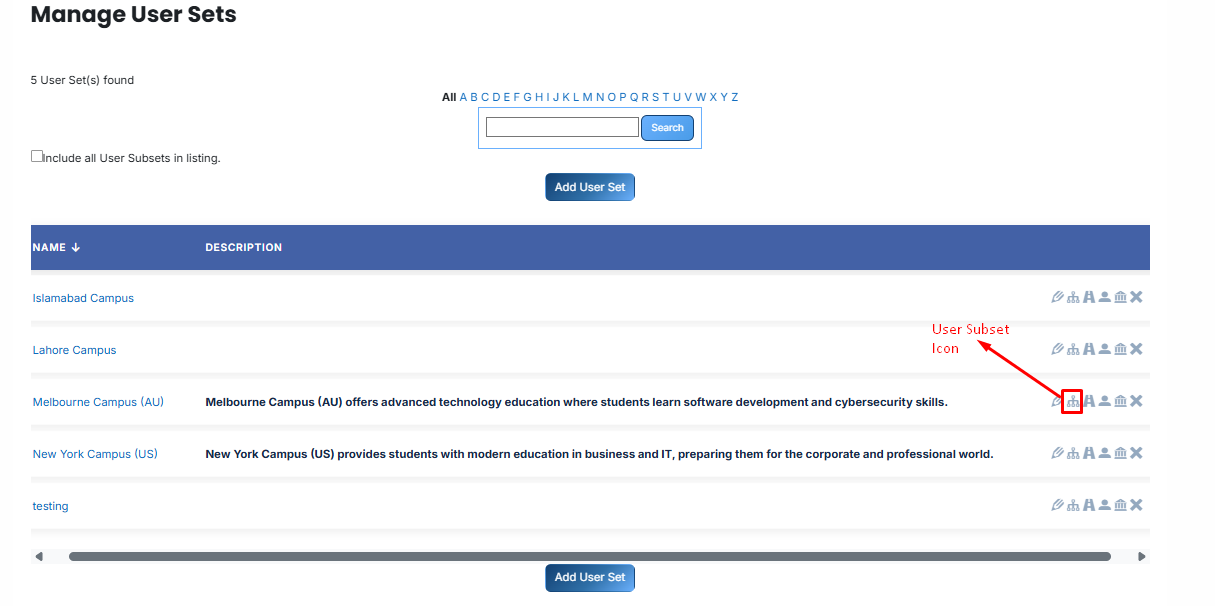
- From the list of all Organizational Hierarchies, click the User subset icon for the userset to which you want to assign user subset.
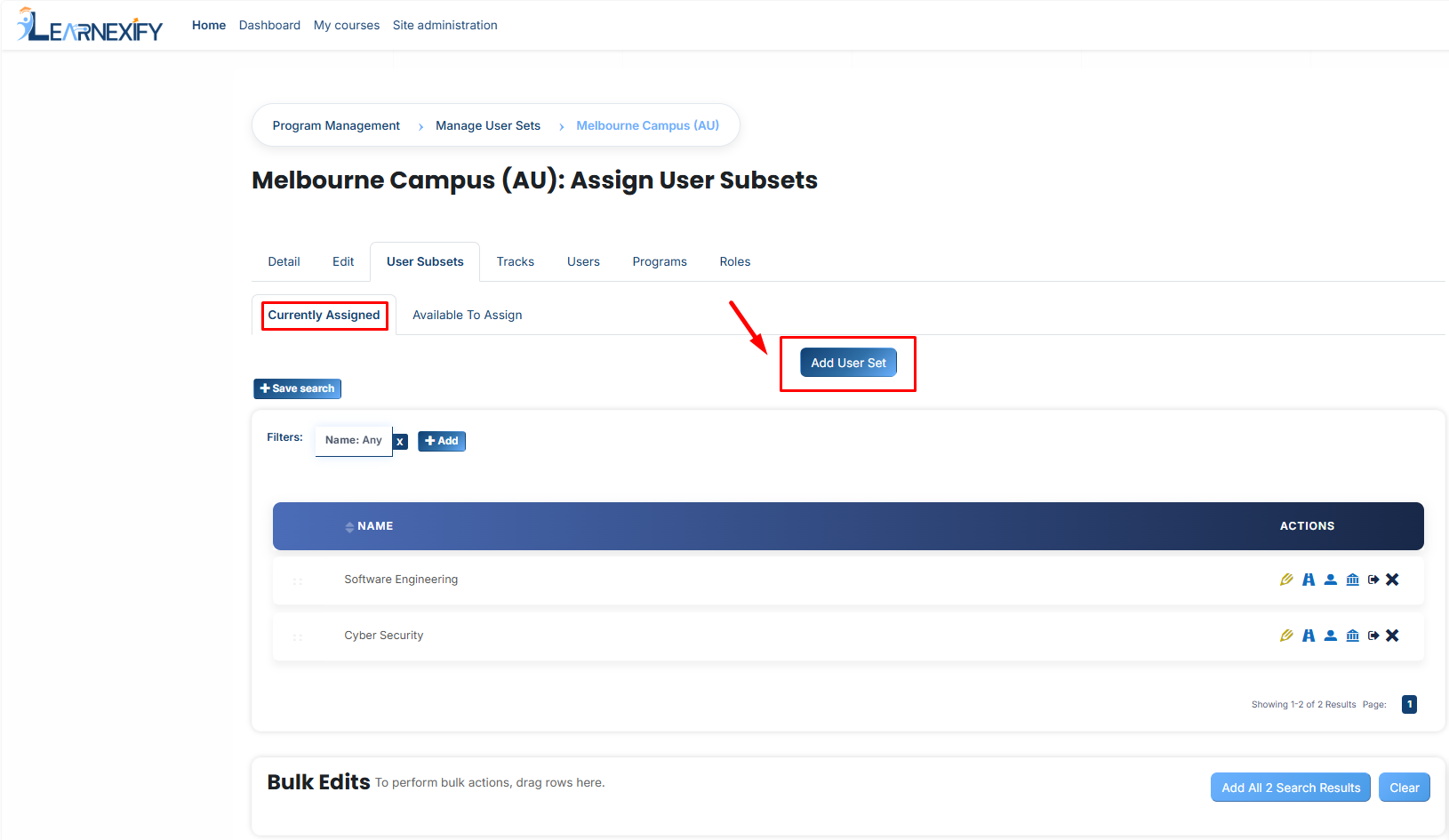
- Once user subset tab is opened, here you will see assigned User Subsets in the Organizational Hierarchies.
- If you want to add a new User subset click on this Add Organizational Hierarchy Button.
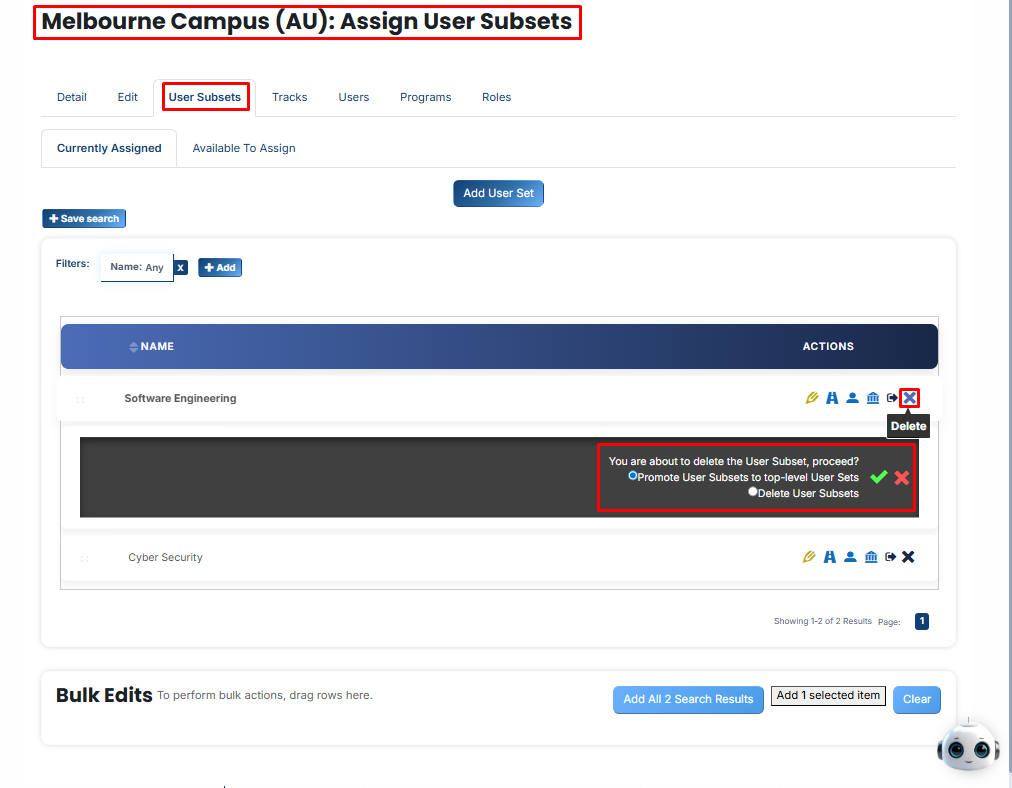
When you click the X (Delete) icon on a Organizational Hierarchy that contains Sub-sets , Learnexify gives you two choices to handle the sub-groups:
Promote User Subsets to top-level Organizational Hierarchies:
It deletes only the "Parent" group but saves all the sub-groups inside it. The sub-groups (eg. Software Engineering) are moved out and become main, independent groups on the top-level list.
Delete User Subsets:
It deletes everything at once. Both the "Parent" group and all the "Child" sub-groups inside it are permanently removed from the system.
After selecting your choice, click the Green Tick (✔) to confirm or the Red (✖) to cancel.
-
If you want to add existing Organizational Hierarchies as user sub-sets click on the Available to Assign button.
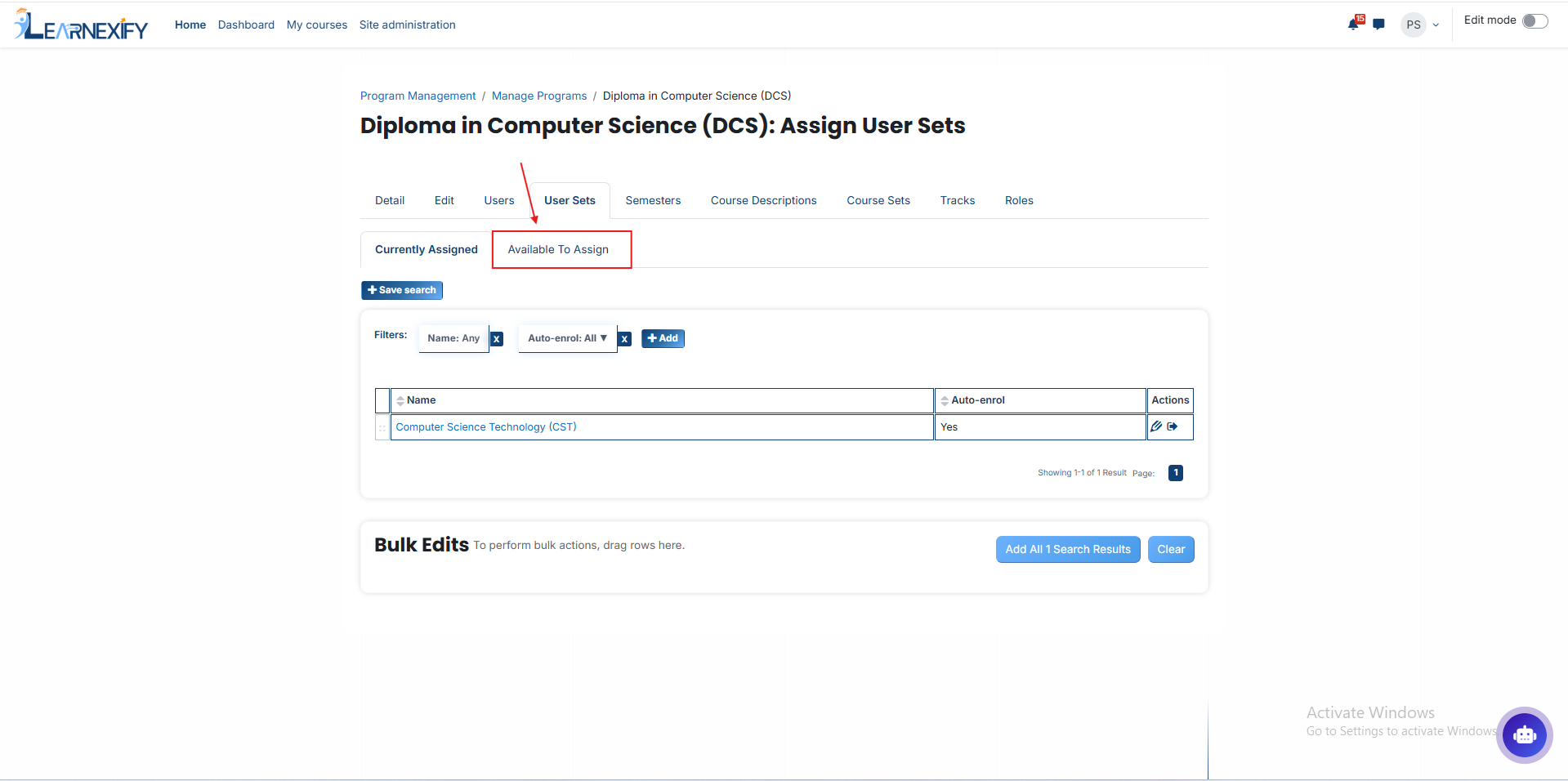
- A list of available Organizational Hierarchies will be displayed
- Select the Organizational Hierarchies you want to assign
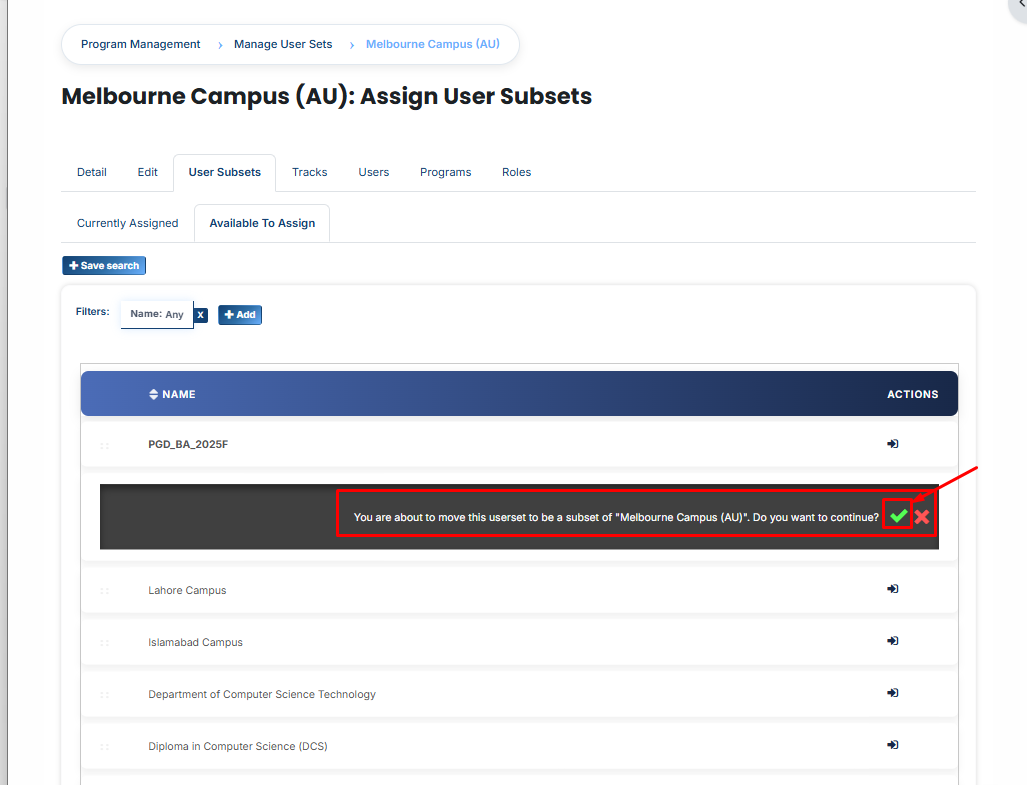
- Then, click on the arrow icon to move the Organizational Hierarchies to the assigned list
Click on the green tick (✔) to confirm the assignment
- After that, click on the Currently Assigned button
- Here, you will see the existing Organizational Hierarchies as user sub-sets who have been successfully assigned to the Organizational Hierarchy.
In the “Available to Assign” section, if you have a lot of user sub-sets there is a filter section above the user sub-set list , you can use the filter option to search for it.
Click on the Add button, and you will see different filter options:
1. Organizational Hierarchy Classification
If you select this filter and type a value, the system will show only matching Organizational Hierarchies.
For example, if you select “Organizational Hierarchy Classification” and type “campus”, then only campus-related User Groups will appear.
2. Display Priority
This filter is used to find Organizational Hierarchies based on priority.
For example, if you enter “2”, then only Organizational Hierarchies with priority 2 will be shown.
3. Enable Corresponding Group
This filter is used to show Organizational Hierarchies linked with a specific group.
For example, if a group is enabled and you apply this filter, only related Organizational Hierarchies will appear.
4. Auto Enroll User in Grouping
If this option is selected, users inside the Organizational Hierarchy will be automatically enrolled into the program after assignment.
For example, once a Organizational Hierarchy is assigned, users will instantly get access without manual enrollment.
5. Theme Priority
This filter helps to find Organizational Hierarchies based on theme priority.
For example, if you set priority “1”, then Organizational Hierarchies with theme priority 1 will be displayed.
6. Theme
This filter is used to search Organizational Hierarchies based on a theme.
For example, if you type “flexpath”, then all Organizational Hierarchies related to that theme will appear.
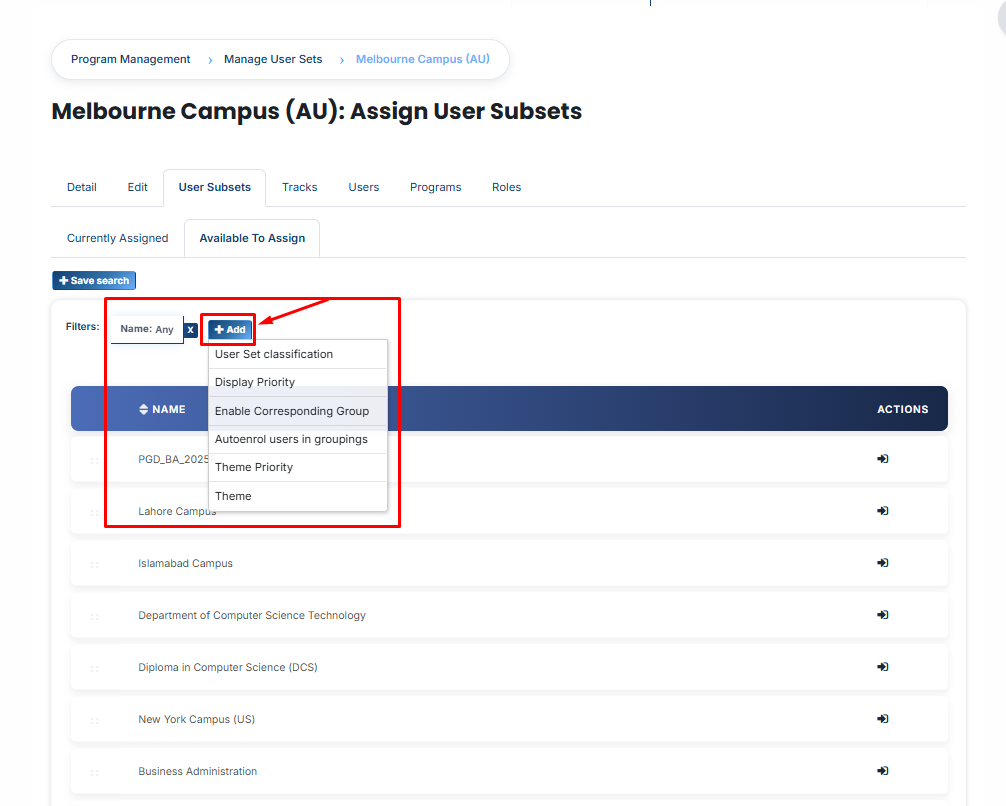
Assign User Subsets Using Filters
Once the correct User Subset appears, click on the arrow icon and assign it using the green tick (✔).
The User Subset will then appear in the “Currently Assigned” list.
Bulk User Action:
If you want to assign multiple user subsets in one time then follow these steps:
Method 1:
- Select those multiple user subsets you want to assign
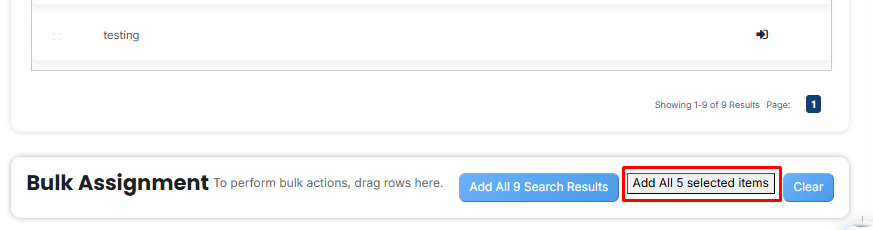
- After making your selections, click the “Add All 5 Selected Items” button to add the selected Organizational Hierarchies.
The number displayed in the button (e.g., 5) represents the number of items currently selected and will change depending on how many items you select.
-
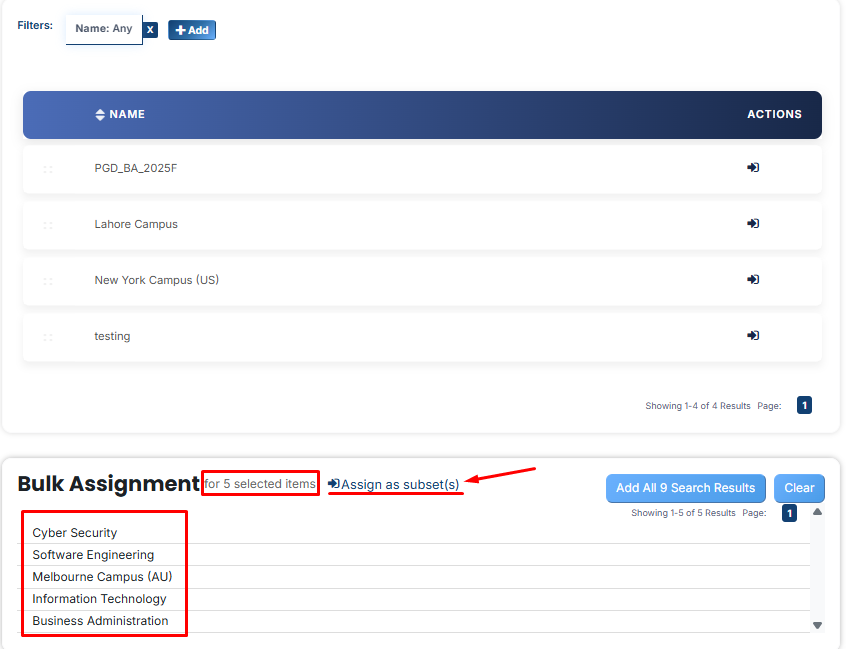
Then click on the Assign as subset(s) in the Bulk Assignment Section to move the Organizational Hierarchies to the assigned list as subsets.
Method 2:
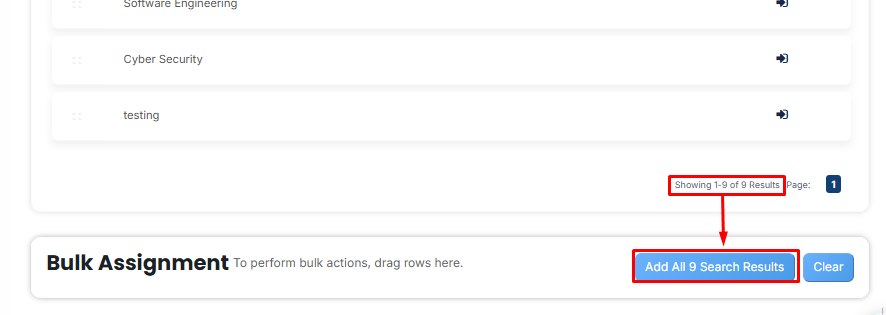
- Click the “Add All 9 Search Results” button to add all user subsets with a single click. The number displayed in the button (e.g., 9) change depending on the number of user subsets available in the search results.
- If you want to clear everything, click the Clear button.
No comments to display
No comments to display