
How to Assign Program in a Organizational Hierarchy
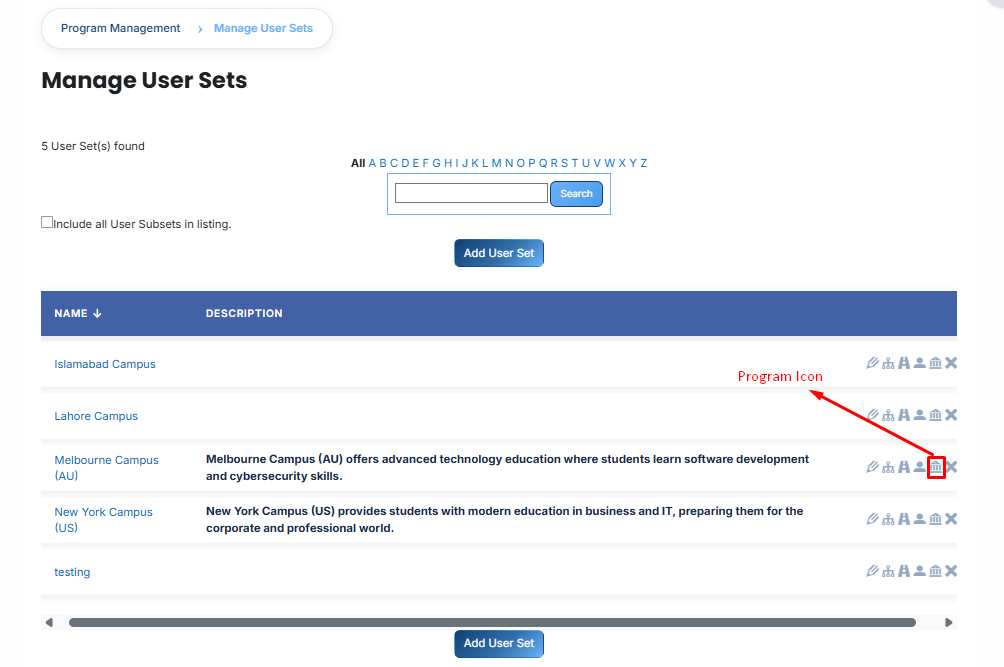
From the list of all Organizational Hierarchies, click the Program icon for the Userset to which you want to assign Program.
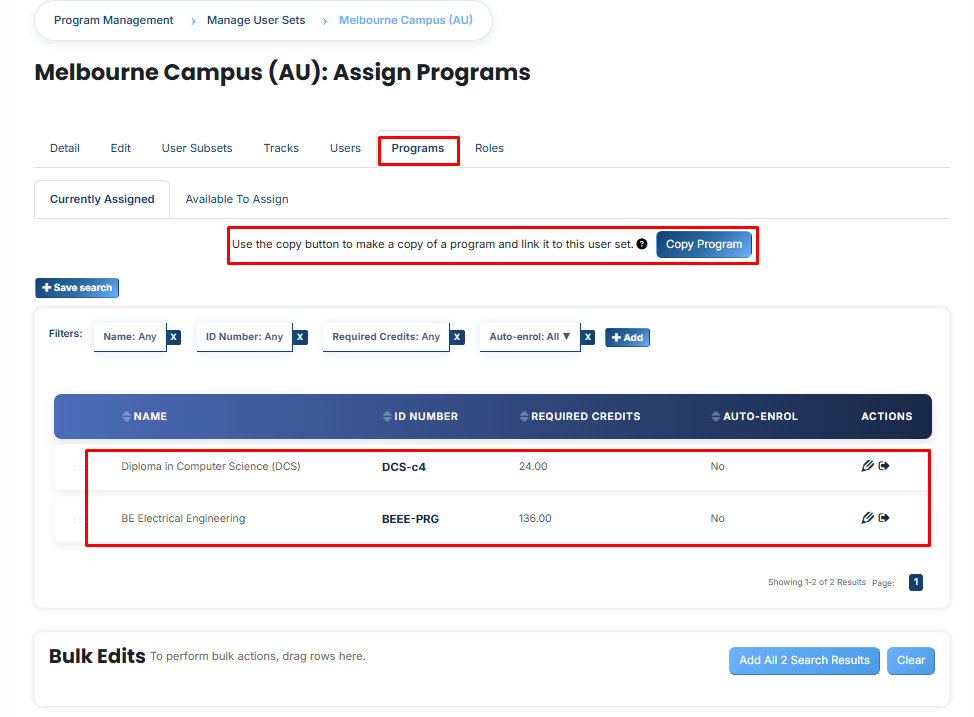
Once the tab opens, you will see a list of programs already linked to this Userset.
You can use the copy button to make a copy of a program and link it to this Organizational Hierarchy.
When you find the program you want to add and click the Arrow Icon.
Two automation options will appear to help manage your enrollments:
-
Auto-enrol users into this program when they are added to this Organizational Hierarchy:
If you check this box, any person who is currently in this group—or anyone who joins in the future—will be automatically enrolled in this program. It ensures that new members get their courses immediately without any manual work from the administrator. -
Apply Program association to all User Subsets:
This pushes the program assignment down to all "Child" groups. If your main group has smaller departments or batches inside it, they will all be linked to this program at once. It is the fastest way to assign a program to an entire campus and every department within it.
-
Select your preferred checkboxes.
-
Click the Green Tick (✔) to save.
-
Next, click on the Currently Assigned button to view that program have been successfully assigned to the batch.
Adding a Program Using Filter:
If the required program is not visible, follow these steps:
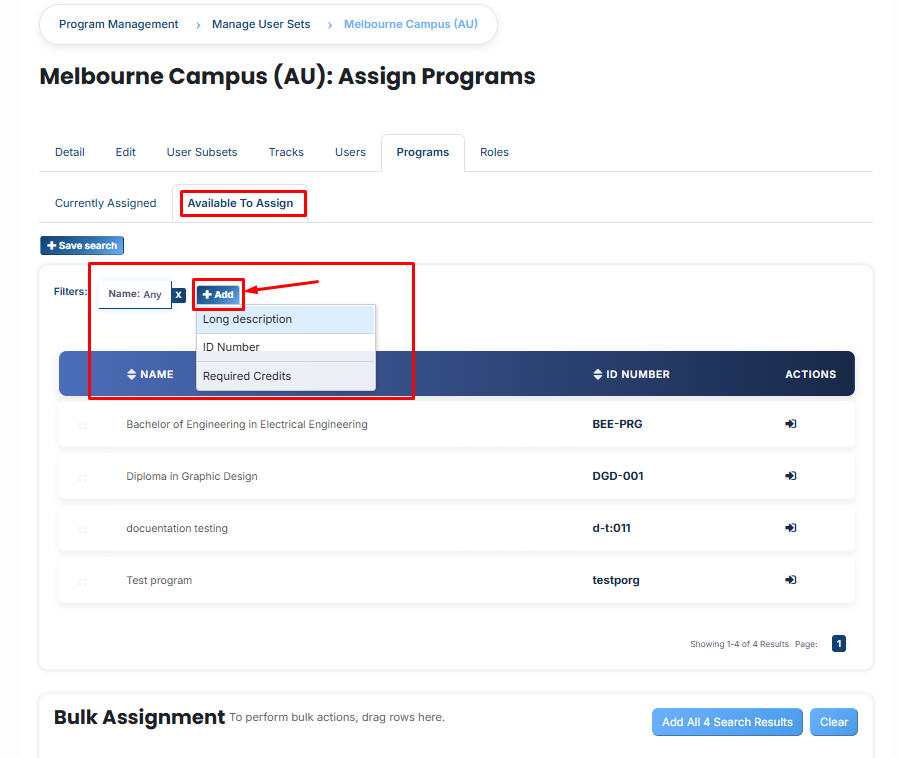
In the Available to Assign section, click the Add button.
A new form will appear. Provide the following details:
- Name: The official title used to identify the program.
- ID Number: A unique code assigned specifically to this program.
- Long Description: A full summary providing more detail about the program.
- Required Credits: The total number of points a learner must earn to complete the program.
-
Once you save these details, the program will appear in the available list. You can then follow the steps above to assign program to your Organizational Hierarchy.
Bulk User Action:
If you want to assign multiple programs in one time then follow these steps:
Method 1:
- Select those programs you want to assign.
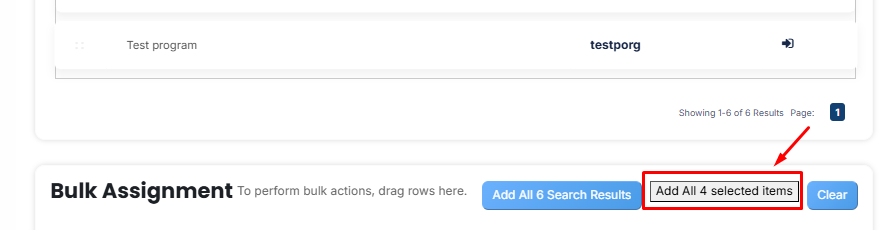
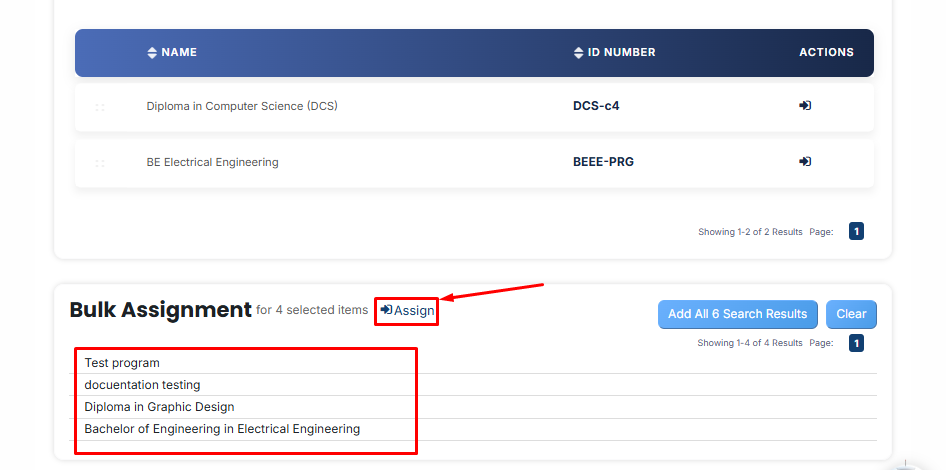
- After making your selections, click the “Add All 4 Selected Items” button to add the selected Programs.
The number displayed in the button (e.g., 4) represents the number of items currently selected and will change depending on how many items you select.
-
Then click on the Assign button in the Bulk Assignment Section to move the programs to the currently assigned list.
Method 2:
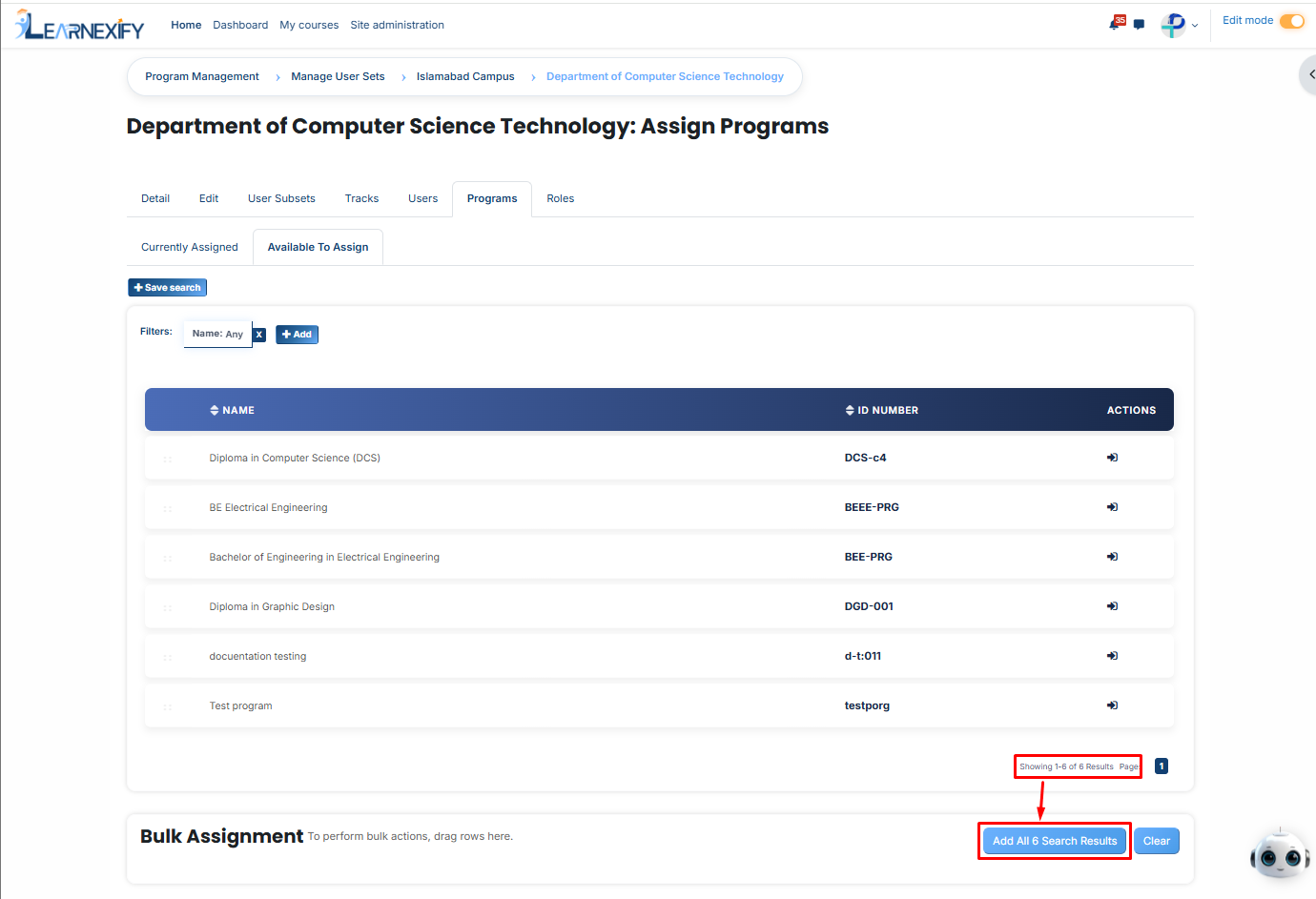
- Click the “Add All 6 Search Results” button to add all programs with a single click. The number displayed in the button (e.g., 6) will change depending on the number of programs available in the search results.
- If you want to clear everything, click the Clear button.
No comments to display
No comments to display