
Manage Users
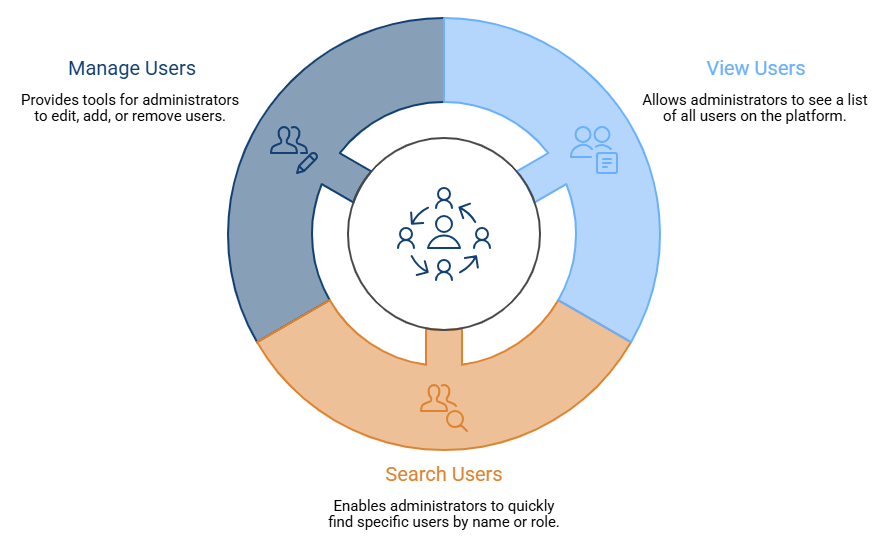
Manage Users is the central control center for all people on your platform. Think of it as a digital directory where administrators can view, search for, and manage every student, teacher, or staff member.
Accessing Manage Users
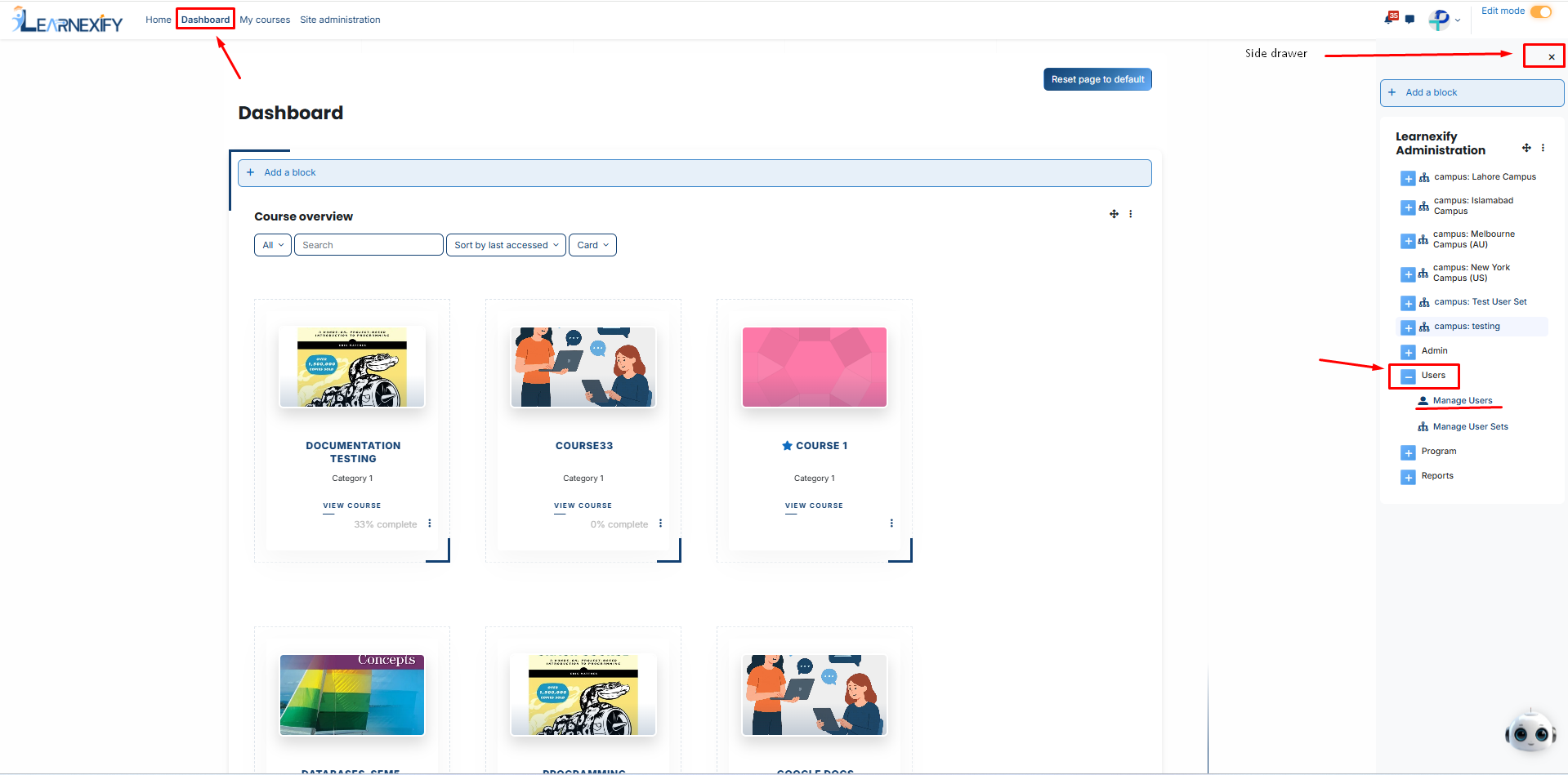
To get to the Manage Users page, follow these simple steps:
- Login in Learnexify and go to Dashboard.
- Open the Side Menu (drawer) on the left.
- Click on the Users tab to expand the options.
- Select Manage Users.
Understanding User Filters
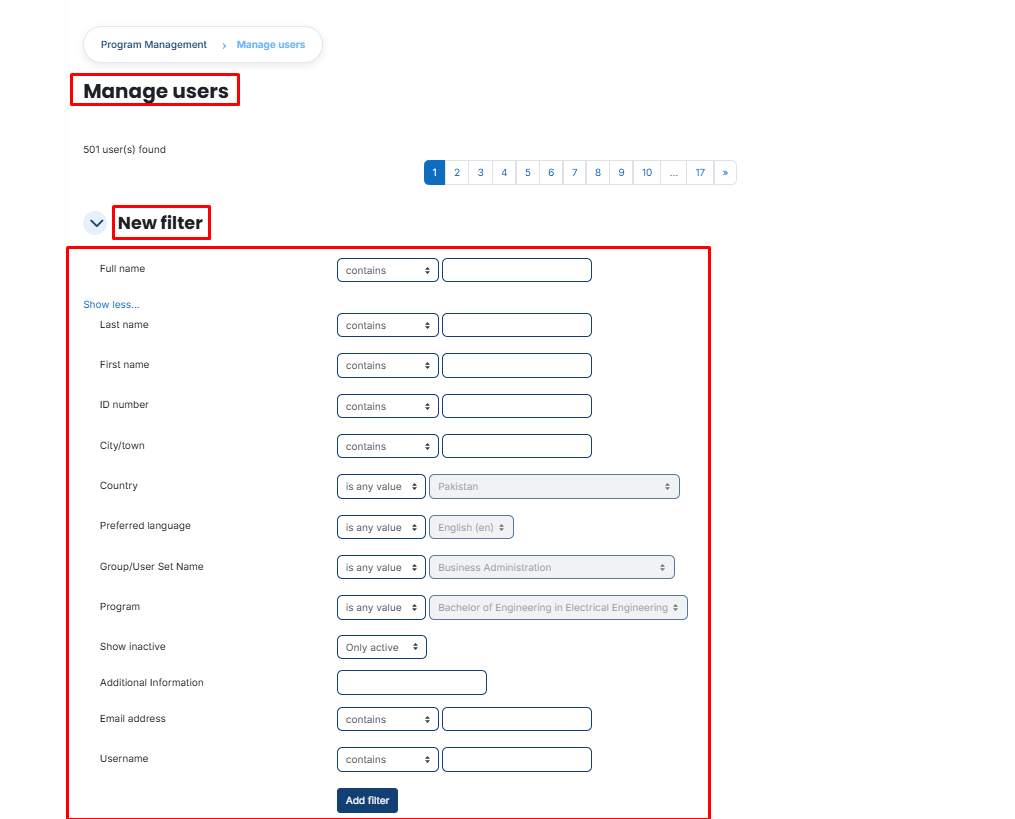
The New Filter section allows you to narrow down your list so you only see the people you need. Here is what each filter does:
- Full name: Search for a user by typing their complete name.
- Last name: Find users based on their family name or surname.
- First name: Find users based on their given name.
- ID number: Search using a unique identification number (like a Student ID or Employee Code).
- City/town: Filter users based on the specific city they live in.
- Country: Select a specific country from the dropdown menu to see users from that region.
- Preferred language: Group users by the language they use to view the platform.
- User Group Name: Filter users by their department, campus, or specific organizational group.
- Program: View only the students enrolled in a specific degree or certification (e.g., Bachelor of Engineering).
- Show inactive: Choose to see only Active accounts, or include Inactive accounts (people who no longer have access).
- Additional Information: Search through custom notes or extra data attached to a user's profile.
- Email address: Find a user by typing in their contact email.
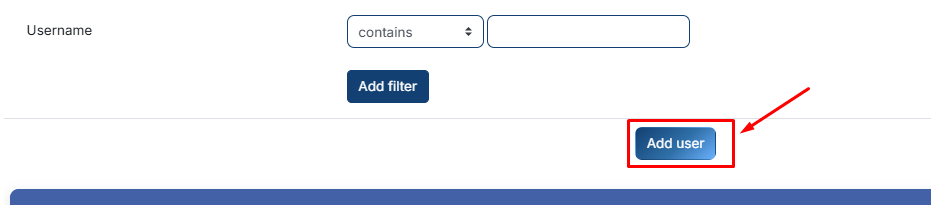
- Username: Search for a user using the unique ID they use to log into the system.
Note: After entering your information, click the Add Filter button to apply the search.
Search Conditions
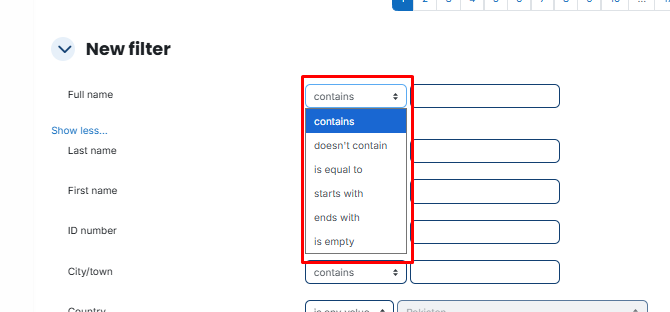
When using the filters to find a user, you will see a dropdown menu next to each field (like Full Name or Email). These options tell the system exactly how to look for the data:
- Contains: Finds any user whose information includes the letters or numbers you typed (e.g., searching "John" will find "John Smith" and "Elton John").
- Doesn't contain: Shows everyone except those who have the text you typed.
- Is equal to: Finds only an exact match. If you type "John," it will not show "Johnathan."
- Starts with: Finds users whose information begins with the specific characters you entered.
- Ends with: Finds users whose information ends with the characters you entered.
- Is empty: Finds users who have no information saved in that specific field.
How to Add a User
If you need to register a new person on the Learnexify site:
Click the Add user button.
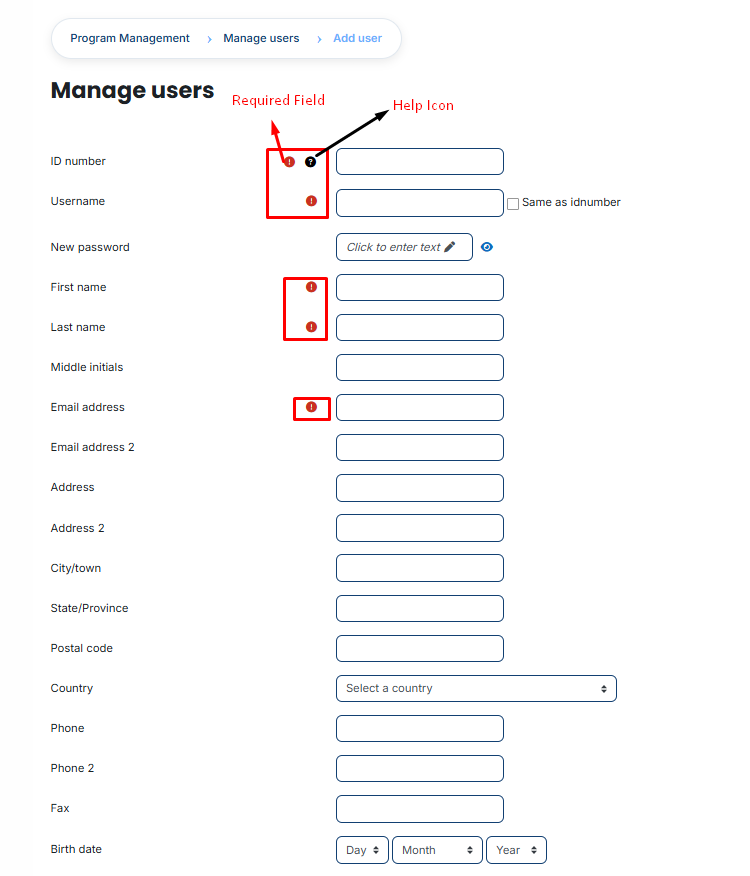
Fill in the details in the form that appears:
Required Fields (Marked with a Red Icon):
- ID Number: A unique identification code for the user (e.g., 220-e772).
- Username: The unique name the user will use to log in.
- New Password: Click the pencil icon to set an initial password for the account.
- First Name: The first name of the user.
- Last Name: The Last name of the user.
- Email Address: The primary email where the user will receive system notifications.
Optional Information:
- Middle Initials: Added for more precise identification.
- Email Address 2: A secondary or backup contact email.
- Address / Address 2: The user's residential or mailing address.
- City/Town, State, Postal Code, & Country: Used to batch the geographic location of your learners.
- Phone / Phone 2 / Fax: Primary and secondary contact numbers.
- Birth Date: The user's date of birth.
- Gender: Select Male or Female.
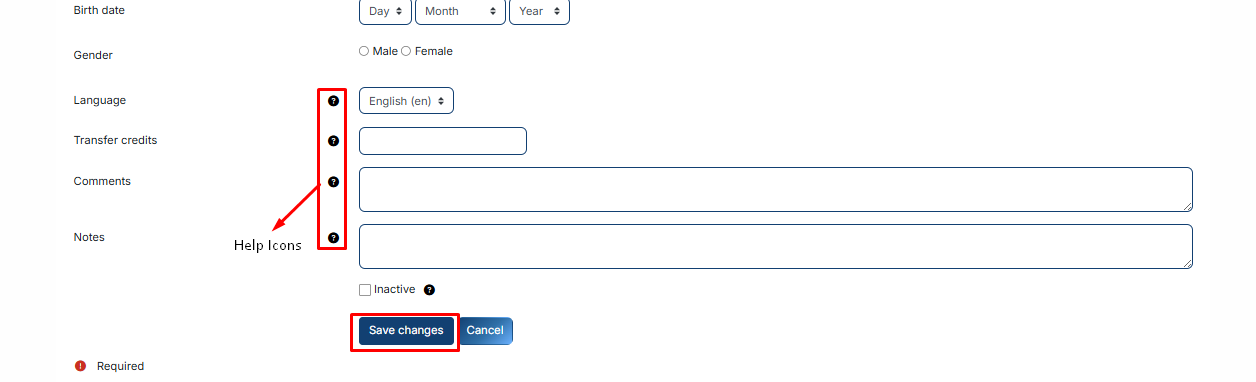
- Language: Choose the user's preferred language for the platform interface.
- Transfer Credits: Manually enter academic credits earned from other institutions.
- Comments: General administrative remarks about the user.
- Notes: Private, internal notes for administrators only.
- Inactive Checkbox: If checked, the user is created but cannot log in until you uncheck it.
Once you have filled in the required fields and any optional data, click the Save Changes button at the bottom.
No comments to display
No comments to display