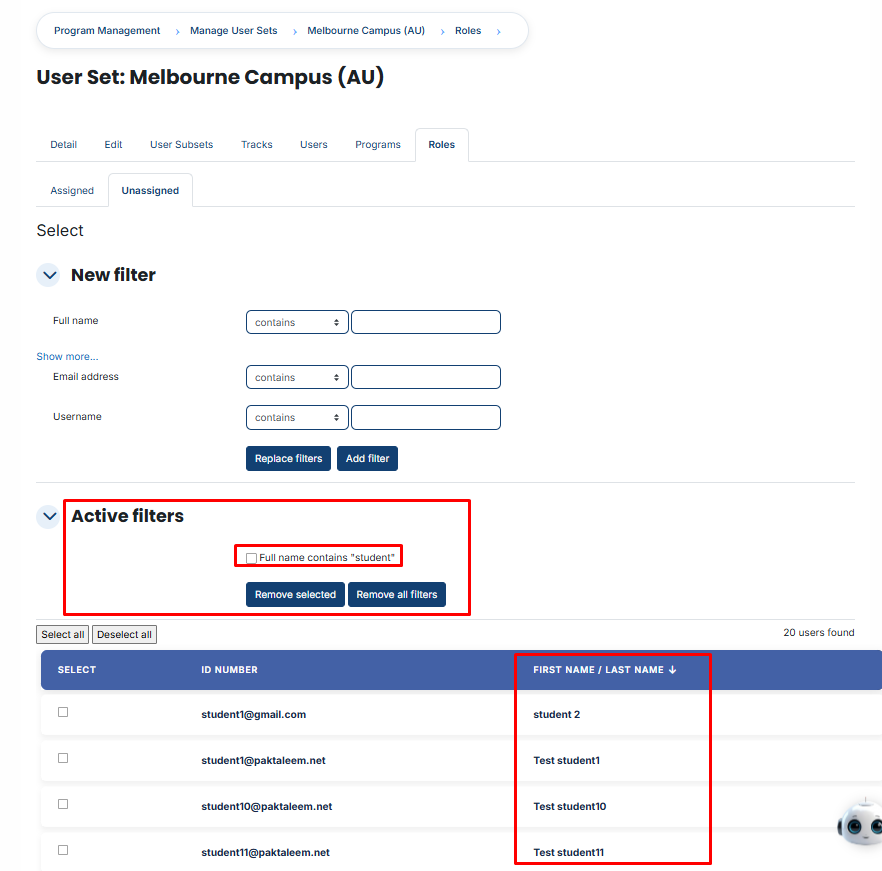
How to Assign Users to Roles in a User Group
-
On the dashboard > open the side drawer > Click on User and select Manage Organizational Hierarchies.
-
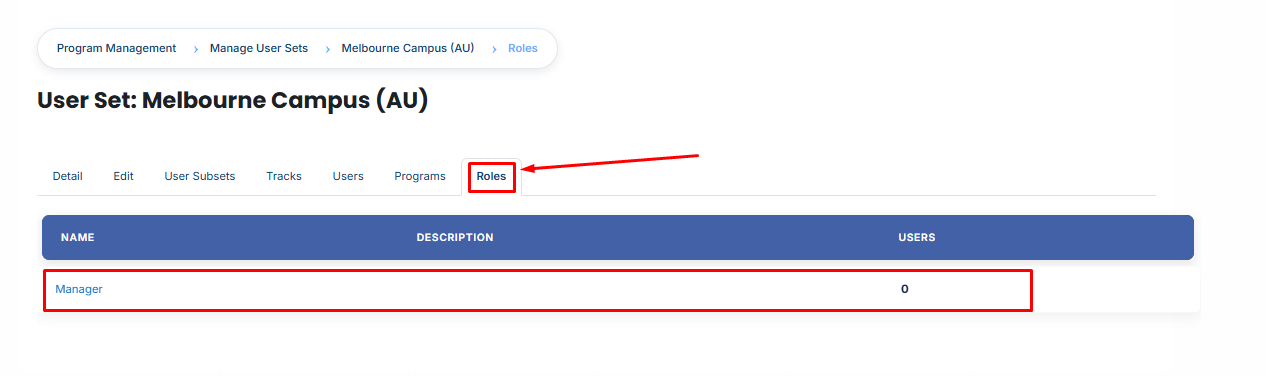
Then, click on the User Group name you want to edit and click roles tab.
-
Review the list of available roles.
-
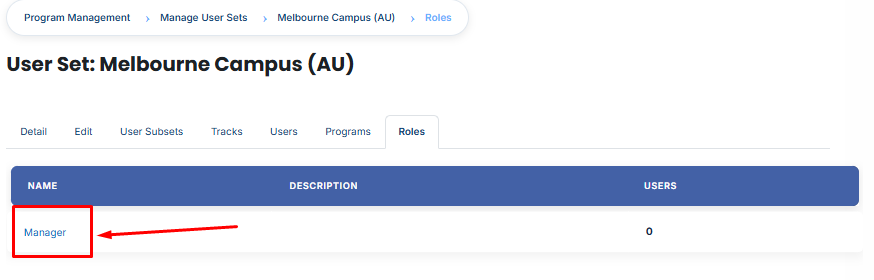
Click on the role to which you want to assign users.
-
A page will open displaying all users currently assigned to the selected role.
-
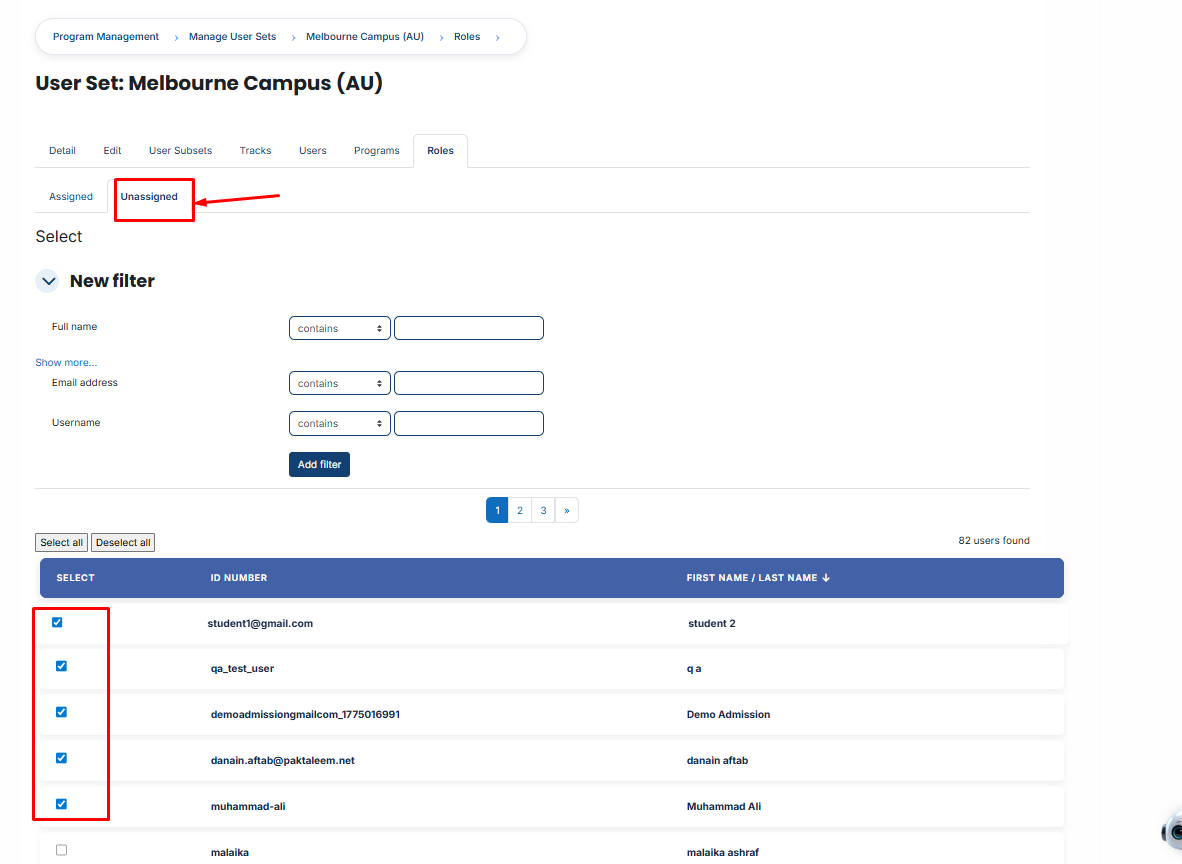
To assign additional users, click the Unassigned button. This will display all users who are currently unassigned to the selected role.
-
Select the user(s) you want to assign.
-
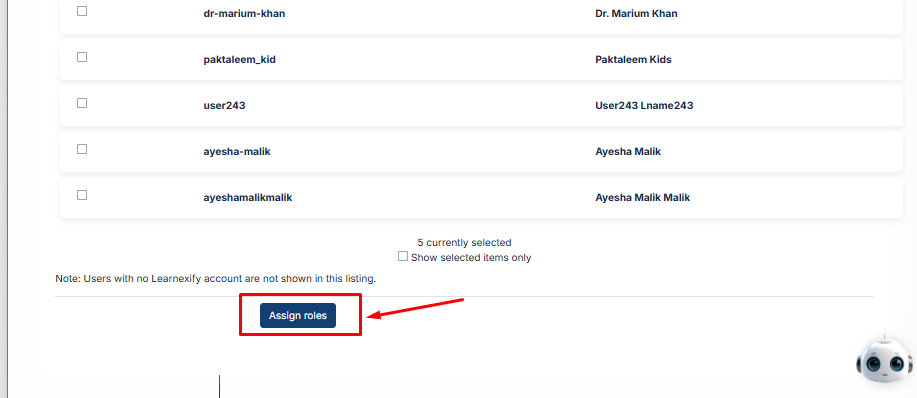
Scroll down and click Assign Roles.
Using Filters:
If you cannot find the required user:
-
Use the Filter option.
-
Add a filter using Email Address, Username, Full Name or Other available user profile fields .
-
Click Add Filter.
-
Select the required user from the filtered results.
-
Scroll down and click Assign Roles to complete the assignment.