How to Assign Users to Roles in a Organizational Hierarchy
On the
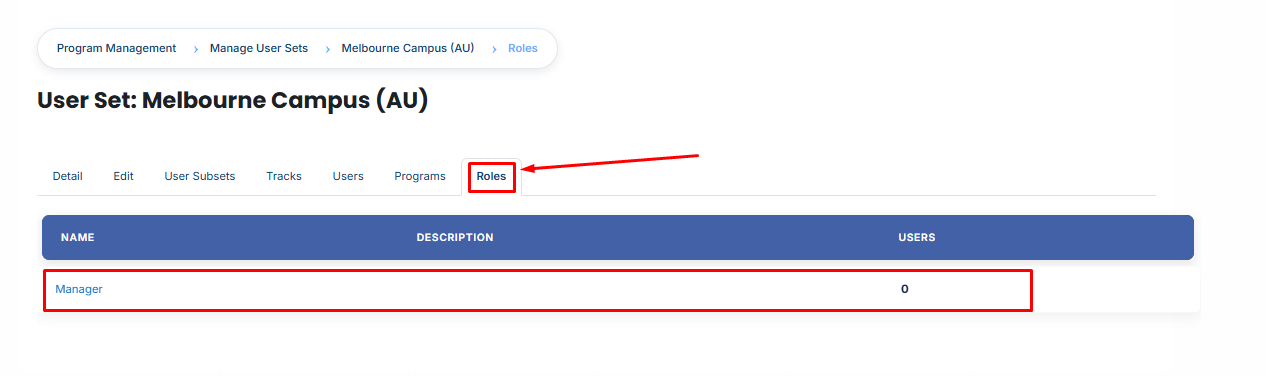
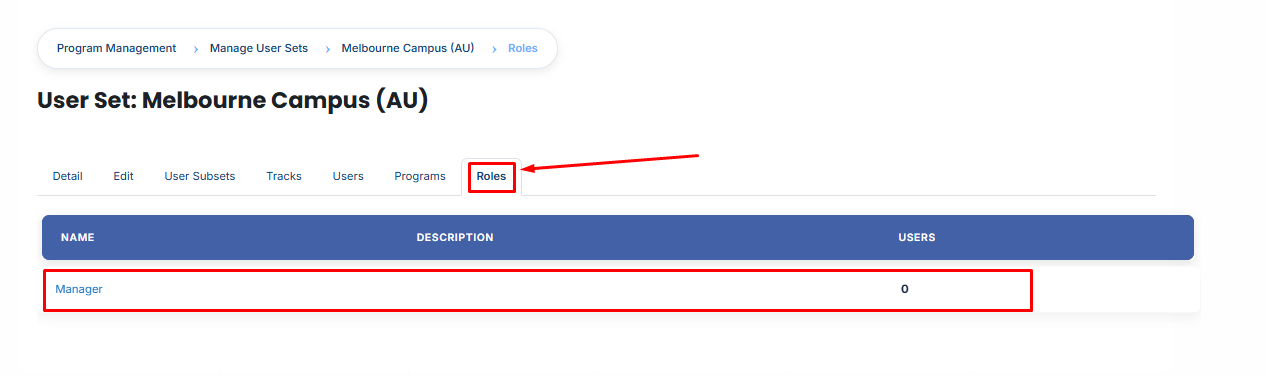
dashboard >Dashboard, open the side drawer,> Clickclick on User, and select Manage OrganizationalHierarchies.Then, clickClick on theUserOrganizationalGroupHierarchy name you want toeditedit,andthen clickrolesthe Roles tab.
Assigning Users to a Role:
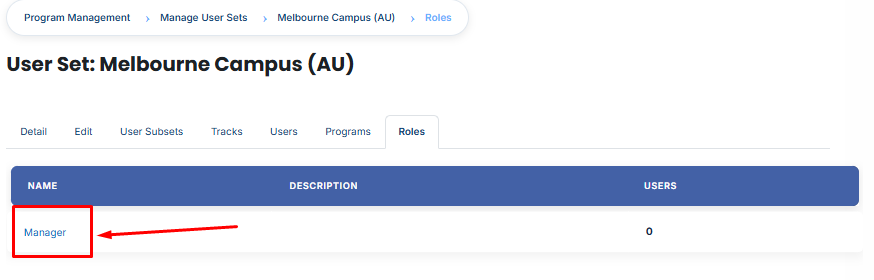
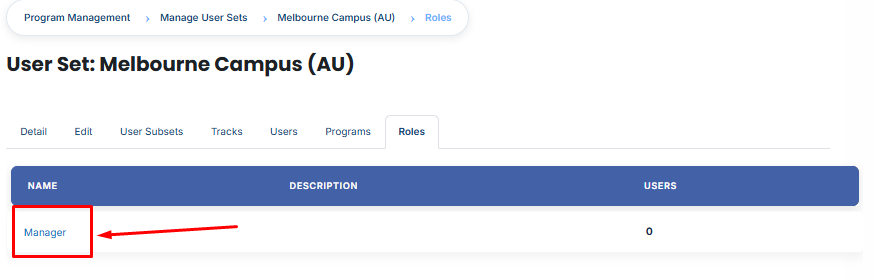
Review the list of available roles.
Click on the role to which you want to assign users.
A page will open displaying all users currently assigned to the selected role.
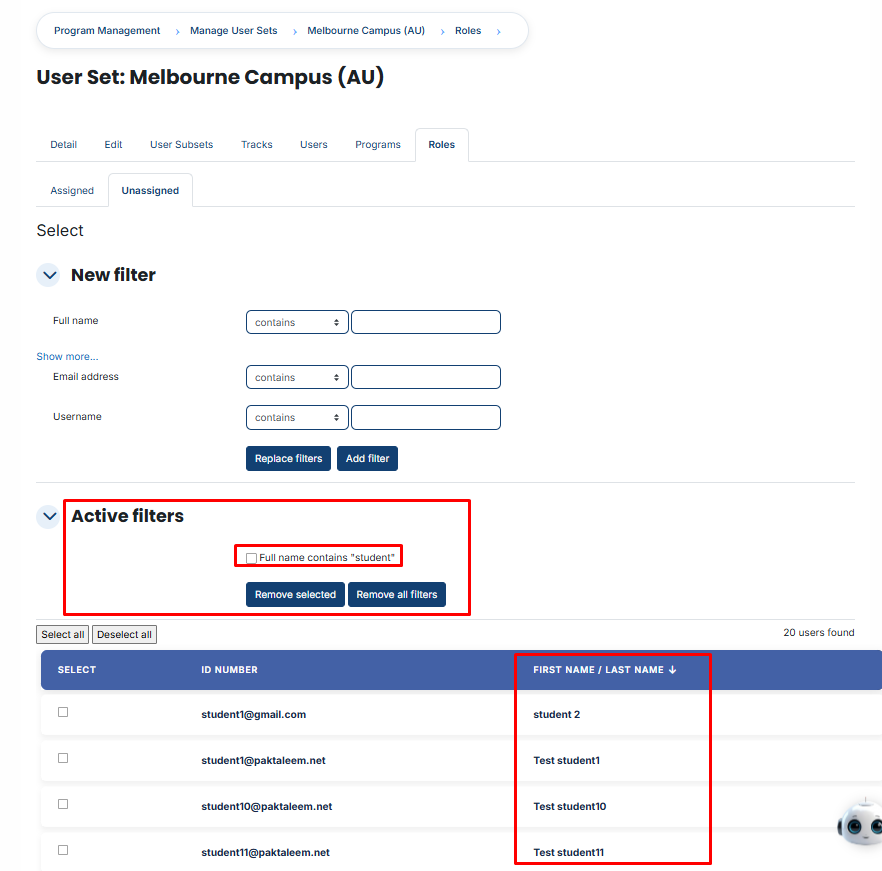
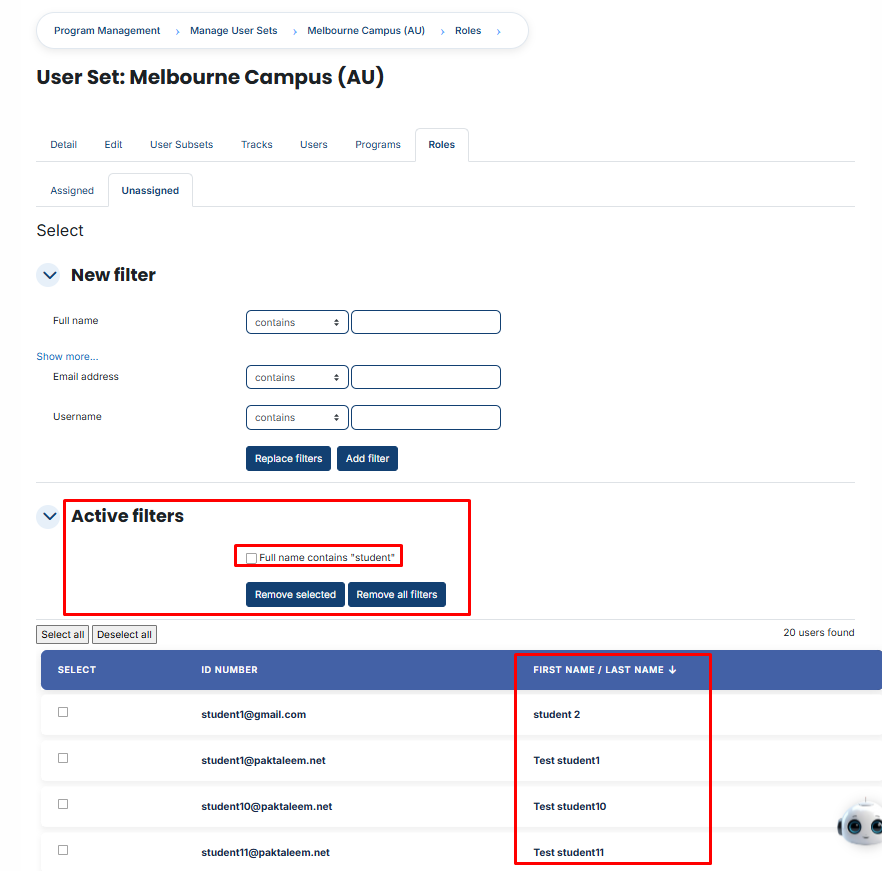
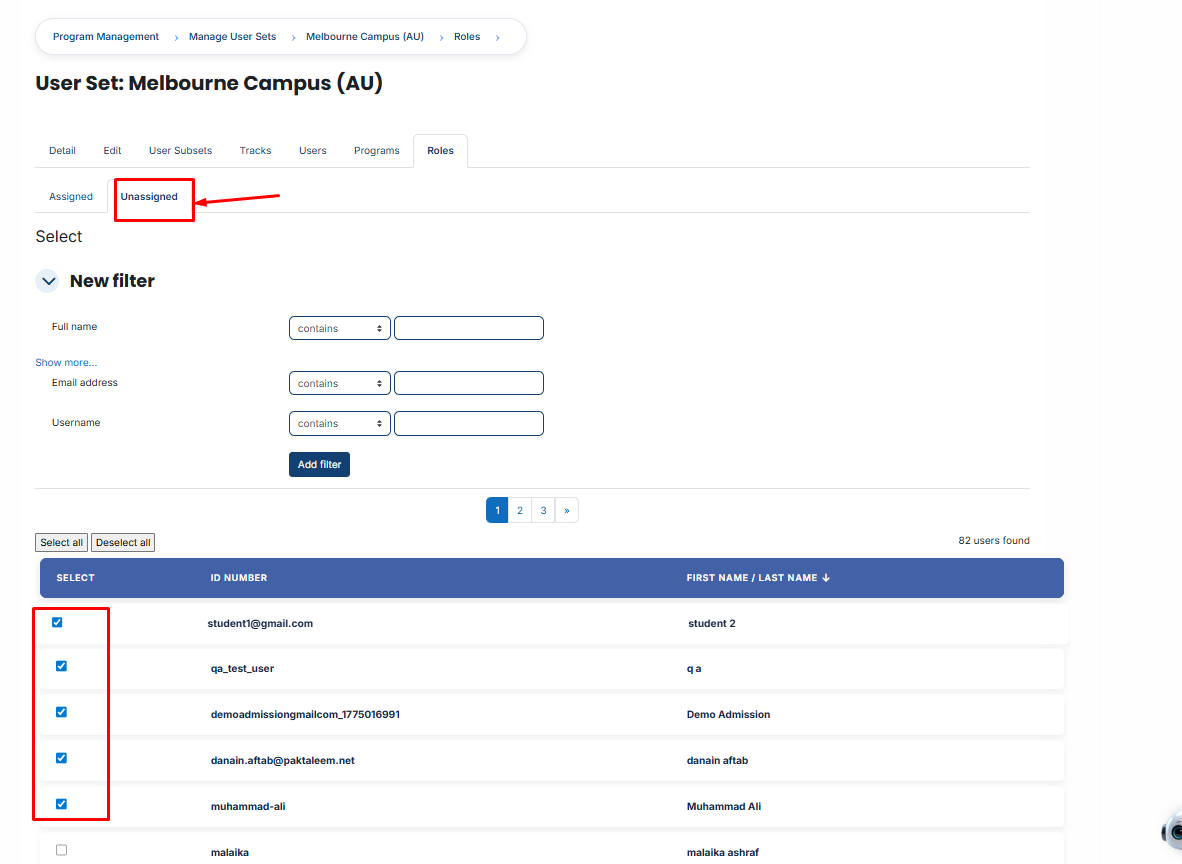
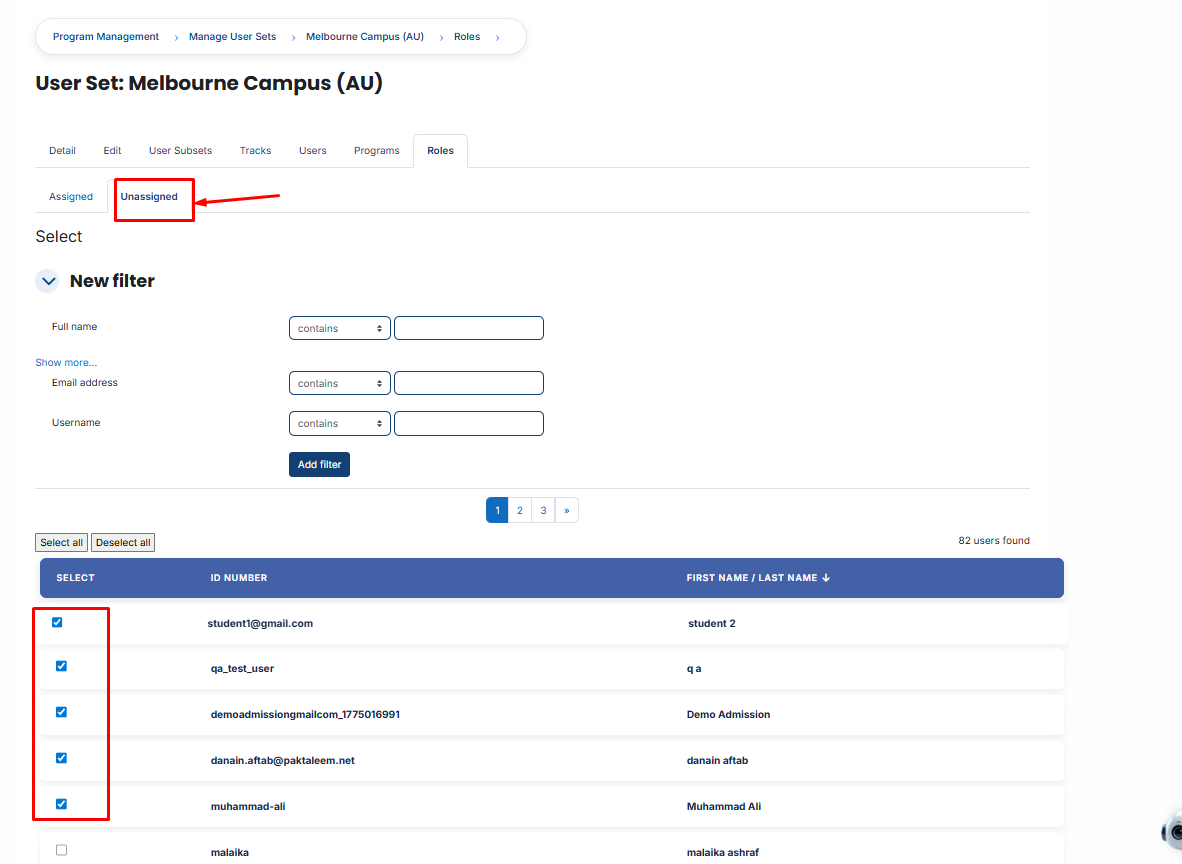
To assign additional users, click the Unassigned button. This will display all users who are currently unassigned to the selected role.
Select the user(s) you want to assign.
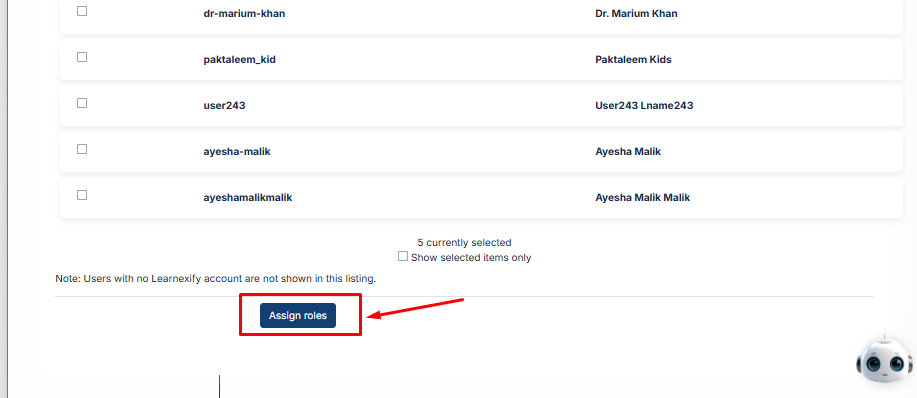
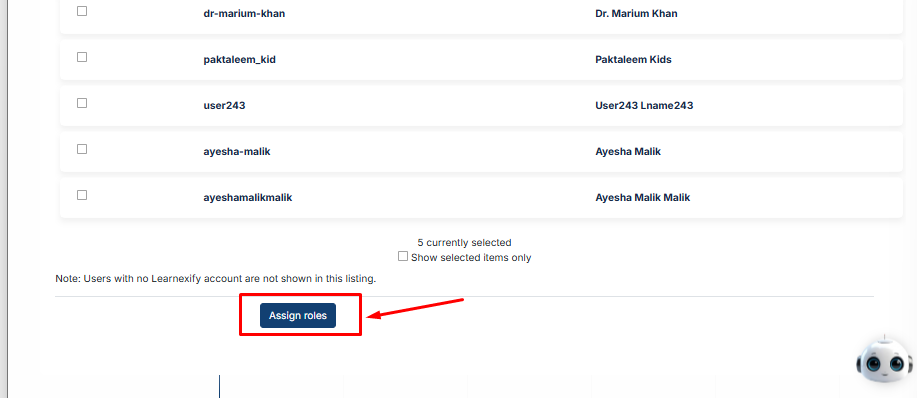
Scroll down and click Assign
Roles.
Using Filters:
If you cannot find the required user:
-
Use the Filter option.
-
Add a filter using Email Address, Username, Full Name or Other available user profile fields .
-
Click Add Filter.
-
Select the required user from the filtered results.
-
Scroll down and click Assign Roles to complete the assignment.