
Default Course Instance Settings
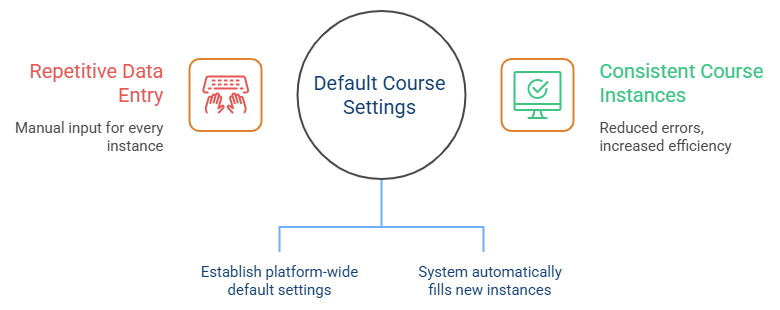
Default Course Instance settings allow administrators to establish "baseline" values for the entire platform. By defining these values once, the system will automatically pre-fill the information every time you create a new Course Instance. This ensures consistency across your institution and eliminates repetitive data entry.
Follow this navigation path:
- Open the Side Drawer menu on your dashboard.
- Click on the Admin section.
- Select Default Course Instance Settings.
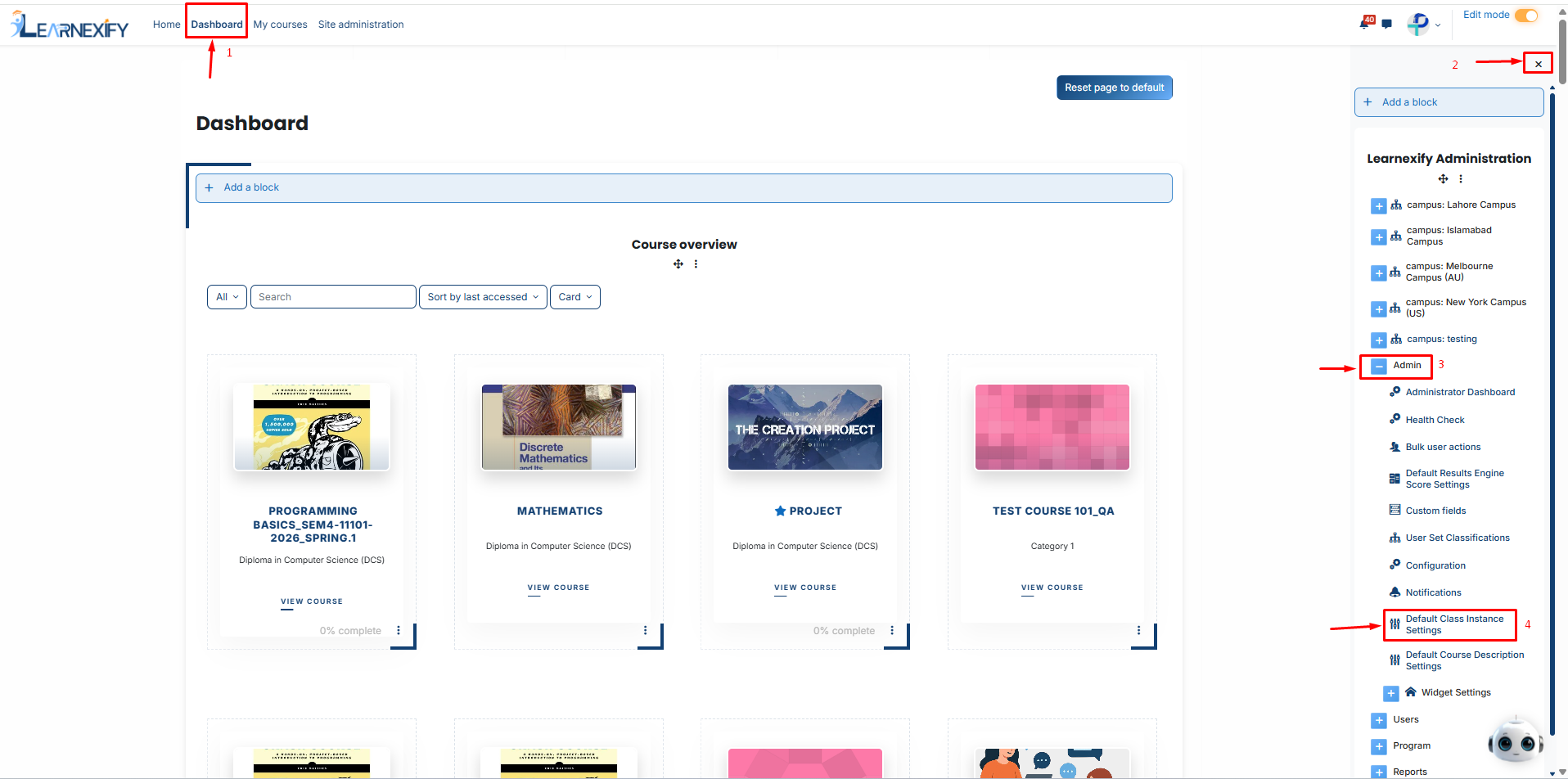
As shown in the interface image, there are four primary fields available for pre-configuration:
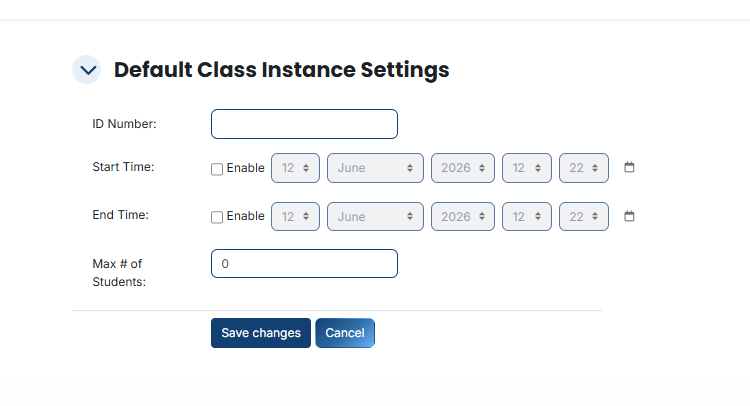
ID Number
-
What to enter: A standard identification pattern or prefix used by your organization.
-
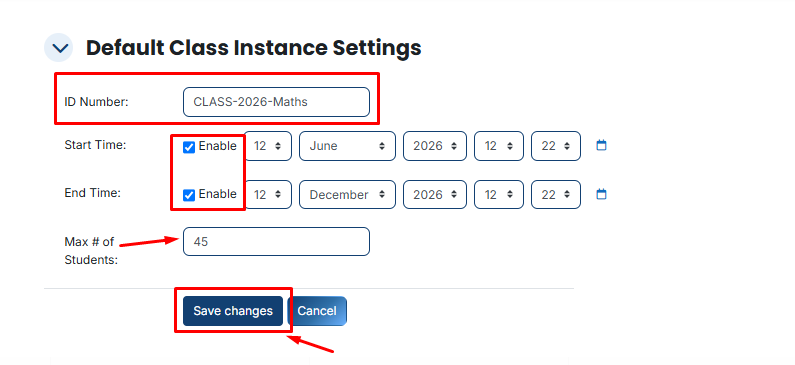
If your classes always follow a specific naming convention (e.g., "CLASS-2026-"), entering it here ensures every new class starts with the correct code.
Start Time & End Time
-
How to use: You must first click the Enable checkbox next to the field to activate the date and time selectors.
-
What to enter: Select a standard date and time for when your typical semester or training block begins and ends.
Note: These values are placeholders. You can always adjust the specific dates for individual classes later.
Max # of Students
-
What to enter: The maximum number of learners allowed in a standard class (e.g., 25 or 30).
-
This field automatically sets the capacity limit for every new class you build, preventing over-enrollment by default.
Once you have entered your preferred baseline values:
- Review the fields for accuracy.
- Click the Save changes button at the bottom of the page.
From this point forward, whenever you navigate to create a new Course Instance, these fields will already be populated with your chosen data.
You simply need to verify or make minor adjustments, significantly reducing your administrative workload.
No comments to display
No comments to display