
Notifications
Notifications allows you to automate communication with your learners and staff, ensuring everyone stays informed about their progress.
To access these settings:
- Log in as a Site Administrator.
- Open the Side Drawer menu.
- Click on Admin.
- Click on Notifications button.
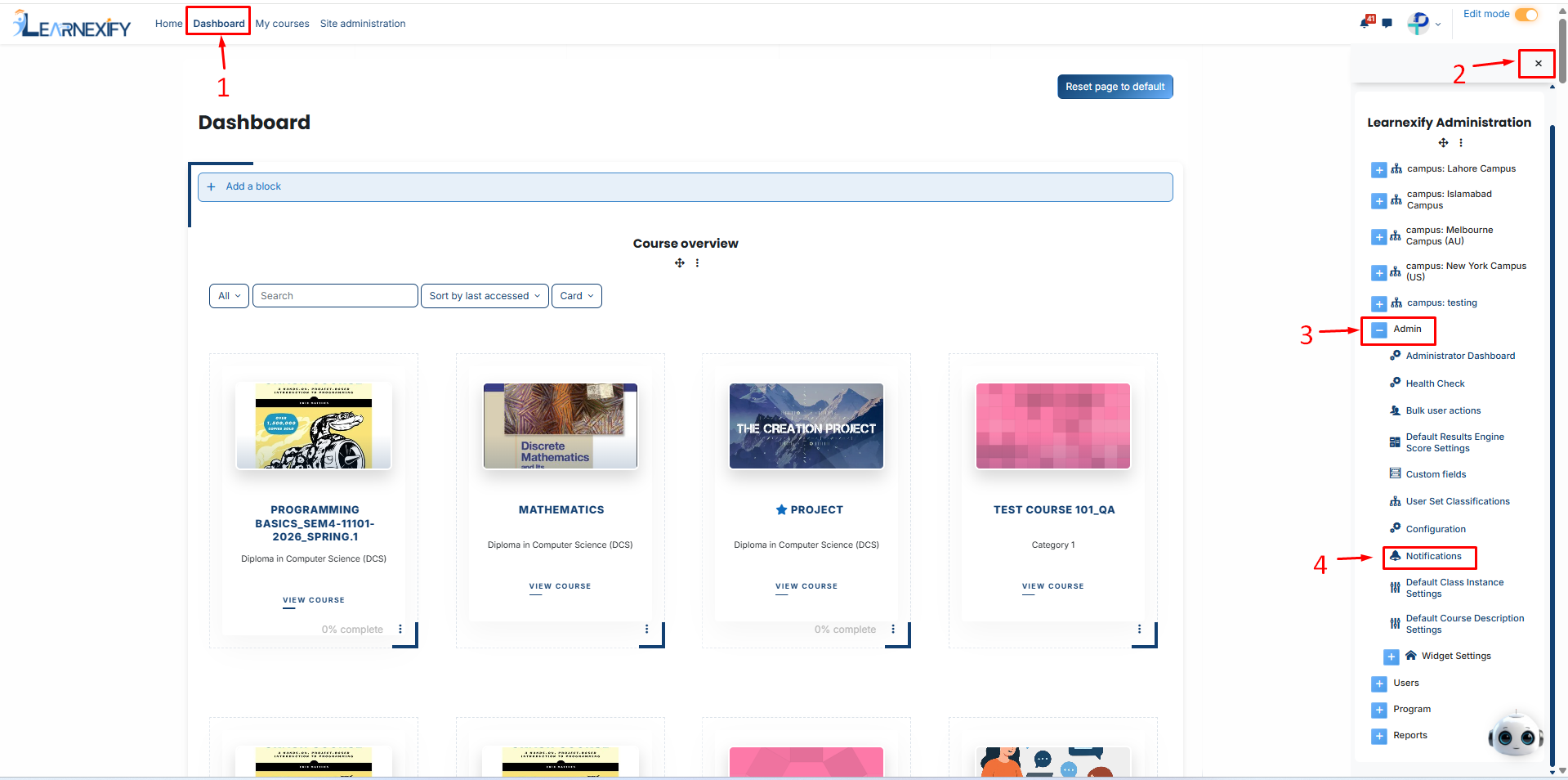
After clicking on the Notifications button, you will see the following options, as shown in the image below:
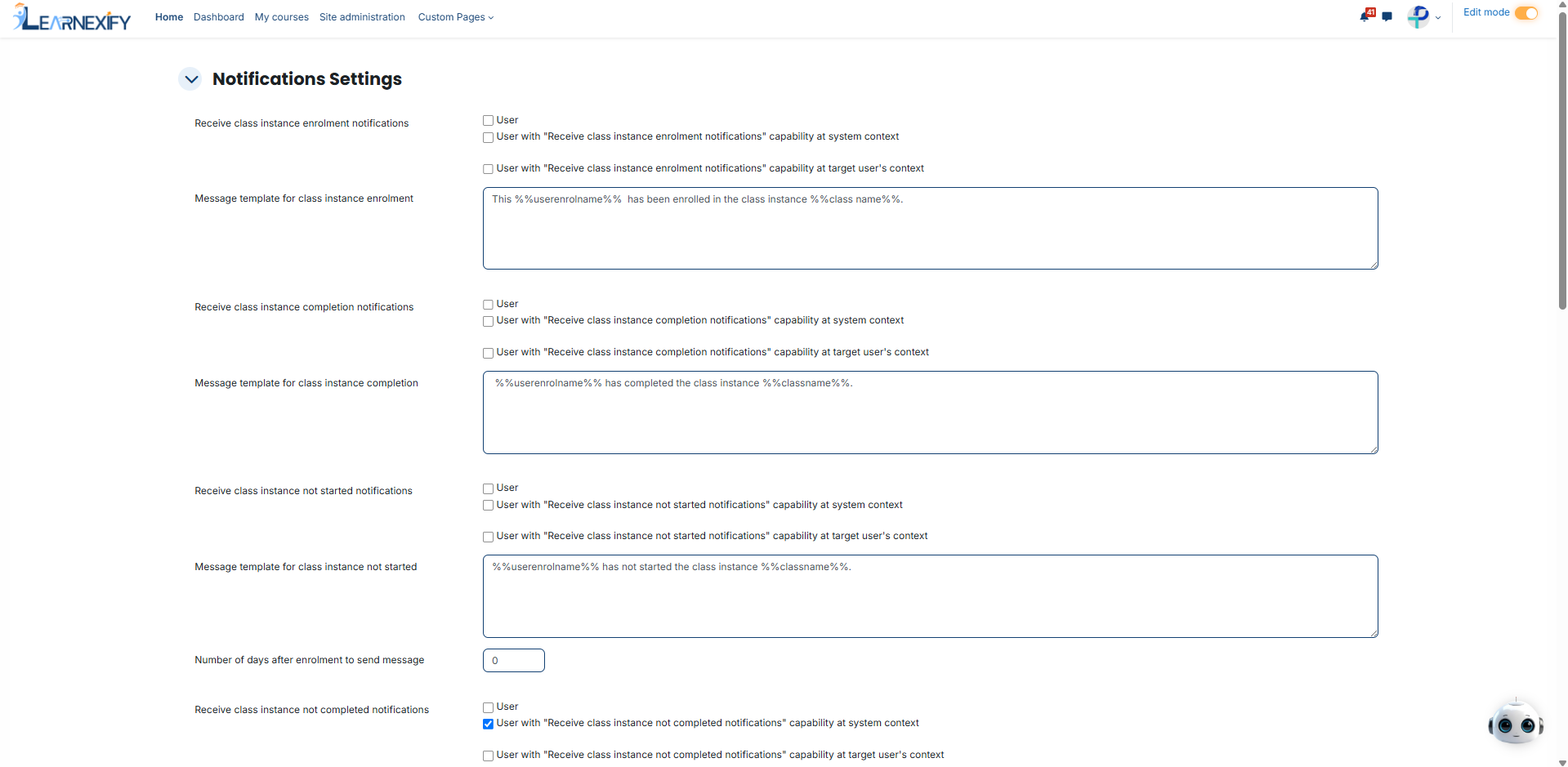
Core Functionality: The Three Recipient Types
Most notification sections in Learnexify offer three primary checkboxes. Understanding these is key to your setup:
- User: Notifies the individual student/learner directly.
- User with capability at system context: Notifies high-level administrators (like a Registrar or Manager) about every instance of this event across the entire platform.
- User with capability at target user's context: Notifies a specific manager assigned to that user’s department or User Group. This prevents site-wide admins from getting flooded with emails.

Message Templates:
Every notification has a Message Template. These templates use "Placeholders" to personalize emails automatically.
-
How it works: When the system sends an email, it replaces symbols like %%userenrolname%% (Student Name) and %%classname%% (Class Title) with real data.
Important Note: You can change the text of the message, but never change the text inside the percentage marks, or the data will not populate correctly.
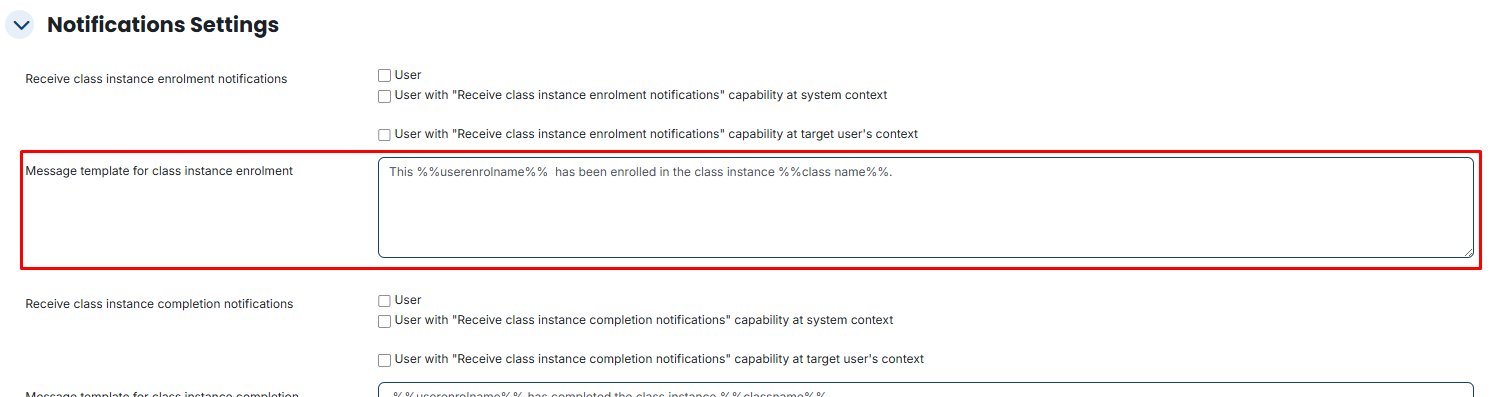
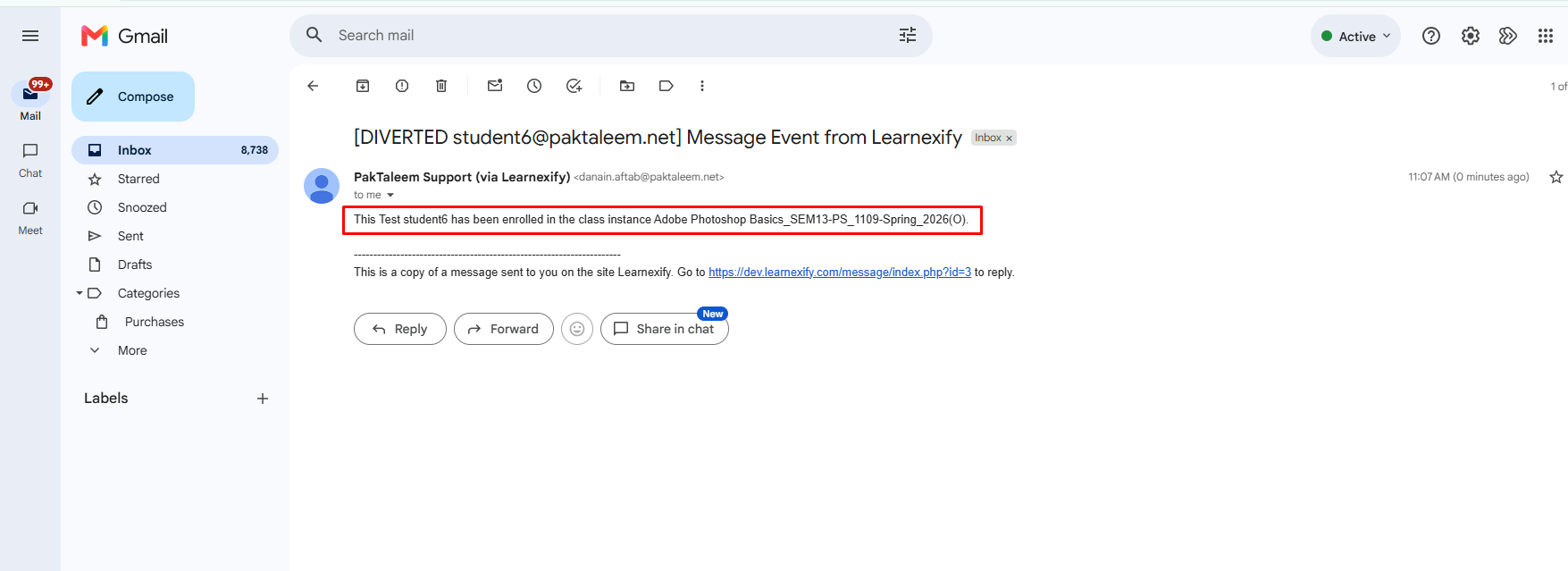
Course Instance Enrolment Notifications:
Triggered the moment a student is successfully added to a specific class.
-
Enable the User checkbox so students get an instant professional confirmation email and a bell alert on their dashboard.
How to Trigger:
Go to Side Drawer > Program > Manage Course Instance. Edit a class, go to the Enrollment tab, and click Enroll Students to add a user.
- User: The student gets an email and a bell alert confirming they joined the class.
- System Context: The global admin is notified that a new enrollment happened somewhere on the site.
- Target User's Context: The student’s specific department manager is notified.

2. Course Instance Completion Notifications:
Triggered when an instructor or the system marks a student's status as "Completed" with a passing grade.
-
Ideal for sending automated "Congratulations" messages.
How to Trigger:
Go to Manage Course Instance > Enrollment. Edit a student’s record and change their status to "Completed" with a passing grade.
- User: The student receives a congratulatory success email.
- System Context: The registrar is notified to update official graduation or completion records.
- Target User's Context: The manager is notified that their team member has finished the training.

3. Course Instance "Not Started" Notifications:
Triggered for users who are enrolled but have not yet logged into the attached Moodle course.
-
Timing Setting: Use the field "Number of days after enrolment".
-
Setting to 0: Sends the reminder immediately if they haven't logged in.
-
Setting to 2: Waits 48 hours before sending a "nudge."
-
How to Trigger:
The system checks if a user is enrolled but has not logged into the attached Moodle course.
- Setting: Use the "Number of days after enrolment" field to decide when to send this "nudge."
- User: The inactive student gets a reminder to log in and begin.
- System Context: Global admins can monitor if an entire course has low engagement.
- Target User's Context: The manager sees which of their staff haven't started their mandatory training.

4. Course Instance "Not Completed" Notifications (Deadline Warning)
Triggered for students who are currently enrolled but have not reached "Completed" status as the class end-date approaches.
-
Timing Setting: Use "Number of days before Course Instance ends".
Setting this to 1 ensures a final warning is sent 24 hours before the deadline.
How to Trigger:
Triggered when the class End Date is approaching, but the student is still in "Enrolled" status and not "Completed."
- Setting: Use "Number of days before Course Instance ends" to set the deadline warning (e.g., 2 days before).
- User: The student gets a warning that their time is running out.
- System Context: Admins see which classes are at risk of low completion rates.
- Target User's Context: Managers can follow up with specific employees to ensure they finish on time.

5. Program Level Notifications
These focus on entire degrees or diplomas rather than individual classes.
-
Program Completed: Sent only when all requirements for a full program are met.
How to Trigger:
This happens automatically when a user completes all courses required within a specific Program (e.g., completing all 10 courses of a Diploma).
- User: The student gets a "Program Graduation" notice.
- System Context: The central office is notified to issue a formal diploma or certificate.
- Target User's Context: The department head sees that a student has finished their full curriculum.

-
Program Not Completed: A high-level warning sent before the overall program enrollment expires.
How to Trigger:
Sent when the student's Program Enrollment is about to expire, but they haven't finished all the courses.
- Setting: Set the lead time in "Number of days before program ends."
- User/Admin/Manager: All receive a high-level warning that the entire program certification is at risk of failing.

6. Batches Enrolment Notifications
Triggered when a user is placed in a batches (a specific batch or cohort, like "Batch of 2026"). This informs the user they have been placed on a specific learning pathway.
How to Trigger:
Go to Side Drawer > Program > Manage batches. Assign a user to a specific batches (e.g., "Batch 2026").
- User: The student is welcomed to their new study "pathway" or cohort.
- System Context: Global admins monitor how many users are being placed into specific batches.
- Target User's Context: The manager sees that their employee has been placed on a specific career or learning path.

7. Expiration Notifications (Recertification)
Essential for compliance and mandatory annual training.
-
Course Description Expiration: Alerts the user when their individual course certificate is about to lapse.
How to Trigger:
Triggered based on the Expiration Date set inside a Course Description.
- User: The student is told their certification for this specific course is expiring and they must re-take it.
- System Context: Compliance officers see who is becoming "un-certified."
- Target User's Context: Managers see who needs to be scheduled for recertification.

-
Program Expiration: Alerts the user when their entire professional certification is due for renewal.
How to Trigger:
Similar to course expiration, but for an entire Program.
- Setting: Define the warning period in "Number of days before program expires."
- User/Admin/Manager: All are alerted to begin the full program renewal process to stay compliant with institutional rules.
- Lead Time: Typically set to 6 or 12 months to allow the user time to re-enroll and finish the training before their current status expires.

8. Waitlist & Final Closing Alerts
Located at the very bottom of the Notifications page under "Notify Users When":
Added to a waitlist: Tells the user the class is full but they are in the queue.
Trigger:
- Enroll a user into a class that has already reached its "Max # of Students" limit.
- Enrolled from a waitlist: The most critical alert; tells the user a seat opened and they can now start.
Trigger:
- Unenroll a student from a full class. The system automatically moves the first person from the waitlist into the class
Not Completed Before End Date:
A final "closing" notice sent the moment the class officially ends to users who didn't finish.
Trigger:
- The clock reaches the End Date/Time of a class. Every student still marked as "Enrolled" (and not Complete) gets this final "Time Up" notice.

How Notifications are Delivered
Learnexify uses a simultaneous delivery system.
When a notification triggers:
Email: A copy is sent immediately to the user's inbox.
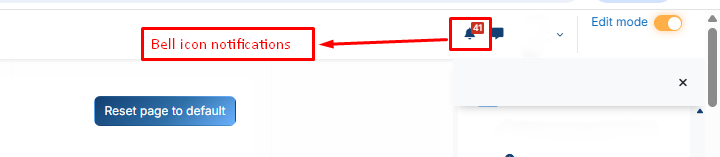
Web Alert: A red badge appears on the Notification Bell in the top header.
System Requirement: For these emails to go out, your Scheduled Tasks (Cron Jobs) must be running. You can check the health of these tasks in the Administrator Dashboard.
No comments to display
No comments to display