
User Group Classifications
A Classification defines what a User Group represents (e.g., is this folder a Campus, a Department, or a specific Semester?). Beyond just labeling, classifications are the "engines" behind Learnexify’s automation; they determine which programs or batch a user is automatically joined into when they are added to a group.
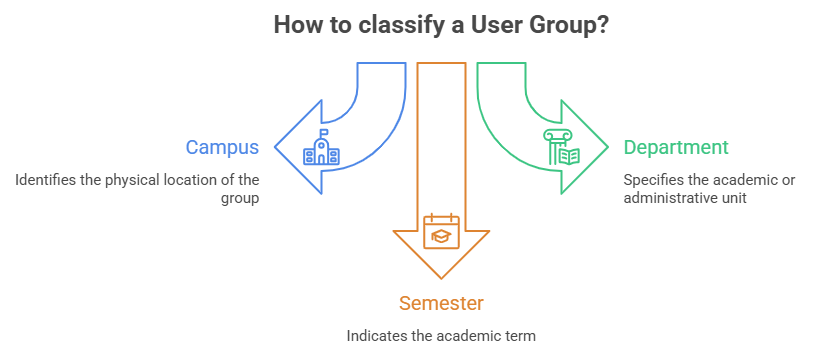
To manage or create new classifications:
- Open the Side Drawer menu.
- Click on Admin.
- Select User Group Classifications.
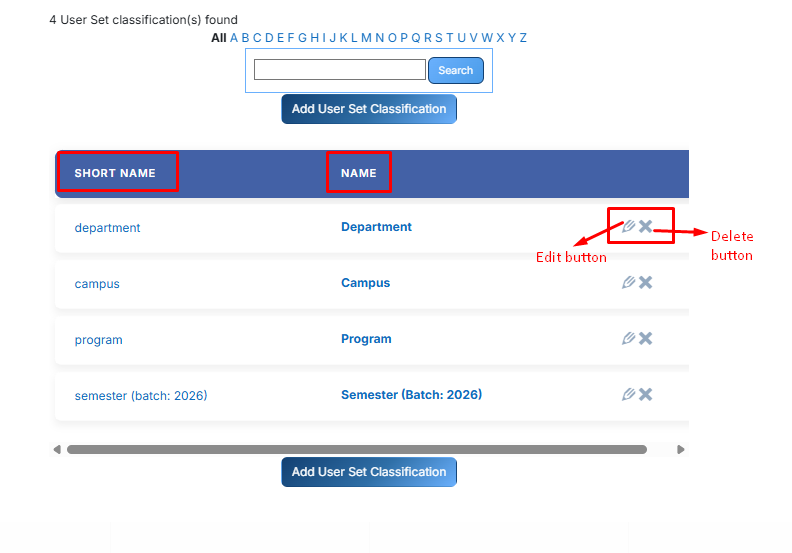
As shown in the image below, you will see a list of all existing classifications.
- Short Name: The unique internal ID used by the system.
- Name: The label displayed to administrators (e.g., Campus, Department).
Action Icons:
- Pencil Icon (Edit): Click this to change the settings or automation rules of an existing classification.
- X Icon (Delete): Click this to remove a classification. Note: You cannot delete a classification if it is currently being used by a User Group.
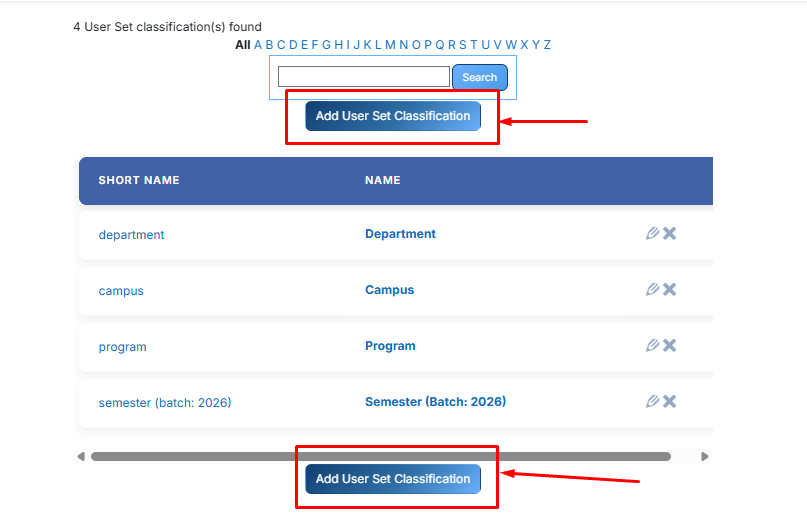
To create a User Group Classification, Click the Add User Group Classification button at the top or bottom of the list.
After clicking on the User Group Classification button you will these following fields:
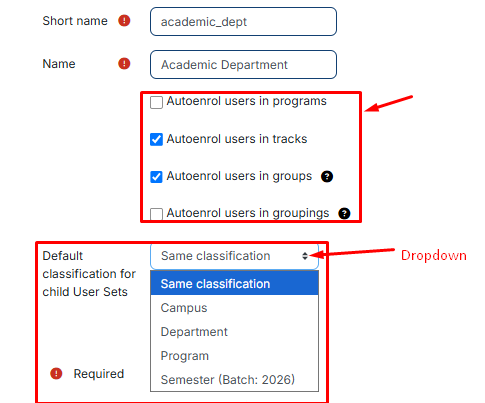
- Short name: Enter a unique code (e.g., academic_dept).
- Name: Enter a clear display name (e.g., Academic Department).
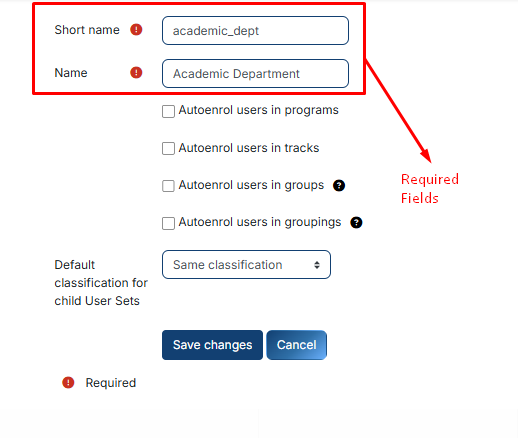
This is the most powerful part of the classification.
By selecting these checkboxes, you tell the system: "Whenever a user is added to a group of this type, enroll them in these items automatically."
- Auto-enroll into Programs: Automatically signs users up for assigned degrees/diplomas.
- Auto-enroll into batches: Automatically places users into specific learning pathways or batches.
- Auto-enroll into Groups: Automatically adds users to Moodle-level groups.
- Auto-enroll into Groupings: Automatically organizes users into specific study clusters.
This setting defines the "Default classification for child User Groups." It is used when you create a sub-folder under a main folder.
- Same Classification: The child set will be the same type as the parent.
- Specific Type: You can force a hierarchy.
For example, if the Parent is a Campus, you can set the Child to automatically be a Department.
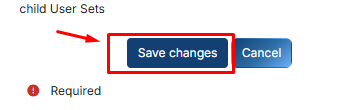
Once your settings are configured, click the Save Changes button.
Your new classification will now appear as an option when you create or edit a User Group.
If you enabled the auto-enrollment checkboxes, any User Group assigned to this classification will now handle student enrollments automatically, saving you hours of manual work.
No comments to display
No comments to display