
Default Results Engine Score Settings
The Results Engine is a powerful automation feature in Learnexify. It monitors student grades and automatically triggers actions based on the scores achieved. For example, it can automatically mark a student as "Passed" or "Certified" the moment their grade falls into a specific range defined here.
By setting these defaults at the administrator level, you create a "baseline" for the entire platform. Instead of manually typing grade ranges for every single course, the system will pull these standard categories automatically, ensuring consistency across all departments and programs.
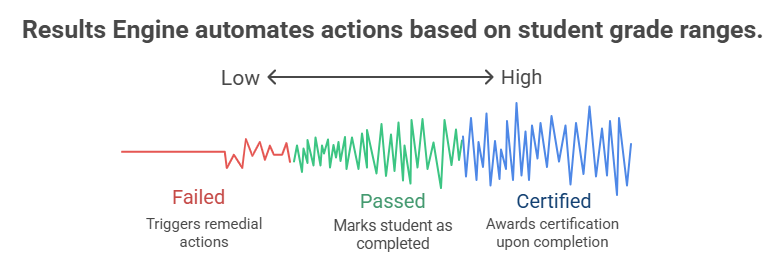
To define your global scoring categories, follow these steps:
- Log in to your Learnexify Dashboard.
- Open the Side Drawer menu on the left.
- Click on the Admin section.
- Select Default Results Engine Score Settings.
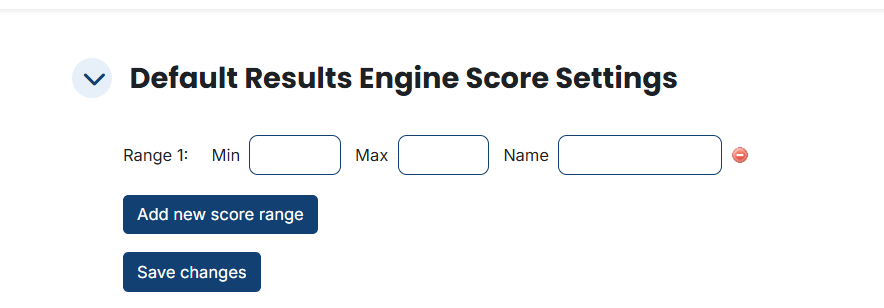
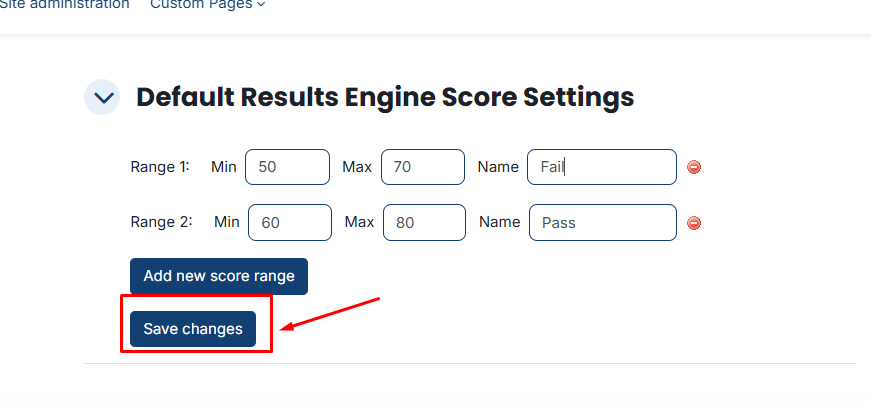
On this page, you will see a list of rows where you can define your grading brackets. Each category requires three specific pieces of information:
- Min (Minimum): The lowest score required to enter this category (e.g., 50).
- Max (Maximum): The highest score allowed in this category (e.g., 79).
- Name: The label that describes this performance level. This name will appear in reports and automated notifications.
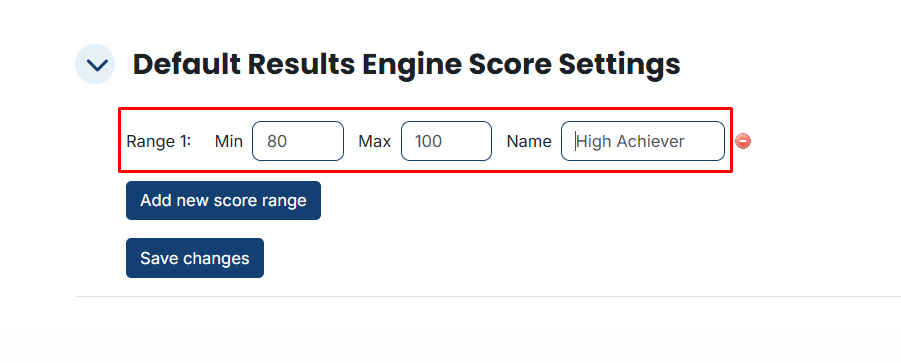
Practical Example:
|
Min |
Max |
Name |
|
80 |
100 |
Distinction / High Achiever |
|
50 |
79 |
Pass |
|
0 |
49 |
Remediation Required |
Managing the Scoring Table
The system is flexible, allowing you to add as many or as few categories as your institution requires.
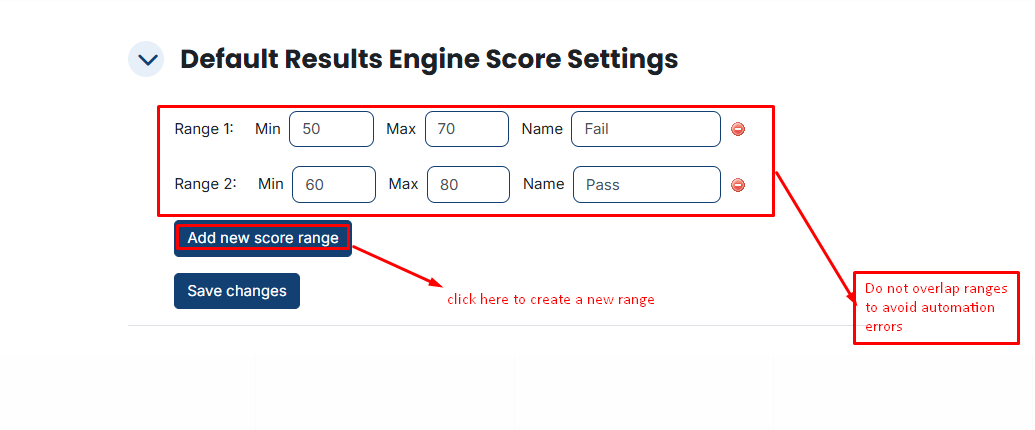
- Adding a Category: Click the Add new score range button at the bottom of the list to generate a new empty row.
- Removing a Category: If you have an extra row or a category you no longer use, click the Red Minus (—) Icon next to that specific row to delete it
- Sorting: Ensure your ranges do not overlap (e.g., don't set one range as 50–70 and another as 60–80) to avoid automation errors.
Saving and Application
Once you have finished defining your standard scoring levels:
- Review the numbers and names for accuracy.
- Click the Save changes button at the bottom of the page.
Result: These categories are now saved as your system defaults. Whenever a teacher or admin enables the Results Engine for a specific course, these ranges will be ready to use immediately.
No comments to display
No comments to display