
Bulk User Actions
The Bulk User Actions page is a mass-management tool. It allows you to filter a specific group of users (e.g., an entire graduating class or a specific department) and perform actions like deactivating or deleting them all at once.
How to Access the Page:
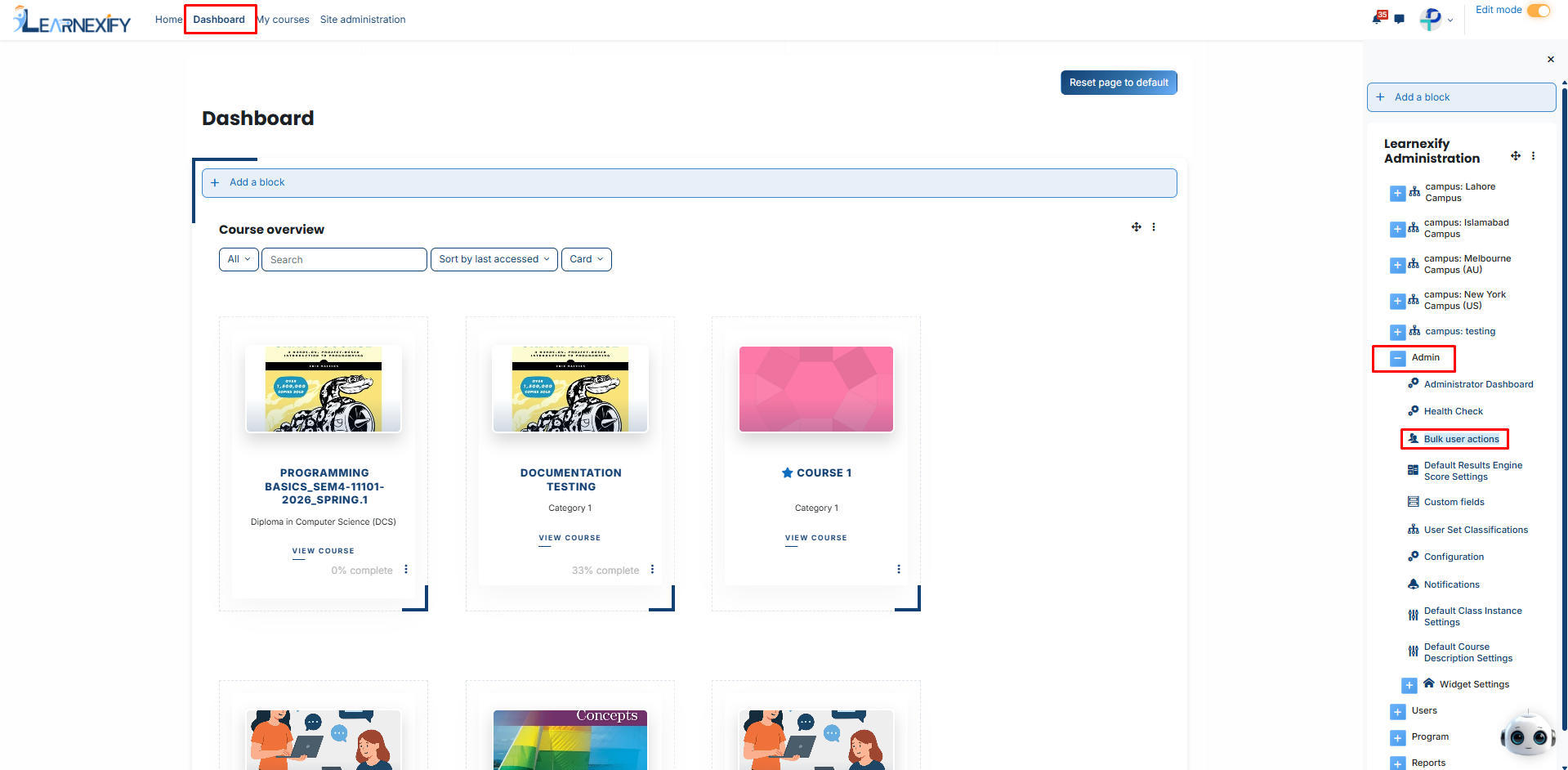
- Log in to your Learnexify Dashboard.
- Open the Side Drawer (menu) on the left.
- Click on the Admin section.
- Select Bulk user actions.
After accessing the Administrator Dashboard, the following sections will be displayed:
Understanding the Filters:
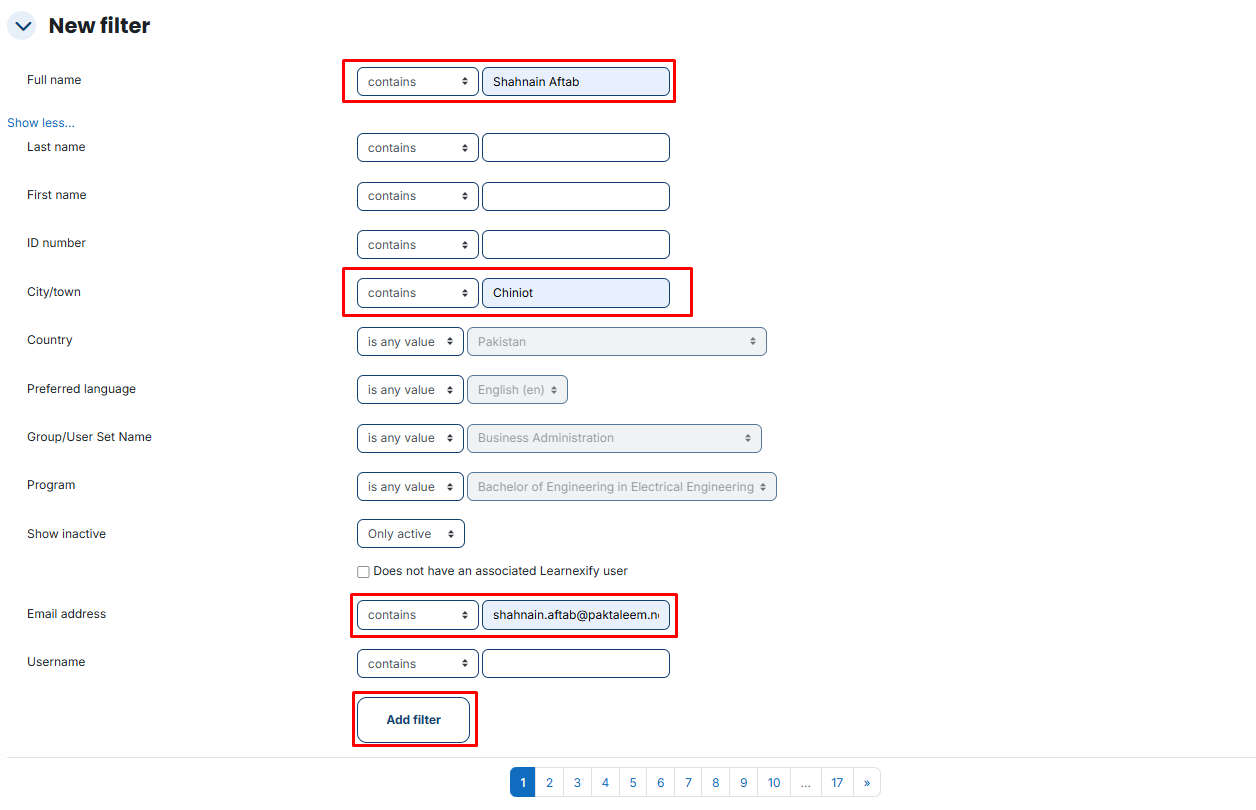
The New filter section helps you isolate exactly which users you want to manage. Here is a brief explanation of each filter:
- Full name / Last name / First name: Search for users using their legal names.
- ID number: Search for users using their unique system or student identification code.
- City/town & Country: Filter users based on their geographic location.
- Preferred language: Find users who use a specific language for their interface.
- Group/User Group Name: Filter everyone belonging to a specific department or campus (e.g., "Islamabad Campus").
- Program: Select a specific degree or certification to find all students enrolled in it.
- Show inactive: Choose to see "Only active" users, "Only inactive," or "All."
- Does not have an associated Learnexify user: Use this to find accounts that exist in the core system but are not yet linked to Learnexify specifically.
- Email address / Username: Direct search for specific accounts.
After filling in your criteria, click the Add filter button. Your filtered list will appear in the table below.
Selecting Users Efficiently
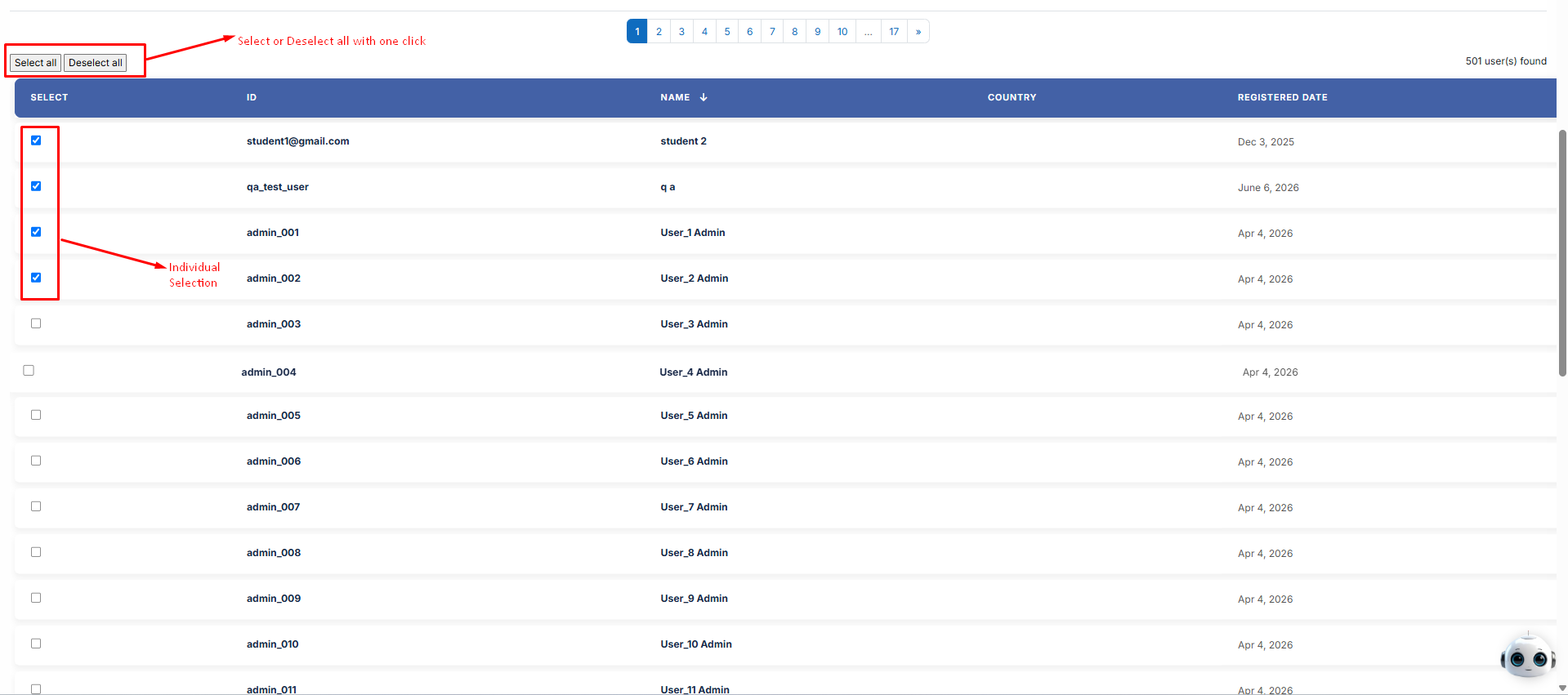
Once your list is generated, you need to "Select" the users you want to act upon. You have three ways to do this:
- Individual Selection: Click the checkbox next to a single user’s name.
- Select all: Click this button (above the table) to check every box for every user found in your search.
- Deselect all: Click this to clear all checkmarks if you made a mistake.
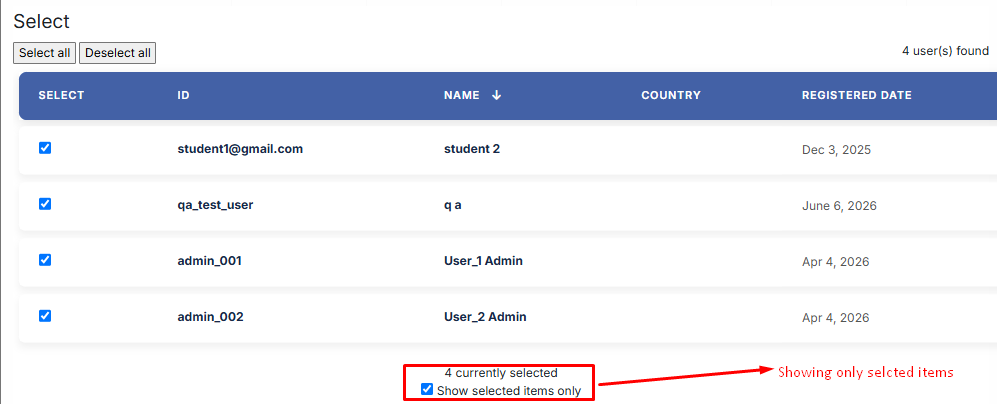
- Show selected items only: If you have a list of 500 people but only selected 10, checking this box will hide the other 490 so you can double-check your selection before proceeding.
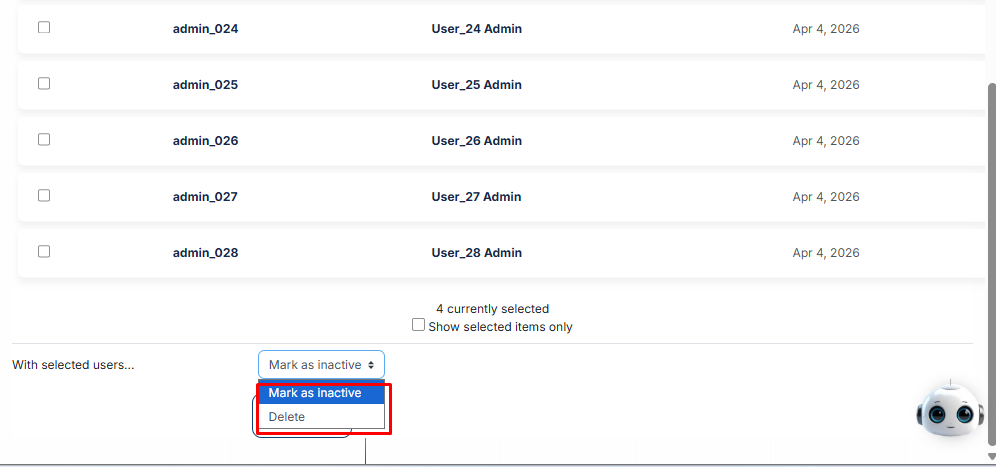
After selecting your users, scroll to the bottom to the section labeled "With selected users..." and choose one of the two main actions from the dropdown menu:
Mark as Inactive:
- This "freezes" the user accounts.
- The users will no longer be able to log in to the platform, but their data (grades, history, and profile) remains safe in the database.
- Why use it: Use this for students who have graduated or employees who have left the company but whose records you need to keep for future reports.
Delete
- What it does: Permanently removes the selected users from the system.
- The Result: All their data, progress, and history are erased. This action cannot be undone.
- Why use it: Use this for "Test Users" or accounts created by mistake
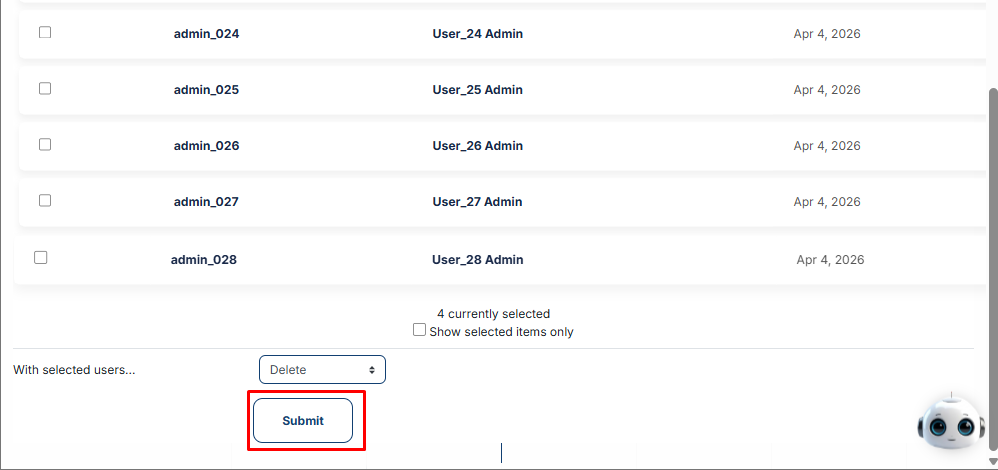
Once you have selected the users and the action (Inactive or Delete):
Click the Submit button.
No comments to display
No comments to display