
Advanced Visibility Restrictions
Learnexify allows you to restrict the widget so it only appears in specific areas or for specific groups.
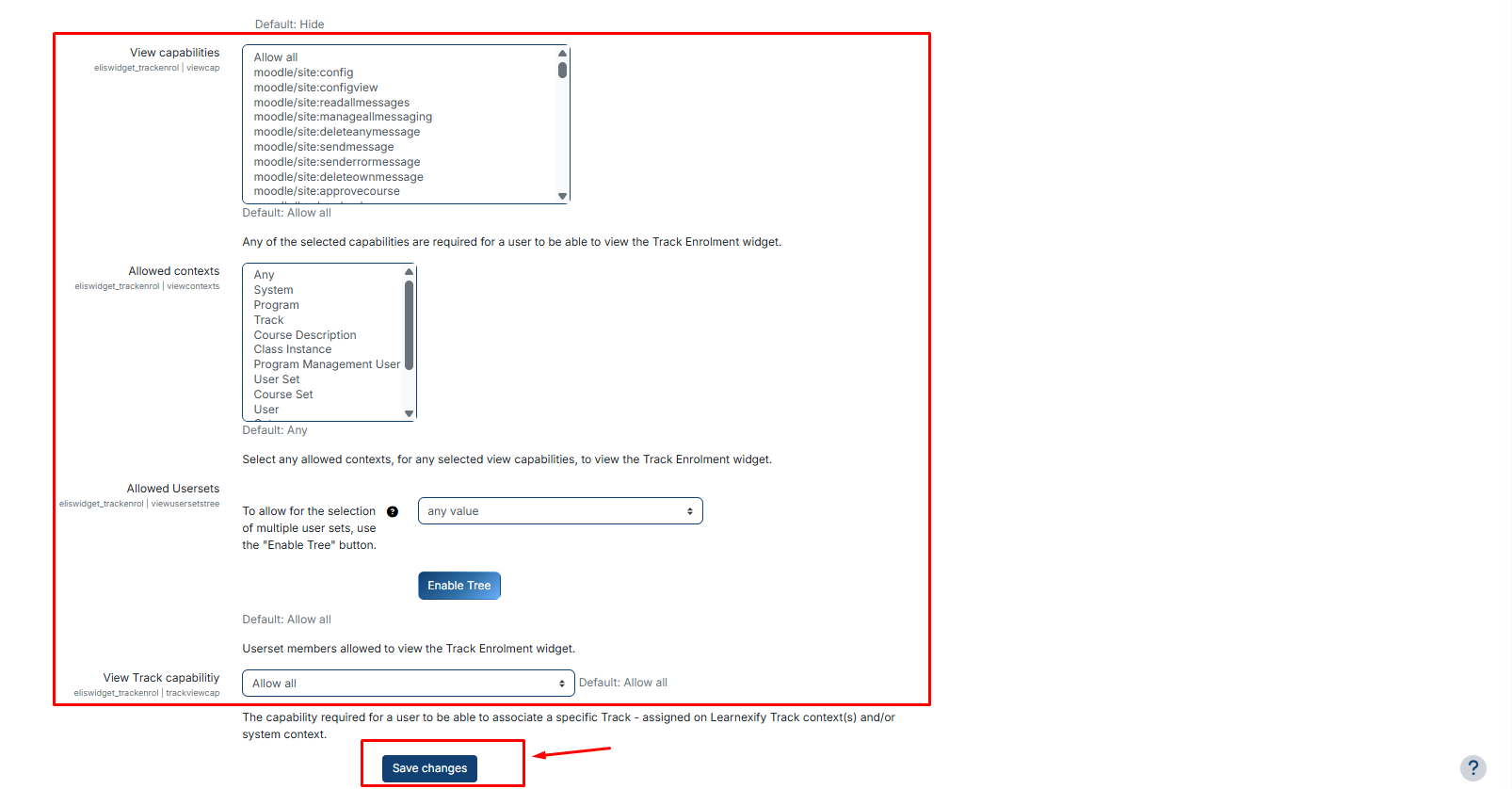
- View Capabilities: Define specific system permissions required to see the widget. By default, it is "Allow all," but it can be restricted to authorized staff only.
- Allowed Contexts: Choose where the widget is active. For example, selecting "Program" ensures the widget only appears when a user is navigating inside a specific academic program.
- Allowed Usersets (Hierarchy Control): Use the "Enable Tree" button to limit the widget to specific departments, faculties, or student batch. This is ideal for showing different data to different campuses.
- View batch Capability: Set the specific permission level required for a user to view their own batch association.
After making the necessary changes and selecting the fields, click the Save button to save your settings.
No comments to display
No comments to display