
Widget Configuration & Display Settings
To configure this program widget, go to Side Menu > Admin > Widgets > Program Widget.
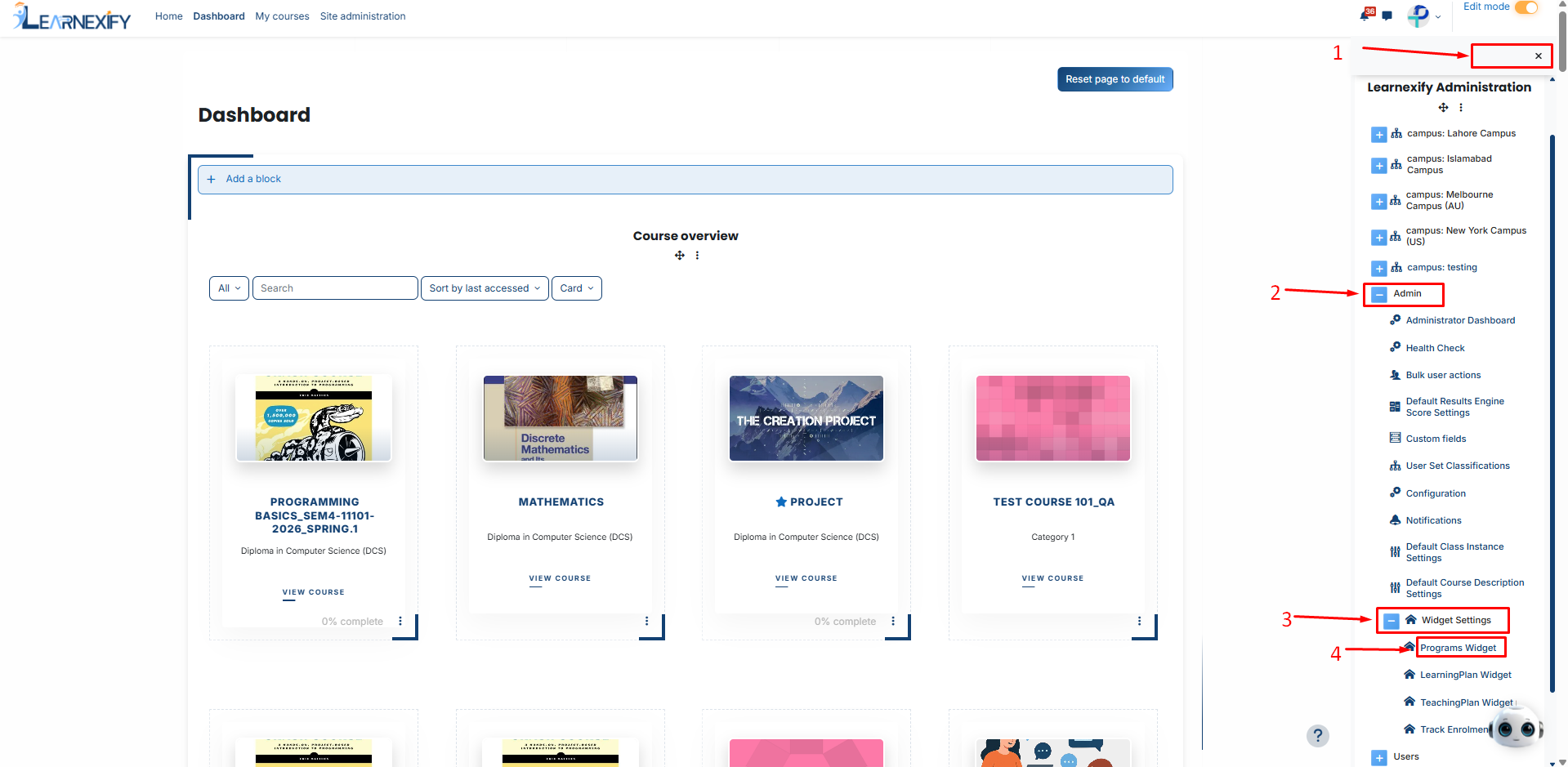
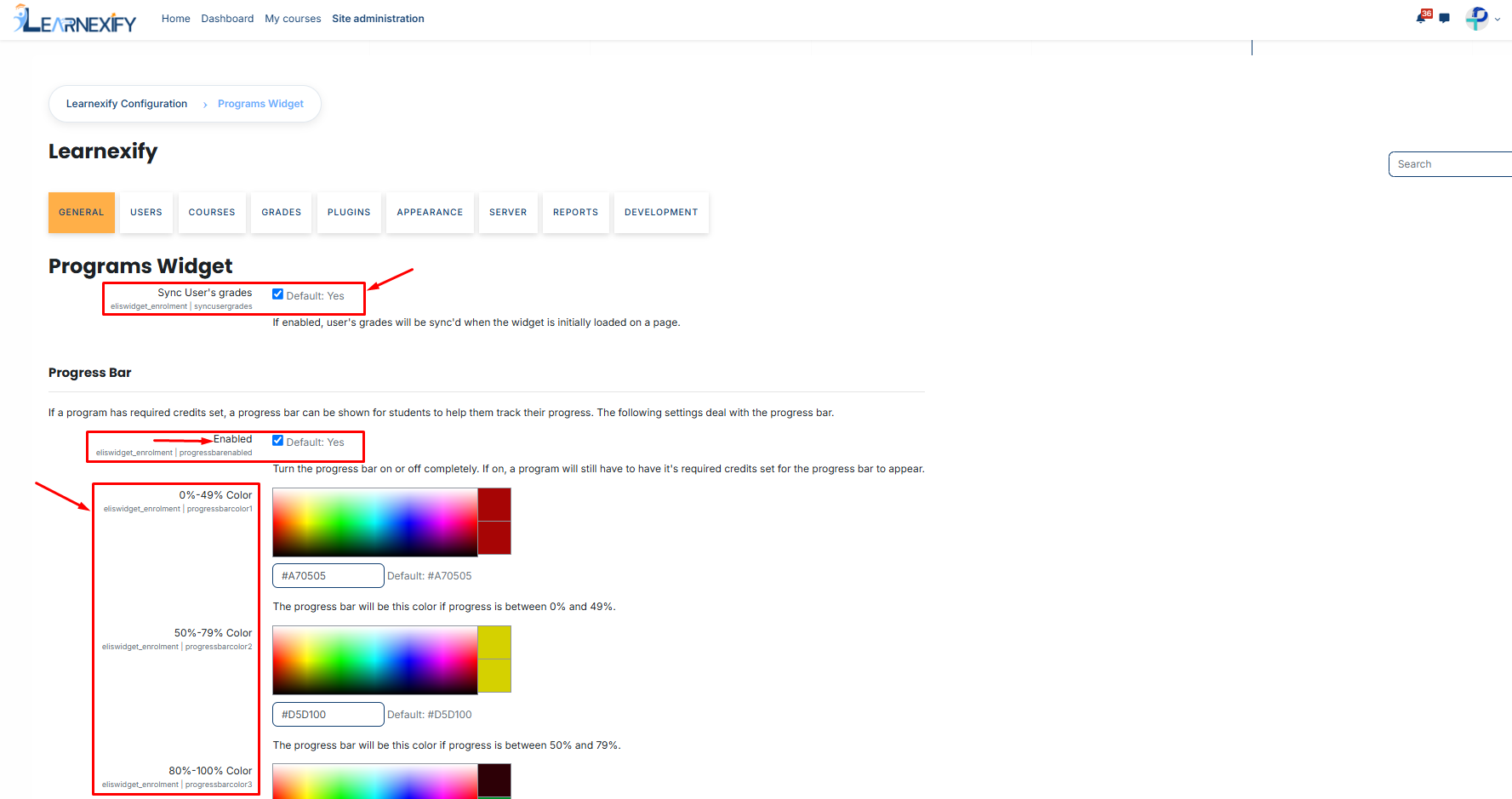
On the program widget page, you will see the following configuration options:
-
Sync User’s Grades: When enabled, student grades are recalculated in the background every time the dashboard loads. This ensures the progress bar always reflects the most recent academic data.
Progress Bar:
The progress bar provides a graphical representation of the learner's completion status.
- Enabled: Toggle the progress bar on or off.
- Color Stages: You can customize the colors based on three completion tiers to match your institution's branding:
-
-
0%–49%: Initial progress (Default: Red).
-
50%–79%: Mid-way progress (Default: Yellow).
-
80%–100%: Near completion/Success (Default: Green).
-
No comments to display
No comments to display