
Widget Configuration & Display Settings
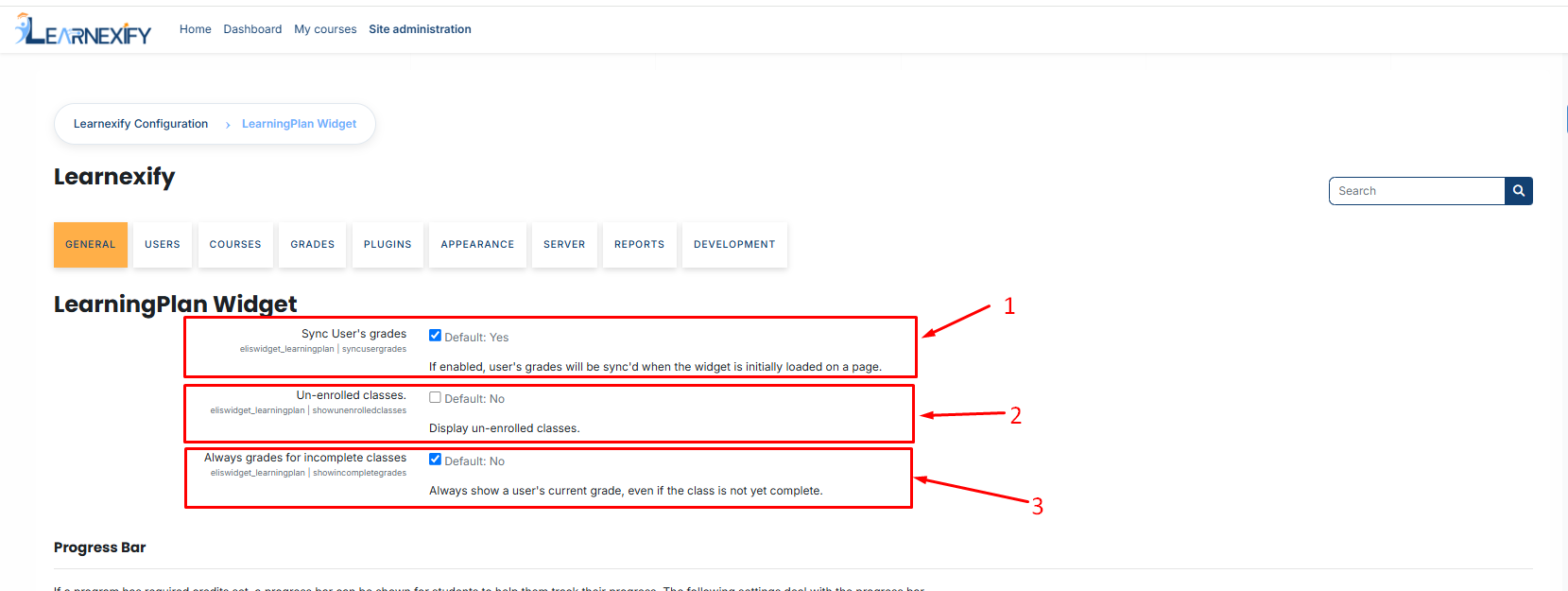
To configure this LearningPlan widget, navigate to: Side Menu > Admin > Widgets Settings > Learning Plan Widget.
-
Sync User’s Grades: When enabled, the system automatically recalculates grades in the background every time the dashboard loads.
-
Admin Tip: Disable this only if you wish to reduce server load, but keep it Enabled to ensure students always see their most recent marks.
-
-
Un-enrolled Classes: Determines if courses the student has not yet joined are visible.
-
Usage: Set to "Yes" if you want students to see their full future curriculum. Set to "No" to keep the dashboard focused only on active work.
-
-
Always Grades for Incomplete Classes:
-
Enabled: Shows the current "running total" grade for ongoing courses.
-
Disabled: Only displays a grade once the course is officially marked as "Completed."
-
Progress Bar Configuration
The progress bar provides a visual, graphical representation of how much of a program the student has finished.
Enabled: Toggle the bar on or off.
- Note: The bar will only appear if Required Credits have been defined for that specific Program.
Color Stages: Customize the bar’s color based on the student's progress to align with your institution's branding:
- 0%–49% (Initial Stage): Represents the start of the journey (Default: Red).
- 50%–79% (Midway Stage): Represents significant progress (Default: Yellow).
- 80%–100% (Success Stage): Represents near-completion or graduation (Default: Green).
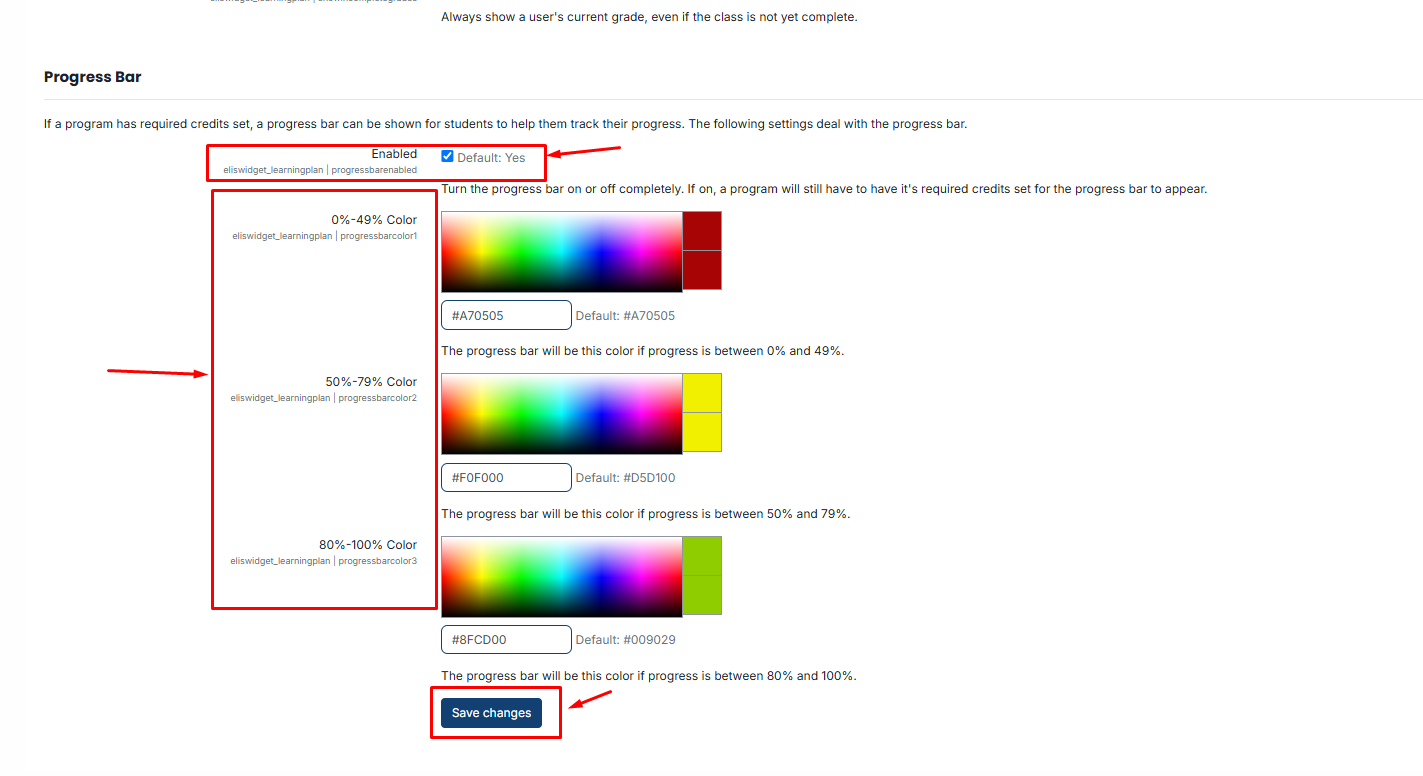
After making the necessary changes, click the Save button to save your settings.
No comments to display
No comments to display