
Permission Management & Role Overrides
Permissions control who can view or modify the widget.
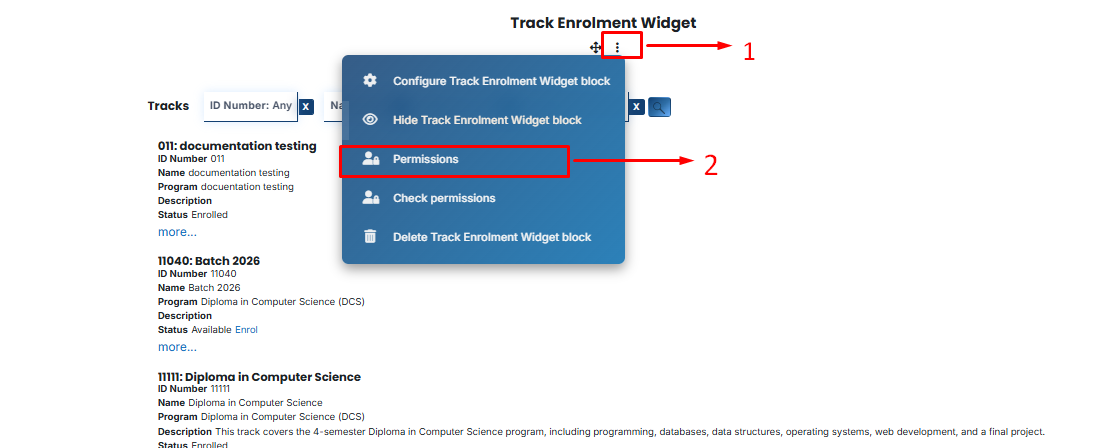
To set these, click the Three-dot menu (⋮) on the widget block and select Permissions.
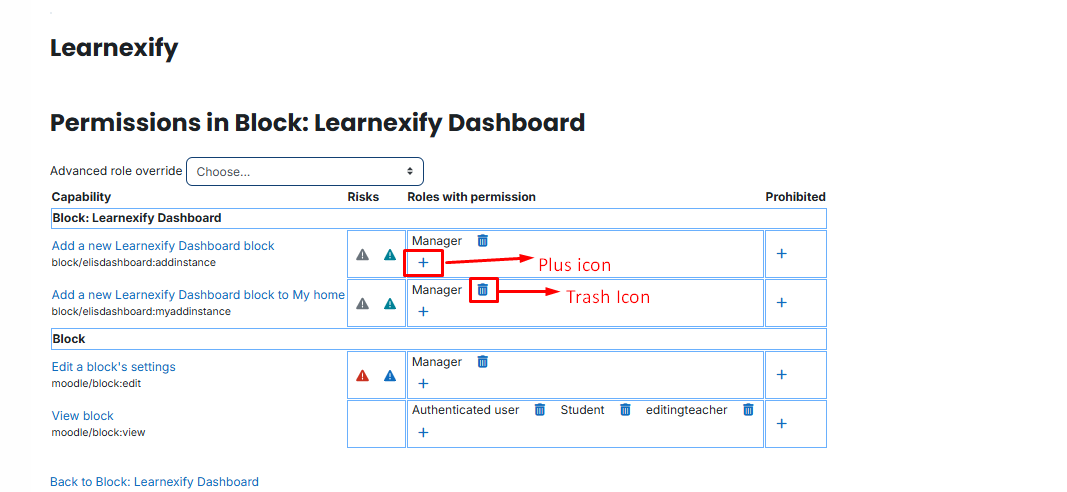
Use the Plus (+) Icon to grant a role (like: Teacher or Manager) permission, or the Trash Icon (🗑️) to remove it.
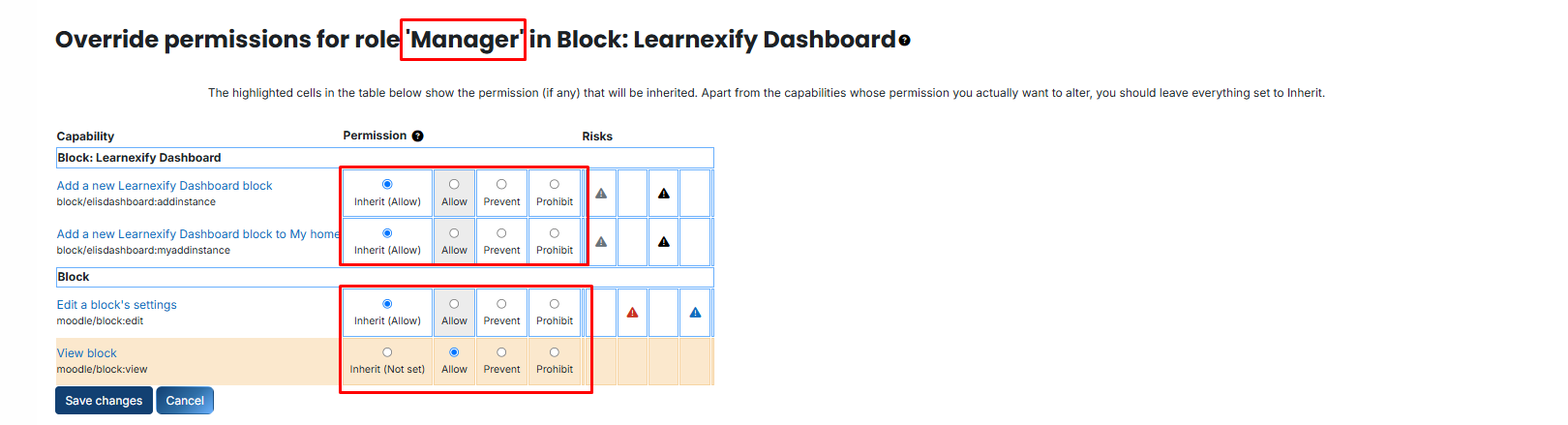
- View block: Controls who can see the widget (e.g., Students).
- Edit a block’s settings: Controls who can change colors and configurations (e.g., Admins or authorized Managers).
- Add a new Learnexify Dashboard block to My home: Determines if users can manually add this block to their personal "My Home" page.
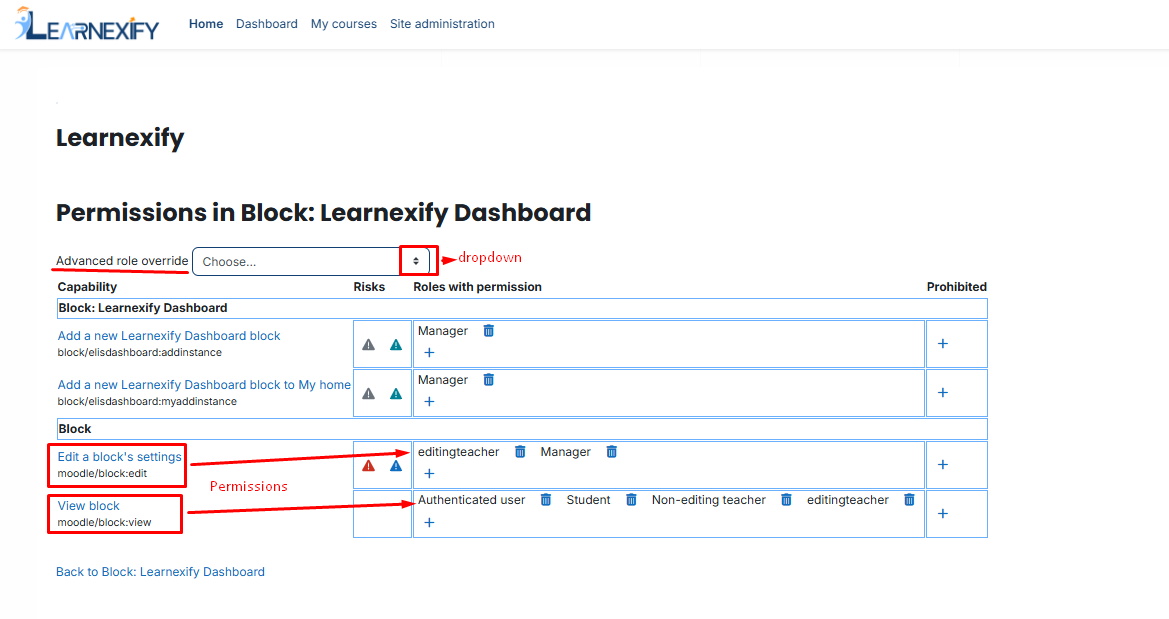
Advanced Role Overrides:
If you need to change permissions for a specific role exclusively for this widget, use the dropdown to select the role.
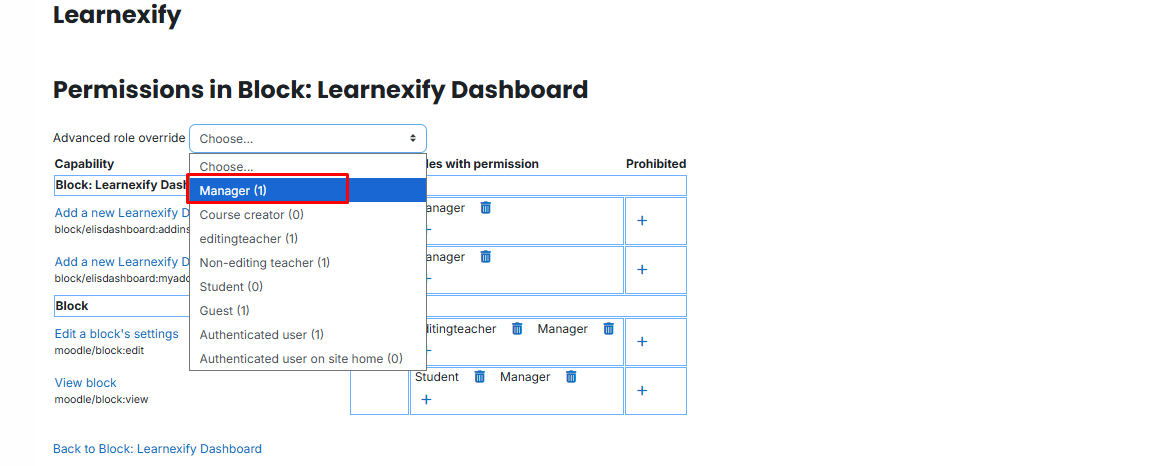
Then, choose one of the following:
- Inherit: Use the standard site default.
- Allow: Explicitly grant the permission.
- Prevent/Prohibit: Block the role from performing the action.
No comments to display
No comments to display