
How to Add a Batch in a Program
Batches
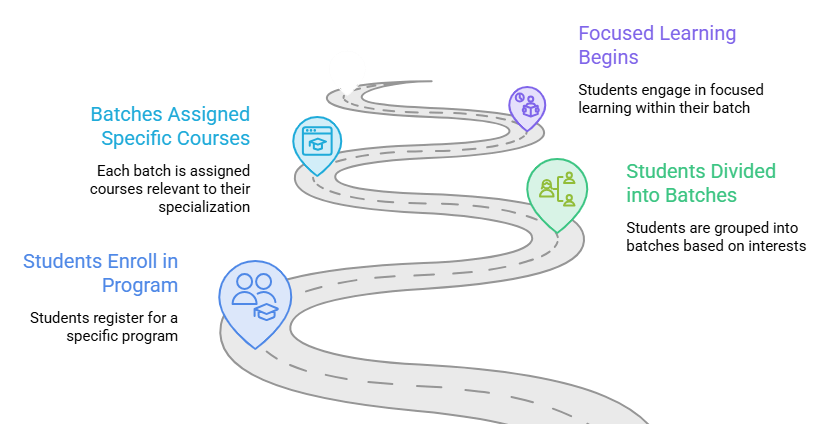
Batches in Learnexify is a system in which students within a program are divided into different learning paths based on their interests and specialization. Each batch has its own specific courses that provide focused learning in that particular field.
Add a Batch in a Program:
-
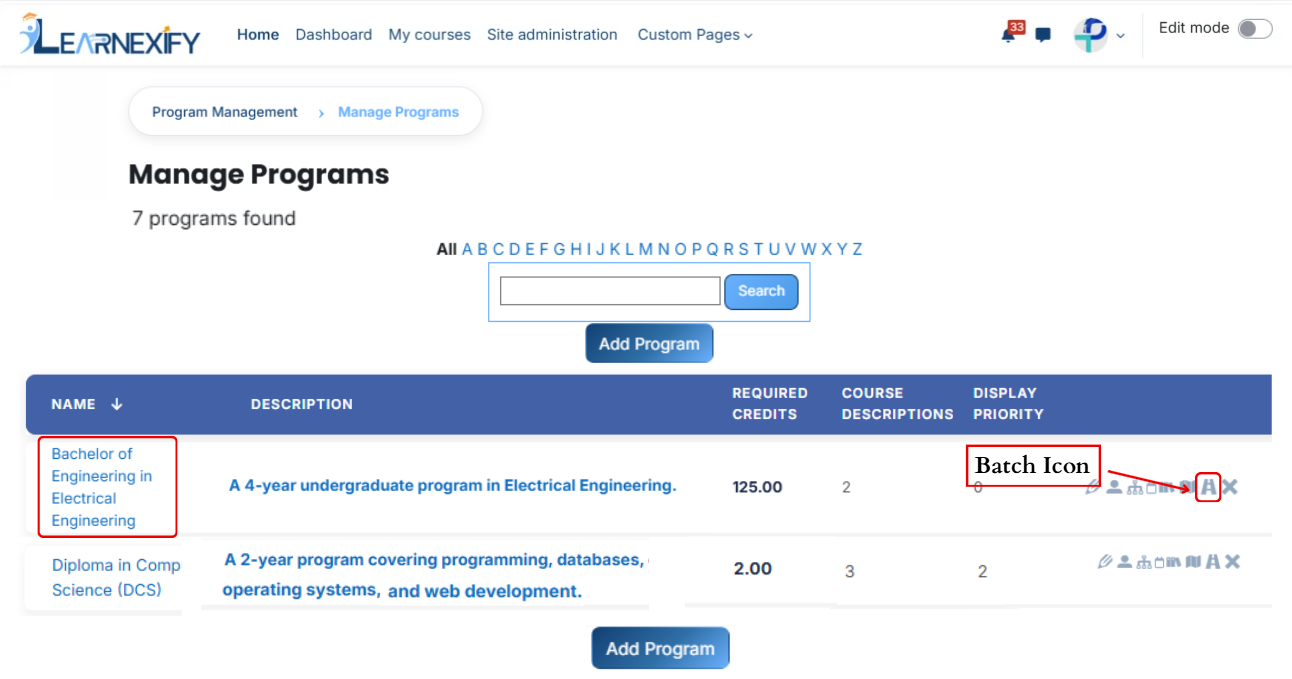
From the Program List, select the Batches icon to organize and add batches to your program.
-
After opening the Batch tab, click on the Add Batch button.
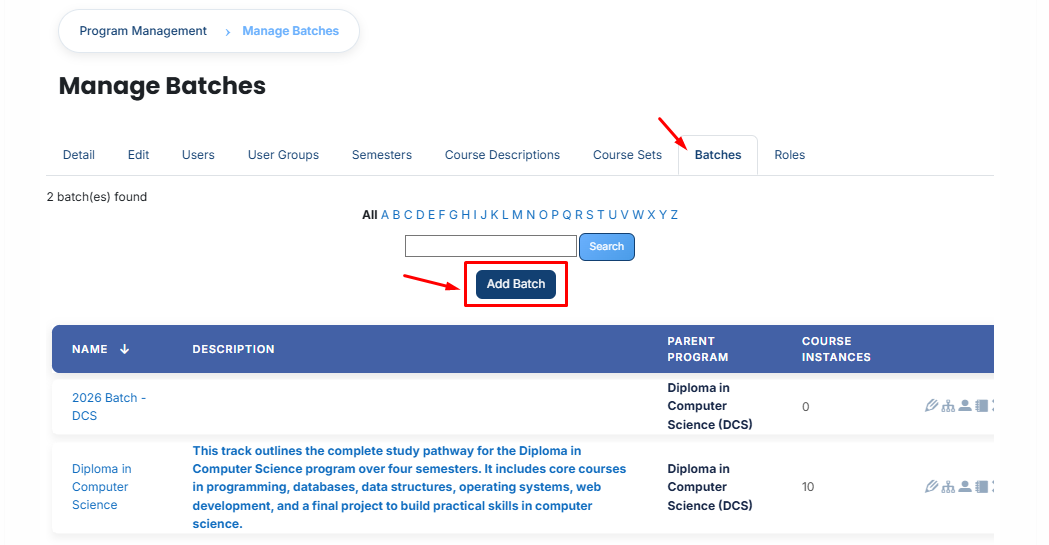
- When you click on the Add button, a new page will open.
- Fill in the blanks:
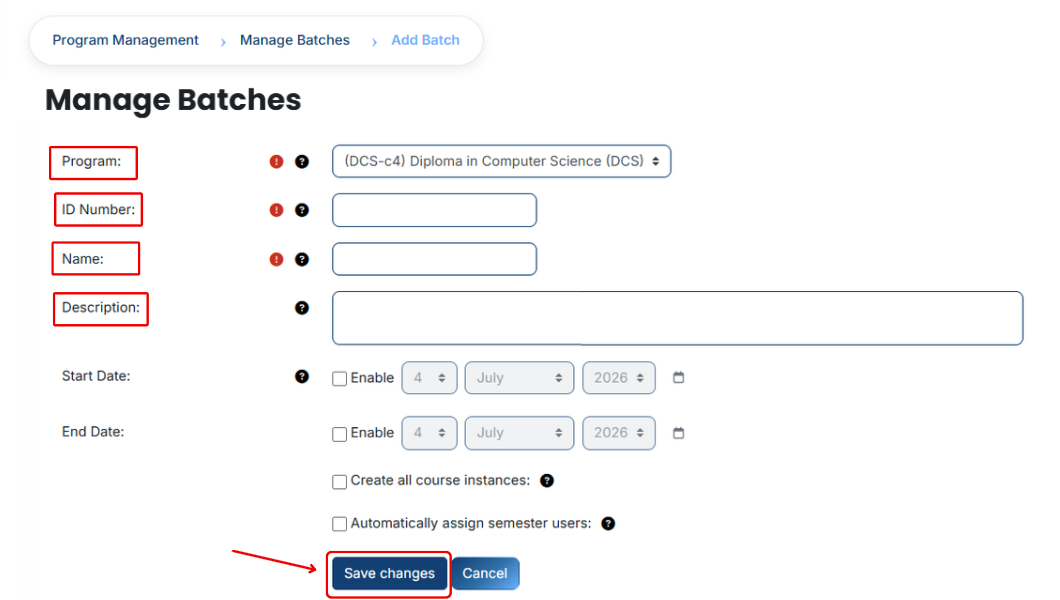
Required Fields:
Program
The Program field defines the main academic program under which the batch is created. It shows which degree or discipline this batch belongs to.
Example: (DCS-c4) Diploma in Computer Science (DCS)
ID Number
The ID Number is a unique code used to uniquely identify each batch in the system. It ensures that every batch has a distinct identity and no duplication occurs.
Example: 11111
Name
The Name field defines the title of the batch and helps users easily identify the specialization or focus area of the batch.
Example: Diploma in Computer Science
Not Required Feilds:
Description
The Description provides a short overview of the batch and explains the specialization area. It helps users understand what this batch is about and what knowledge or skills it focuses on.
Example: This batch outlines the complete study pathway for the Diploma in Computer Science program over four semesters. It includes core courses in programming, databases, data structures, operating systems, web development, and a final project to build practical skills in computer science.
Start Date
The Start Date defines when the batch becomes active and available for assignment in the system.
Example: 28 April 2026
End Date
The End Date defines when the batch will expire or stop being active in the system.
Example: 1 May 2026
Create all course instances
This option is used to automatically create and assign all related course instances (such as course or batch structures) for the selected batch, so manual setup is not required.
- After filling in all the required fields, click on the Save Changes button.
- Once you click the Save button, the system will process the data.
- After successful saving, the batch will be added to the relevant program.
No comments to display
No comments to display