
How to Add Learning Objectives in a Course Description:
Learning Objectives:
Learning Objectives are used to batch a student's progress and show exactly what they have learned after finishing a part of the course.
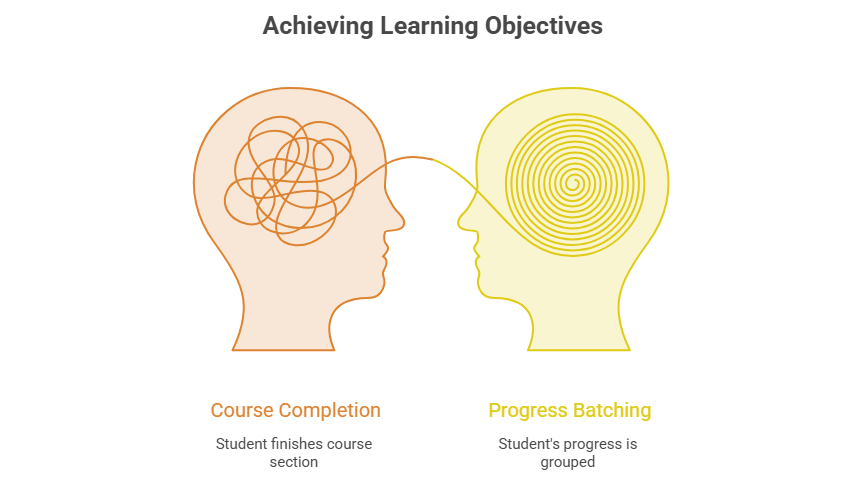
Steps how to add learning objectives:
1. Accessing Learning Objectives
- From the list of all available course descriptions, locate the one you want to add a learning objective.
- Click on the learning objective icon for the specific course description.
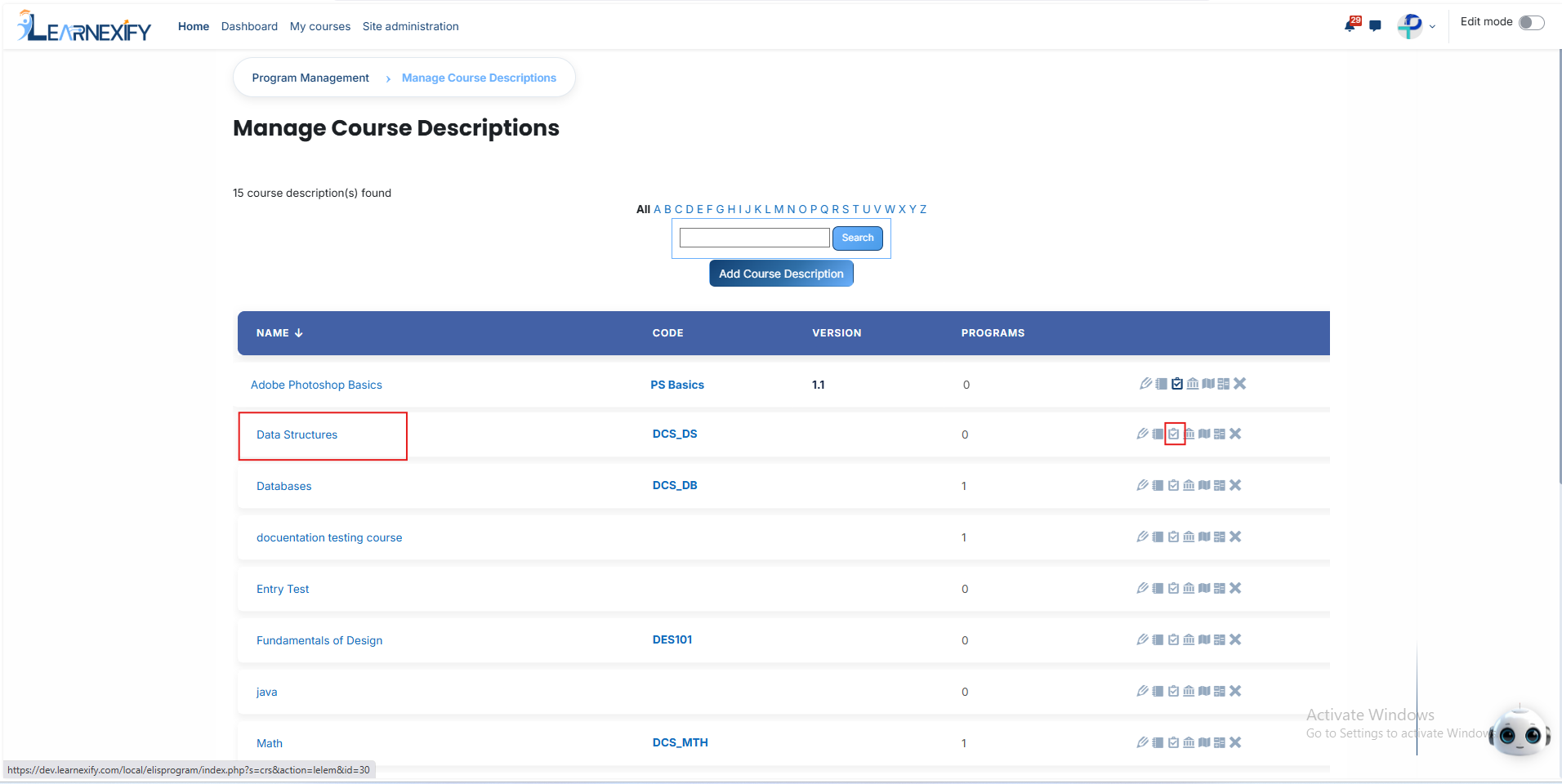
- Click the Add Element button to create a new Learning Objective.

2. Understanding the ID Number while creating a learning objective
The ID Number is the most important field. It acts as a "bridge" between the learning objective and the actual task the student performs in the learning system.
Important: This ID must exactly match the ID in the connected system. It is case-sensitive, meaning capital and lowercase letters must be identical.
If this ID is incorrect, the system will not be able to batch the student’s score for this objective.
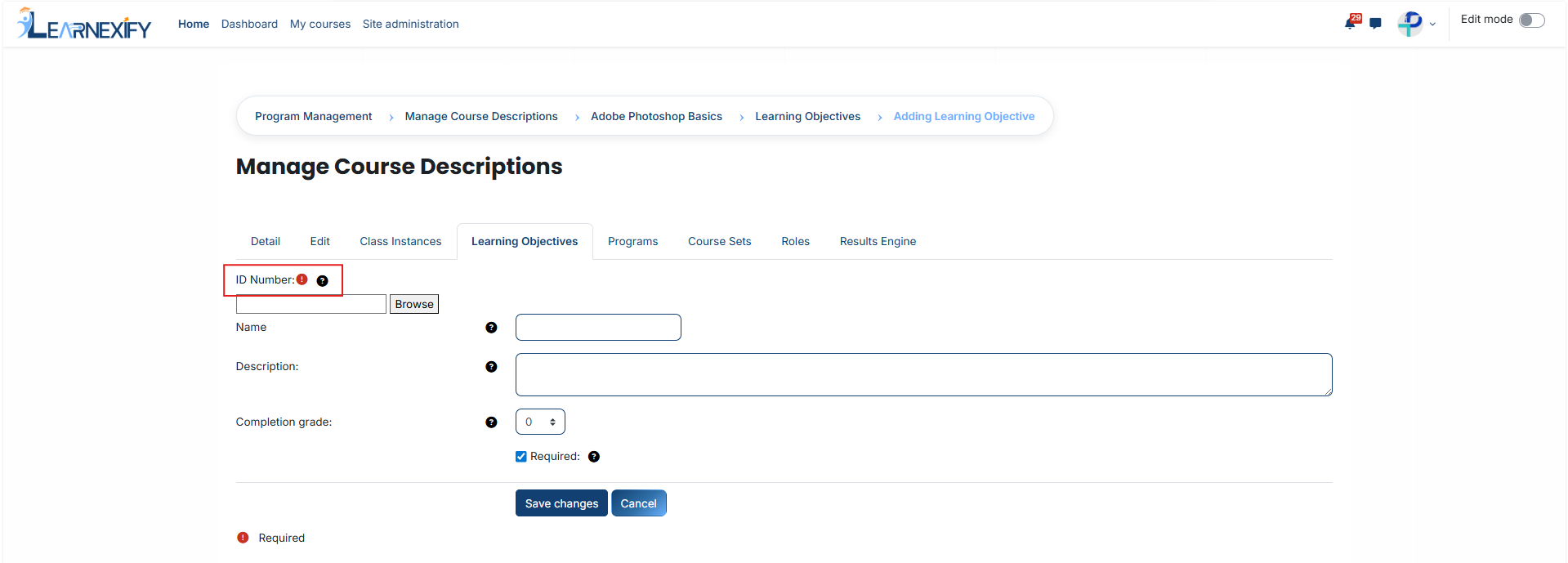
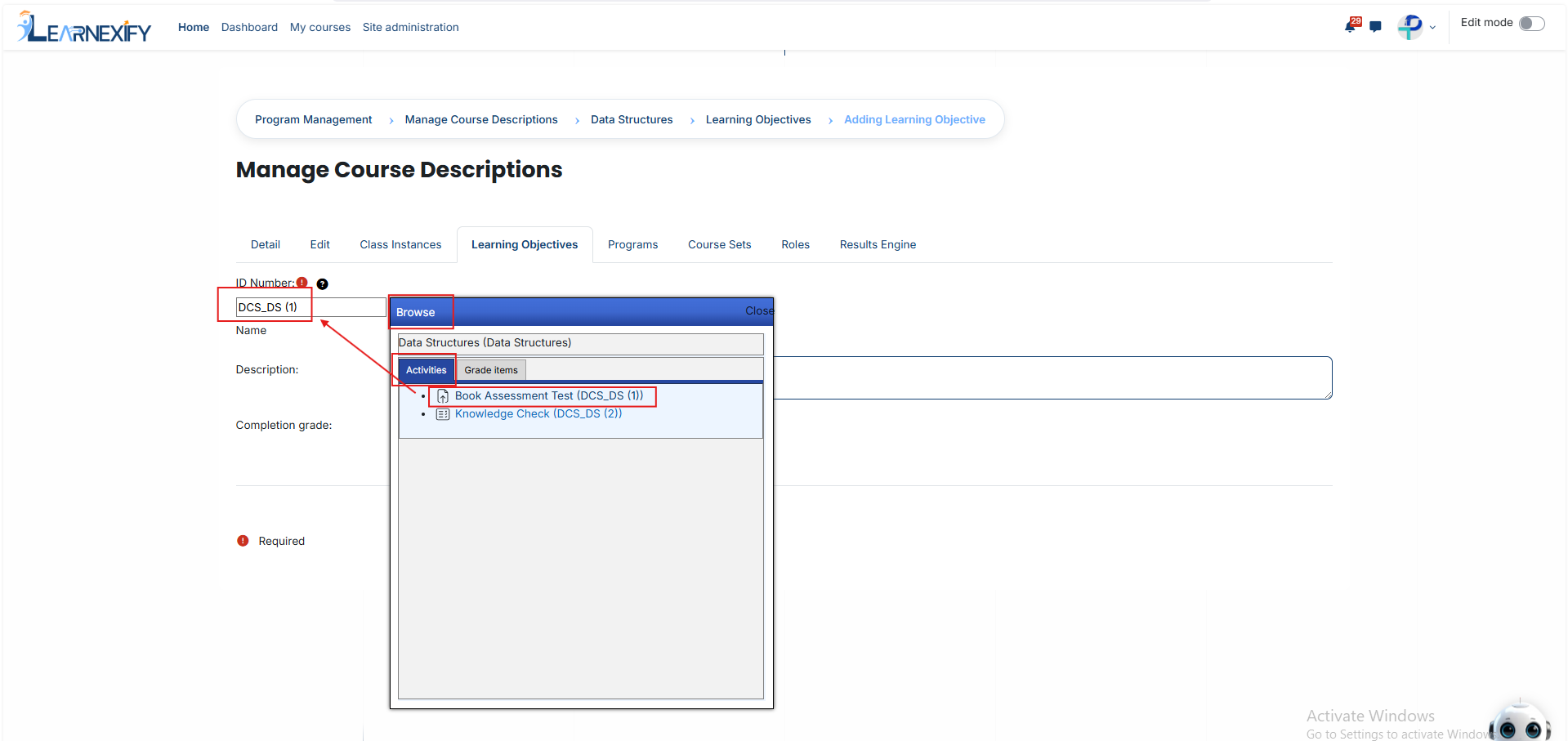
3. Using the 'Browse' Button (Required)
To avoid errors in typing long or complex ID numbers, use the Browse tool:
Click the Browse button next to the ID Number field. A window will open showing all available Activities (Tests, Quizzes, Scorm packages) and Grade Items within the course template.
How to Link: Find the specific activity you want to batch and simply click on it.
The Result: The system will automatically fetch the correct ID Number and fill it into the box for you. This ensures a 100% accurate link without any manual typing mistakes.
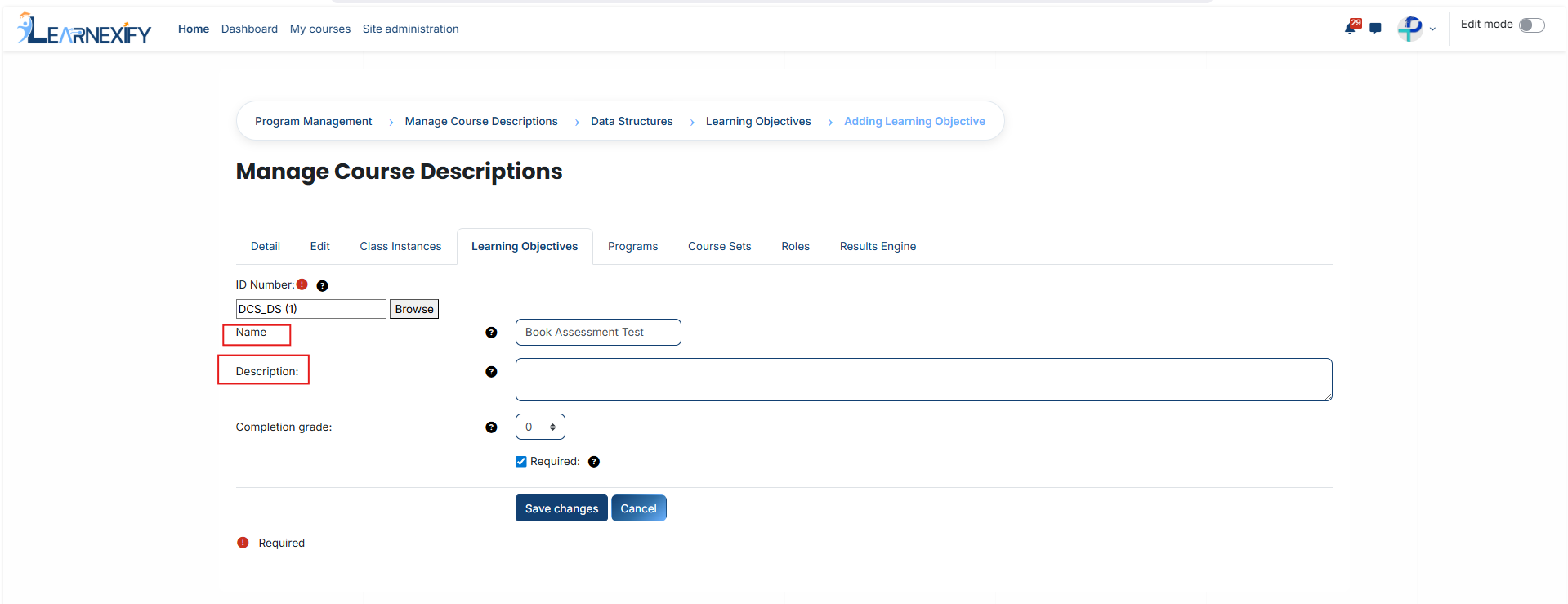
4. Adding Details
Name: Give the objective a clear and simple title (e.g., "Final Exam Proficiency").
Description: Provide a brief explanation of what the student needs to learn. This information helps make your reports easy to read and understand later.
5. Setting the Completion Grade
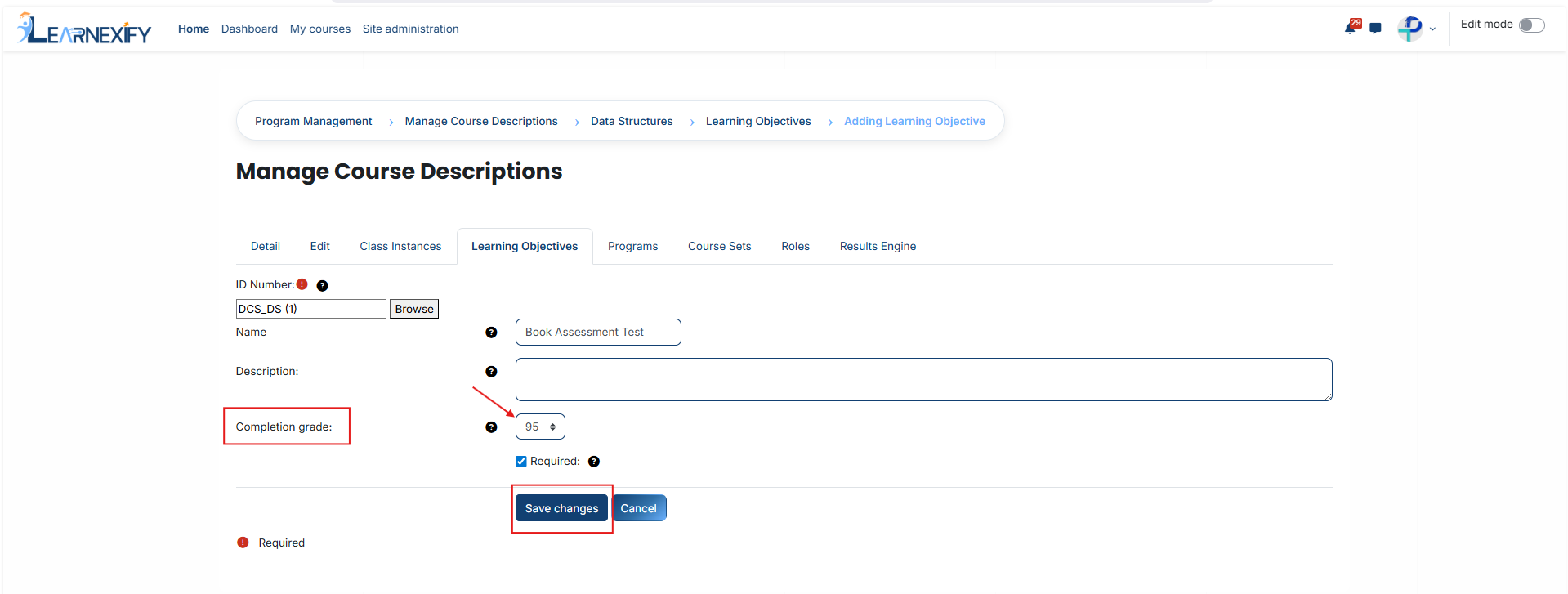
The Completion Grade is the "passing mark" for this objective.
Enter the minimum score (usually a percentage) a student must achieve to mark this objective as "Completed."
Example: If you set this to 70, the student will only receive credit for this learning objective once they score 70% or higher on the linked activity.
Once you have selected the activity through the Browse button and set the passing grade, click Save Changes.
Your Learning Objective is now live and will begin tracking student performance immediately.
No comments to display
No comments to display