
How to Assign Users Groups to a Batch
User Groups:
A user group is a group of users combined for easier management. Instead of assigning users individually, administrators can assign and manage multiple users as a single unit.
Example:
For example, a university may create a user group containing 20 users. By assigning the user group to a batch, all users in the set are associated with the batch at once, saving time and reducing manual effort.
Steps to Assign User Groups to a Batch:
- From the Dashboard, open the side drawer menu and navigate to Programs > Manage batches. A list of available batches will be displayed.
- Locate the batch to which you want to assign a user group and click the user group icon.
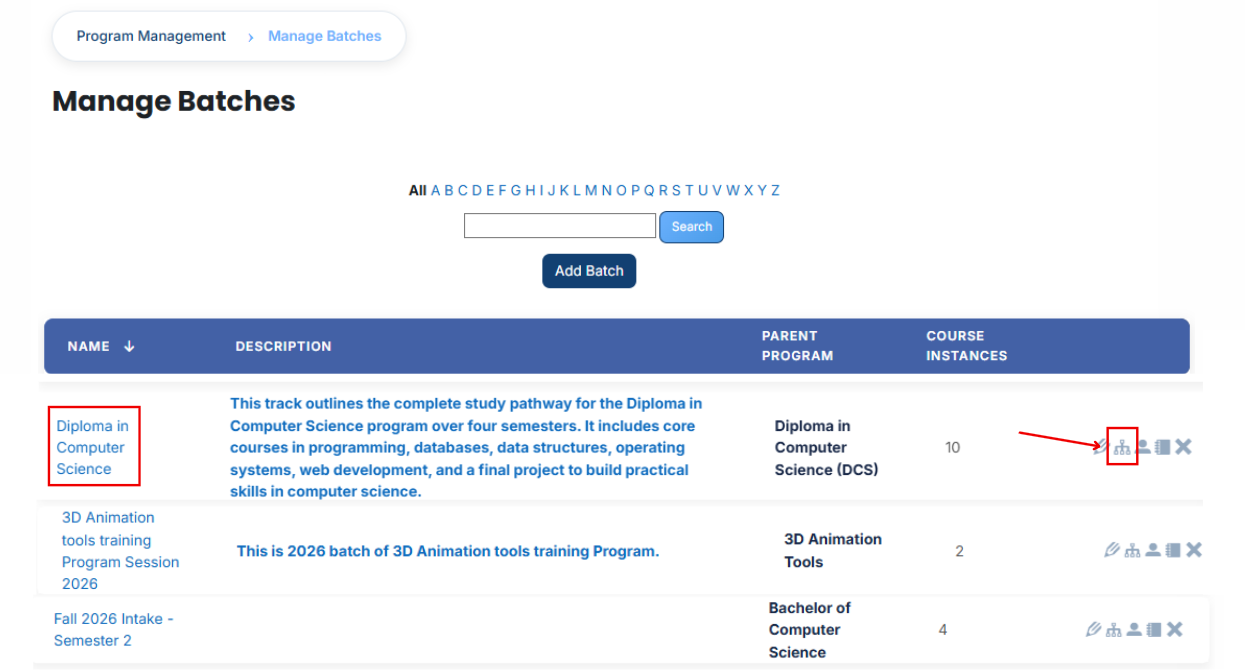
- The batch user group page will open.
- In this section, you can view the user groups currently assigned to the batch. To assign additional user groups, click the Available to Assign button.
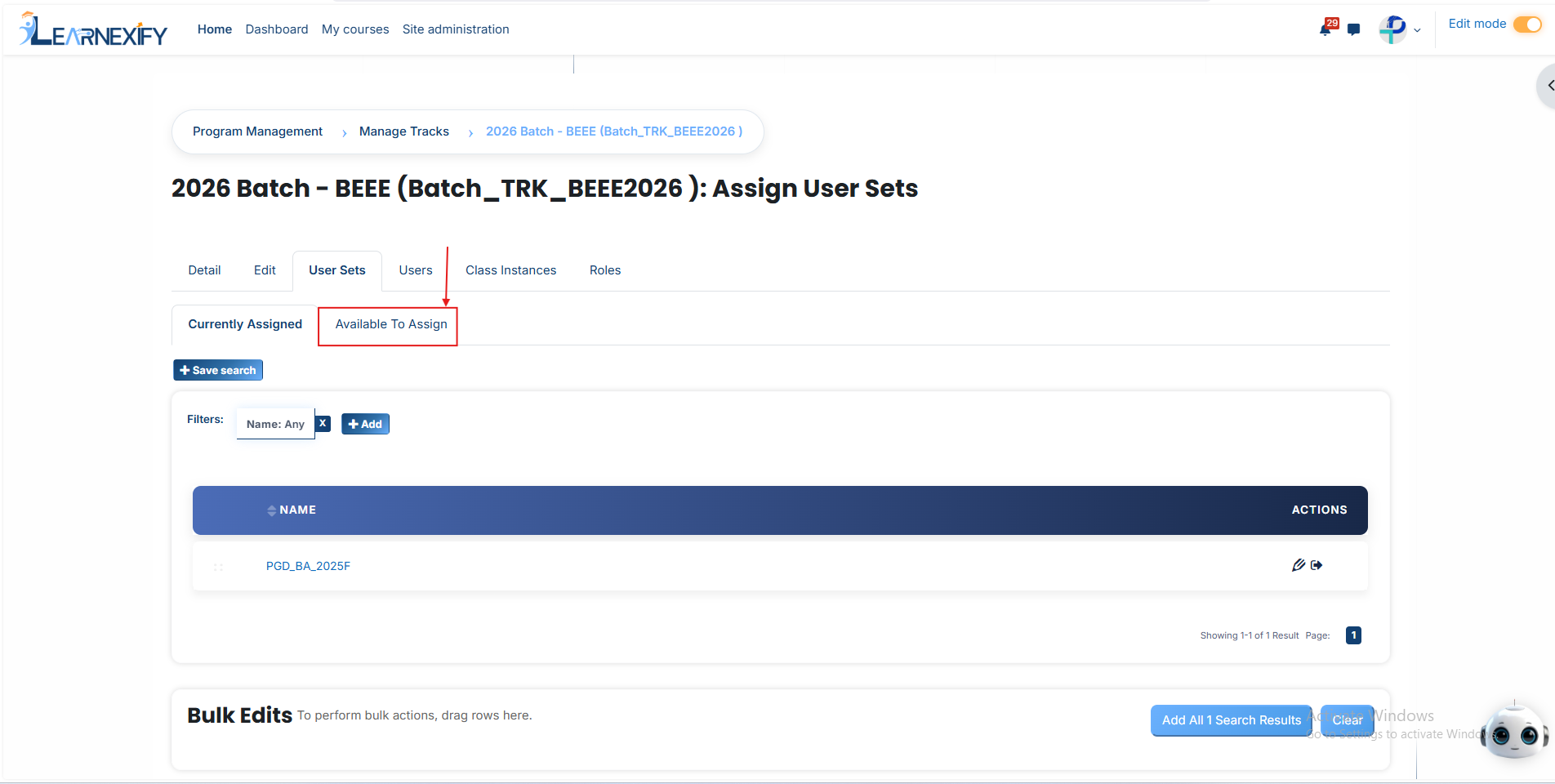
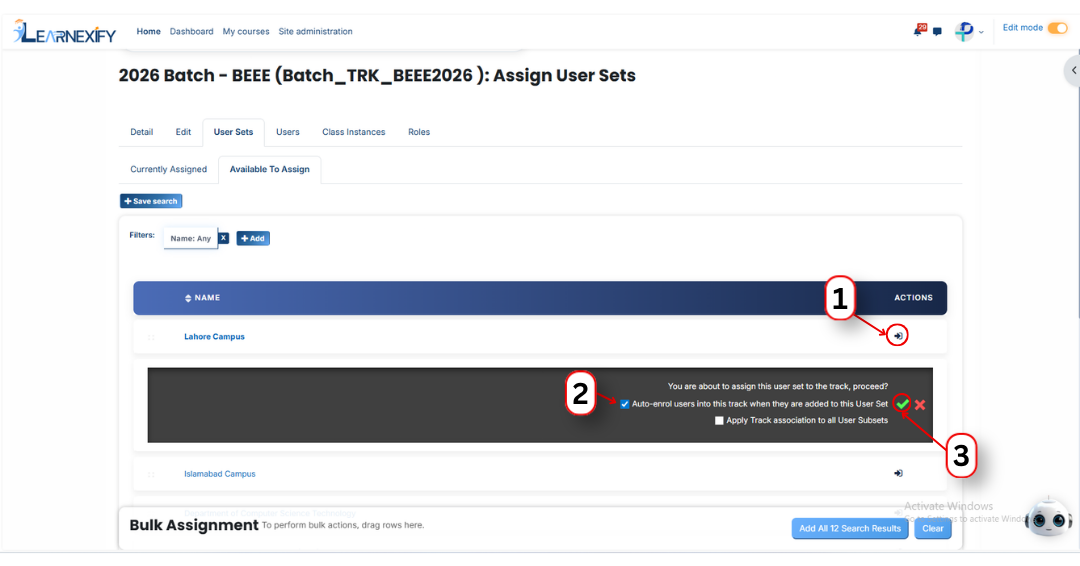
- A list of available user groups will appear. Select the user group you want to assign.
- Click the arrow icon to move the user group to the assignment area.
- You can then choose from the following options:
1. Auto-enroll users into this batch when they are added to this user group
Enable this option to automatically enroll users in the batch whenever they are added to the selected user group. This eliminates the need for manual enrollment and provides immediate access to the batch.
2. Apply batch association to all User subsets
Enable this option to apply the batch to all User Subsets within the selected user group. This ensures that users in related subsets are also assigned to the batch automatically.
- After selecting the required options, click the green tick (✔) to confirm the assignment.
-
Next, click on the Currently Assigned button to view all user groups that have been successfully assigned to the batch.
Assign user groups Using Filters
If the required user group is not visible in the Available to Assign list, you can use filters to locate it.
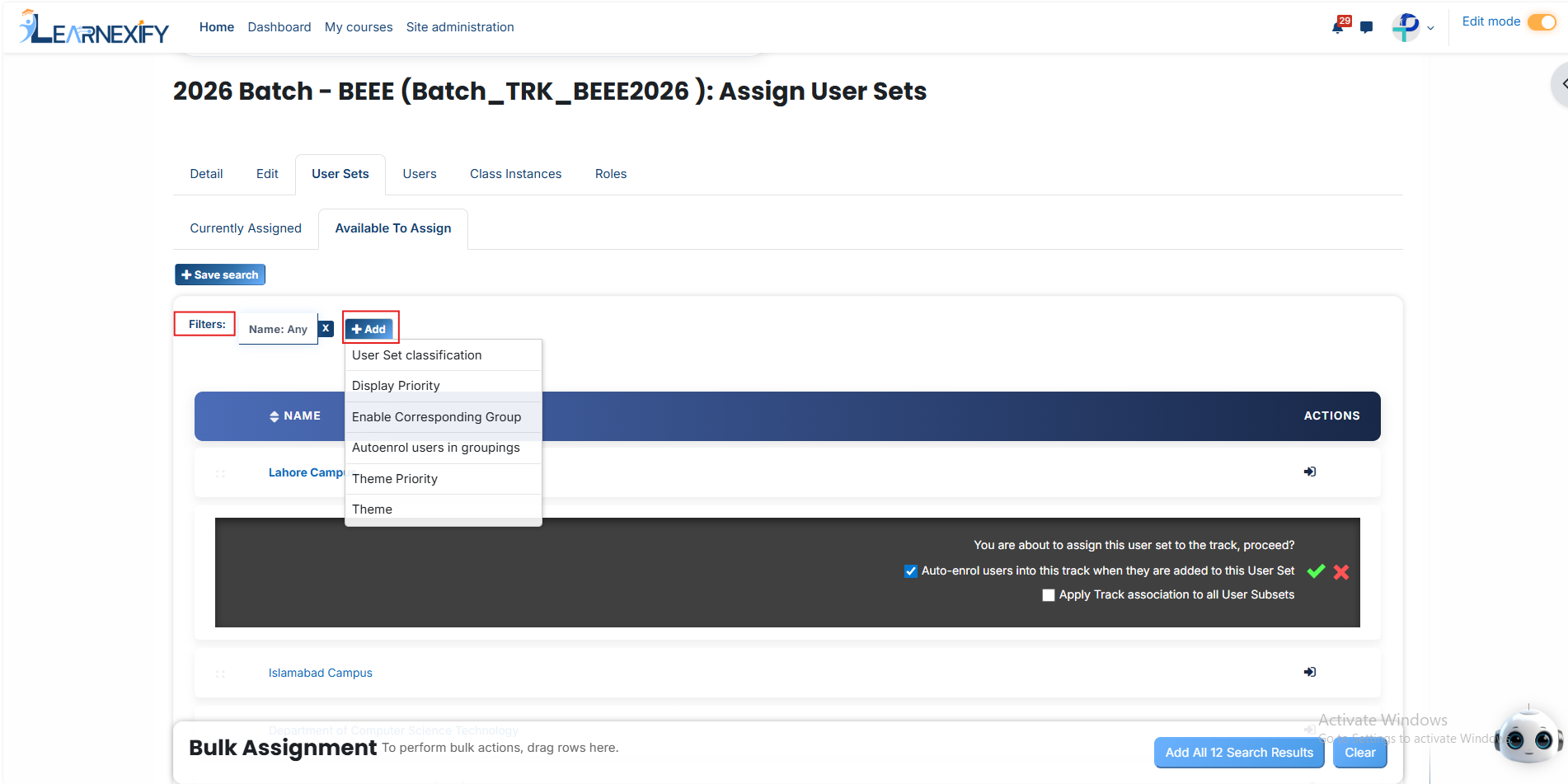
1. User Set Classification
Use this filter to search for user groups based on their classification. Enter a value to display matching user groups only.
2. Display Priority
Use this filter to locate user groups according to their assigned priority level.
3. Enable Corresponding Group
This filter displays user groups that are associated with a specific group.
4. Auto Enroll User in Grouping
Use this option to find user groups configured for automatic user enrollment after assignment.
5. Theme Priority
Use this filter to search for user groups based on their theme priority.
6. Theme
Use this filter to locate user groups associated with a specific theme.
Once the required user group appears in the list, click on the arrow icon and assign it using the green tick (✔).
The assigned user group will then be displayed in the Currently Assigned section.
Bulk User Action:
Purpose:
Use this feature to assign multiple User sets efficiently.
Method 1:
- Select those user groups you want to assign.
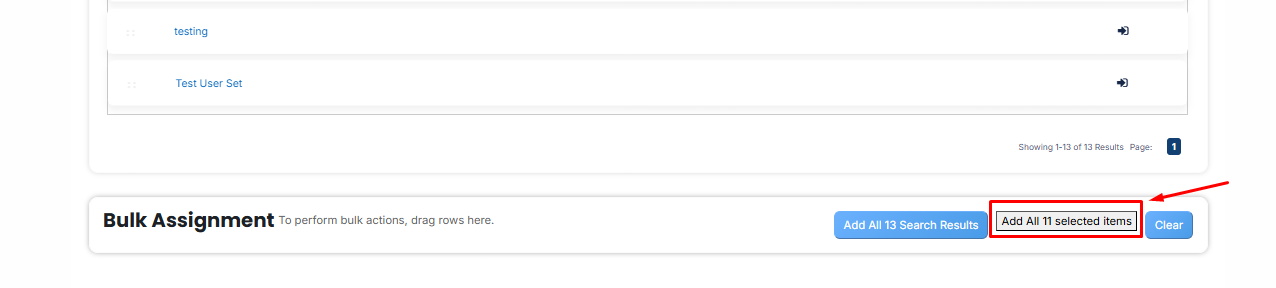
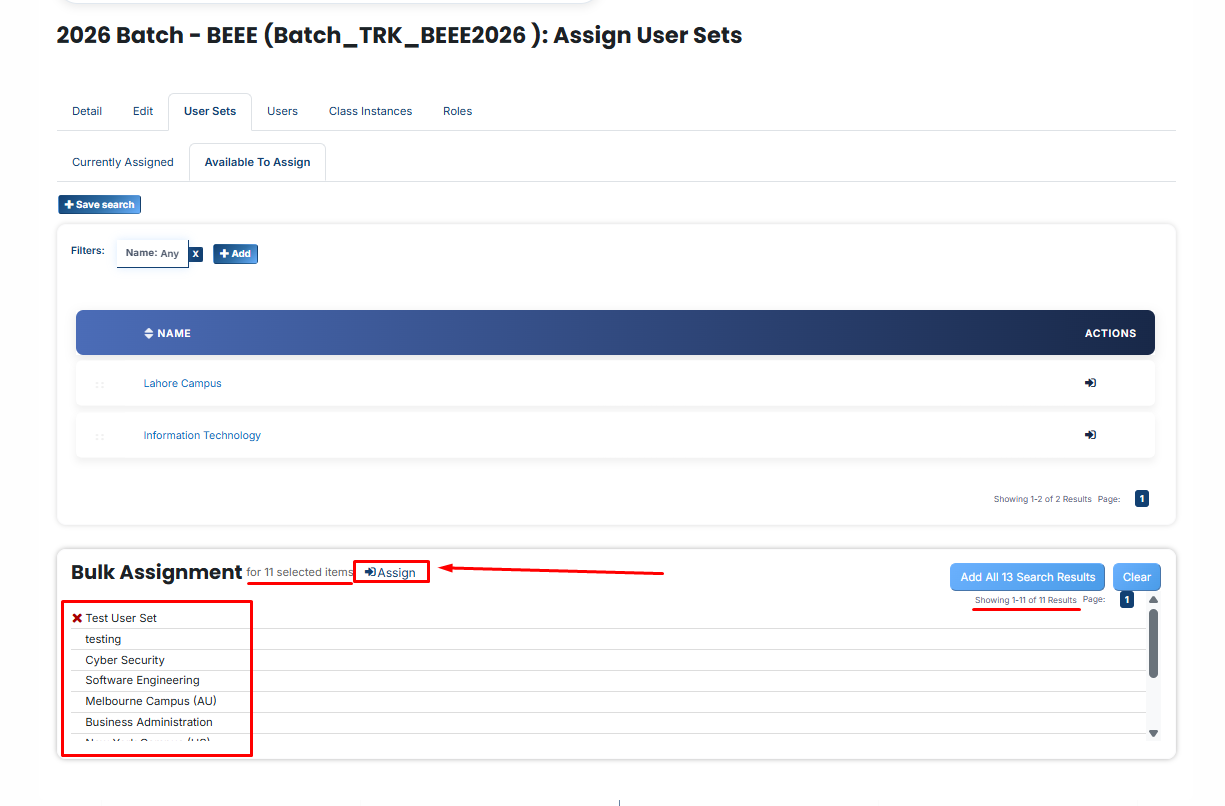
- After making your selections, click the “Add All 11 Selected Items” button to add the selected user groups.
The number displayed in the button (e.g., 11) represents the number of items currently selected and will change depending on how many items you select.
- Then click on the Assign button in the Bulk Assignment Section to move the user groups to the assigned list.
Method 2:
- Click the “Add All 13 Search Results” button to add all user groups with a single click. The number displayed in the button (e.g., 13) may vary depending on the number of user groups available in the search results.
- If you want to clear everything, click the Clear button.

No comments to display
No comments to display