
How to Assign Course sets in a Course Description
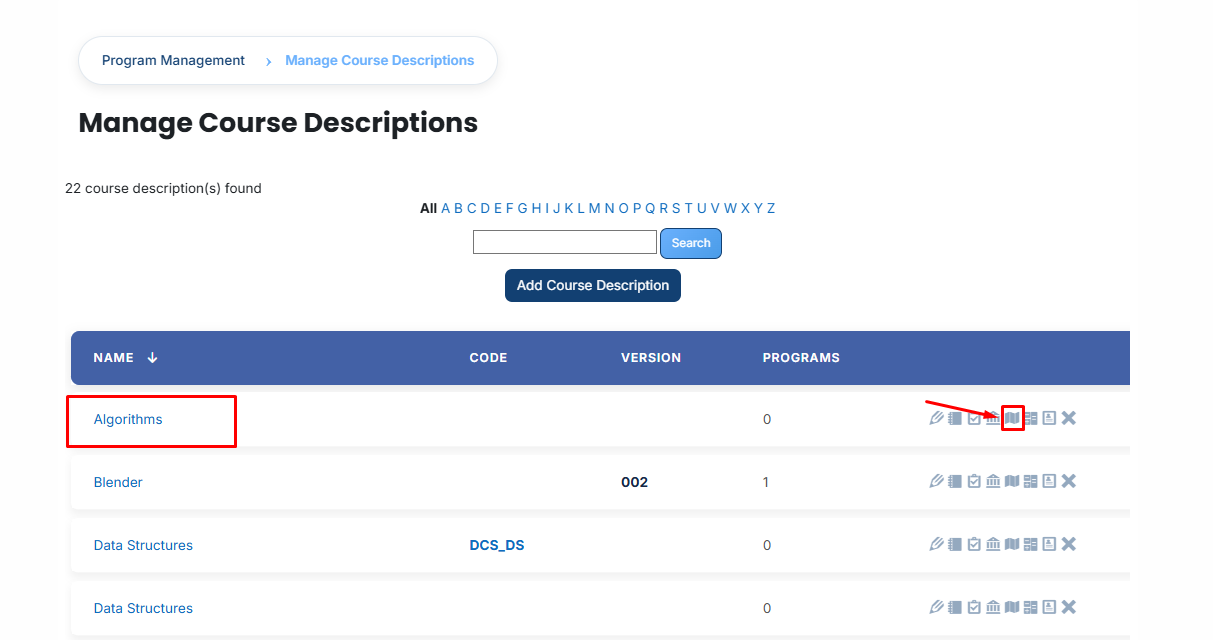
- Identify the specific course description you want to manage from the main list.
- Select the designated Course Sets icon for that particular course description.
-
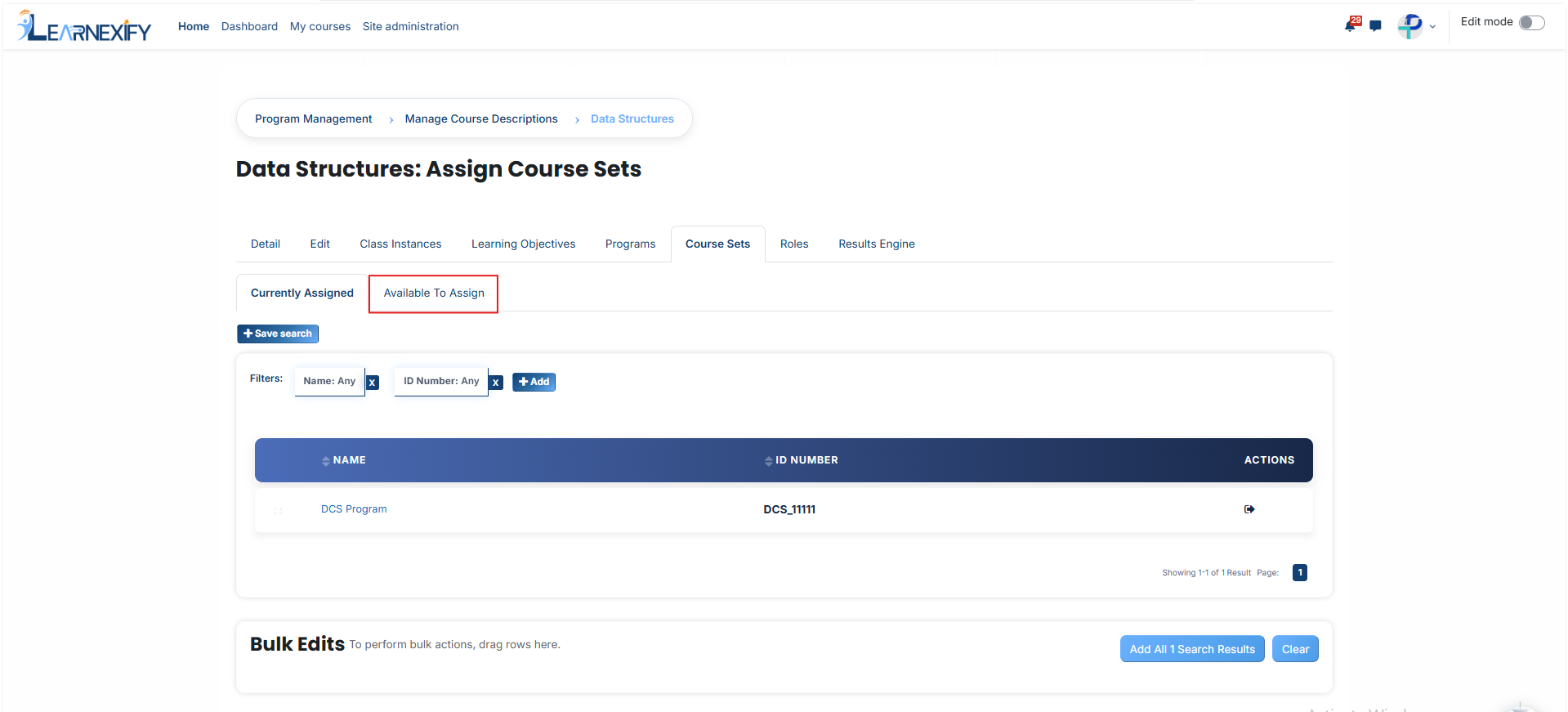
Once the page opens, you will see the sets already connected to this course. To link additional ones, click the Available to Assign button.
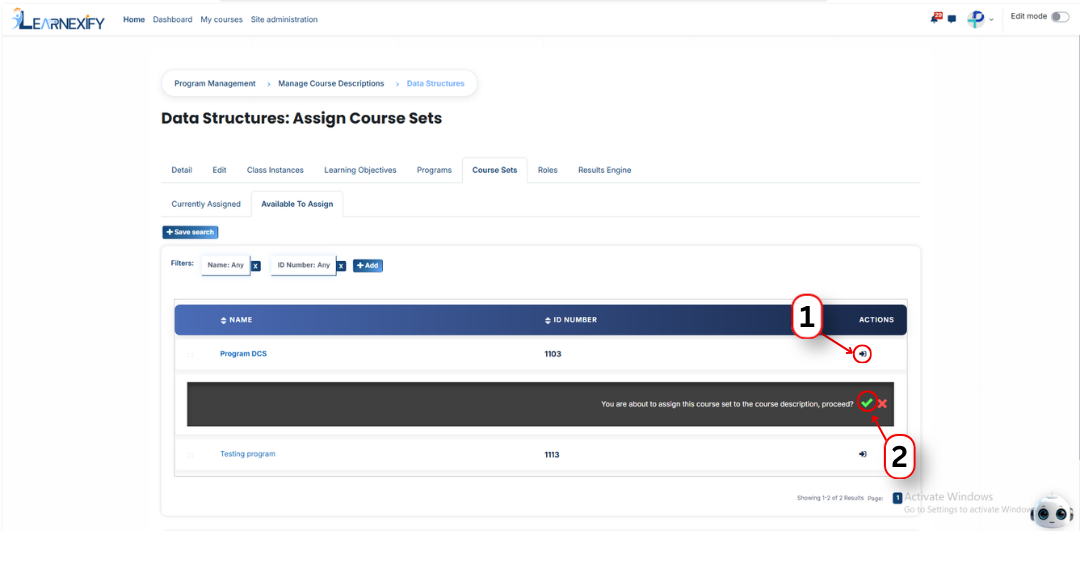
- Browse the list of available course sets. When you find the correct one, click the arrow icon to begin the process.
- Press the green checkmark (✔) to finalize and save the link.
- To confirm the setup is complete, navigate to the Currently Assigned section to view the successfully linked course set.
How to Create a New Course Set (If Not Found):
- If you cannot find the specific course set in the list, you can locate it using the search filters:
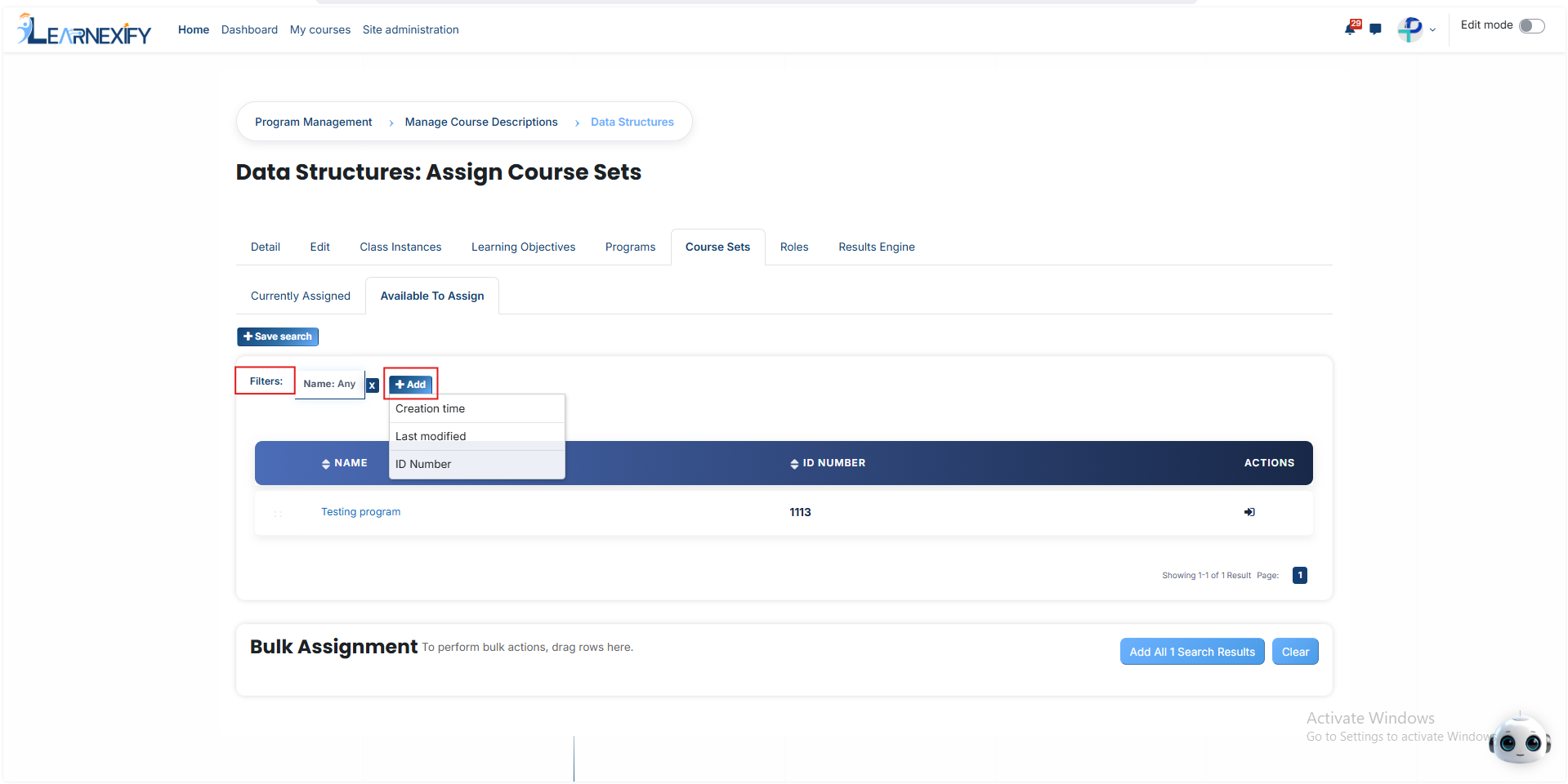
Stay in the Available to Assign section and look at the Filters area:
- Name: Type the title here to search by the name of the course set.
- ID Number: Enter the unique code to find a specific set.
- Creation time: Use this to filter results based on when the course set was originally created.
- Last modified: Use this to search based on the most recent update made to the set.
Once your required course set appears in the filtered results, you can select and assign it to your course description following the steps above.
Bulk User Action:
Purpose:
Use this feature to assign multiple Course sets efficiently.
Method 1:
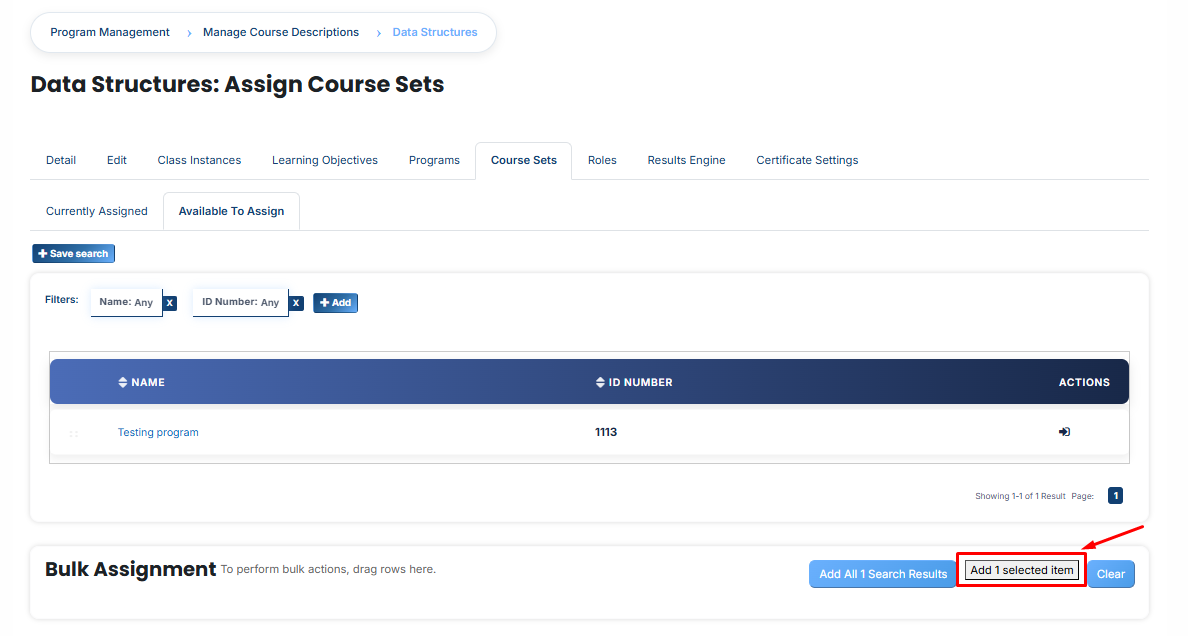
- Select those course sets you want to assign.
- After making your selections, click the “Add All 1 Selected Items” button to add the selected course sets.
The number displayed in the button (e.g., 1) represents the number of items currently selected and will change depending on how many items you select.
-
Then click on the Assign button in the Bulk Assignment Section to move the course sets to the assigned list.

Method 2:
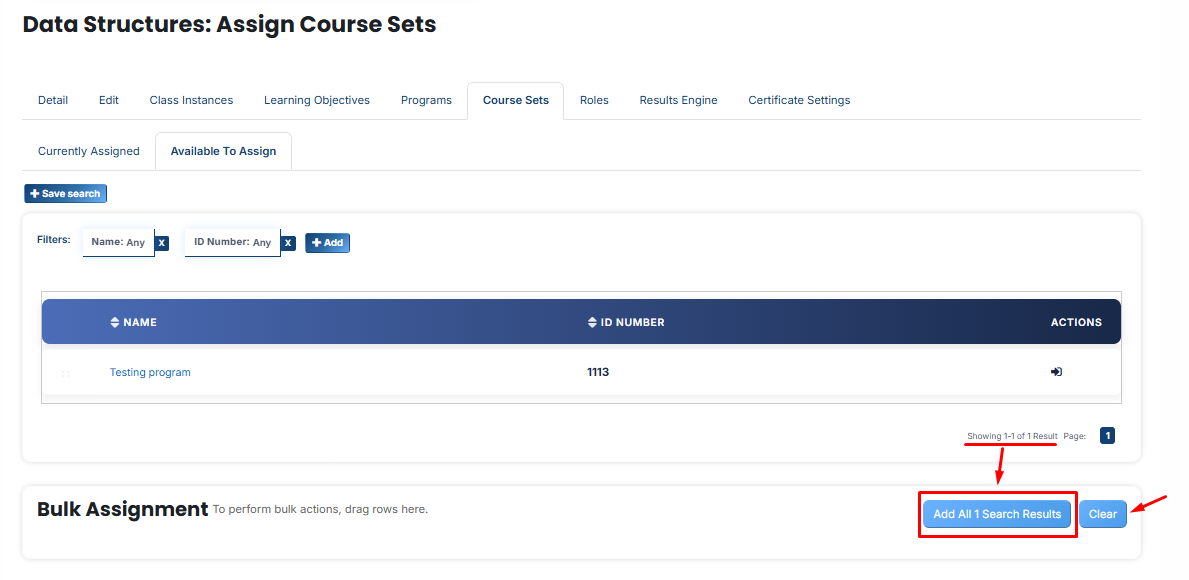
- Click the “Add All 1 Search Results” button to add all course sets with a single click. The number displayed in the button (e.g., 1) may vary depending on the number of course sets available in the search results.
- If you want to clear everything, click the Clear button.
No comments to display
No comments to display