
How to Assign User Roles to a Course Instance
To define specific administrative permissions or access levels for a course instance, identify the relevant course instance from the management list, open it, and select the Roles tab.
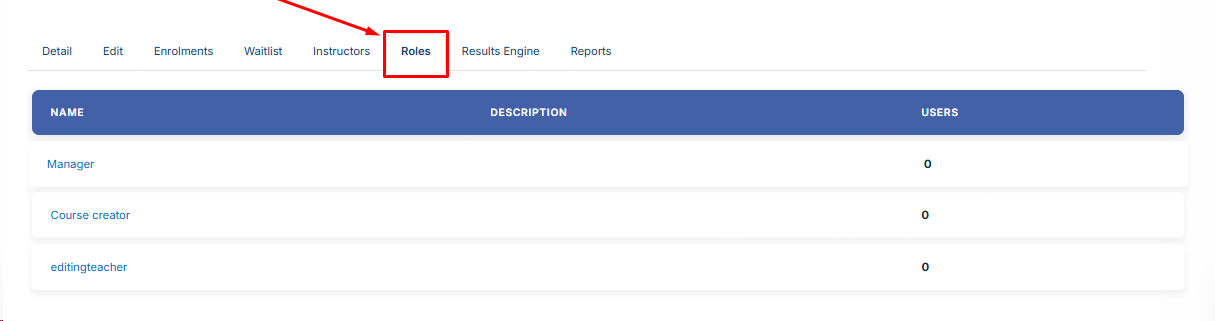
-
From the available options, choose the specific permission level or administrative role (such as Manager) you wish to grant to a user for this course instance.
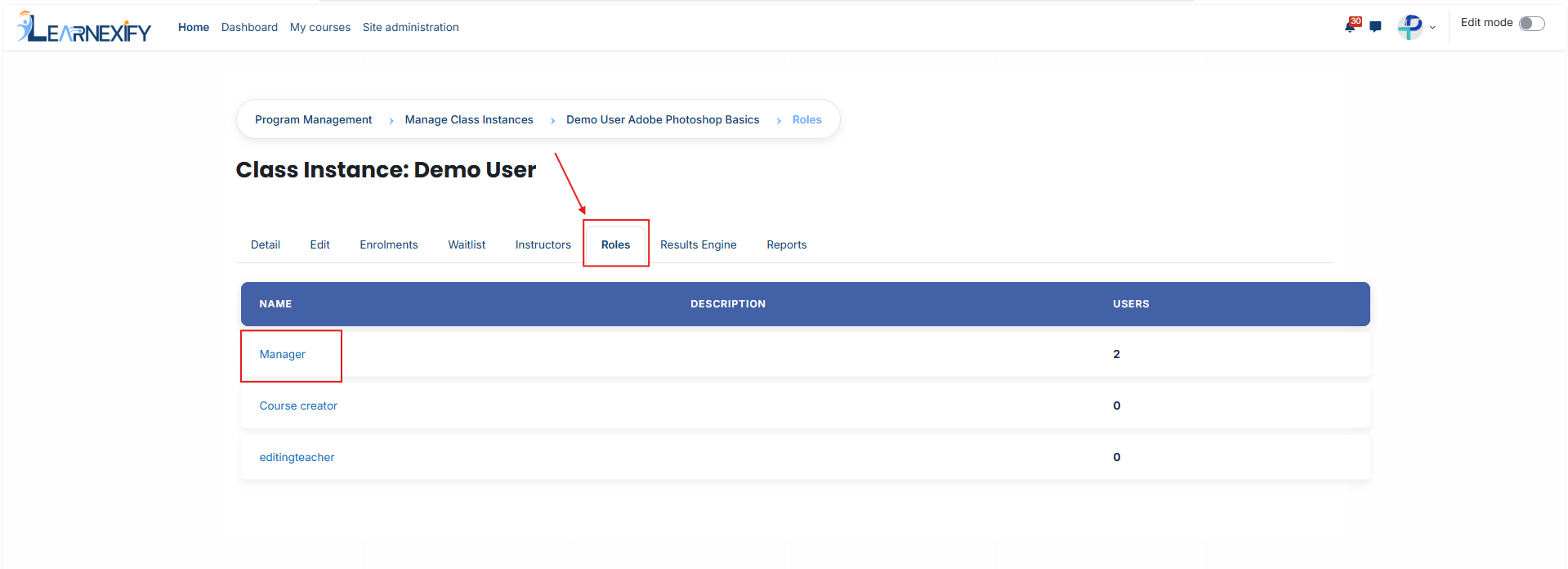
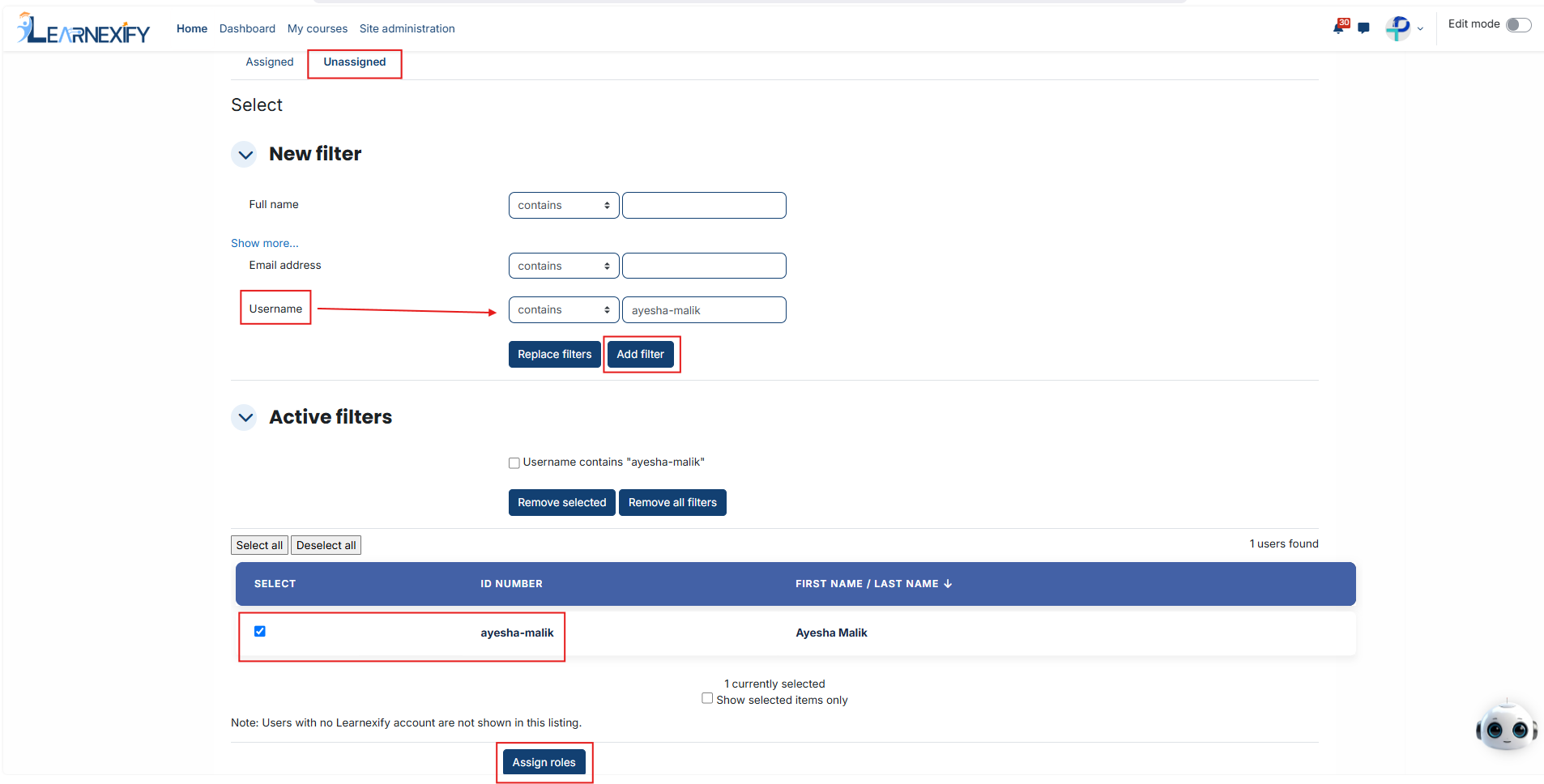
- The interface will initially display users who are already active in that role; to view a list of potential candidates you can add to the course instance, click the Unassigned button.
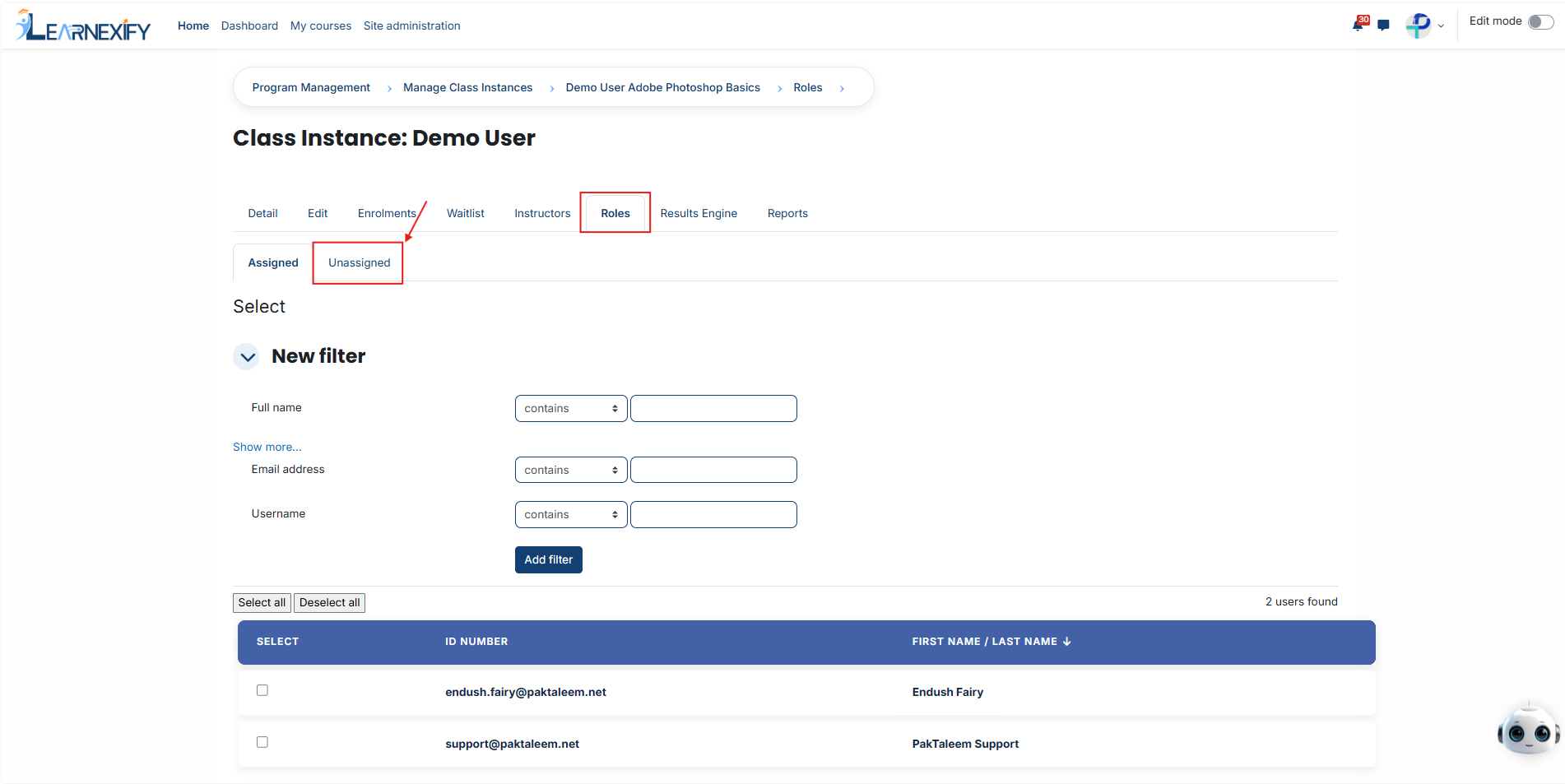
- Check the box next to the name of each individual you wish to authorize for this specific role within the course instance.
- Navigate to the bottom of the page and click the Assign Roles button to commit your selection and officially update the access levels for the course instance.
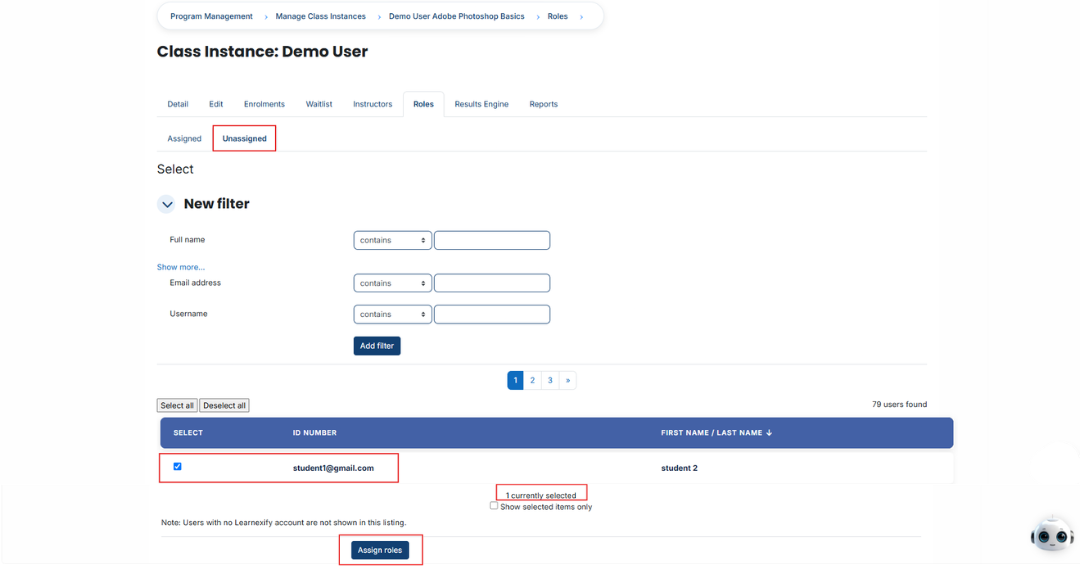
- If you need to locate a specific individual quickly for the course instance, utilize the filter tools located at the top of the user list.
- Create a search rule by selecting criteria such as the user's Full Name, Username, or Email Address.
- Click the Add Filter button to display the matching results from the system for the course instance.
- Once the correct individual is identified in the filtered list, select them and click Assign Roles to complete the authorization process for the course instance.
No comments to display
No comments to display