
How to Configure the Results Engine in a Course Description
Purpose of the Results Engine:
The Results Engine is an automation tool used to trigger specific actions based on student performance. Its purpose is to automatically move students to new tracks or classes, or update their profiles, once they reach a predefined grade or completion status.
Why it is Required:
It is required to eliminate manual administrative work and reduce human error. By configuring this engine, you ensure that students can progress through their learning path instantly the moment they pass, without needing an administrator to enroll them manually.
Configure the Results Engine:
-
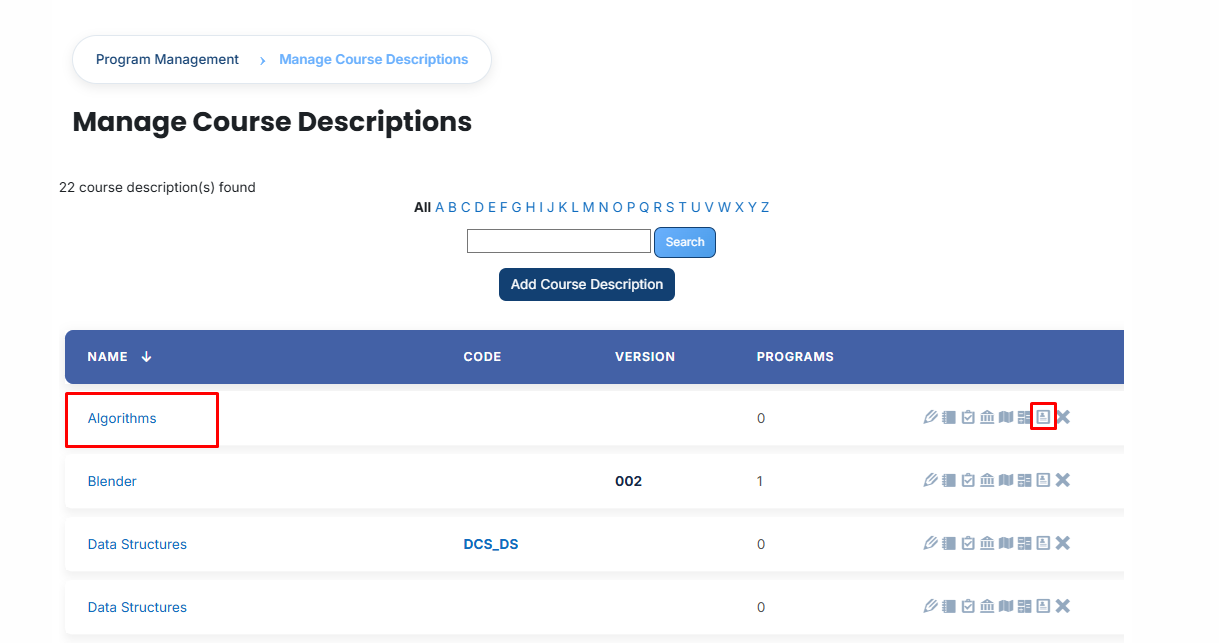
From the main list of Course Descriptions, select the specific course you wish to manage and click on the Results Engine icon.
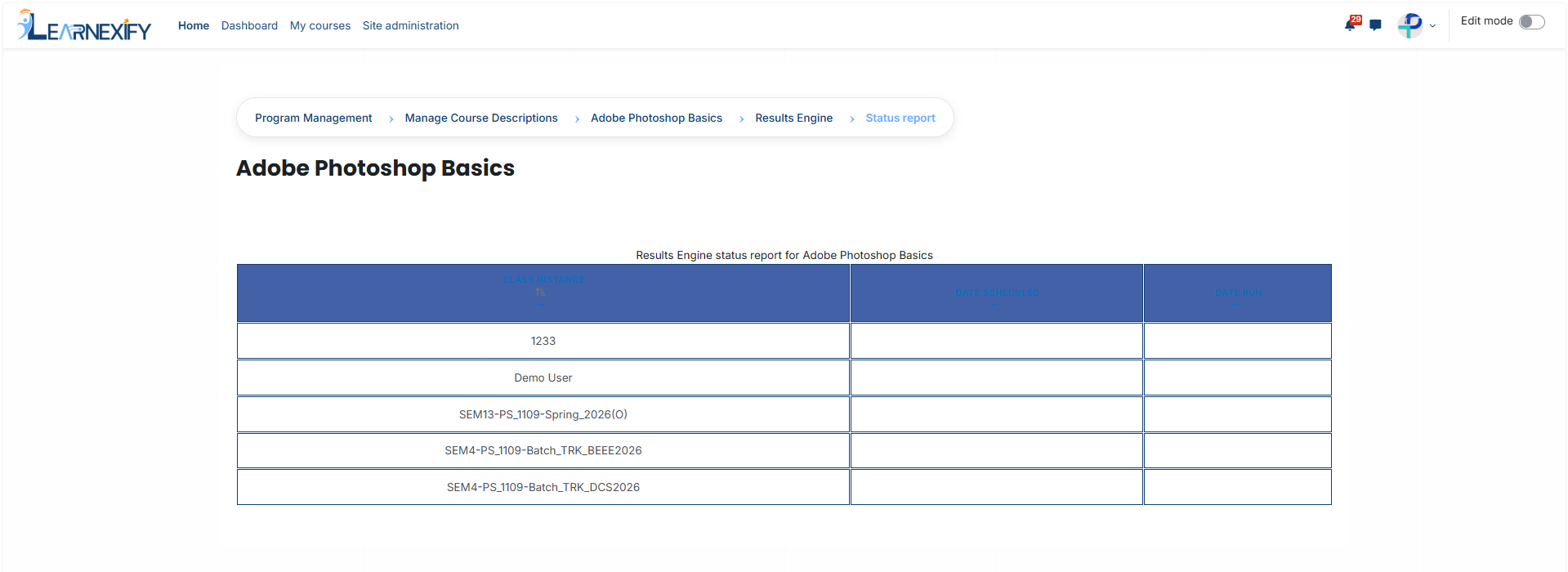
- Click the Results Engine Status Report link to access the execution history. This report provides a detailed table of which course instances were processed, their scheduled times, and the actual run dates, serving as a vital audit tool for administrators.
Activation Rule:
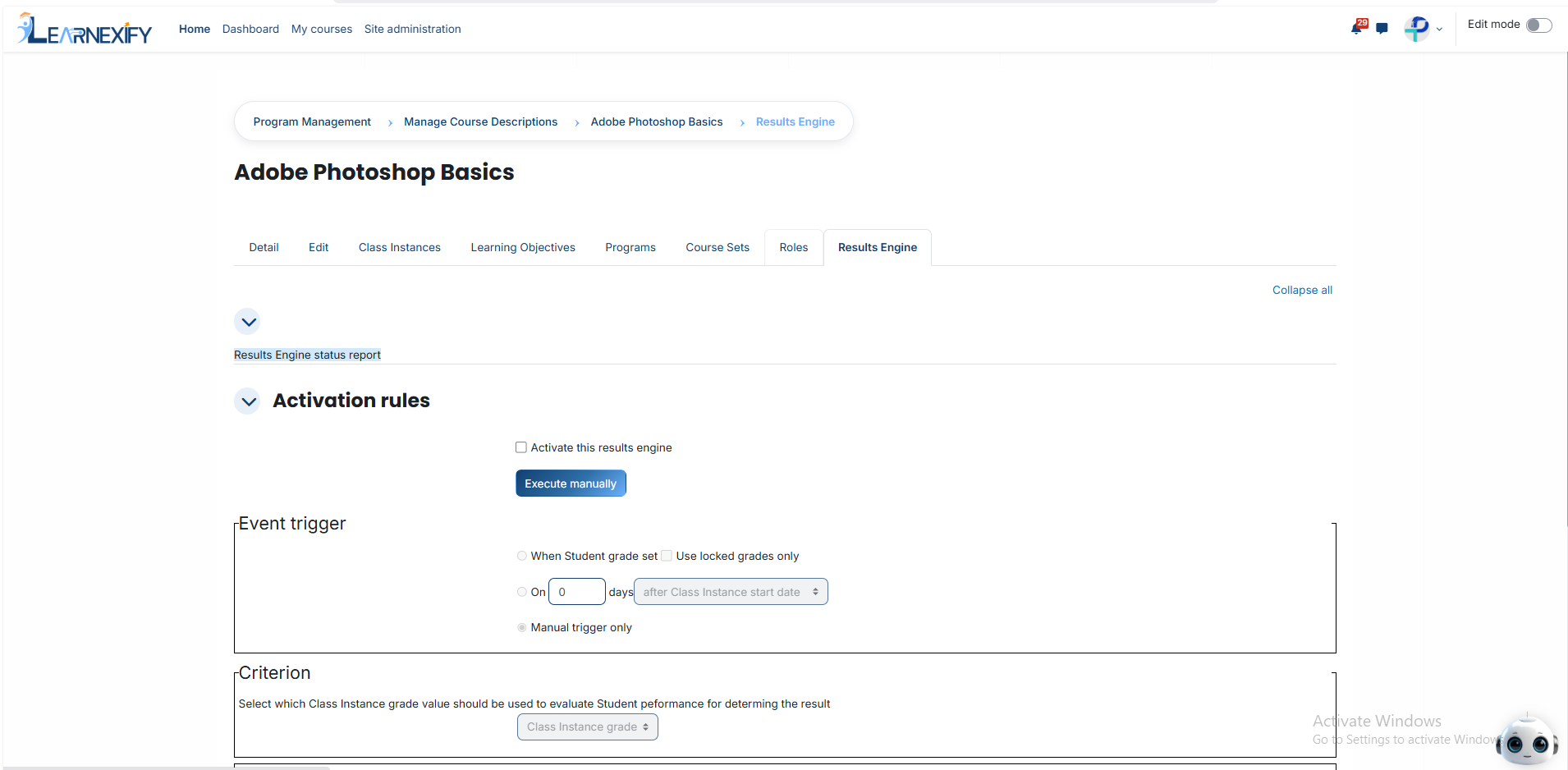
Enable the Activate this results engine checkbox to authorize the system to perform automated actions.
- Logic: When checked, the system actively monitors grades and executes rules. If left unchecked, the engine remains idle, and no automated updates will occur, even if rules are defined.
Event Trigger (Timing Rules):
Define exactly when the system should evaluate a learner's performance:
- When Student grade set: The engine triggers as soon as a score is saved.
- Sub-option: Use locked grades only: When enabled, the system waits until the grade is officially finalized (locked) before acting. This prevents premature automation on draft or temporary grades.
- On [X] days after course instance start date: The system waits for the specified number of days after the class begins before running the evaluation.
- Manual trigger only: The system remains completely passive and will only execute when an administrator manually triggers the engine via the Status Report.
Evaluation Criterion:
Use the dropdown menu to select the data source for evaluation, typically the course instance grade. This tells the engine which specific score value should be used to determine the result.
Automated Actions (The If/Then Logic):
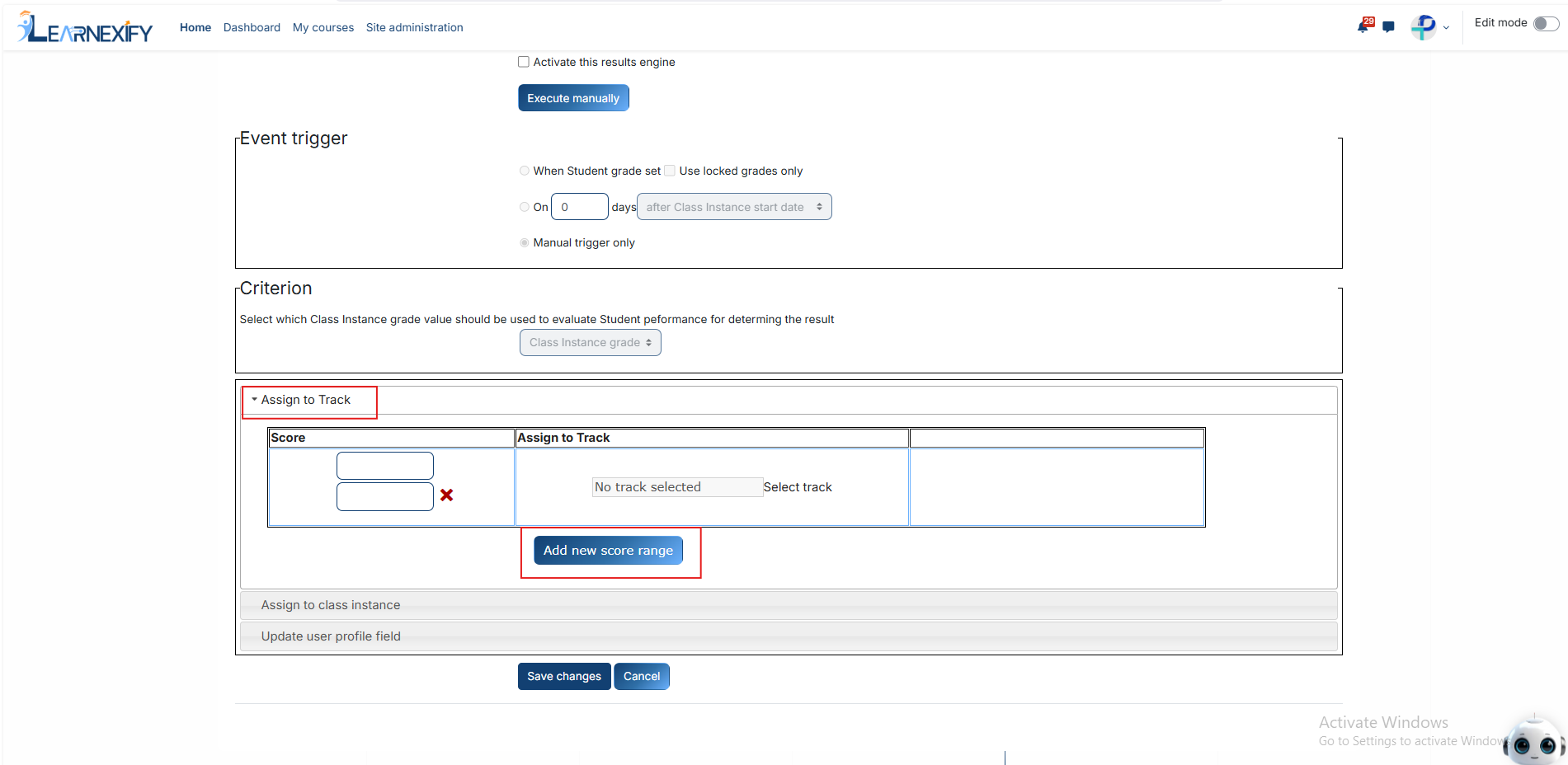
For each action below, you must define a Score Range (Minimum and Maximum). If a learner’s score falls within that range, the system executes the assigned action:
Assign to batch:
- Purpose: Automatically enrolls the learner into a new learning path. This is commonly used for Promotion (moving up a level) or Remediation (assigning foundational work if a score is low).
- Configuration: Click Select batch to open a search window. Locate the desired batch by name or ID and select it to link the score range.
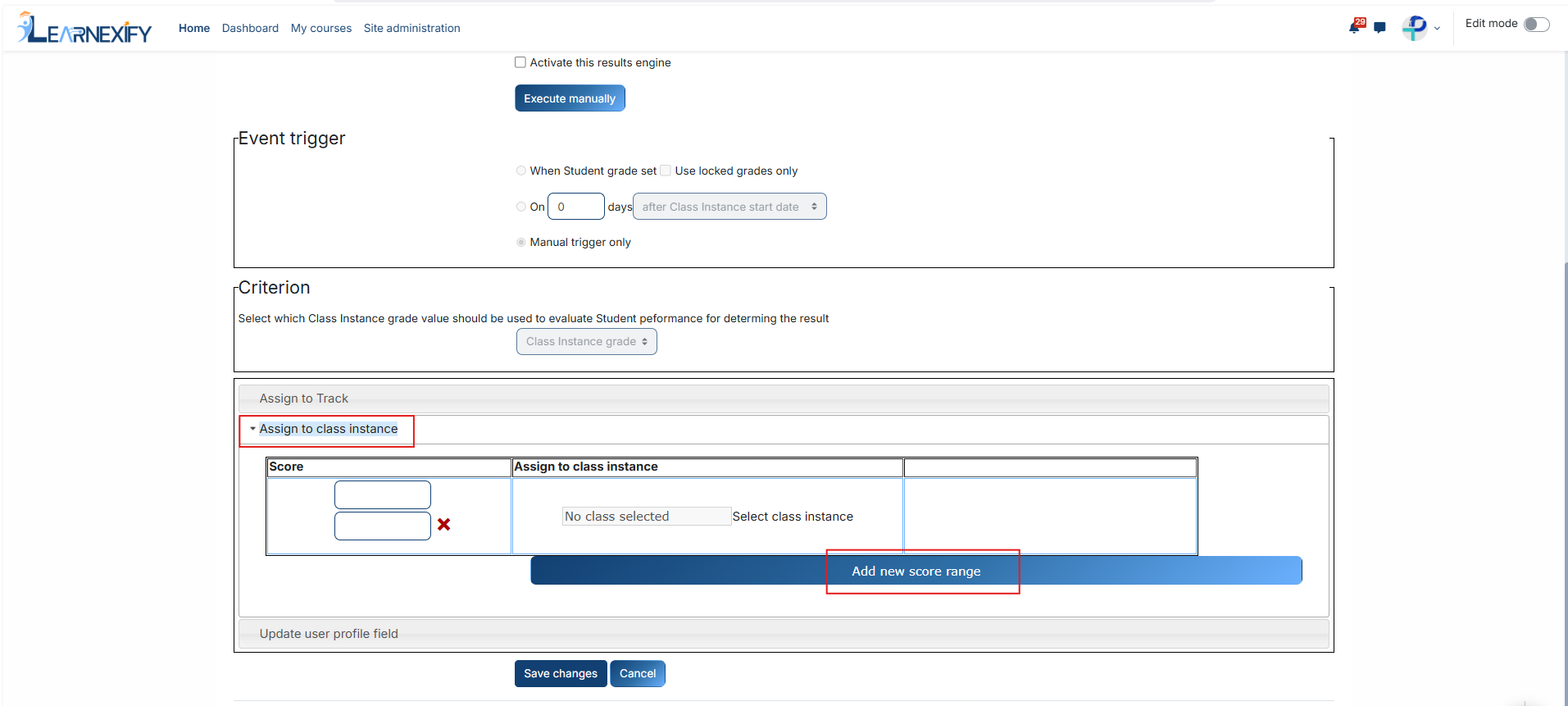
Assign to course instance:
- Purpose: Enrolls the learner directly into a specific class batch or section.
- Configuration: Click Select course instance and use the search tool to identify the target batch. This is effective for moving learners immediately into a "Retake" or "Level 2" batch.
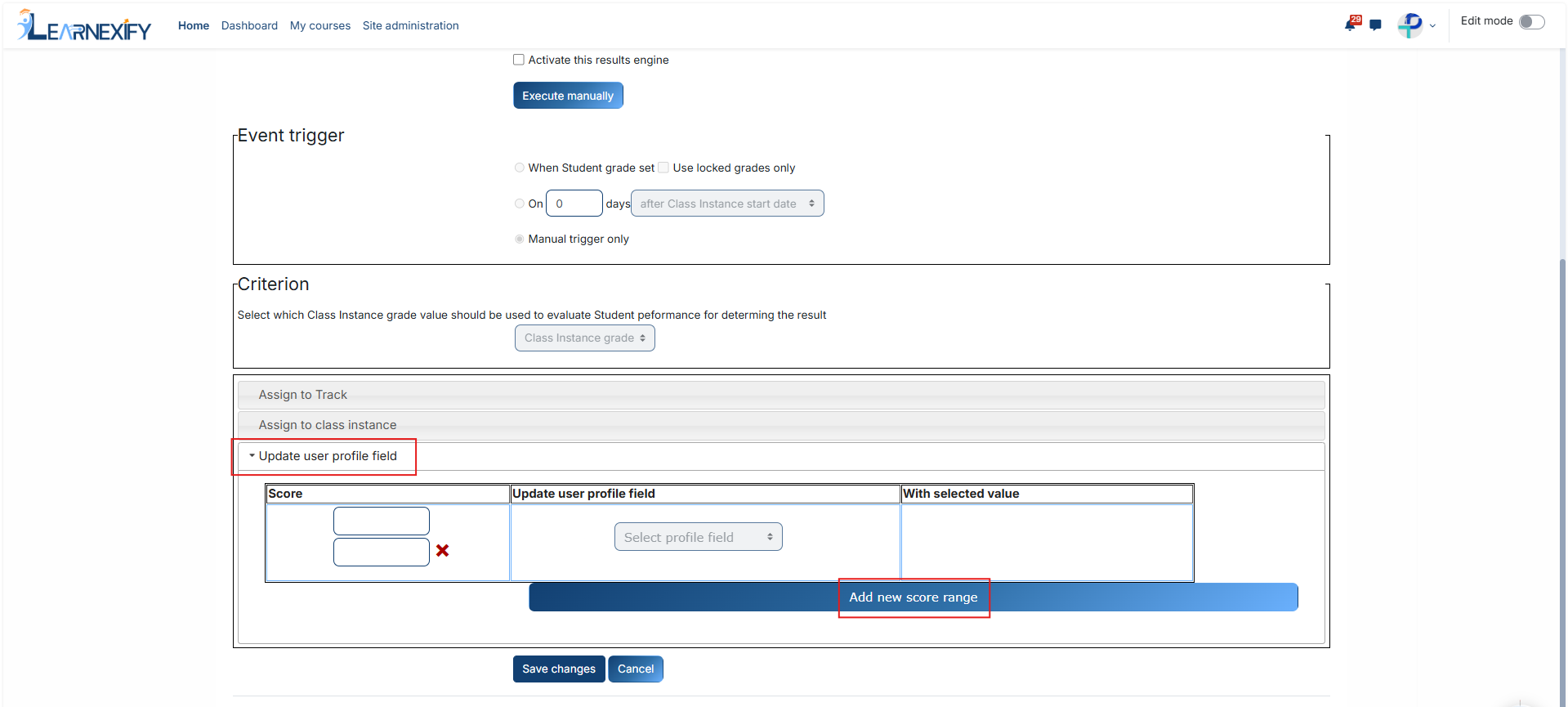
Update User Profile Field:
- Purpose: Modifies a permanent field in the learner’s profile to reflect their new status or skill level.
- Configuration: Choose a custom Profile Field (e.g., Skill Level or Certification Status). Select a Value from the menu (e.g., Master or Level 1). This allows for automated competency tracking in institutional reports.
Finalization:
-
-
Click Add new score range to create multiple, distinct rules (e.g., one rule for failing scores and another for passing scores).
-
Select Save Changes at the bottom of the page to finalize the configuration and activate the automated workflow.
-
No comments to display
No comments to display