
How to Assign Roles in a Course Set:
- Identify the particular course set you wish to modify from the main list.
- Click that course set name and then click on the Roles tab.
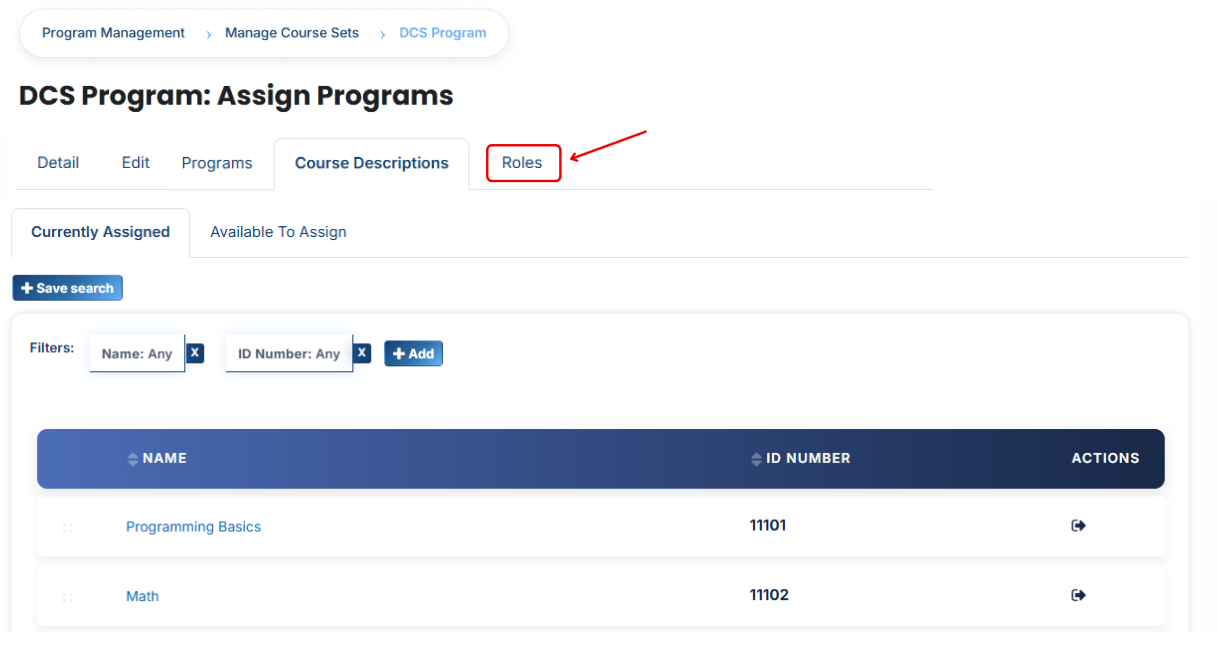
-
Pick the specific access level you want to manage (for example: Manager, Course Creator, or Student).
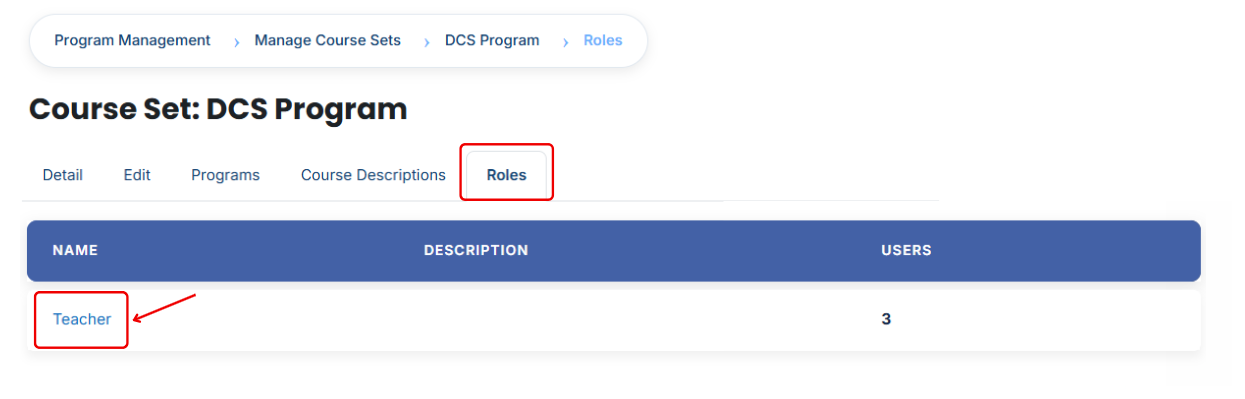
-
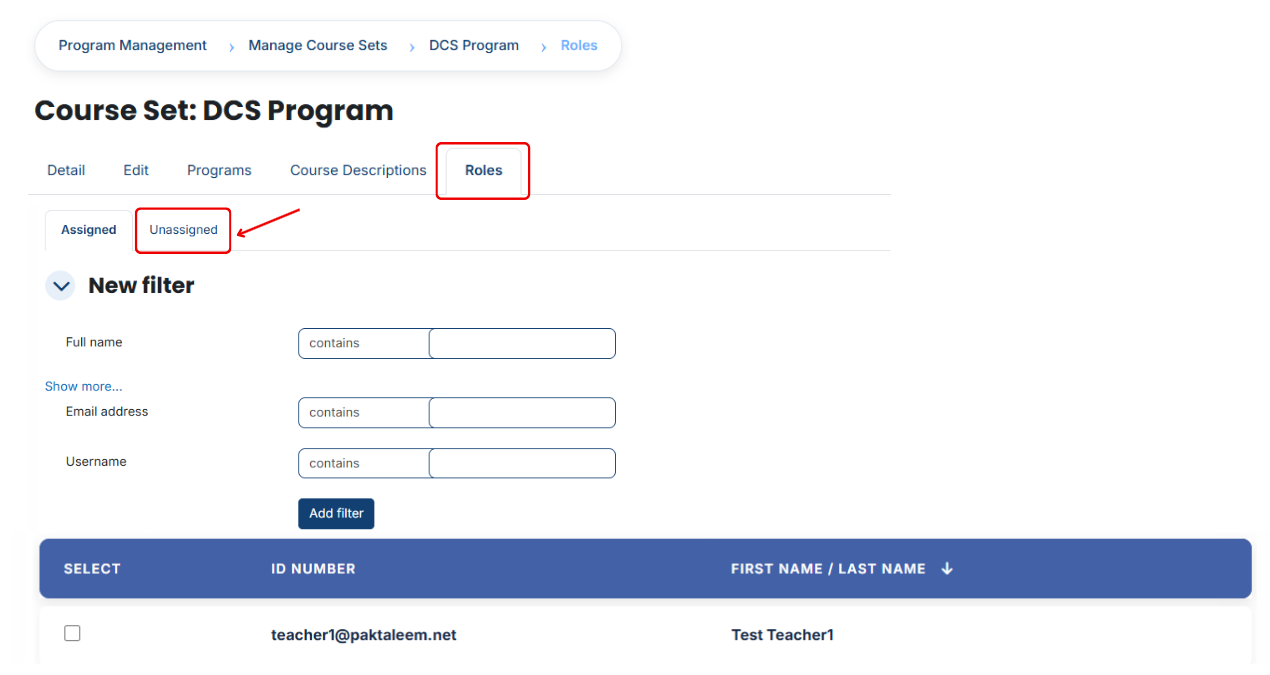
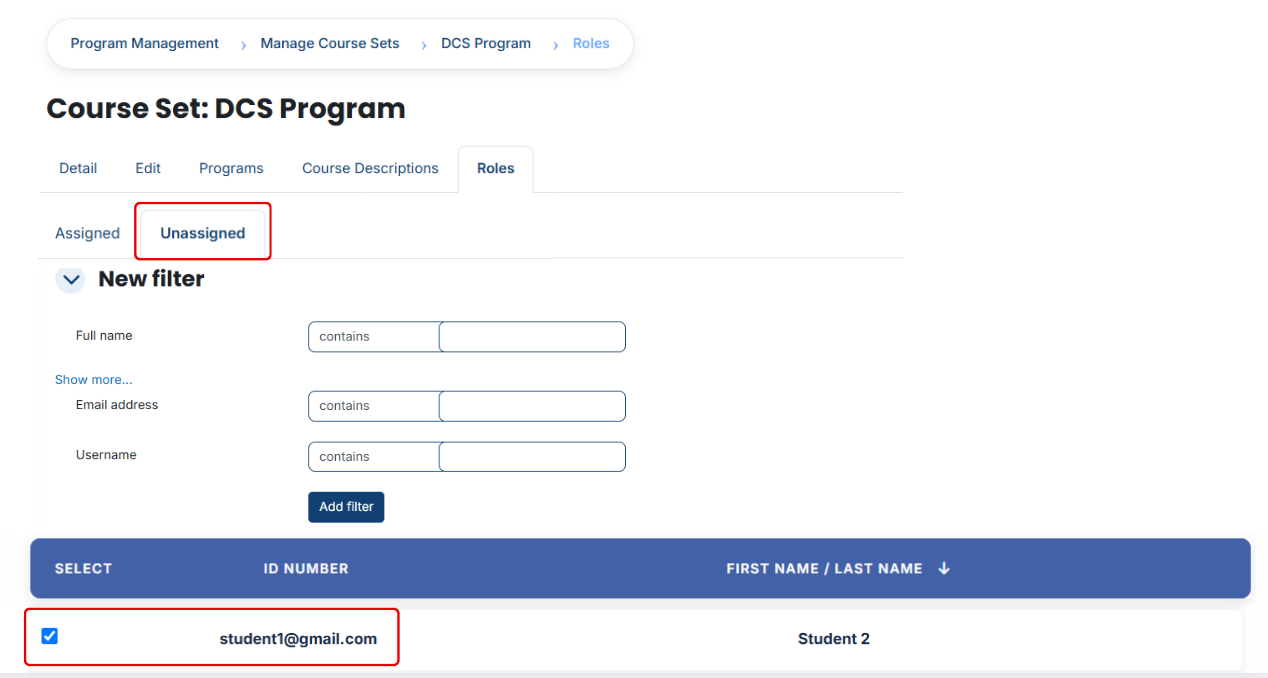
The page will show people already in that role; click the Unassigned button to see a list of other people you can add.
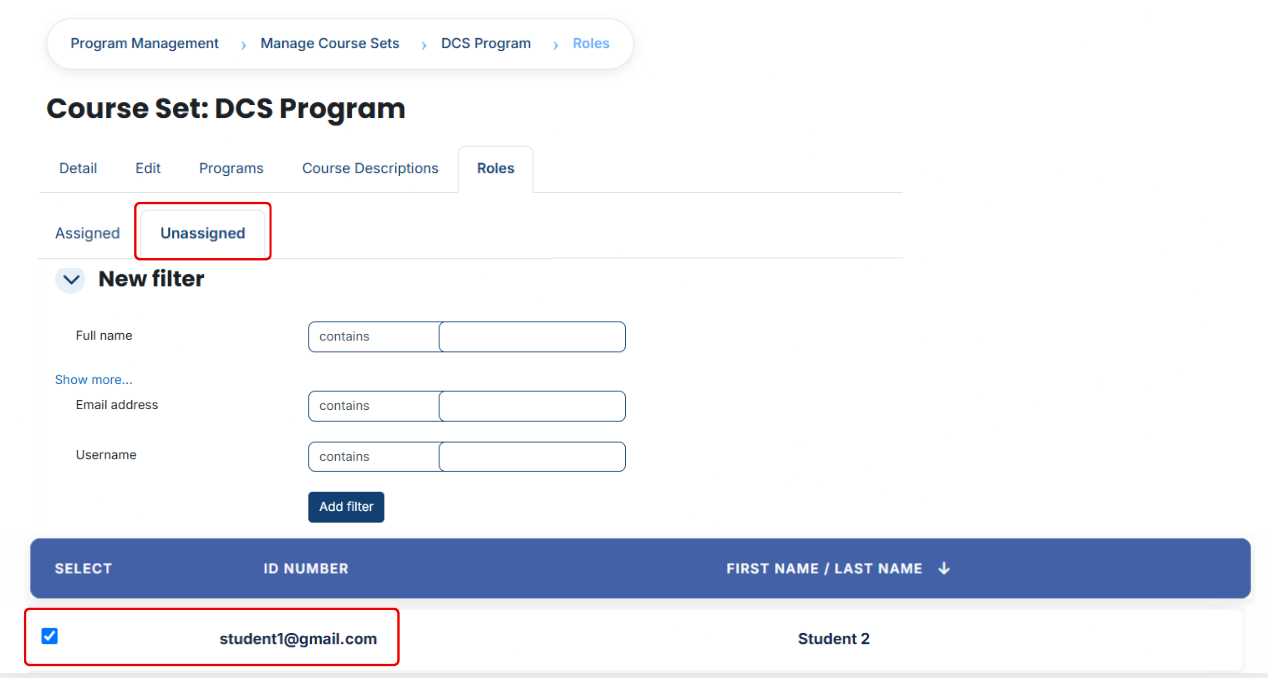
- Tick the checkbox next to each person you want to grant this role to.
- Move to the bottom of the page and click Assign Roles to confirm the update.
- If you need to find a specific person (Using Filters):
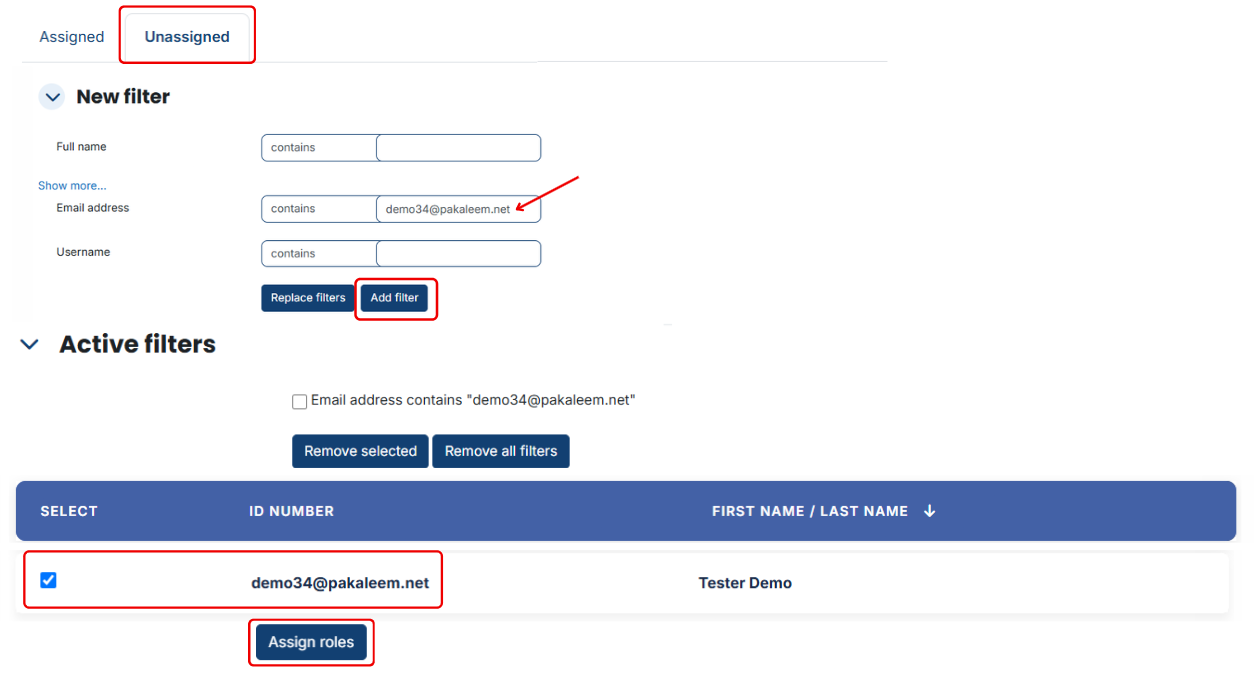
- Use the Filter tool located at the top of the user list.
- Create a search rule using the person's Full Name, Username, or Email Address.
- Click the Add Filter button to see the matching users.
- Select the correct individual from the list and click Assign Roles to complete the process.
No comments to display
No comments to display