
How to Assign Course Descriptions to a Course Set
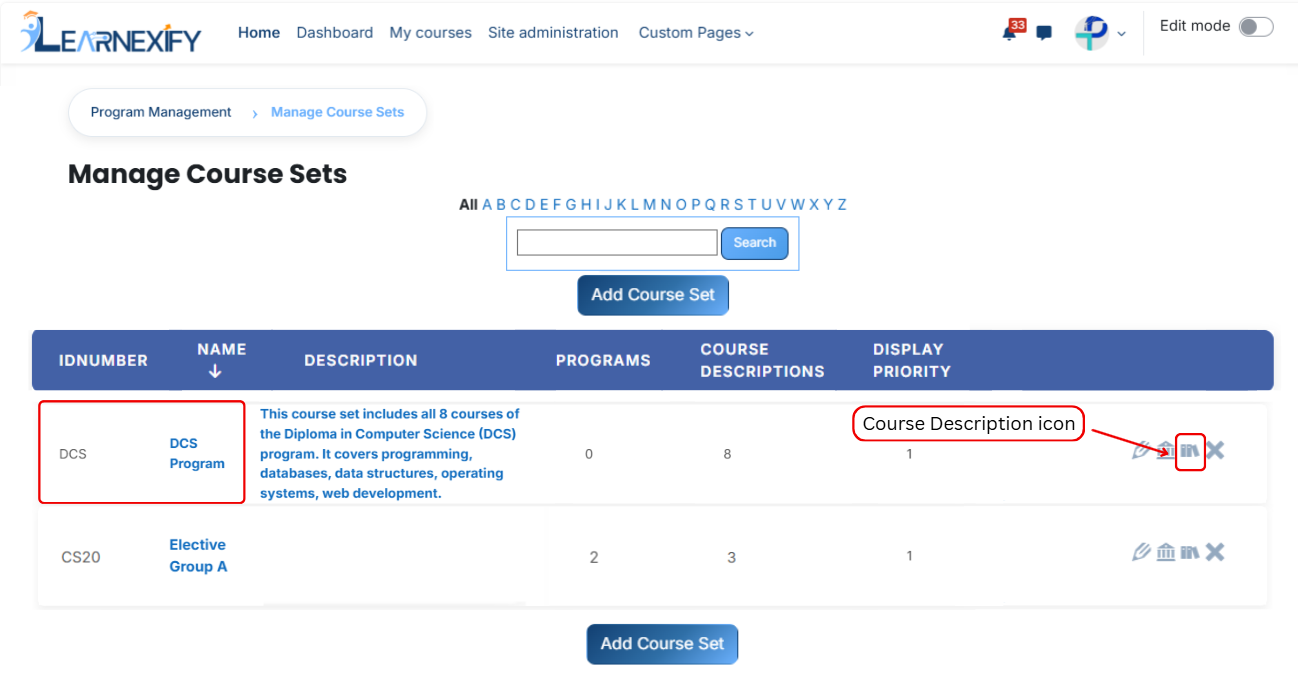
To assign course descriptions, first open the Learnexify dashboard and navigate to the user menu. Click on Programs, then select Manage Course Sets. You will see a list of all available course sets.
Select the course set in which you want to add course descriptions, then click on the Course Description icon.
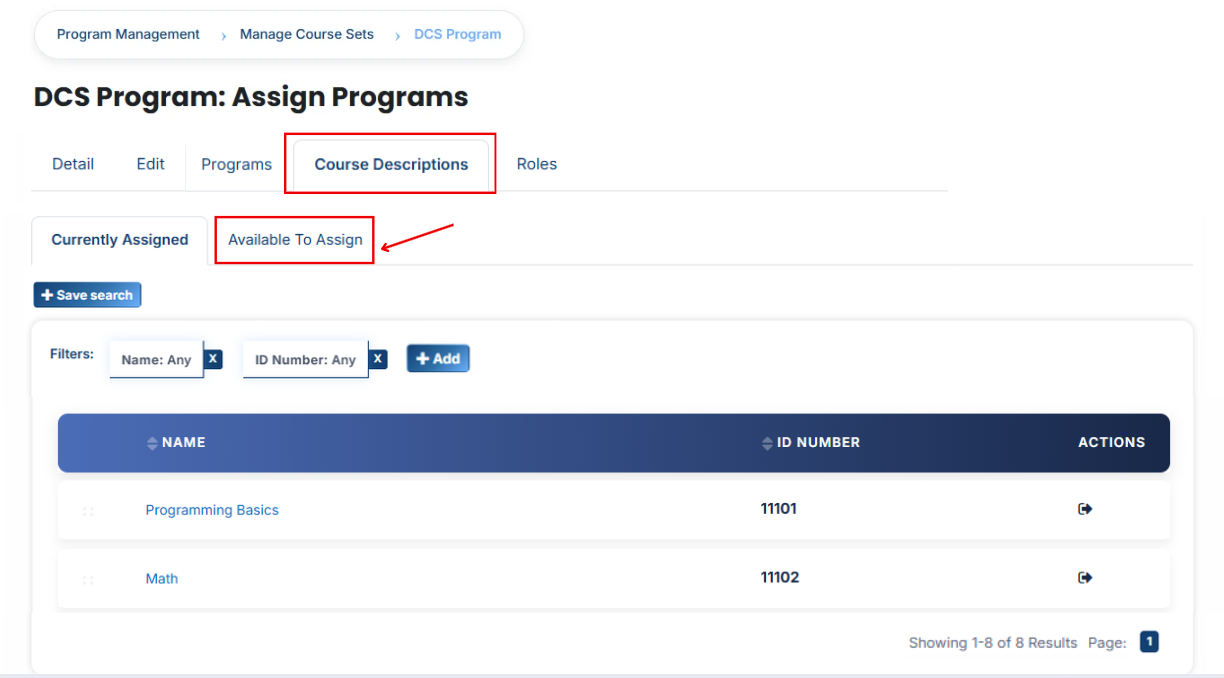
After opening the Course Description tab, you will see the already assigned course descriptions. To add a new one, click on the Available to Assign button.
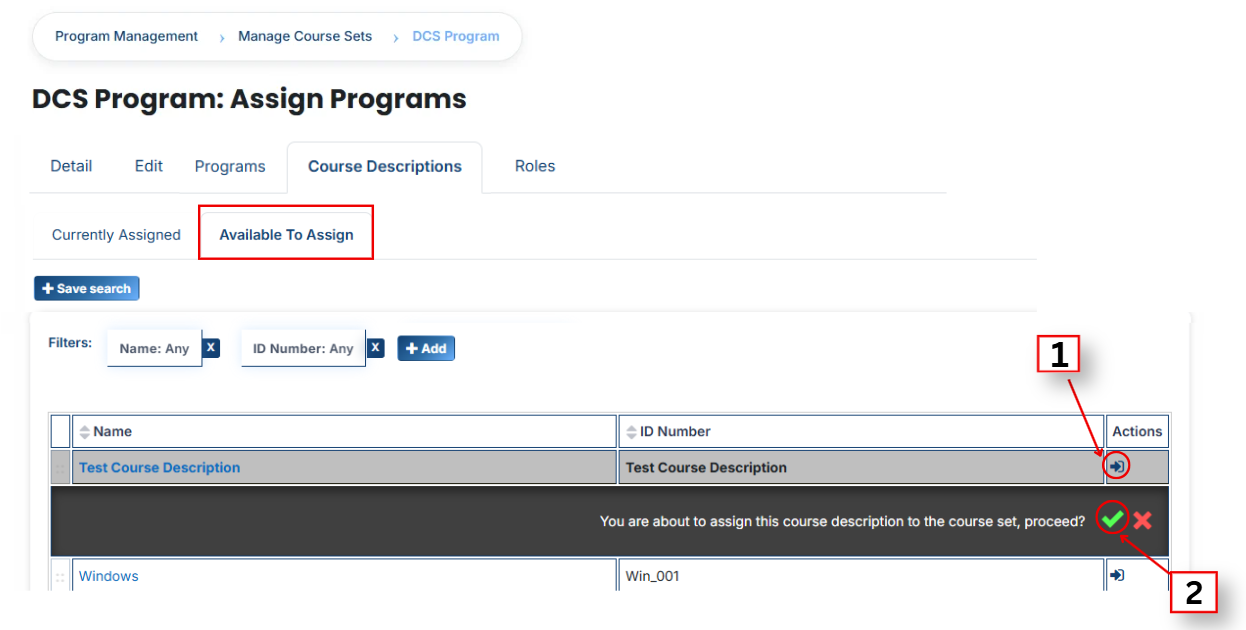
A list of available course descriptions will appear. Click on the arrow icon next to the course description you want to assign, then confirm the selection by clicking the green tick (✔).
View Assigned Course Descriptions
Go to the Currently Assigned section to verify that the course description has been successfully assigned to the course set.
Using Filters to Search Course Descriptions
If the required course description is not available in the list, you can use filters to find it more easily. Click on the Add button and apply the following filters:
- Name: Search by course name
- ID Number: Search using a unique identifier
- Credits: Filter by required or assigned credit hours
- Completion Grade: Filter by the grade required to complete the course
- Cost: Filter by course or program fee
- Creation Time: Filter by when the course was created
- Pre-Test: Displays courses that include a pre-test (used to assess learner knowledge before starting the course)
- Post-Test: Displays courses that include a post-test (used to evaluate learner progress after course completion)
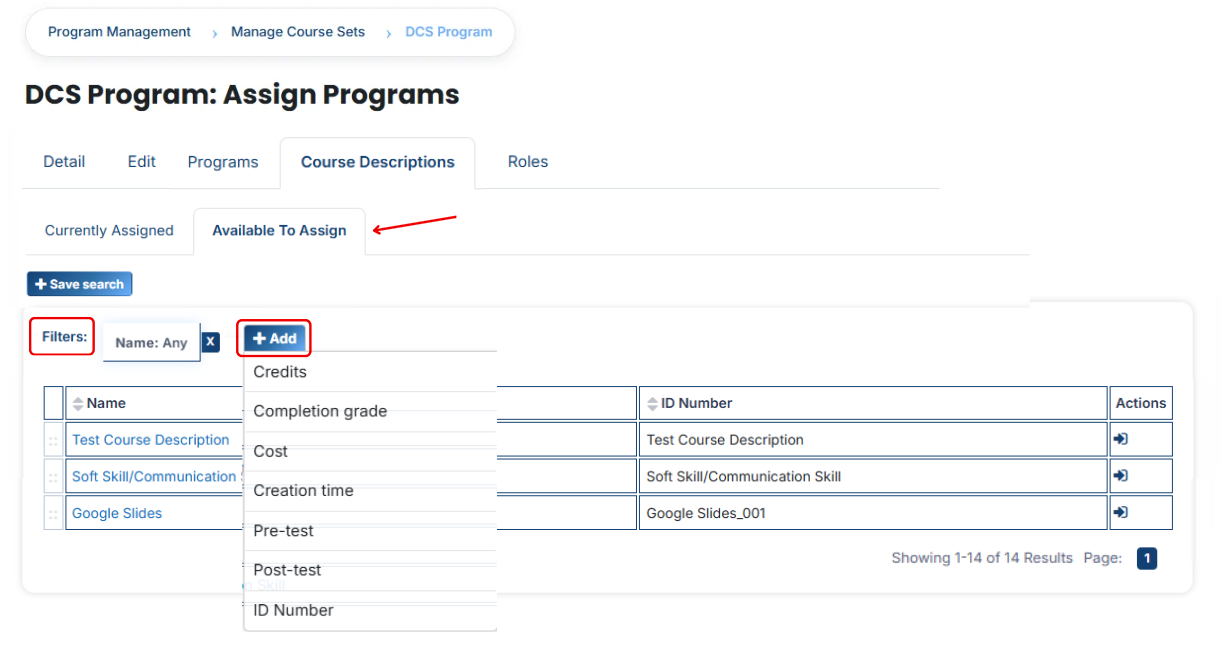
Once the required course description appears, click the arrow icon and assign it using the green tick (✔). It will then be added to the Currently Assigned list.
No comments to display
No comments to display