
How to Assign an Instructor to a Course Instance
From the list of created course instances, open the specific record you wish to manage and navigate to the Instructor section.
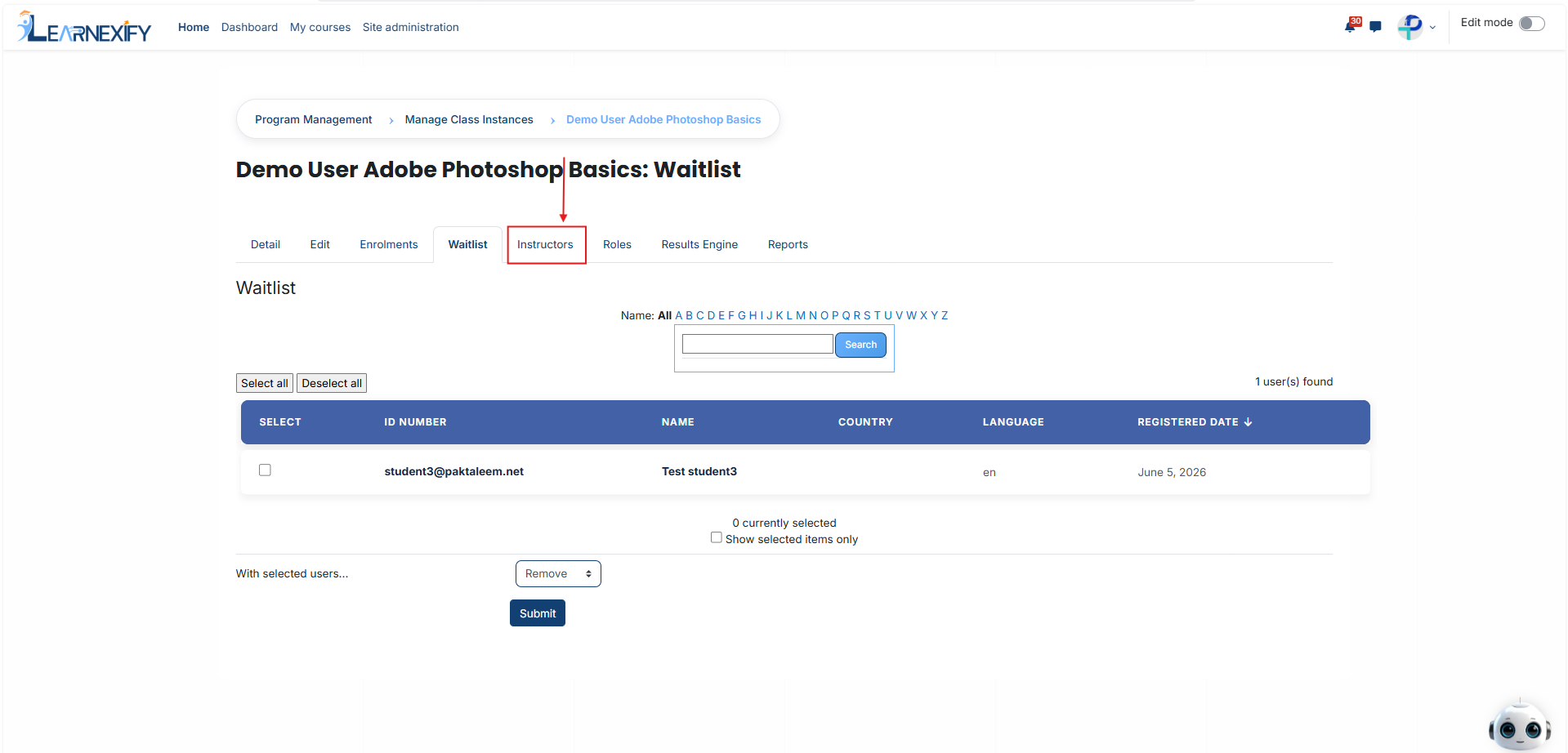
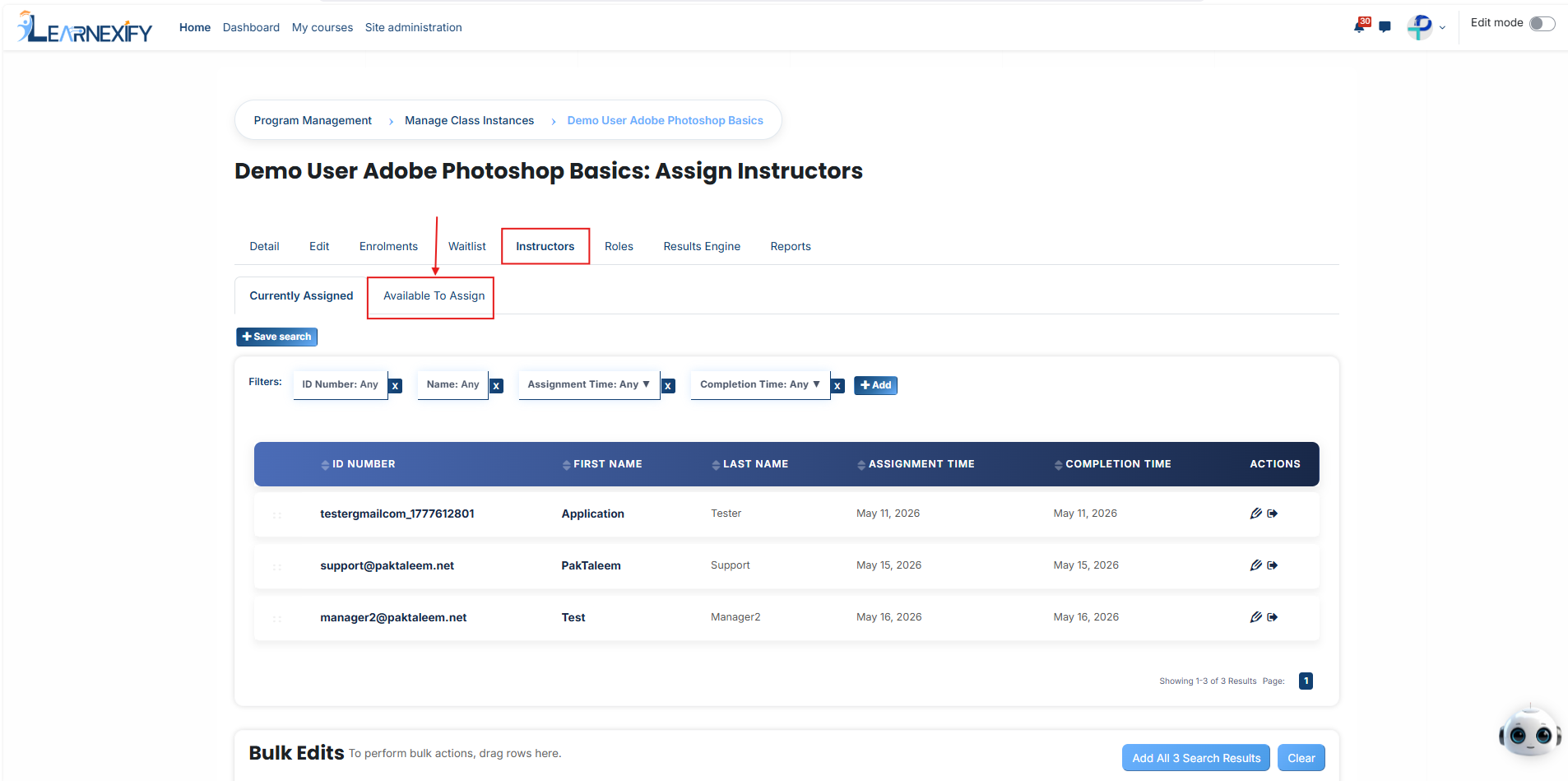
- The Instructor section displays any staff members already assigned to the course instance. To add a new teaching staff member, click the Assign Instructor button to view a list of available instructors who are not yet connected to this class.
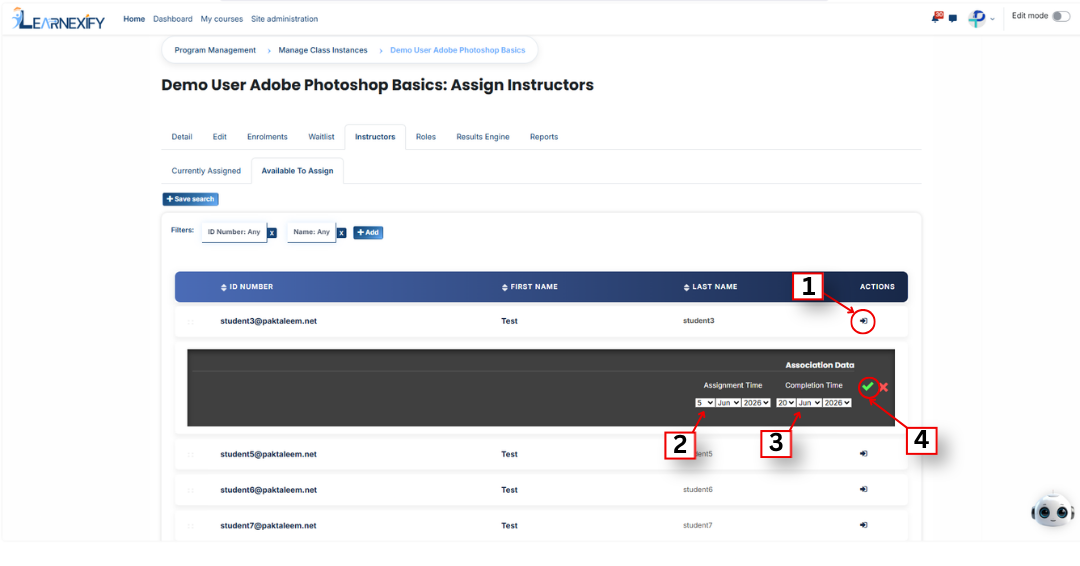
- Once you have identified the appropriate instructor, click the arrow icon next to their name to open the assignment configuration fields:
- Assignment Date: Enter the date the instructor officially begins their responsibility for the course instance. This allows the system to batch when they become active in the course instance.
- Completion Date: Define the date when the instructor’s assignment will end. This is used to manage the total duration of their responsibility for the course instance.
- Assignment Date: Enter the date the instructor officially begins their responsibility for the course instance. This allows the system to batch when they become active in the course instance.
- After filling in these dates, click the green tick to successfully save the assignment. If you wish to discard the entry, click the red cross.
- To verify the process, open the Currently Assigned Instructors section to confirm that the instructor’s name has been added to the active list.
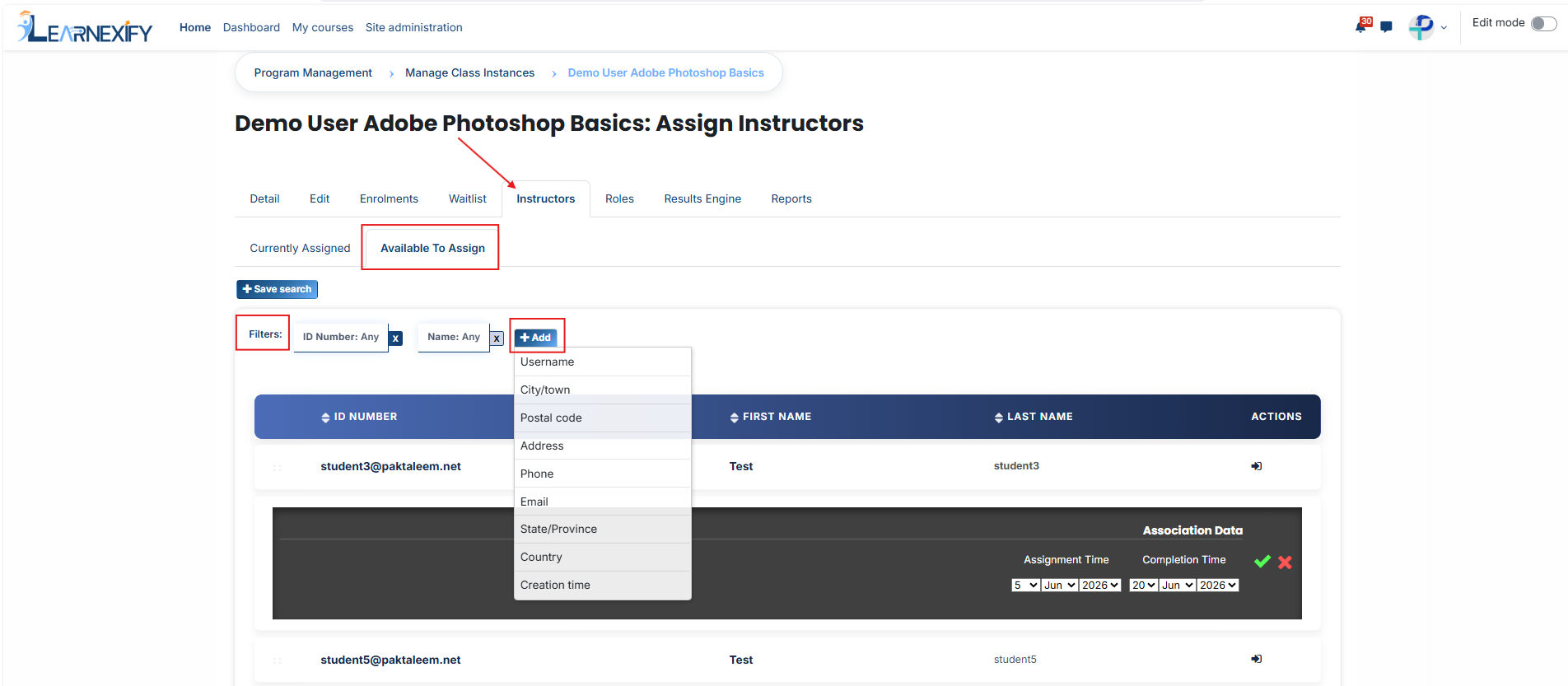
- If you are unable to find a specific instructor in the list, utilize the filter option for a more efficient search. Click the Add button and select a filter type, such as Username or Email.
- Enter the relevant value into the search field, and the system will display the matching results. Once the instructor appears, select them and click the green tick to finalize their assignment to the course instance.
No comments to display
No comments to display