
How to Assign Roles in a Program
Roles
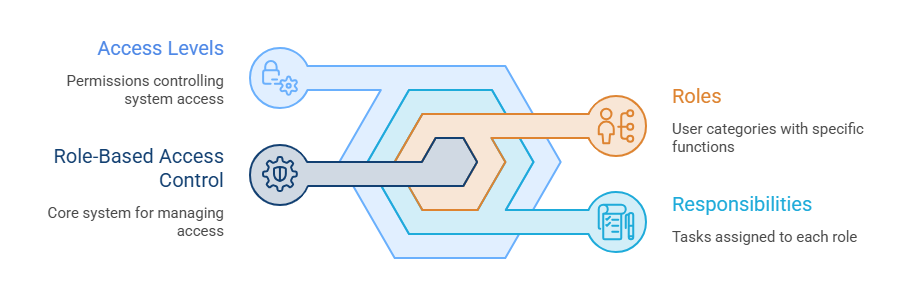
Roles is a system through which users are assigned their responsibilities and access levels. In this system, it is defined who will be a teacher, who will be a manager, and who will be a student. Each role has its own functions and permissions that control its access within the system.
Assign Roles in a Program
-
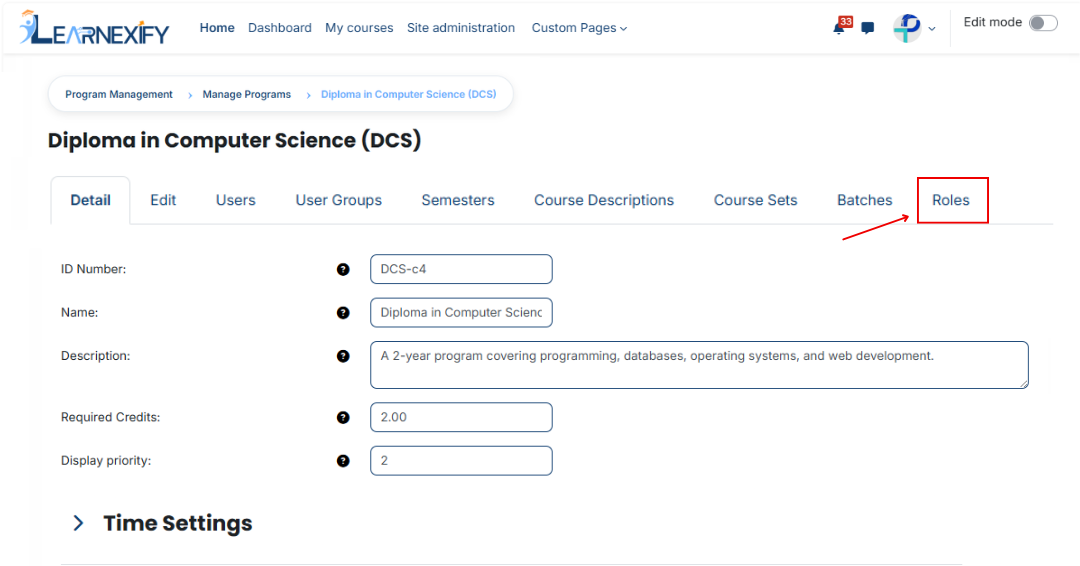
Open the Program and click on the Roles tab.
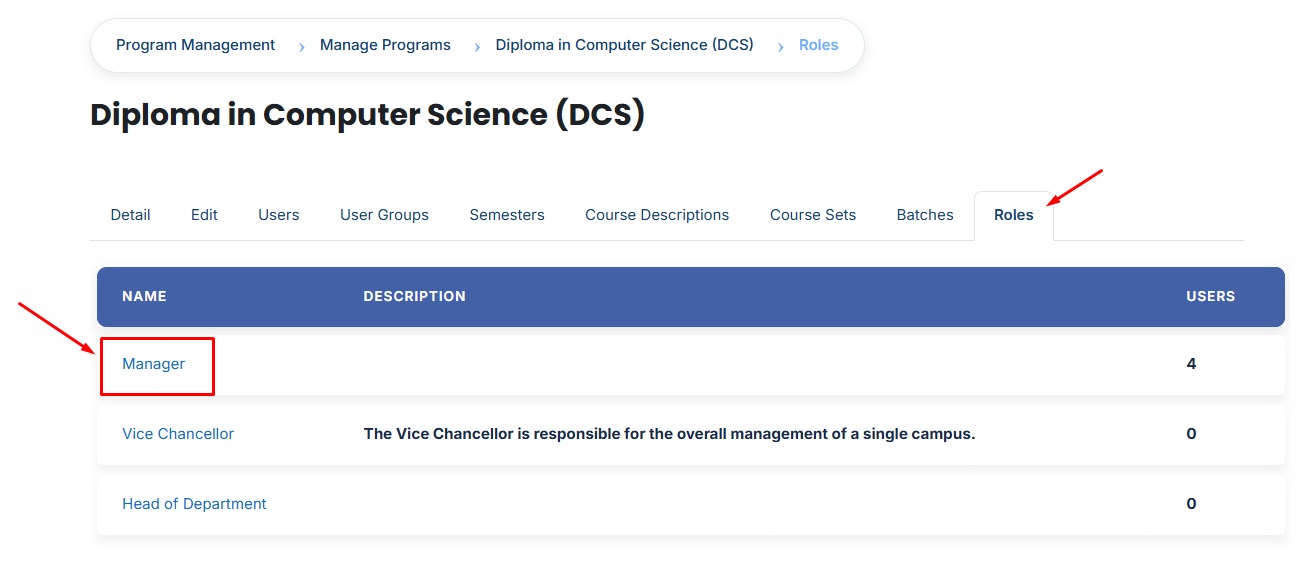
- Review the list of available roles.
- Click on the role to which you want to assign users.
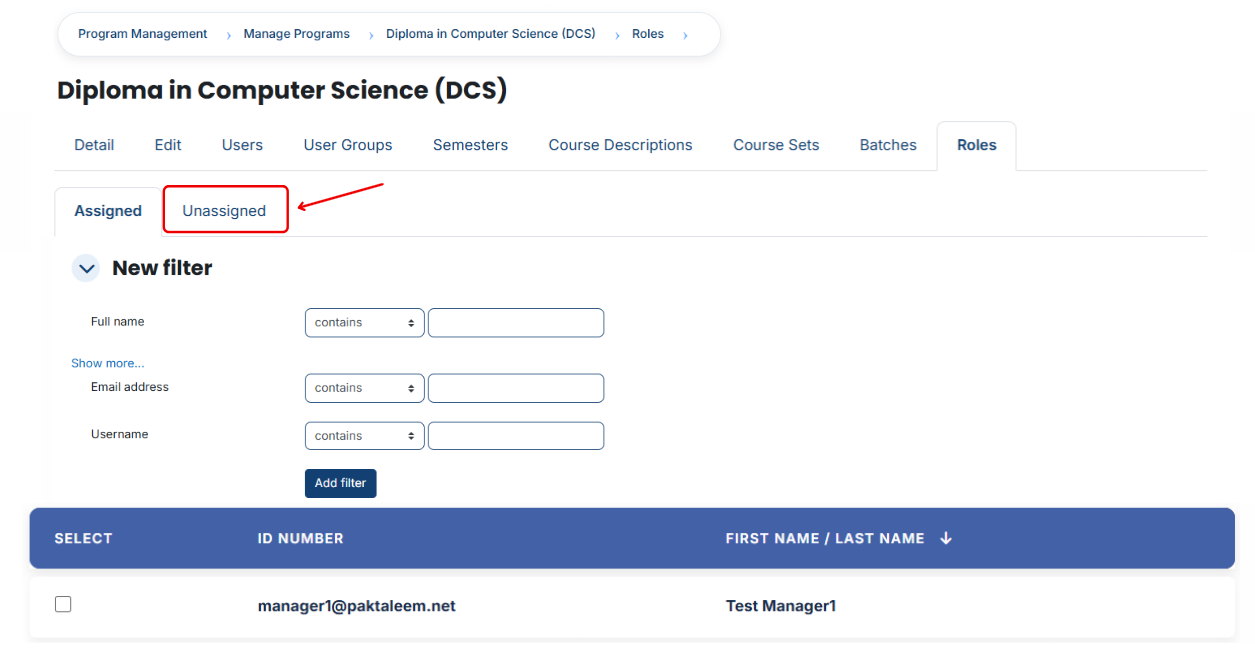
- A page will open displaying all users currently assigned to the selected role.
- To assign additional users, click the Unassigned button. This will display all users who are currently unassigned to the selected role.
- Select the user(s) you want to assign.
- Scroll down and click Assign Roles.
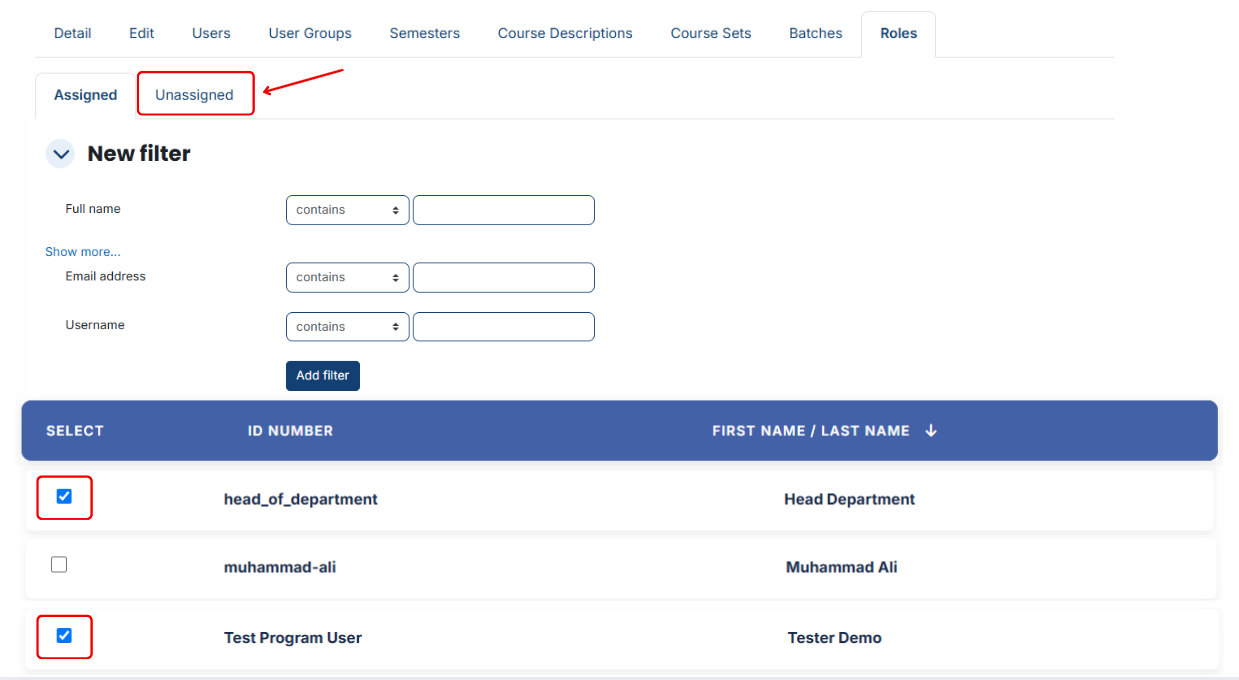
Using Filters:
If you cannot find the required user:
- Use the Filter option.
- Add a filter using Email Address, Username, or Full Name.
- Click Add Filter.
- Select the required user from the filtered results.
- Scroll down and click Assign Roles to complete the assignment.
No comments to display
No comments to display