Identify the particular course description you want to modify from the main list.
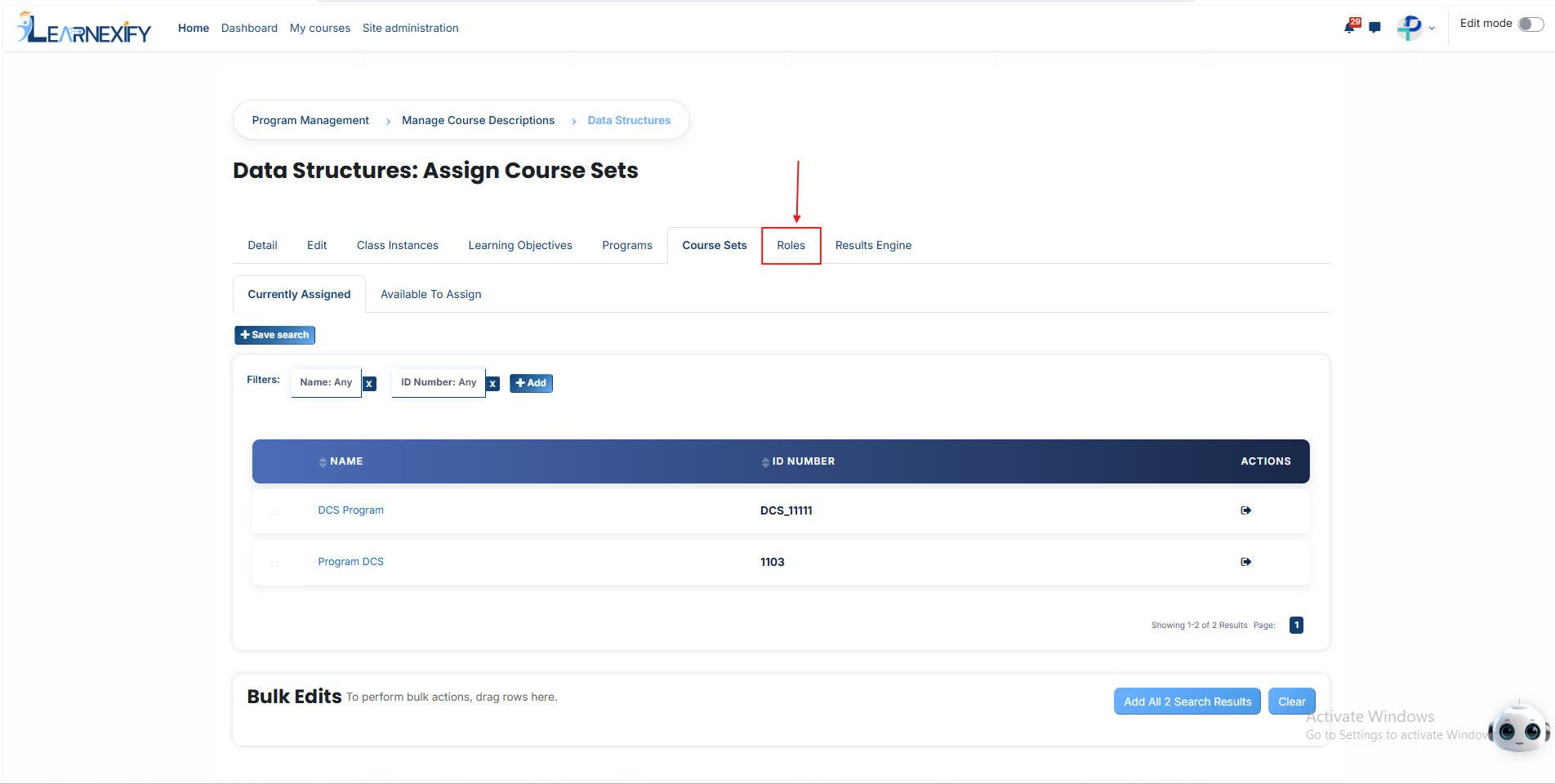
Click that course description name and then click on the Roles tab.
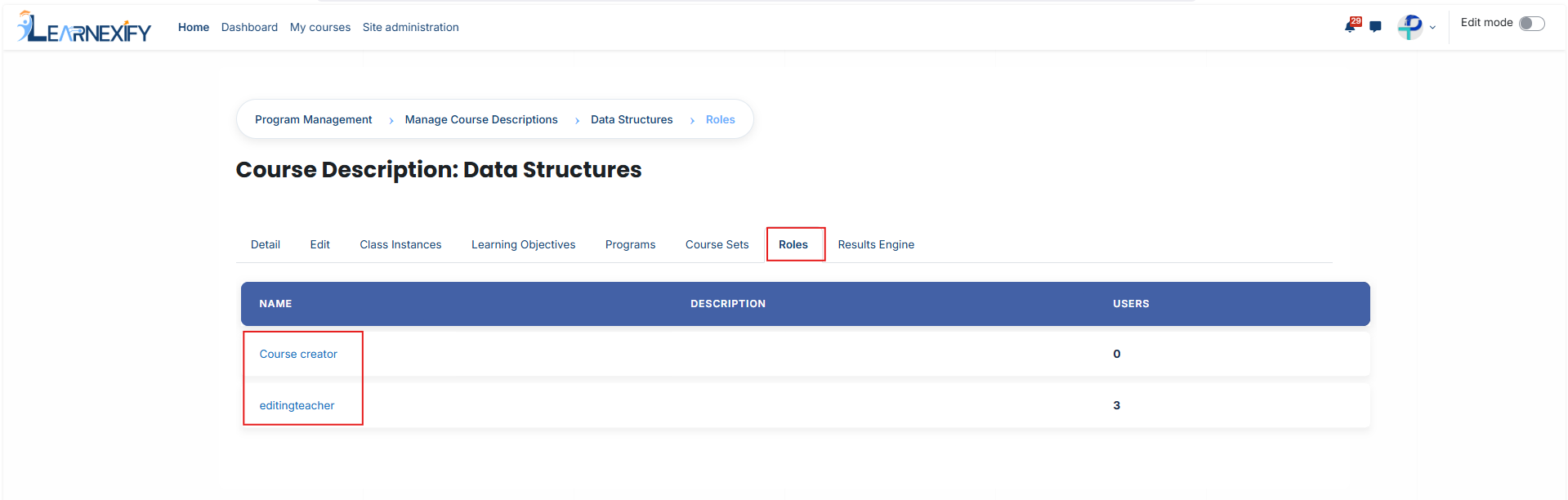
You will see a list of available roles, such as Course Creator or Editing Teacher. Click on the specific role name to which you want to add users.
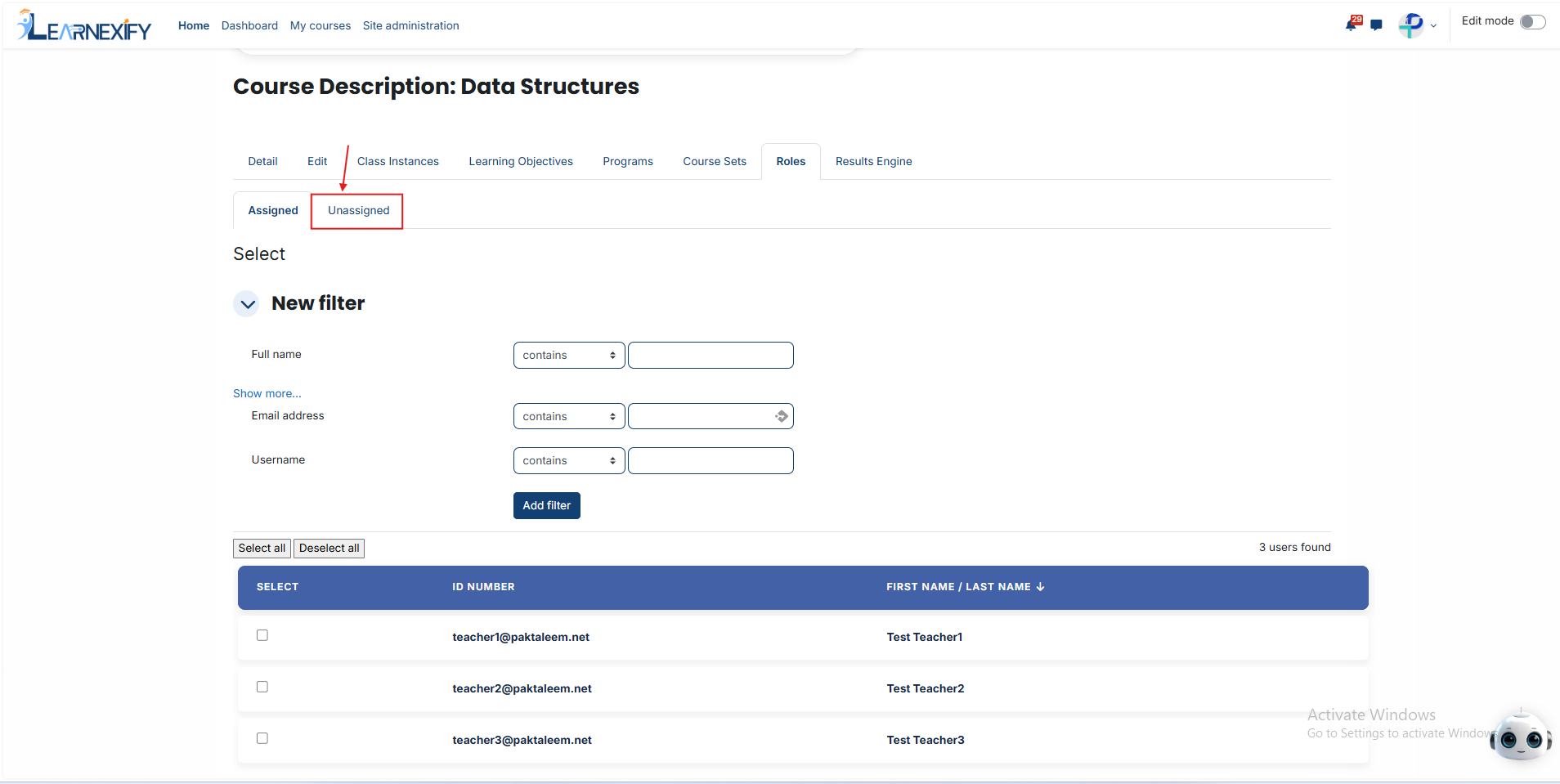
The page will display a list of people who are already assigned to that role. To add new people, click the Unassigned button; this will show everyone who does not yet have this role.
Find the person you want to add and select their name.
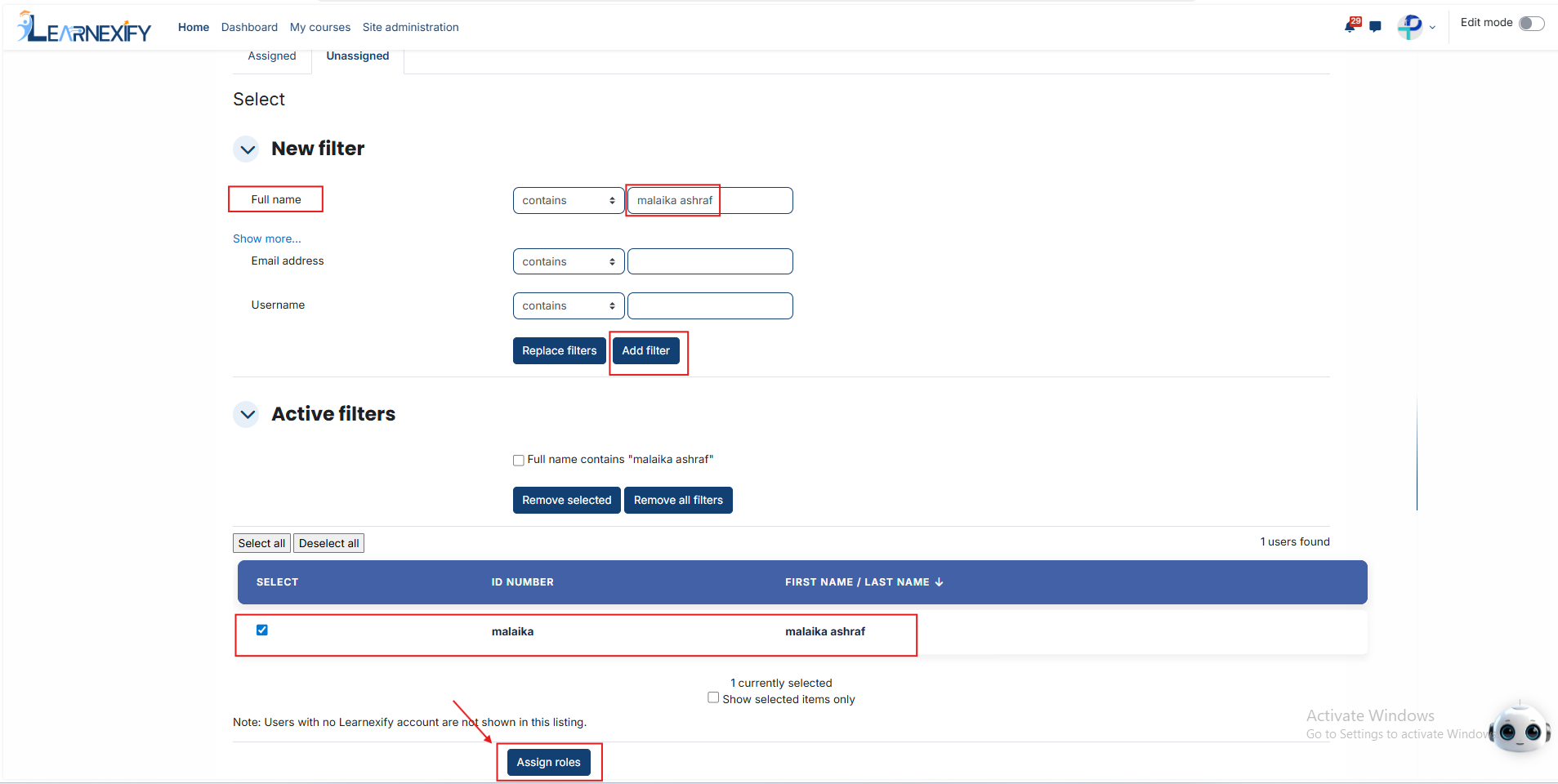
Scroll to the bottom of the page and click the Assign Roles button to finalize the process.
How to Find Specific Users (Using Filters):
If you are looking for a specific person and the list is too long, follow these steps:
Use the Filter section at the top of the user list.
You can search for a person by adding a filter for their Email Address, Username, or Full Name.
After entering the information, click Add Filter.
Once the system finds the correct user in the results, select their name, scroll down, and click Assign Roles to complete the assignment.

No comments to display
No comments to display